
The Update Metadata pre-processor can be used to cleanse field metadata provided by a previous pre-processor. For example an Update Metadata pre-processor might be added after an Open AI pre-processor.
The Open AI processor might return a numeric value that has extra spaces within it (e.g. the value was 1000. 00). Using an update metadata pre-processor you could remove the spaces (e.g. value now becomes 1000.00).
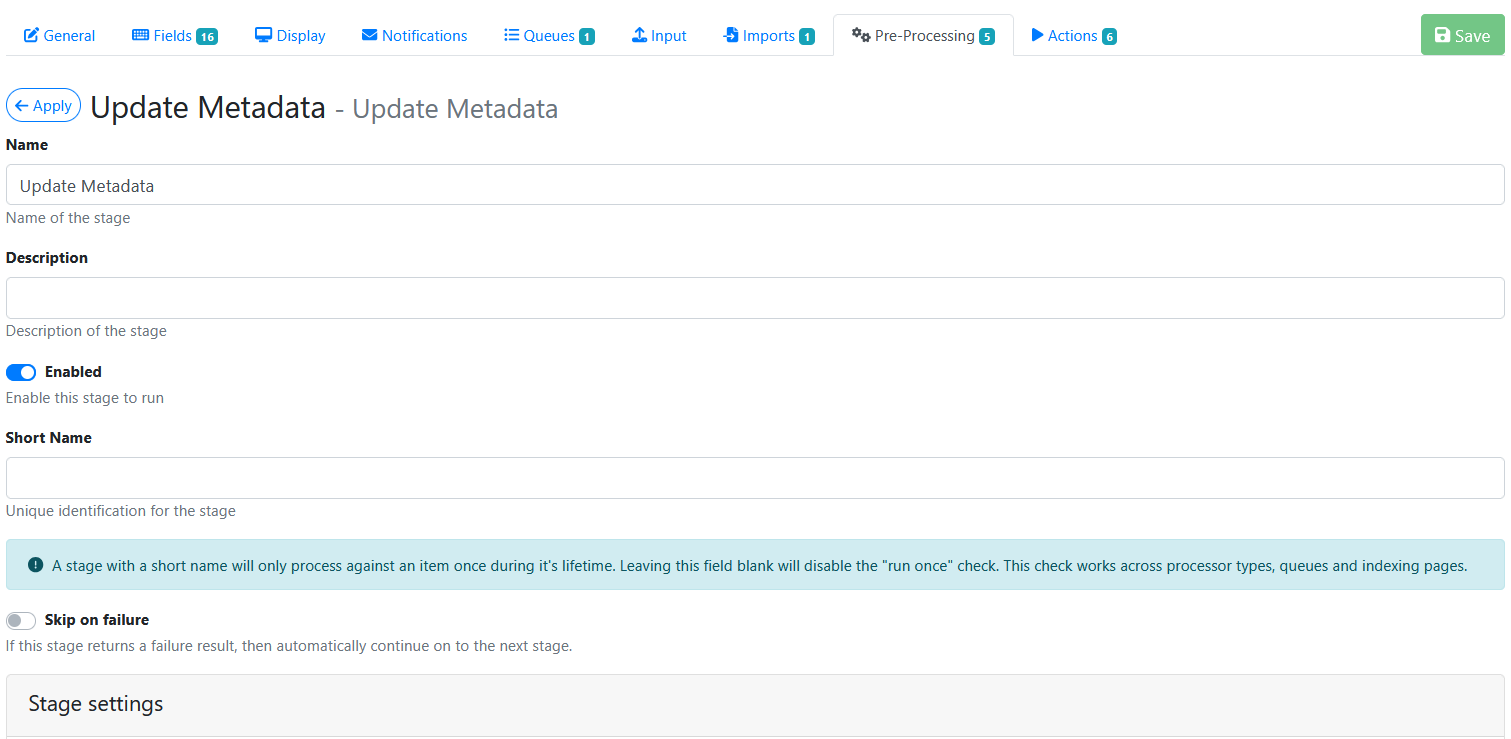
The Update Metadata screen looks like this:
Stage Settings
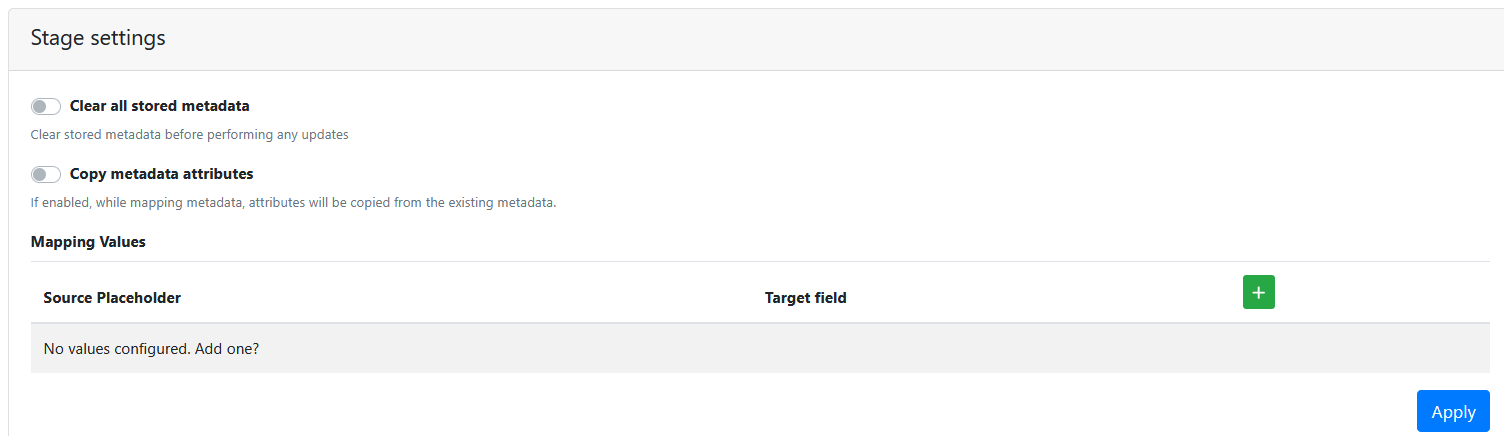
The stage settings options are explained below.
Clear All stored metadata

In most cases leave this disabled.
Copy metadata attributes

In most cases leave this disabled.
Mapping Values
Press the + button 
Use the waste bin button 
Source Placeholder
The source placeholder is where you specify which metadata field ID to get the input metadata from and where you apply a data transformation to it.
We recommend using the Placeholder Creator link available on the admin pages to create valid source placeholder syntax. It always available on every admin page in the bottom right corner near the EzeScan WebApps version number.

Target Field
Specify the field ID of the field the updated metadata value will be written back into.
In this screenshot below we are showing the use of 3 mappings to remove $ symbols from 3 fields.

Here’s an example mapping you can cut and paste from
{{metadata["sub_total"] | replace("$", "")}} sub_total
Saving the Pre-Processor
Press the Apply button
Saving the RIA Page
Press the Save Button
Testing the Pre-Processor
-
Make sure its enabled.
-
Run an input document through the queue.
-
Confirm that the update metadata mapping values are being applied to the metadata value.