
Import configurations can be used to fetch items from locations and then place them into queues on the indexing page.
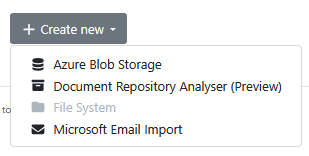
The different types of import sources are:
Press the Create new button to start to add a new import configuration.
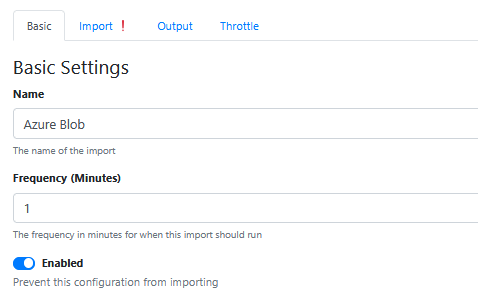
Import Configurations share the same common configuration:
Basic
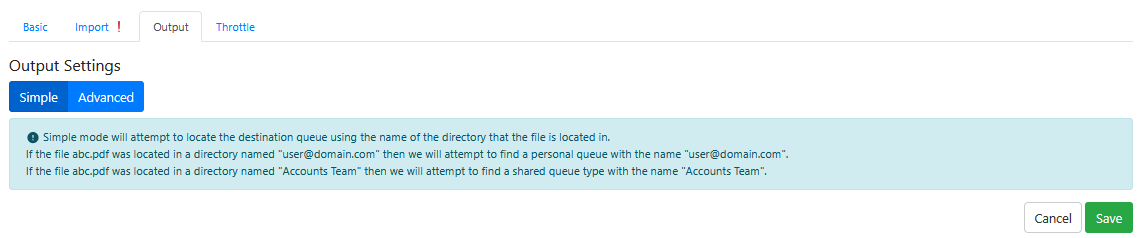
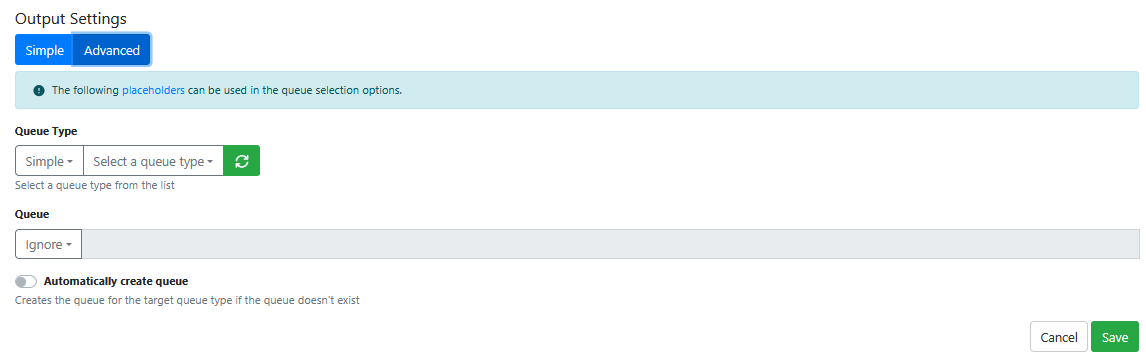
Output
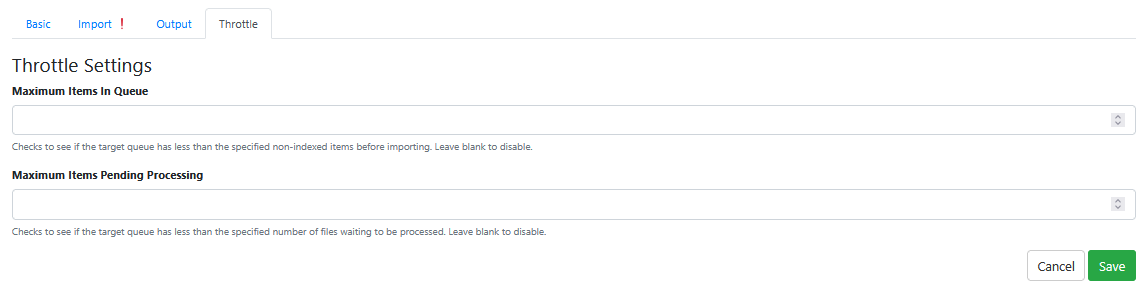
Throttle
Importer specific configuration options are as follows:
Azure Blob Storage
You will need to ensure you have configured an Azure Storage connection
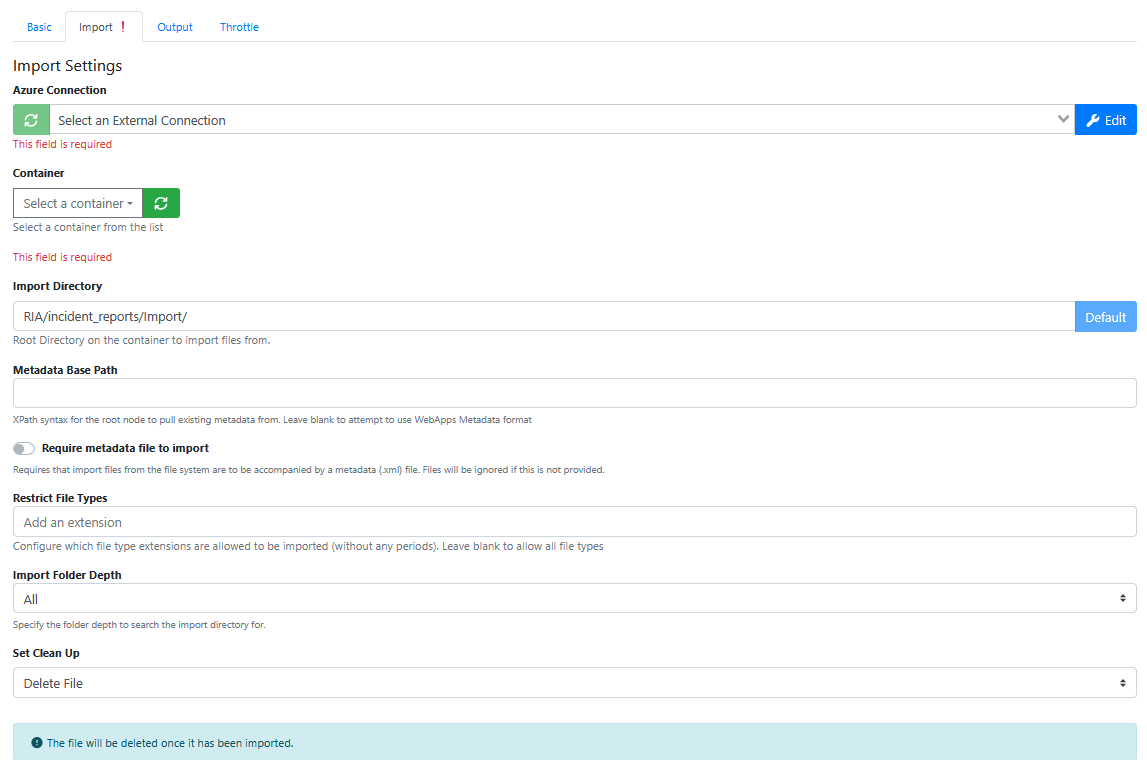
Import
|
Setting Name |
Description |
|---|---|
|
Import Directory |
Import files into page from this directory. Leave blank to disable. |
|
Metadata Base Path |
XPath syntax for the root node to pull existing metadata from. Leave blank to attempt to use WebApps Metadata format. |
|
Require metadata file to import |
Requires that import files from the file system are to be accompanied by a metadata (.xml) file. Files will be ignored if this is not provided. |
|
Restrict File Types |
When blank defaults to all file types. Otherwise add specific file extensions to include. |
|
Import Folder Depth |
Choose between: All Root Directory |
|
Set Clean Up |
Action to take after file(s) are exported. Choices are: Delete File Move File |
Document Repository Analyser
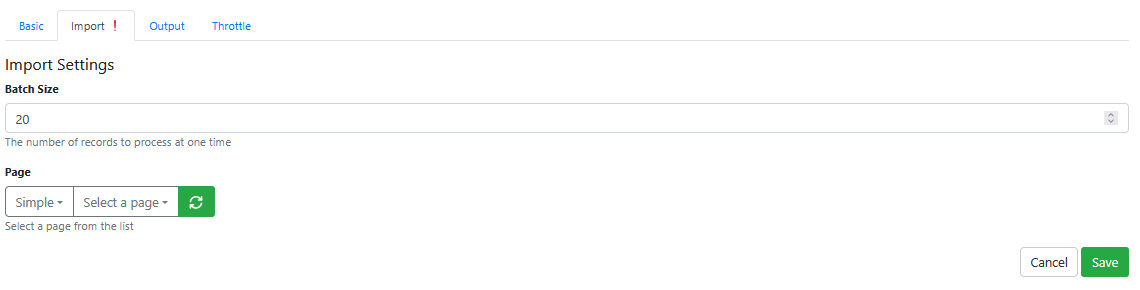
Import
File System
Import
Coming soon …
Microsoft Email Import
You will need to ensure you have configured a Microsoft Graph (Mailbox) connection
The import tab has the following connection settings:
|
Setting |
Description |
|---|---|
|
External Connection |
External connection to use to connect to the Microsoft Graph API. It will only list connections of the type “Microsoft Graph (Mailbox)”. |
|
Import Mode |
Mode to use when importing the email:
|
|
Mailbox |
Enter the email address for the mailbox or shared mailbox you wish to download items from. Click the select button on the left to select the folder. 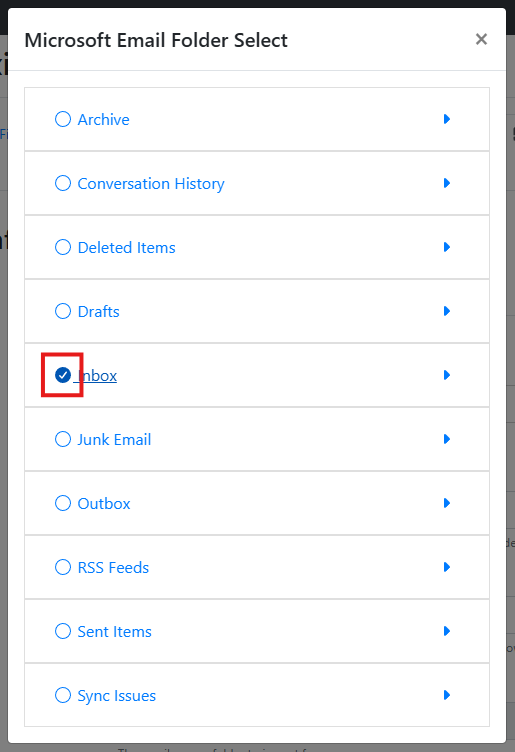
|
|
Set Clean Up |
|
|
Move Destination Folder |
Only visible when using the Move Email option for Set Clean Up. The selected folder to move the mail item to once it has been imported. Click the select button on the left to select the folder. We recommend creating a folder named something like “Processed” and selecting that. |