
Data Sources
Data sources are used to configure ODBC and SQL connections strings.
Data Queries
Data queries are where you create the queries that can run.
Password Store
Store a password and get a placeholder that will be replaced at run time with the stored password.
External Connection
Manage external connections to other systems.
Azure Storage
|
Setting |
Description |
|---|---|
|
Name |
Name of the connection. |
|
Description |
Description of the connection. |
|
Authentication Type |
Access Key
When using Access Key as the authentication type the following additional fields are required:
|
Setting |
Description |
|---|---|
|
Storage Account Name |
Name of the storage account as displayed in the Azure Portal. It’s also the first part of the URL. |
|
Access Key |
Access key for the storage account which can be found in the Azure Portal. This field supports the use of a password store placeholder. |
Connection String
When using Connection String as the authentication type the following additional fields are required:
|
Setting |
Description |
|---|---|
|
Connection String |
Connection string of the storage account as displayed in the Azure Portal. This field supports the use of a password store placeholder. |
Managed Identity
This can only be used when running the application inside an Azure resource.
SAS URL
When using SAS URL as the authentication type the following additional fields are required:
|
Setting |
Description |
|---|---|
|
SAS URL |
A SAS URL that has been generated for the storage account using the Azure Portal. |
Microsoft Graph (Mailbox)
|
Setting |
Description |
|---|---|
|
Name |
Name of the connection. |
|
Description |
Description of the connection. |
|
Authentication Type |
Inbuilt is the easiest method but you will need an IT administrator to allow our application access to the mailbox. |
|
Allow Shared Mailbox |
Tick this to also request the relevant Shared Mailbox Permissions
With this enabled the scopes above are requested in addition to:
|
|
OAuth Session |
Click the authorize button, if using an authentication method that requires interactive login then a Microsoft 365 login window will be displayed. 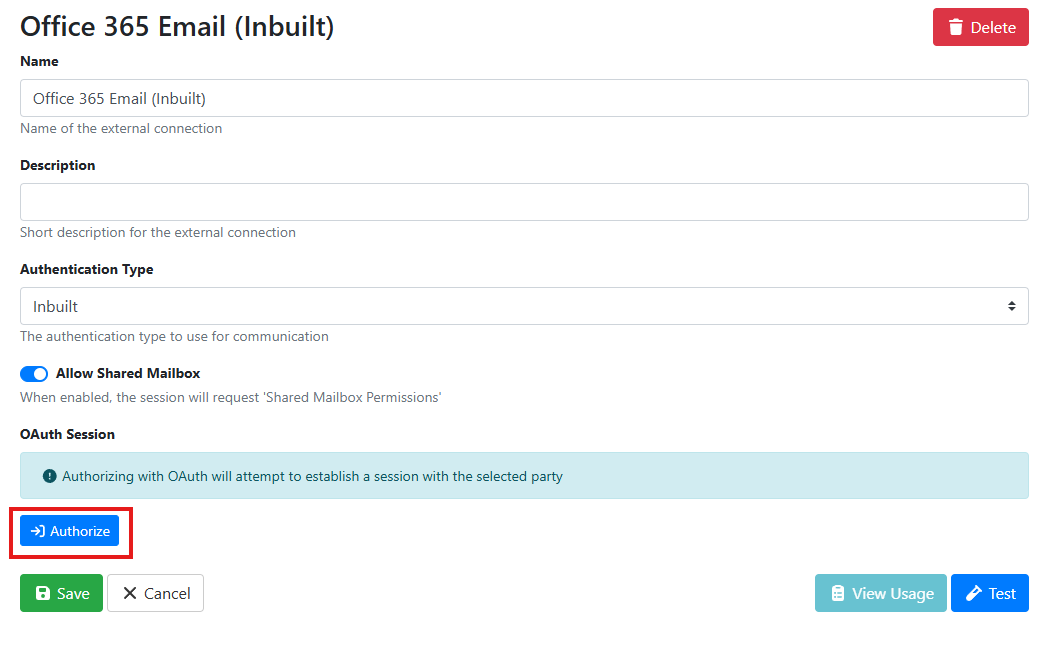
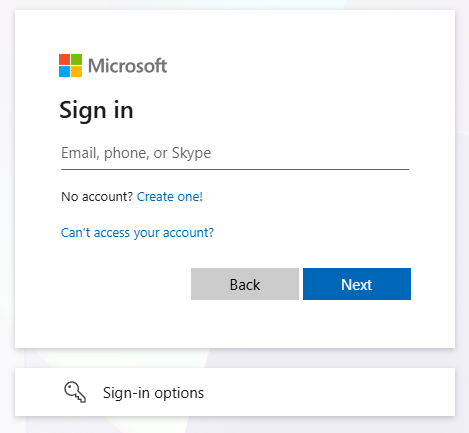
If it’s the first time connecting one of our products to your Microsoft 365 tenancy then an administrator will need to approve the connection, and you will see the following screen: 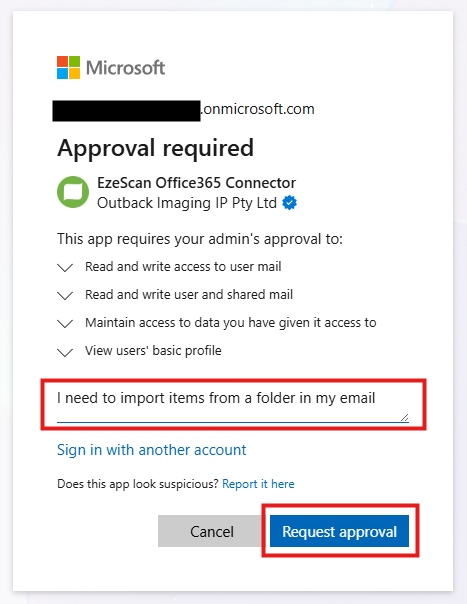
You will then see the following screen: 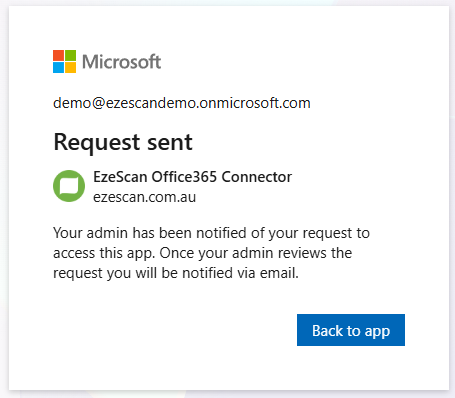
Please contact your administrator and have them navigate to the Azure Portal > Enterprise Applications > Admin consent requests and then approve the request for “EzeScan Office365 Connector”. 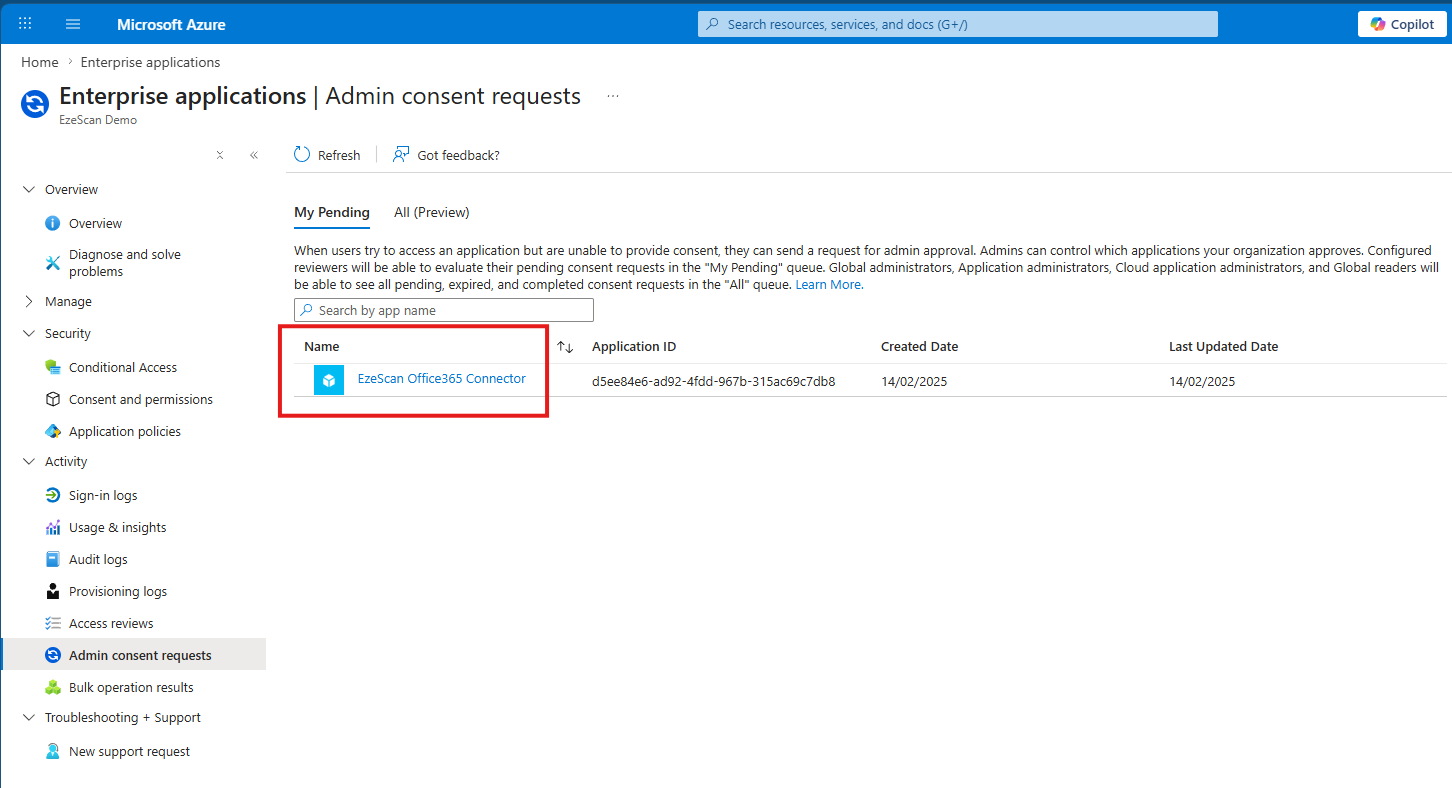
Once the connection has been approved by your tenant administrator navigate back to the connection and click the Authorize button again. If for some reason you have an OAuth Session with the status of “Initial” then click the Delete Session button. 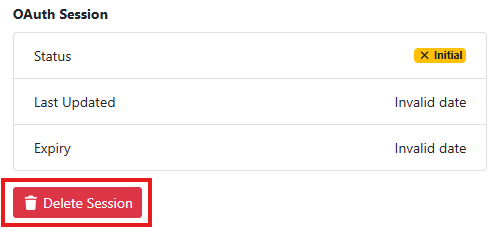
If the connection is successful, then your OAuth Session status window will look like the following:
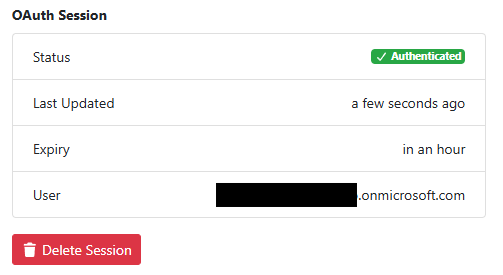
The email displayed in the User section must either be be the mailbox you wish to import from or have access to the target shared mailbox you wish to import form. |