
Overview
The Document Classification Assistant (DCA) is a machine learning-based document classification component that can be trained using an organisation's documents to automatically identify, classify, categorise, prioritise, and route documents to the appropriate RIA workflow.
DCA uses a trained classification model to determine document types based on the examples provided during the training process. To achieve accurate classification results, representative samples of each document type must be included in the training dataset.
Configuring DCA
General Tab
Page Details
Page Name & ID
On the General tab, you are required to provide a Friendly Name for your DCA page. As you enter the page name, a unique ID will be automatically generated using underscores (_) in place of spaces. The generated ID can be modified if required. Both of these feilds are required in order to save your page.
Description
The Description field allows you to enter a brief description of the page. This description is displayed in the following locations:
-
Beneath the page name on the Application Tile displayed on the Home page.
-
Within the App Pages list.
Providing a meaningful description can help users quickly understand the purpose of the page.
Page Tags
Select a Page Tag from the drop-down list. For more information on Page Tags, see AppPages | Tags.
Display Tab
The display tab gives users the ability to modify the display of the DCA training engine page.
Display Settings
The display settings give you the ability to modify the look of the tile on the homepage.
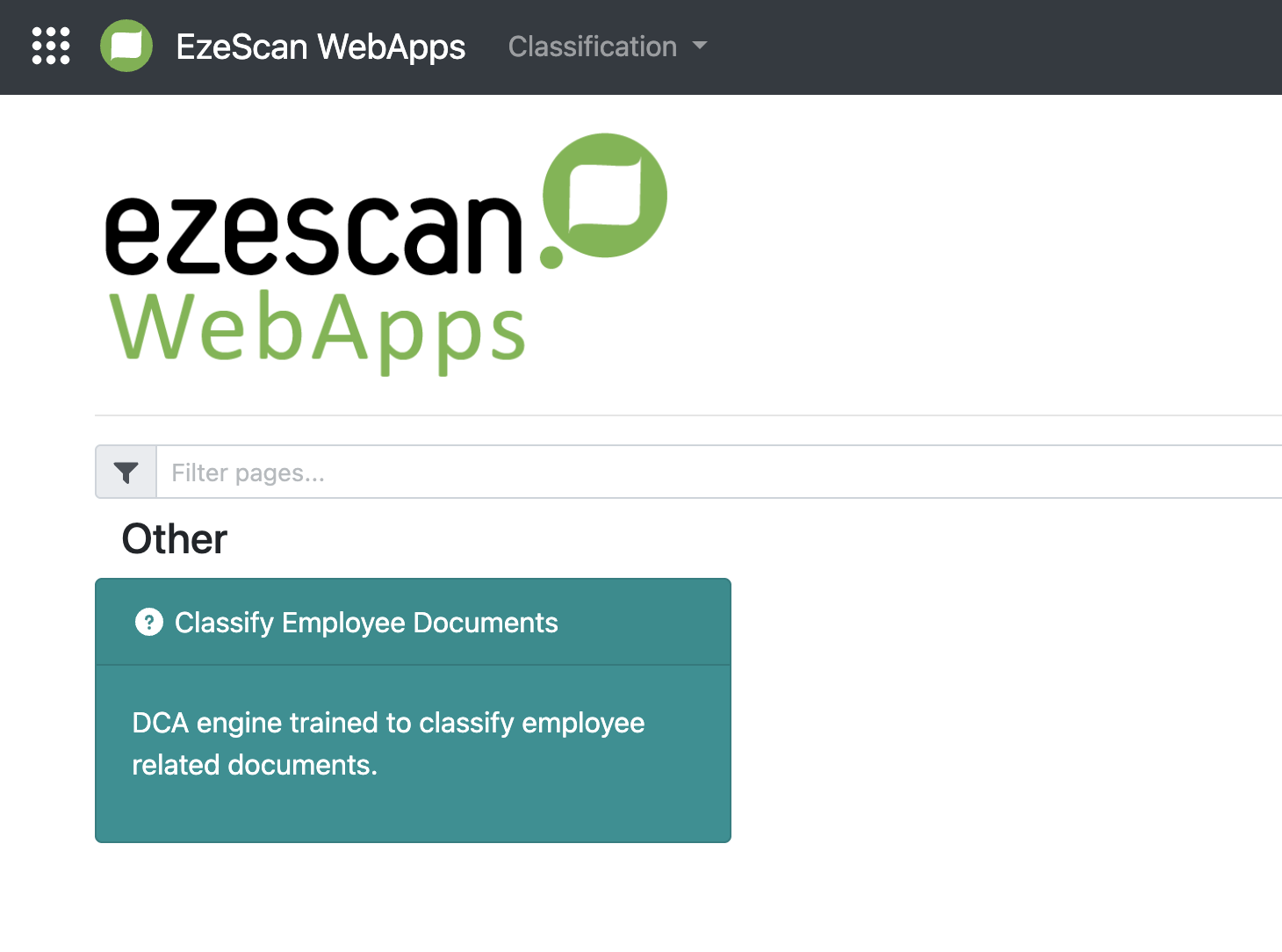
Hide from Homepage
The Hide from Homepage option allows you to hide the DCA page from the Home page while still making it accessible through the application navigation menu. By default, this option is disabled.
Panel Colour
The Panel Colour setting allows you to define the background colour of the page tile displayed on the Home page. You can either enter a hexadecimal colour value (for example, #7A5757) or click the colour swatch to select a colour using the colour picker.
Font Colour
The Font Colour setting allows you to define the text colour displayed on the Home page tile. You can either enter a hexadecimal colour value (for example, #7A5757) or click the colour swatch to select a colour using the colour picker.
Icon
The Icon setting allows you to select an icon for the page from the drop-down list. Alternatively, click Advanced to choose an icon from a supported icon library.
Categories Tab
The Categories tab is where you define the document classification categories used by DCA. Each category represents a document type that the classification engine will be trained to recognise.
These categories must be created before the engine can be trained, as they define the document types against which training samples are assigned.
Adding/Delecting a Classification Category
Classification Name
Enter a Category Name for the classification category. The name should clearly reflect the document type that will be used to train the classification engine.
Queue Selection
Under Queue Selection you will need to select the Page you would like to send classified documents to. You have three options:
|
Choice |
Explanation |
|---|---|
|
Simple |
Allows you to select a pre-configured RIA Page from the drop-down menu |
|
Manual |
Allows you to manually enter either a page name or ID |
|
Ignore |
Allows you to not select a page. |
You must then select a Queue Type from the following:
|
Choice |
Explanation |
|---|---|
|
Simple |
Allows you to select a queue type from the drop-down menu |
|
Manual |
Allows you to manually enter either a queue type name or ID |
|
Ignore |
Allows you to not select a queue type |
You must then select a Queue from the following:
|
Choice |
Explanation |
|---|---|
|
Simple |
Allows you to select a queue from the drop-down menu |
|
Manual |
Allows you to manually enter either a queue name or ID |
|
Ignore |
Allows you to not select a queue |
Once you have completed the required fields, click Save to create the classification category.
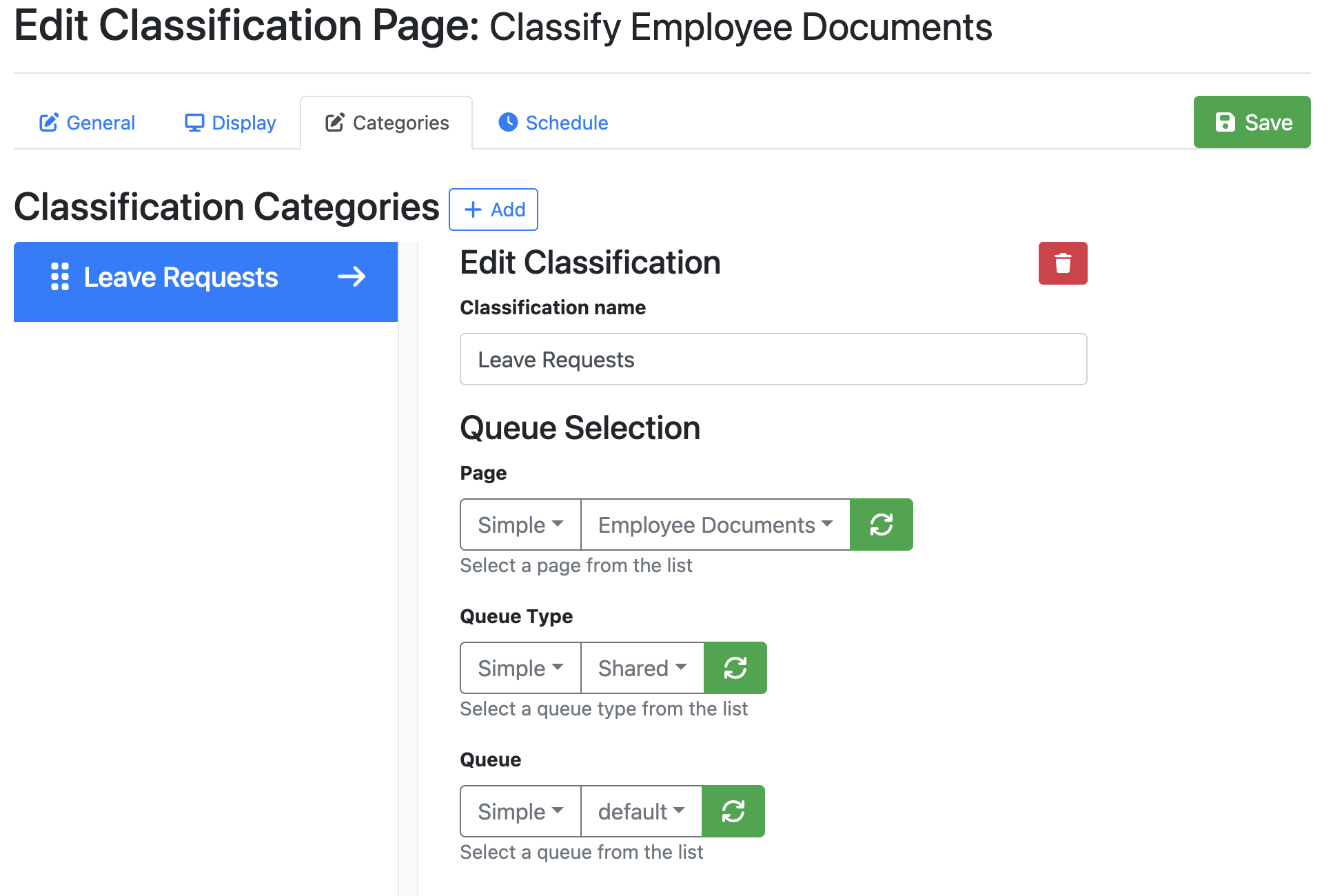
Note: A minimum of two classification categories is required before the DCA engine can be trained. This allows the machine learning model to compare and differentiate between document types during the training process.
Schedule Tab
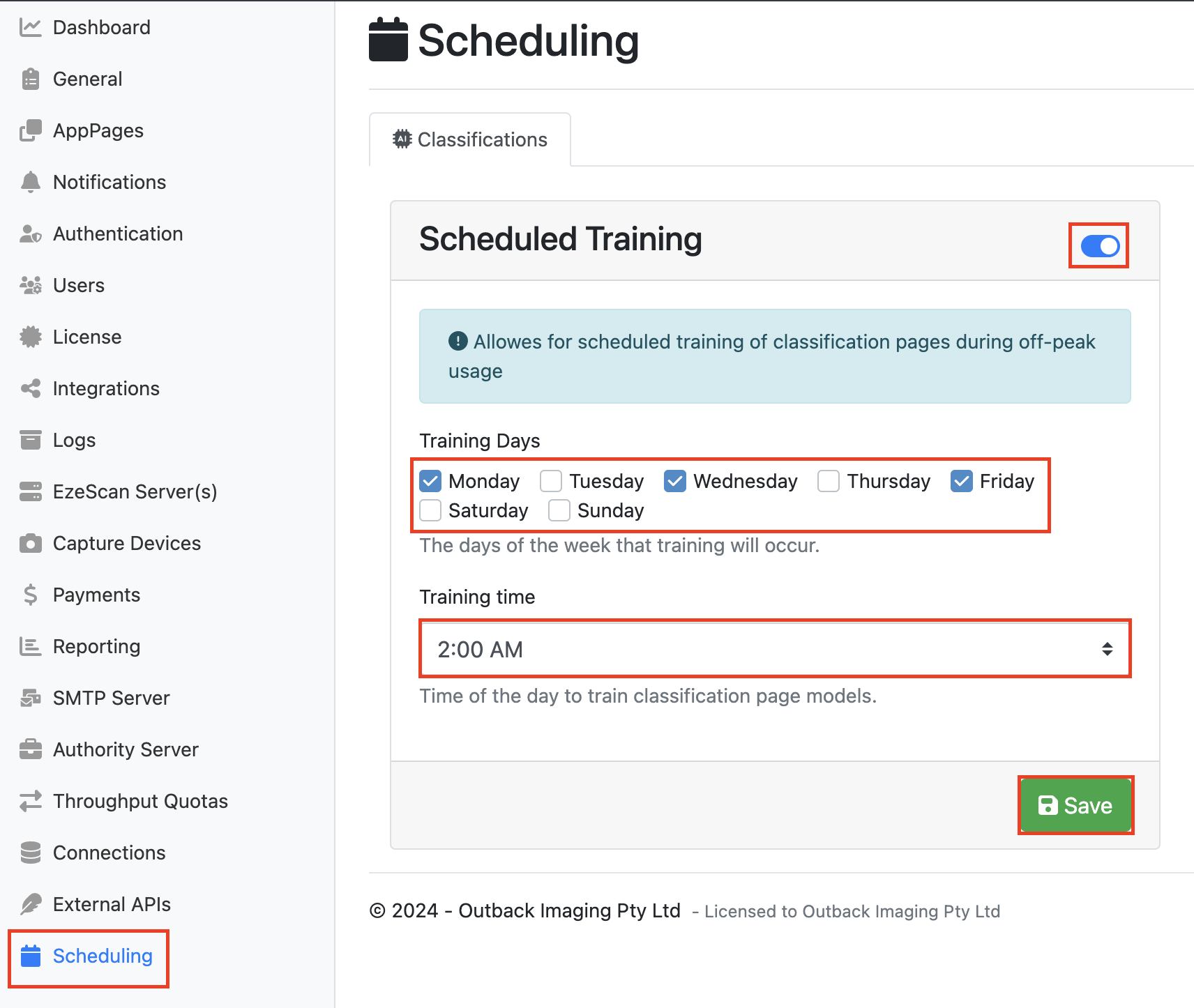
On the Schedule tab, you can configure whether DCA training should run automatically on a scheduled basis. When Train Automatically with Schedule is enabled, the classification engine will retrain each night at 12:00 AM using documents that have been processed since the previous training cycle.
Tip: you can select the days to schedule the engine to train by going to the scheduling tab on the Admin Toolbar. Click the toggle on to modify the schedules training, select your training days and training time, and then click Save
Training Your DCA Engine
Accessing Your DCA Page
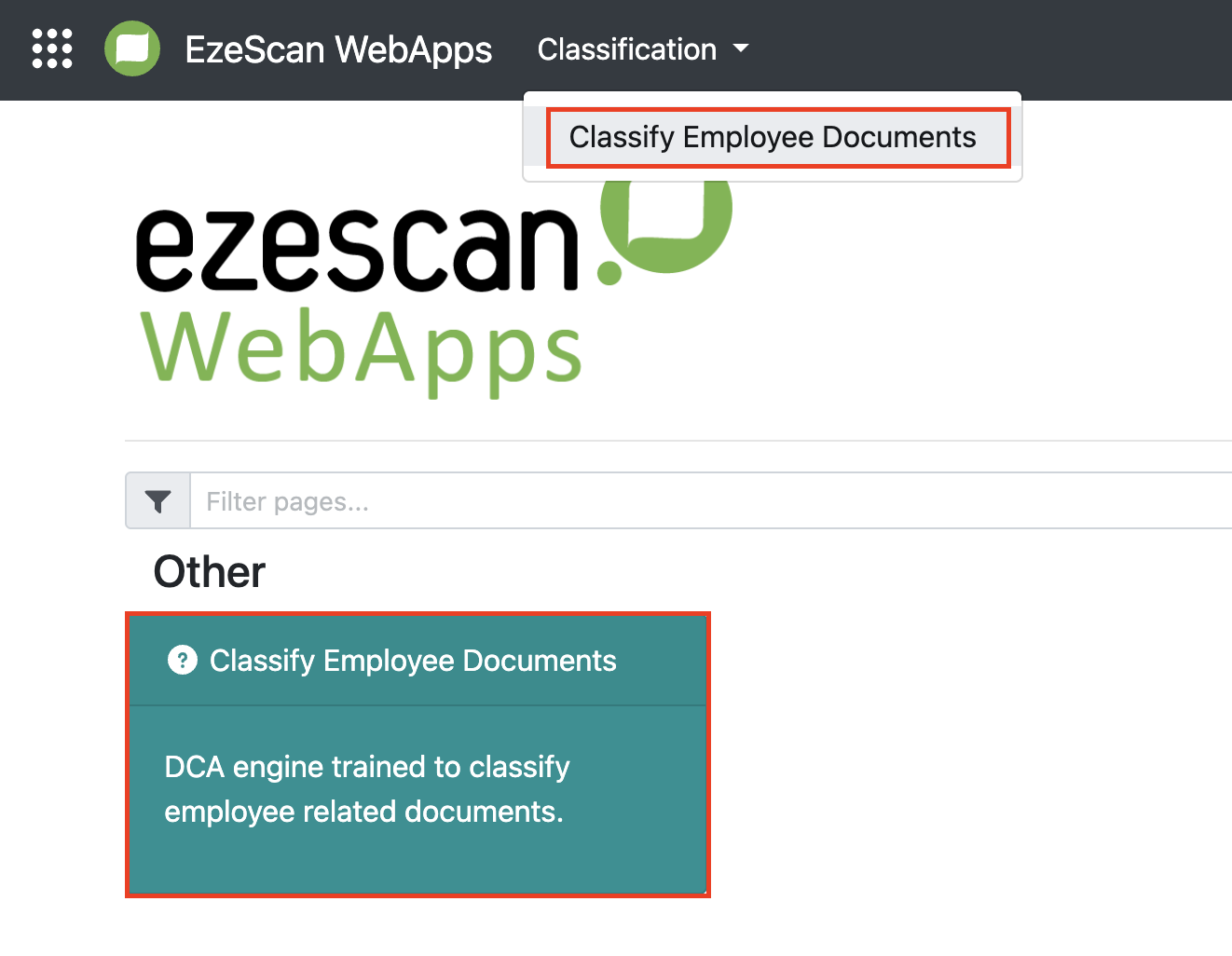
To access your DCA page, navigate to the Home page and click the associated DCA page tile. Alternatively, you can access the page through the application's navigation menu by selecting the relevant DCA page from the list of available pages.
DCA Training Screen
This screen allows you to train and test the DCA classification engine against the classification categories you have created.
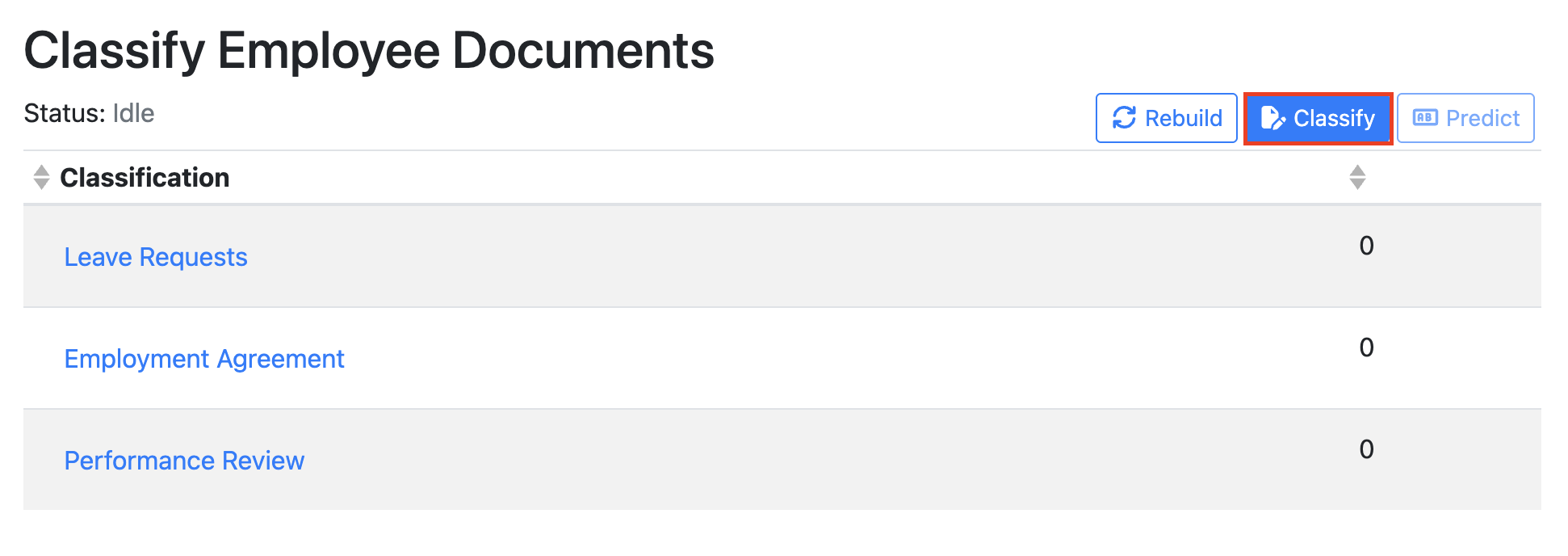
Classification Table
The numbers displayed on the left side of the table indicate the number of training documents currently assigned to each classification category. For a newly created category, this value will be 0 until training documents have been uploaded and assigned to that category. To begin trainning the engine select the Classify Button.
Uploading Training Documents
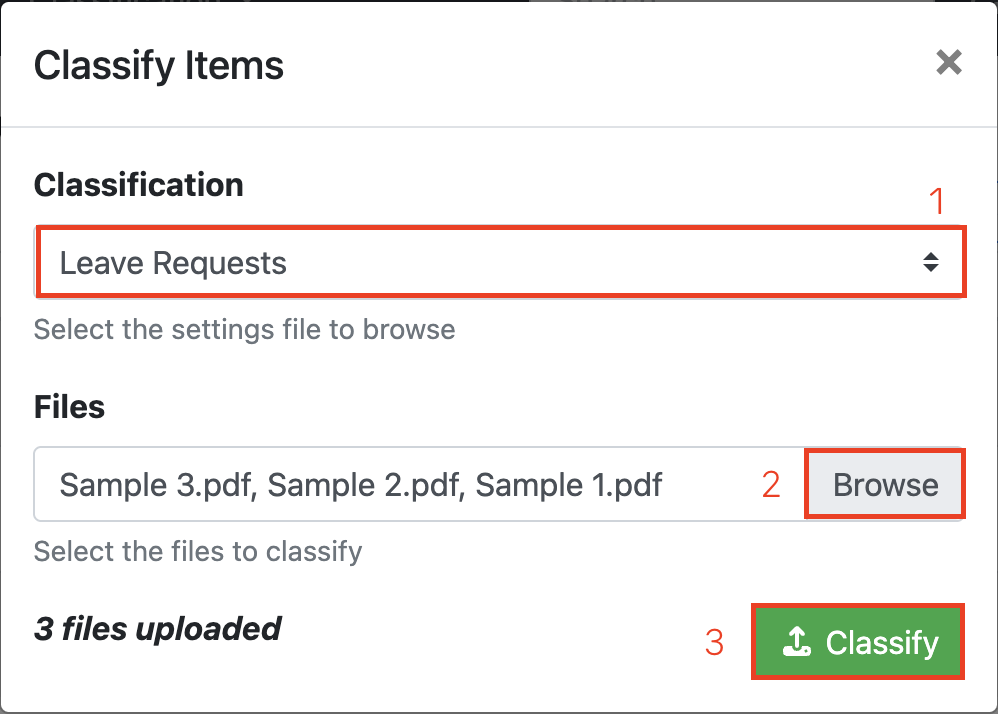
Select a classification category from the Category drop-down list, then click Upload to add a collection of sample documents that will be used to train the engine for that category. The uploaded documents should be representative examples of the document type you want DCA to recognise.
In the example below, we have uploaded three Leave Request documents as training samples.
Click Classify to assign the documents to the selected category. Once the classification has been completed, a green Files Classified confirmation message will be displayed. Click Close to return to the main DCA screen.
Building the Engine
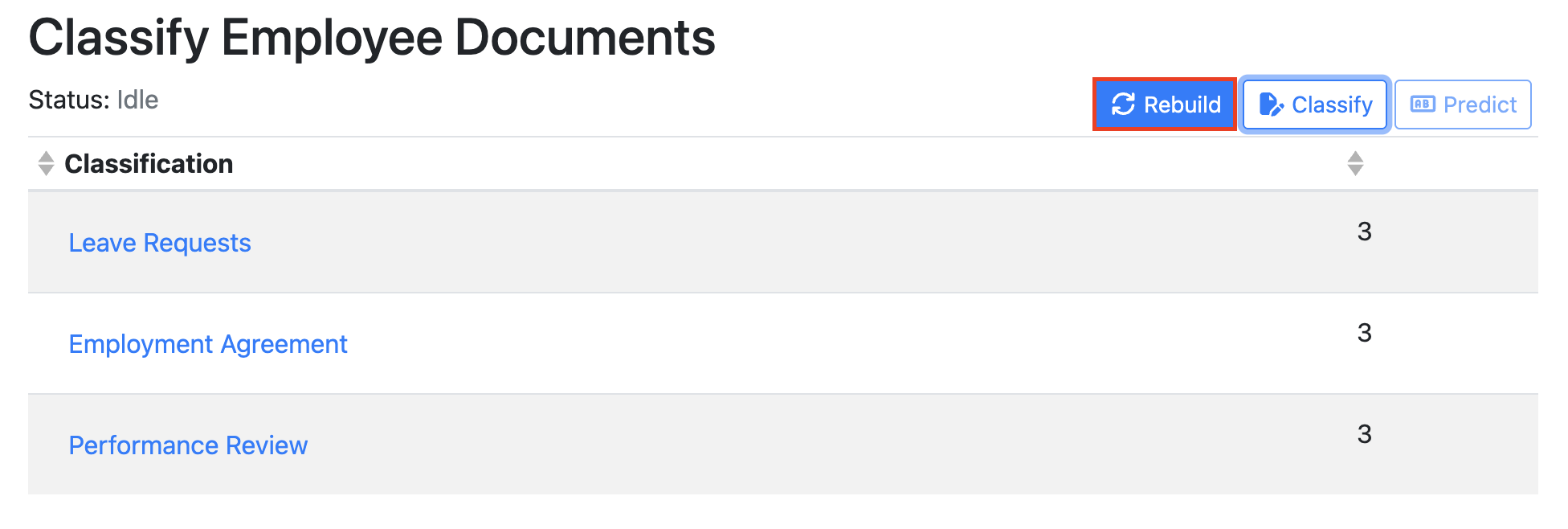
Although the table will now display the number of documents that have been classified and assigned to each category, the classification engine has not yet been trained on those documents.
To train the engine, click Rebuild. This initiates the training process and updates the classification model using the documents assigned to each category. Once the rebuild has completed, a green confirmation message will briefly appear. The engine will then be trained and ready to use the uploaded samples when classifying new documents.
Note: You will not be able to train or “Rebuild” the engine until you have classified at least two different classification categories.
Testing your Engine
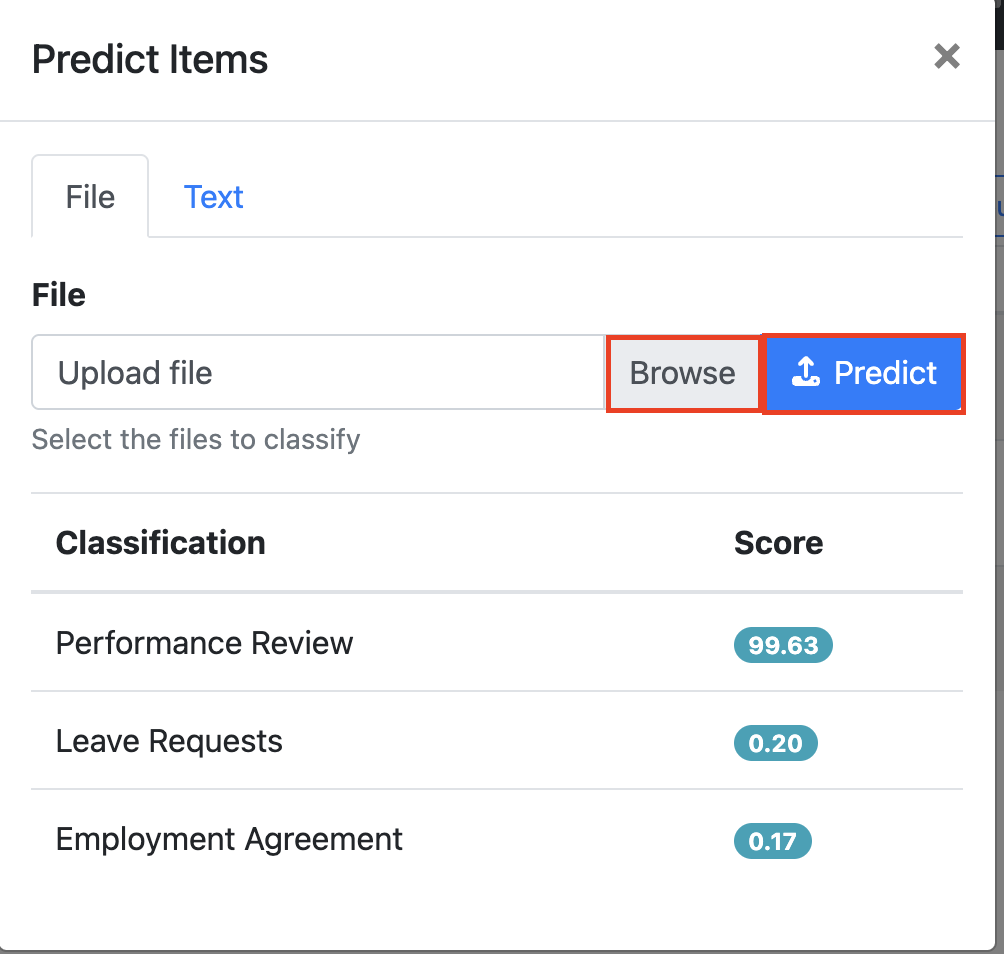
Once the engine has been rebuilt, you can test the classification model by clicking Predict button.
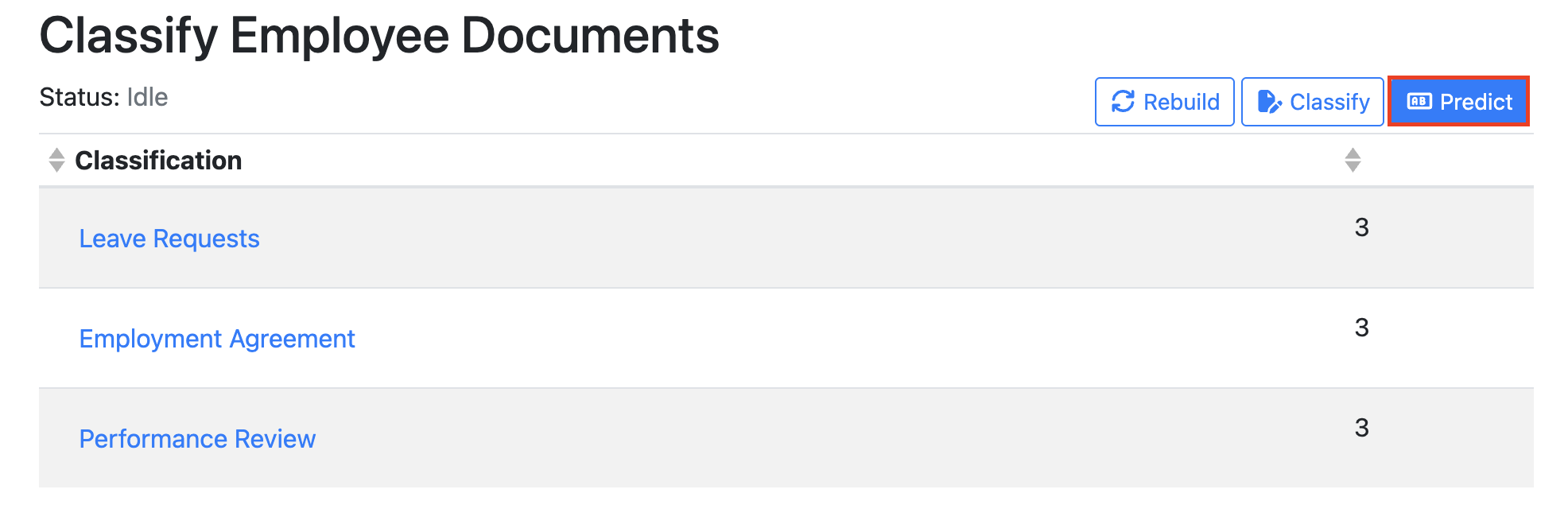
Upload a document and click Predict. DCA will analyse the document and return a confidence score for each classification category, indicating how closely the document matches the categories the engine has been trained on.
Review the results to determine whether the document has been correctly identified. When finished, click the X in the top-right corner of the window to close the prediction results and return to the training screen.
To learn how to congiure your DCA engine into a RIA workflows see this how to article: Creating a RIA Workflow using DCA to sort Incoming Document Types