
The Split Document pre-processor can be used to split an incoming document into a number of smaller documents.
The Split Document pre-processor configuration screen looks like this:
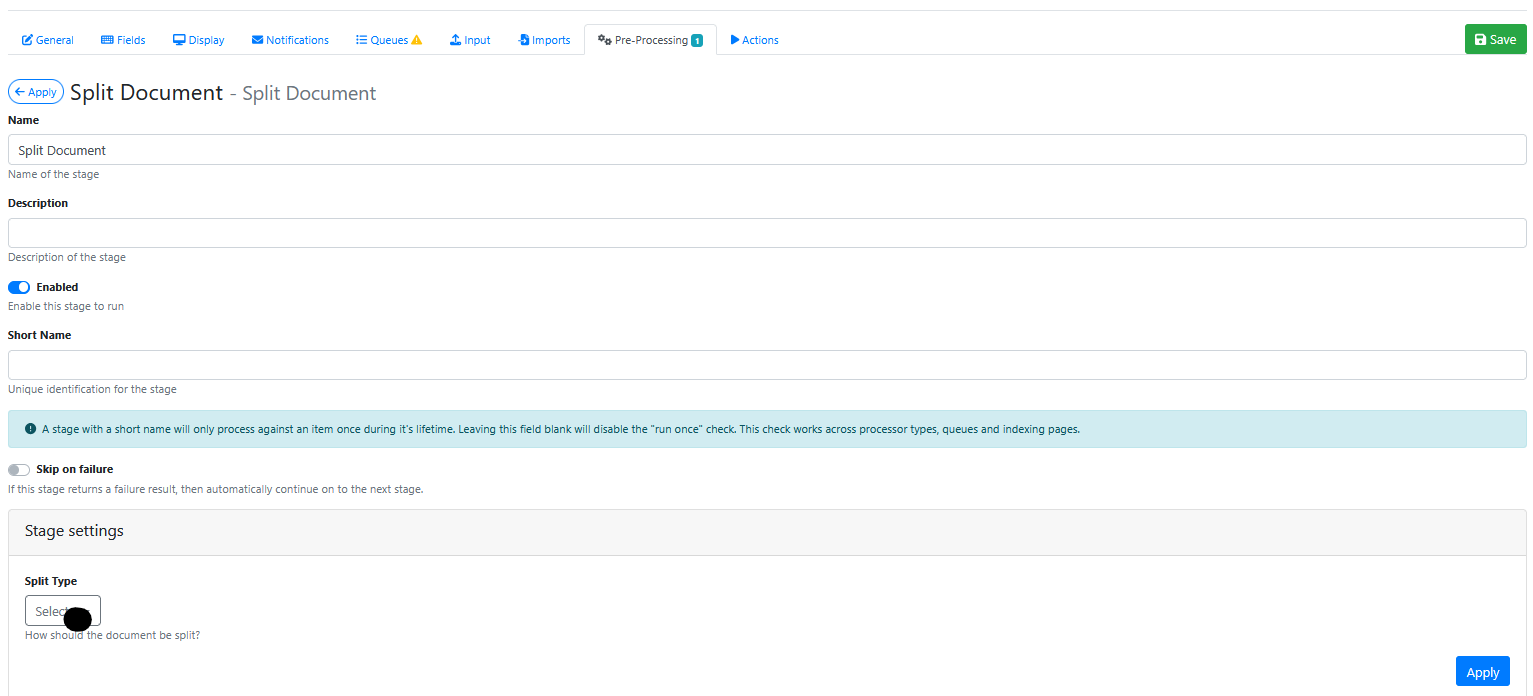
Stage Settings
Split Type
Choose from 1 of 4 split type options:
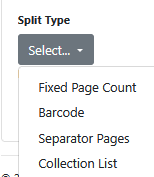
These are explained further below.
Fixed Page Count
When selected, you will be prompted to specify the number of Pages Per Document.

e.g. If you set it to 1, then every page in the input document will be split into a new output document.
e.g. If you set it to 2, then after every 2 pages it will be split into a new output document.
Barcode
When selected you will be asked to:
Specify the Barcode type that is appearing on the first page of each new document.

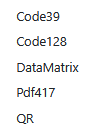
The supported barcode types (fonts) are currently these:
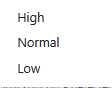
Specify the Barcode quality

The supported qualities are:
Specify a Starts With prefix that the barcode should start with. Used to eliminate reading other barcodes that might cause the document to be split in the wrong pages.

Separator Pages
These are usually 100% black pieces of paper that were placed between consecutive documents during the document scanning process (They could also be white pages, but this is not recommended as the white pages could be confused with blank pages in a document).
You can configure these 2 settings below.
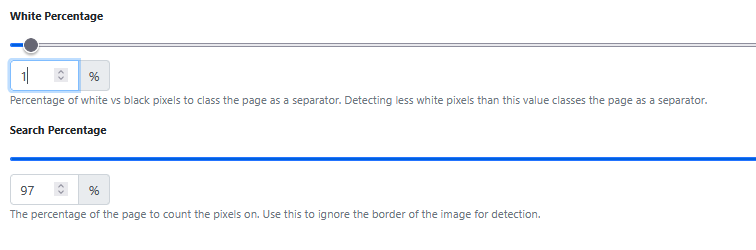
A white percentage setting of 1% is equivalent to a black setting of 99%. If the separator pages scanned were 100% black, then any page that is greater than or equal 99% black would be detected as a separator page. The pages would be split into a new document when each new black page is detected. During the split the separator page is usually discarded, leaving each split document containing its relevant pages only (i.e. no black pages left in them).
The search percentage setting of 97% means that only the innermost 97% of the page will be checked for its whiteness/blackness. Some document scanners or photocopiesr may scan a completely black separator page and leave a small white edge on one or more side of the scanned image. That extra white edge on the image, might cause the percentage of white pixels on the imaqe to exceed 1%, thus causing the black page detection to fail. The 97% settings that 3% of the outer width of the page is ignored during separator page detection (1.5% on left edge, 1.5% on right edge, 1.5% on the top edge, and 1.5% on the lower edge)
Collection List
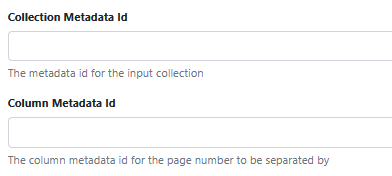
When selected this can used to split a document based on a collection being passed in from another pre-processor (e.g. using AI to build a collection of page numbers of where document pages should be split, and passing that collection to this pre-processor to do that actual splitting).
For example, you might have configured an Open AI pre-processor that is building a JSON array containing information about a batch of document pages. It is assumed that the batch of pages in the document represents 1 or more individual documents. The JSON array might be called "where_to_split" and it might contain columns like:
“document_type”, “start_page”
The JSON Array should contain data like this:
document_type, start_page
Letter, 1
Invoice, 4
Parking Fine, 6
So, in this pre-processor you simply set the Collection Metadata ID value to the name of the JSON array (being passed in from an Open AI pre-processor) which contains the page split information (in this example its name was where_to_split),
And then simply set Column Metadata ID value to the name of the column in the JSON array that points to where the start page that each document type in that JSON array should be split on (in this example its name was start_page)
When this split documents pre-processor runs it will read through the elements of the Collection List (JSON array) for every start_page value that it finds, it will calculate the start and end page for each document and then split out each document out from the input document.
Saving the Pre-Processor
Press the Apply button
Saving the RIA Page
Press the Save Button
Testing the Pre-Processor
-
Make sure its enabled.
-
Run an input document through the queue.
-
Check that for each input document name you are getting 1 or more outputs documents, and that the new document splits are occurring on the correct pages.