
Background
When EzeScan Web Apps (EWA) was first developed it did not include an OCR data extraction pre-processor.
If your Remote Indexing Assistant (RIA) page needed to perform OCR on a document, and extract field data, you would need to configure that RIA page to send its documents to a ‘Route’ running on an EzeScan Server.
What is EzeScan Server?
EzeScan Server is an add-on module to EzeScan Desktop that gets installed as a windows service.
The service must be started for it to run properly. In its stopped state it will not process any documents.

The ‘Routes’ that it runs are configured using the EzeScan Desktop software. Admin → Routing menu option.
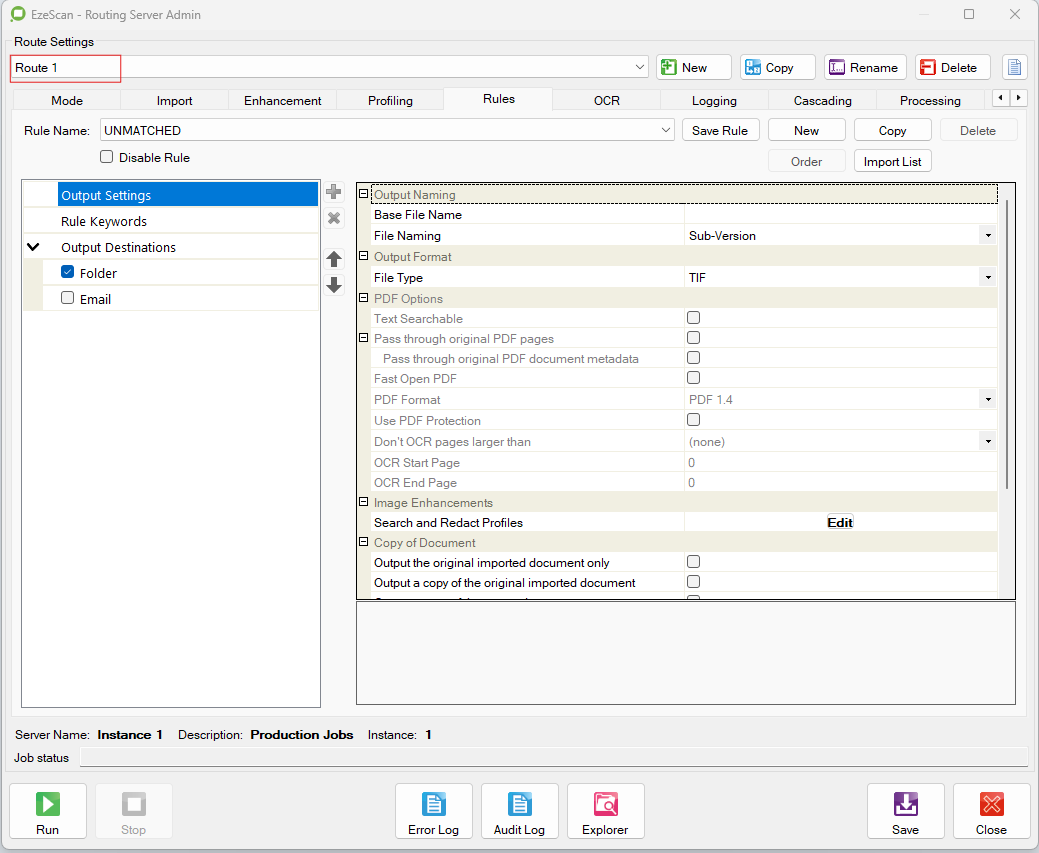
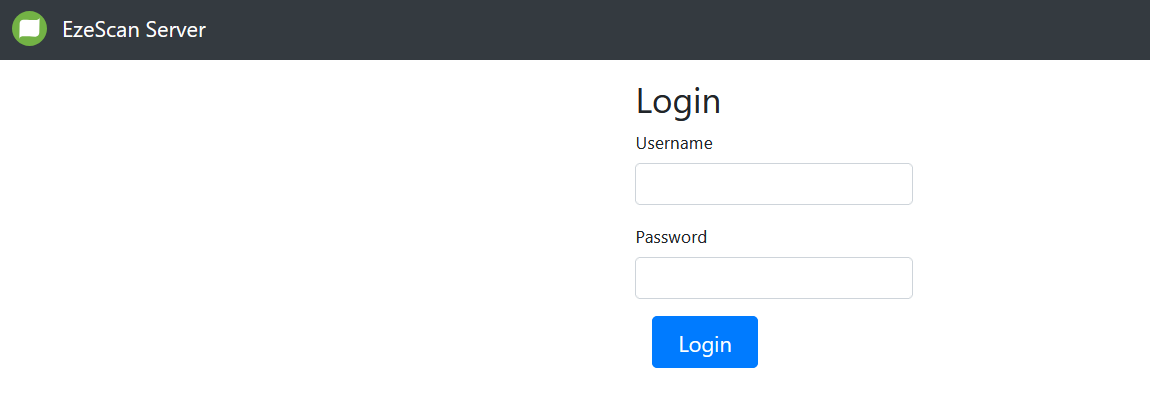
EzeScan Server also includes a web admin portal that allows an administrator to view what tasks/routes the service is currently running,
An EzeScan Server ‘Route’ usually consists of 3 interconnected components (Route + KFI + Upload).
It is quite complex to try an build a working Route + KFI +Upload, so we recommend building it as a Job + KFI +Upload first.
Building a Job First
The simplest way to create a functioning ‘route’ it to first build a Job that uses a KFI to extract document data, and connect it to an Upload to send the document + extracted data back to the EWA RIA Page. The EzeScan Desktop Admin menus shown below are used to configure a Job, A KFI and an Upload.
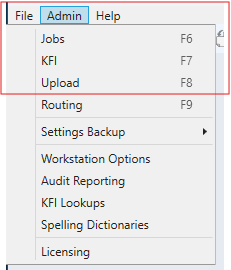
Basically the Job will poll an import folder, an email intray or one of its internal document queues looking for documents to process. When a new document is detected by the Job, the Job imports the document, run through the KFI fields to extracted the required KFI field data, then uses the Upload connector to push the document (pdf, eml) + field data to one of the supported Document Management Systems (e.g. SharePoint, Content Manager, Content Server, Objective ECM, Drop Box, Box, Google Drive, Microsoft One Drive).
When the Job runs the user will see each of the imported documents displayed in the EzeScan viewer. As KFI data is extracted it will be displayed in the EzeScan viewer, and the success/failure of any Upload attempt will be shown to the user. Running as a Job requires a user to be logged on and the Job to be manually controlled (started, stopped) by the user.
It is imperative that a Job is tested with a reasonably large number of sample documents. The more samples the better, but a minimum of 20 is a good number. @0 documents of teh same type, but containing different data of same type. E.g. 20 invoices form 20 different suppliers. Each invoice will contain different data values for supplier names, invoice number, invoice date, invoice total, tax total.
Testing should confirm that the desired field data is consistently being extracted from the document pages by the KFI, and that the document + field metadata is being correctly uploaded by the Upload connector.
Convert a Job to a Route
The step of converting a Job into a Route should only be performed when the Job + KFI +Upload has been confirmed to work properly.
On Routing Server Admin form press the ‘New’ button.

On the Save Route As form press the ‘Create from job' button.
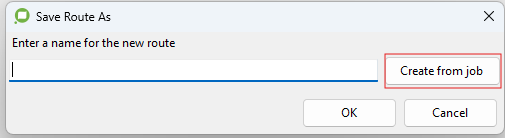
Select your Job you’ve been testing from the list of available jobs.
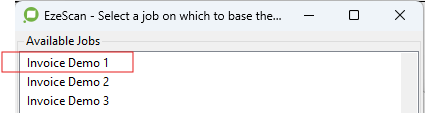
Press the 'O' button, and the Job will be converted to a Route. The Route will be connected to same KFI + Upload that that Job was using.

Configuring an EWA Upload connector to send a document + field data back to a waiting RIA page.
It all starts with setting up your EWA RIA page to utilise an EzeScan Server Pre-Processor.
The pre-processor takes the subject document from the RIA page and pushes it to the EzeScan Server ‘Route’ that you built and have been testing testing.
The docunent from the EWA RIA page should be imported in the EzeScan Server ‘Route’. The EzeScan Server log files should show the document being imported and KFI field data extraction running to extract field data.
The EWA pre-processor is normally configured to sleep and wait forever, until the document + field metadata is returned by the EzeScan Server route (via an EWA Upload connector which is configured as part of the EzeScan Server Route + KFI + Upload settings).
Once the sleeping EWA pre-processor is woken back up, it should take the document and field data and load it into the RIA page, and make it available it for viewing in the page intray queue.
This link below provides a detailed explanation of the steps required to get the Route output document + field data pushed back to EWA to waken up the sleeping pre-processor,