
The EzeScan EWA Connector is an upload connector in EzeScan Desktop/Server that can be used to upload files into EzeScan WebApps.
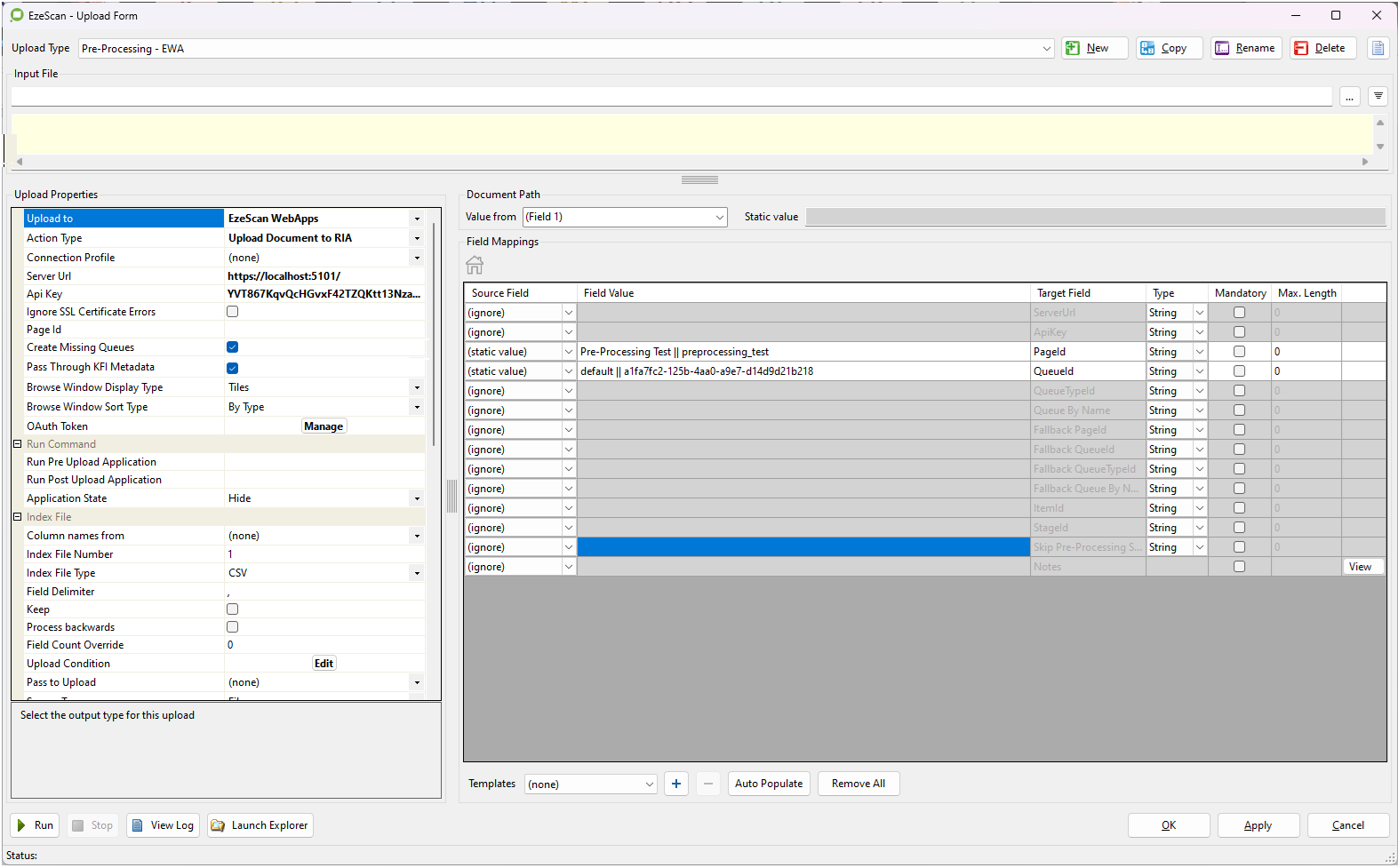
When trying to locate a target destination for the uploaded file and metadata the following hierarchy is obeyed:
ItemId > StageId > QueueId > QueueTypeId > QueueByName and are ignored.
|
Target Field |
Description |
|---|---|
|
ServerUrl |
The url of the EzeScan WebApps installation. |
|
ApiKey |
Api Key to use when communicating with EzeScan WebApps. (Can be set in the EWA Admin Panel > Authentication page). |
|
PageId |
Id of the page to upload the file to. If this is the only field specified then the file will be uploaded to the default queue set on the page. |
|
Pass Through KFI Metadata |
There are 2 ways to pass KFI field data across to an EWA App Page. Method 1: When ‘Pass Through KFI Metadata’ is not ticked, you will need to use the Field Mapping Panel in this upload to individually map each Source Field (i.e. KFI field) to the required Target Field in the EWA App Page fields list. This can be complicated to setup when you have configured many KFI fields. Method 2: When ‘Pass Through KFI Metadata’ is ticked, all of the KFI field metadata is passed across seamlessly to the EWA App Page without having to map individual Source Fields to the required Target Fields. This is usually easier to setup. The only caveat is that the Source Field KFI field name must match the EWA field name or EWA Field ID. If your KFI field values are not being shown in your EWA App Page fields you can use use the EWA App Page ‘Show History’ button. 
When this ‘Show History’ button is pressed it displays the History screen. Use the Metadata tab to view any metadata that is being passed through from KFI fields. 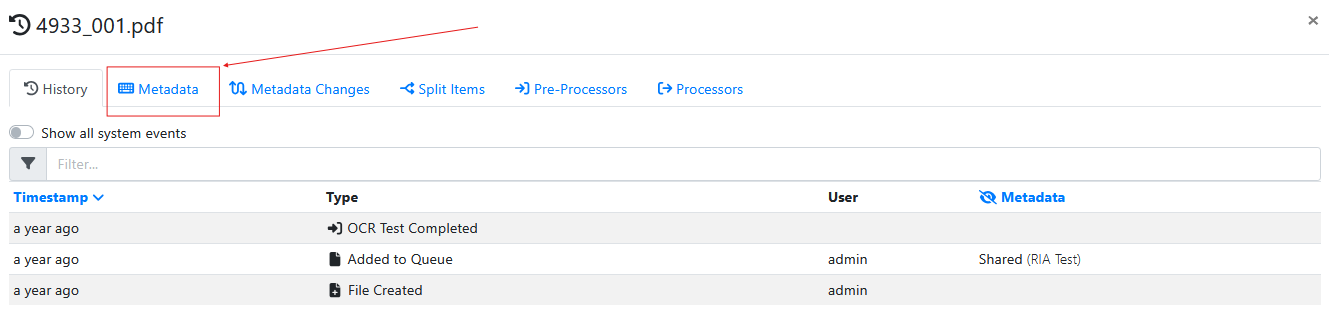
|
|
QueueId |
Id of the exact queue to upload files to. Note:
|
|
QueueTypeId |
Id of the destination queue type. Use this in combination with Queue by name so that renaming a Queue doesn't affect the upload configuration. |
|
Queue By Name |
Use this field to find queue by names rather than queue id's. This will be used when you are supplying from the users email address (personal) or the name of a queue (shared). Specified as: Format
Note:
Examples
|
|
ItemId |
Use this field to “reactivate” an indexed item by uploading to the same Item Id. Any metadata included will also be added/updated on the item. The subject file will also be replaced with the item being uploaded.
|
|
StageId |
Id of the Pre-Processing stage that is being sent back to EWA. This field must be used to return a Pre-Processing job to EzeScan WebApps if it has a return type of Single or Multi. Should be extracted from the metadata using the following XPath: XPath
Note:
|
|
Skip Pre-Processing Stages |
|
|
Notes |
|