
This pre-processing stage sends the subject file OCR text layer to an Azure Open AI model for analysis.
That OCR layer would be present in 1 of the 3 following scenarios:
-
The input documents are expected to be Text Searchable PDF files, with a fully complete OCR text layer present on every page of the PDF.
-
The input PDF documents don’t contain a text layer, but they have been sent to an EWA OCR Pre-processor, which converts the documents to text searchable PDF.
-
The input documents don’t contain a text layer, but they have been sent to an EWA Azure Document Intelligence model, which generates a text layer for every page of the image based PDF.
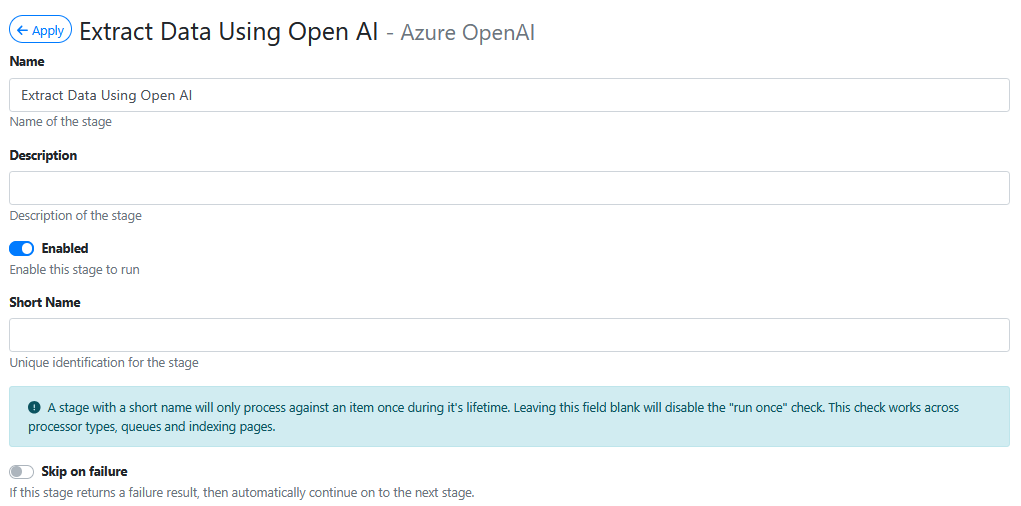
Name
Give your pre-processor a meaningful name. It will make it easier later on to figure what it is configured to do.
Azure OpenAI Connection
Select a connection from the list of available OpenAI connections. Your available selections may be named differently to what is shown in the example below.

These are connections that will have been setup by an Azure Cloud Portal Administrator on the Microsoft Azure Portal.
If your EWA site is being self hosted, refer to Configuring AI Powered Data Extraction in WebApps | 2. Using AI when WebApps is deployed ‘on premise’ for guidance on where to configure Azure OpenAI in your Microsoft Portal. You will paying your monthly Azure OpenAI subscription costs direct to Microsoft.
If your EWA site is hosted on our EzeScan Cloud, and if your tenancy is paying a monthly subscription fee to use Azure Open AI, we will have configured Azure OpenAI for your tenancy to use.
Once configured within Microsoft Azure Portal, the Azure OpenAI connections can be added on the EWA Connections admin page.
Model

Type the valid name of one of the OpenAI models that have been deployed by an Azure Cloud Portal Administrator on the Microsoft Azure Portal.
Be sure to exactly use the same name (it’s case sensitive) that was deployed on Microsoft Azure Portal by the Azure Cloud Portal Administrator.
e.g. gpt-35-turbo
Instructions
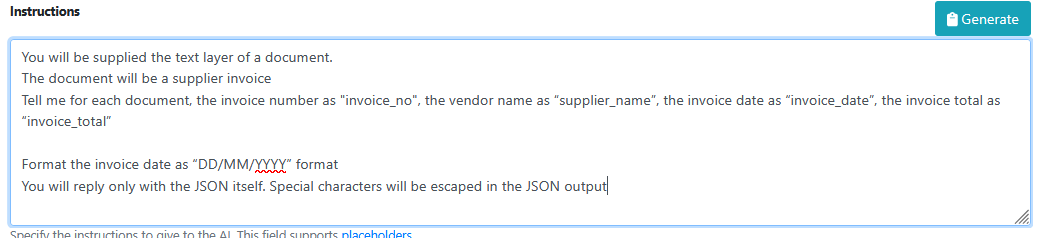
The instructions are the natural language (i.e. plain english) instructions that will be used to tell Open AI how to analyse the content of a document and how it should find and return data from the OCR text layer.
Here’s an example of some instructions:
You will be supplied the text layer of a document.
The document will be a supplier invoice
Tell me for each document, the invoice number as "invoice_no", the vendor name as “supplier_name”, the invoice date as “invoice_date”, the invoice total as “invoice_total”
Format the invoice date as “DD/MM/YYYY” format
You will reply only with the JSON itself. Special characters will be escaped in the JSON output
Here’s a simple explanation of what is each part of this ‘conversation’ with the AI model is doing.
First we tell the AI model we are going to give it the text layer from a document, and then we tell it that those documents contain invoices.
Then we let AI know what type of data we want it to find in the invoice text layer. and we tell it what we want each field from the document data (e.g. invoice number) to be named in our output data (e.g. “invoice_no” - which is exact name of the RIA Field ID that we want the data to appear in)
Then we tell it to always format the invoice date from the document as “DD/MM/YYYY” format in the output data. This will help us get a consistent output date format, even though the input data date format may vary.
Finally we tell it to present the output field values in a JSON object. We do this because we will use the Parse response as JSON setting (shown further down in this documentation) to make it easier for EWA to get the AI metadata results loaded into the correct RIA Page fields.
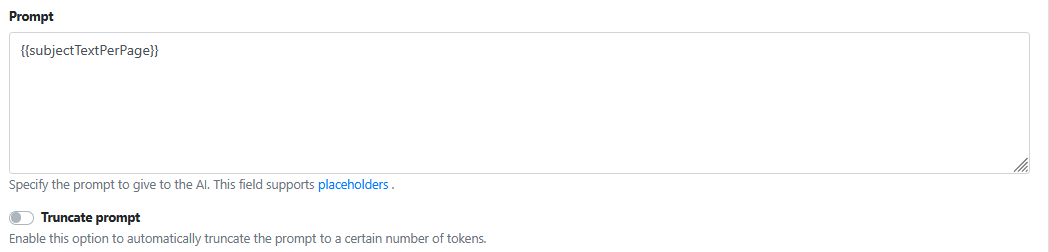
Prompt
Parse response as JSON

Always enable this option when using Azure OpenAI, because our instructions are telling Azure OpenAI to generate the output data as JSON.
Generating and parsing the AI output data (response) IN JSON will lead to less errors and issues when pushing that data into RIA fields.
Overwrite metadata Values

Always enable this option when using Azure OpenAI
Improving Accuracy And Consistency When Using AI Models
When you start configuring using OpenAI models for data extraction you might experience some of the issues listed below:
-
Data extraction on some documents works really well and on others it may either not work, work partially or be giving you the wrong data.
-
With experience its possible to overcome most of, if not all of these issues.
-
For AI to work reliably it is imperative that the text from the OCR text layer is accurate. Poor quality documents that are low resolution, blurry, torn up or faded will not produce a good quality OCR text layer. Don’t use poor quality documents and still expect AI to do a great job on the data extraction.
-
AI Models are built to perform certain tasks. Try to use a model that is aligned to trained for the type of data creation or extraction required. For example ChatGPT based models are known as generative AI models. They are trained on large datasets of random documents. They excel at creating output document text based on limited user instructions. They are conversational in nature which means you start with initial; instructions and then continue with more instructions to help further refine the output document data. That’s what they were designed to do. If you ask a ChatGPT model to perform a complex mathematical calculation it may not give you the result you expected. A mathematical model would be more suited for that task.
-
ChatGPT models may come in many different versions in Open AI (e.g. GPT3.5, GPT4, GPT5) . Within each version there are usually 3 offerings.There is often a lightweight ‘mini’ offering, a fast ‘turbo’ offering, and a full functionality offering. Pricing is generally less to use the ‘mini’ offering, but you may find that its AI capabilities don’t meet your needs. It is imperative that you run a large test set of documents through the different model offerings to help you choose the best one for the data extraction you are trying to achieve.
-
Keep your conversations with AI straight forward. Keep the instructions simple. Multiple short sentences rather than a complex rambling sentence of many competing instructions. If you find yourself confused by what your instructions are, try to make it easier to read by adding more structure to those instructions. The clearer the instructions given to the AI model, the more likely to extract the correct data from the documents OCR text layer.
Pricing/Cost Considerations
Please consider that Azure OpenAI charges based on tokens consumed.
Simplistically tokens are consumed based on 3 things:
-
Amount of OCR input text being analysed.
-
Amount of instruction text supplied.
-
Amount of output data generated.
1. What is a Token?
-
A token is roughly 4 characters of text (or about ¾ of a word in English).
-
Both input (prompt) and output (completion) tokens count toward your bill.
2. Billing Structure
-
Charges are calculated per 1,000 tokens.
-
Pricing varies by model:
-
GPT-3.5-Turbo: around $0.002 USD per 1,000 tokens.
-
GPT-4: can be up to $0.12 USD per 1,000 tokens depending on context size.
-
3. Key Tips to Control Costs
-
Optimize prompts (shorter, more precise).
-
Choose the right model for your use case.
-
Monitor token usage with Azure cost management tools.