
You can use the Map Metadata pre-processor on an EWA RIA page to map a KVP or AFR key value pair data value (produced by the Azure Document Intelligence Pre-Processor) to a RIA Field value.
For example map:
Azure DI KVP Field ‘KVP.invoice_number’ ---> to RIA Field ‘Invoice Number’
Azure DI AFR Field ‘AFR.invoice_number’ ---> to RIA Field ID i‘Invoice Number’
The field names shown in bold must be typed exactly as shown in the Azure Document Intelligence key value pair output data. The field names are cases sensitive, may contain underscores, but not spaces.
The Map Metadata pre-processor configuration screen looks like this:
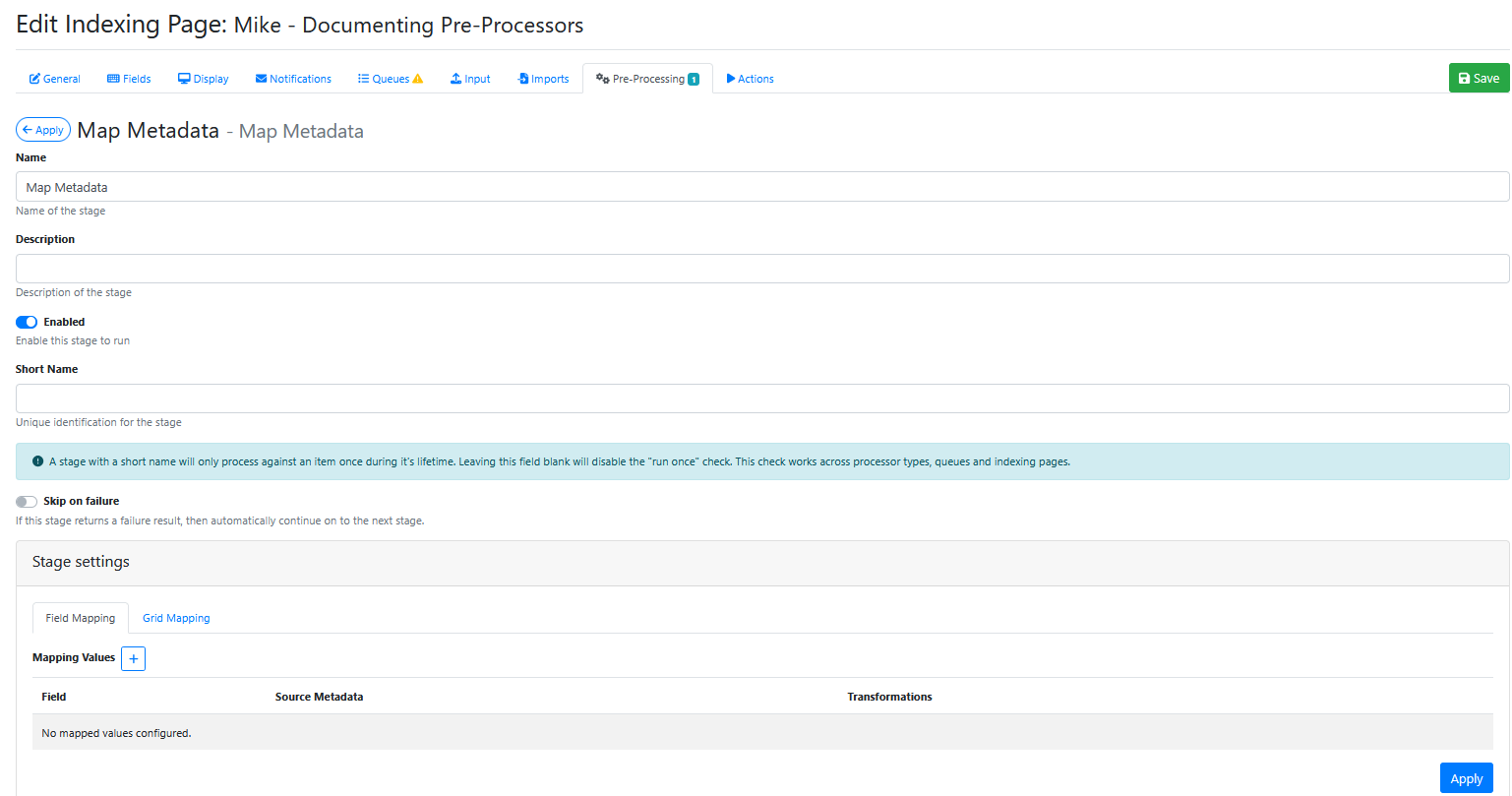
Stage Settings
Use the Mapping Values + Button 
Fields - Choose the RIA Page field you want to map data into.
Source Metadata - Type in the KVP or AFR field name you wan tot map data ftom. It’s case sensitive and must be typed without spaces in it.
Transformations - Can be used to modify the incoming data during the mapping process. Choose from one of:
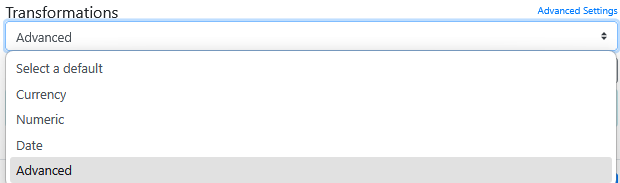
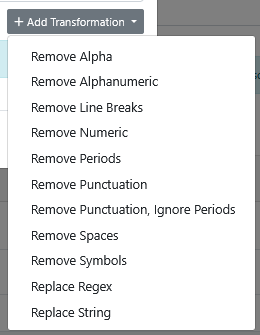
Advanced options include:
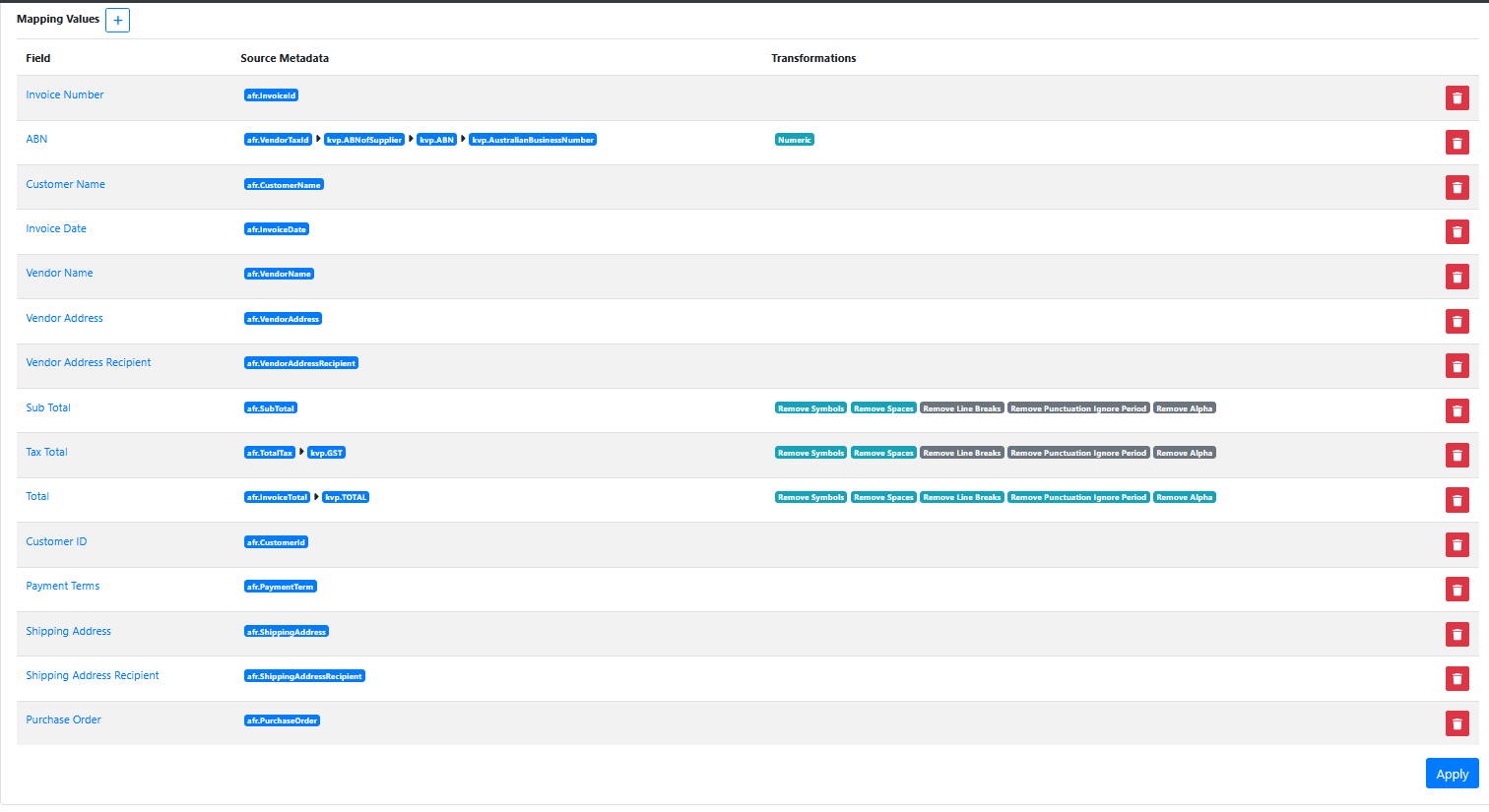
Here’s an example below of using the form to add a mapping to the RIA Page Invoice Number field:
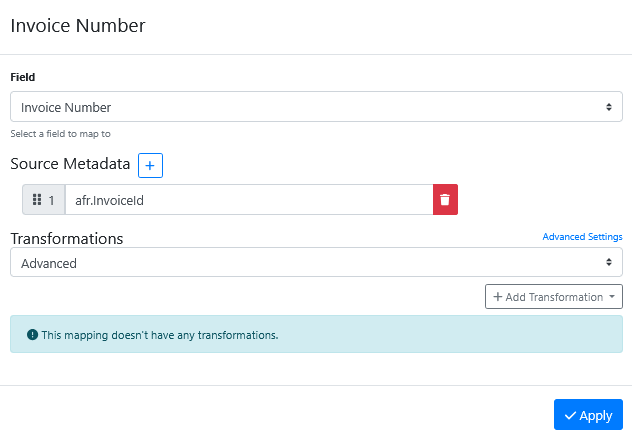
Here’s an example below showing mapping AFR field values (produced by an Azure Document Intelligence model that extract invoice data) to a RIA Page field values (setup to display invoice data).
Saving the Pre-Processor
Press the Apply button
Saving the RIA Page
Press the Save Button
Testing the Pre-Processor
-
Make sure its enabled.
-
Load an input document (i.e. invoice)
-
In the RIA Page Viewer make sure that the field data values from Azure Document Intelligence were properly mapped into the RIA Page fields.
-
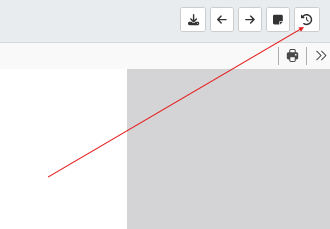
If field data is not being mapped. first check the data that was generated by the Azure Document intelligence pre-processor. Press the Show History button on the RIA Page viewer.
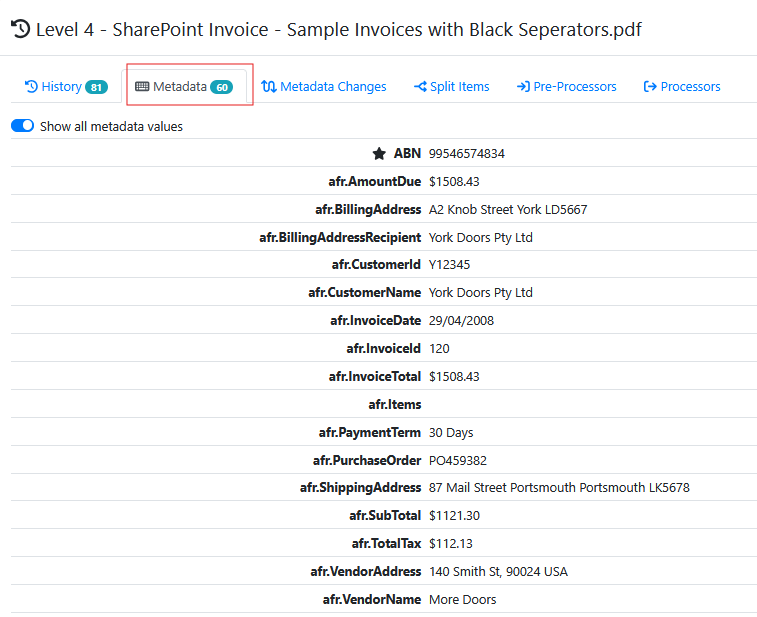
Then use the Metadata tab to view the Metadata values being passed in by the Azure Document Intelligence pre-processor to the Map Metadata pre-processor.
-
In the Map Metadata stage where you setup your mappings, if you type the name wrong in the Source Metadata value, no metadata data will be loaded into the EWA field by the Map Metadata pre-processor. The field names are cases sensitive, may contain underscores, but not spaces.
-
Carefully check the mappings for any field data not being being mapped across in to a field.