
The Condition Pre-processor is used when you want to conditionally skip the execution of a subsequent pre-processors.
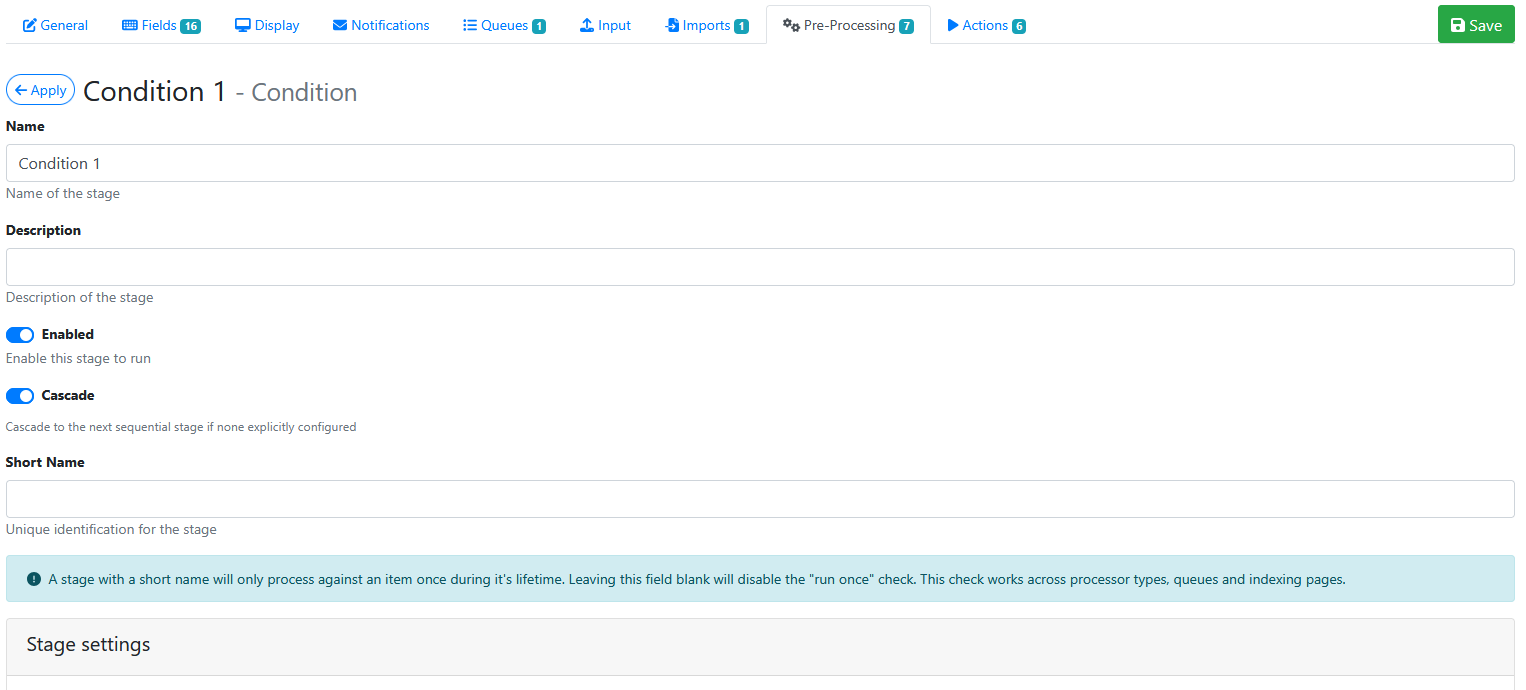
The Condition screen is shown below:
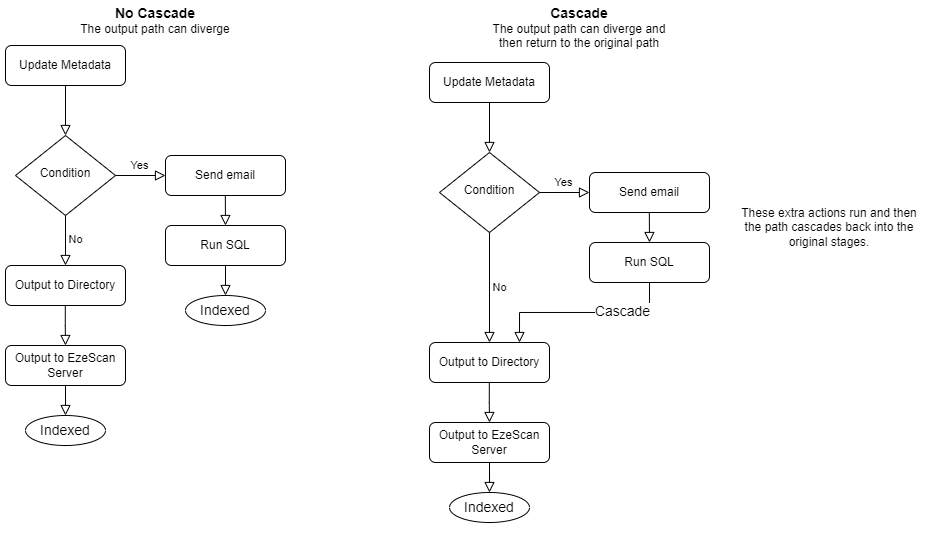
The cascade option provides the ability for a diverged output process to resume the original execution path.
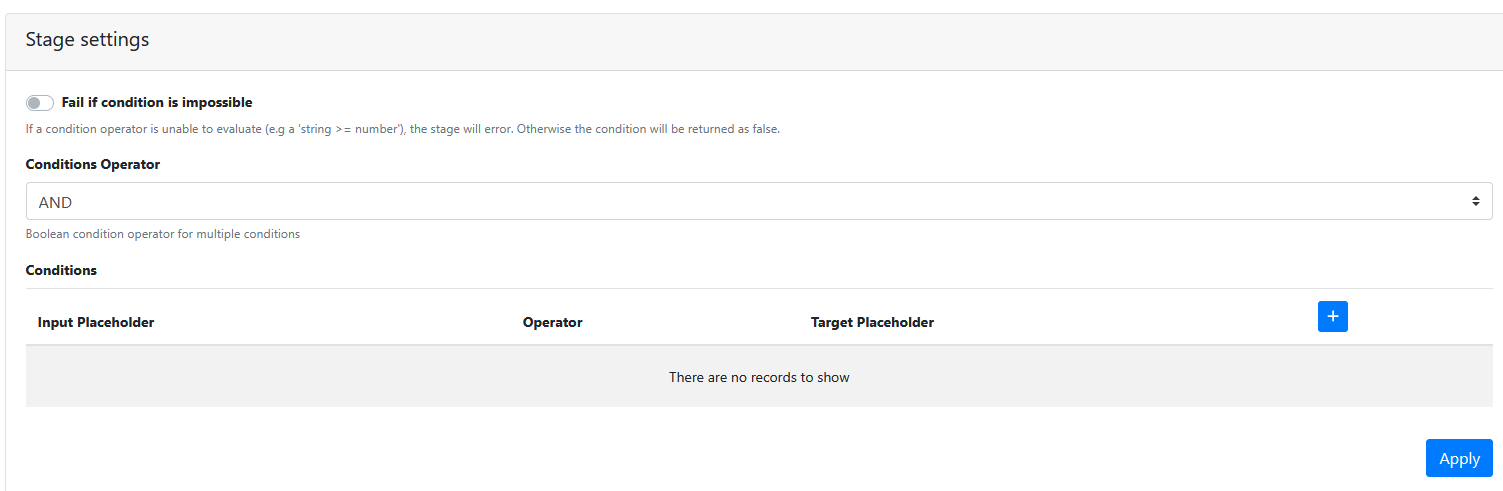
Stage Settings
Condition Operator
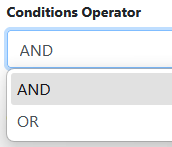
Choose from one of AND or OR (usually defaults to AND).
Only relevant if more than one Condition has been configured.
This option allows multiple single conditions to be chained together to build a complex chain of AND’ed or OR’ed conditions.
Conditions
Press the + Button 

Then enter or select values for these 3 fields below:
Input Placeholder
Use the placeholder creator builder to create a placeholder value in this field. Will usually contain the a metadata placeholder eg {{metadata[“first_name“]}}
Operator
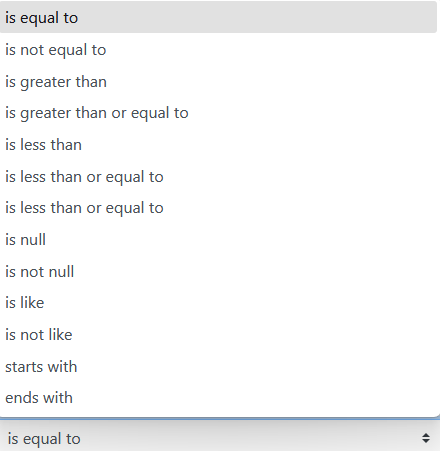
Choose an operator from this list below.
The operator defines the type of comparison being made between the Input Placeholder value and the Target Placeholder value.
Target Placeholder
A static value or metadata placeholder is specified for the input value to be compared against.
Press the Apply button
Example

Saving the RIA Page
Press the Save Button
Testing the Pre-Processor
-
Make sure its enabled.
-
Run an input document through the queue.
-
Use View history button the RIA App Page to look at the pre-processor stages to see whether the the pre-processor ‘Condition(s)’ were evaluated as being True or False.