
Objective Nexus is an EDRMS/ECM platform. Typically utilised for its document and records management capabilities.
Overview
This integration provides browse, import, search, and upload capabilities for Objective Nexus on-premise and cloud.
Requirements
-
Objective Nexus server version 11.2 to 2025 R1
-
Application Registration in Objective Nexus
App Registration
An application registration is required for this integration to authorise requests to the Objective Nexus server. To create an application registration do the following:
Objective Administrator permissions are required to complete the following steps.
-
Login to the Objective Nexus dashboard
-
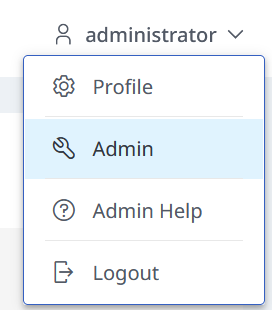
Open the user menu in the top right corner and click Admin
-
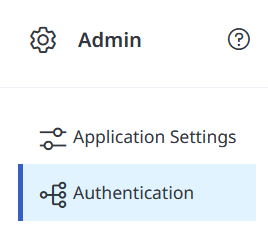
Click on the Authentication tab
-
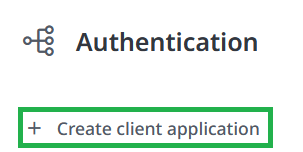
Click on Create client application
-
Enter values for Name, Expiry Date, and Allowed users/groups
The user to be impersonated in the connection settings must be included in the Allowed users/groups, or alternatively any group that the user belongs to in Objective, otherwise authentication will fail.
-
Click Create key to generate the Client ID and Client Secret
-
Copy the values somewhere safe as they will be required later to complete the connection settings

-
Finally click Confirm to finalise the app registration.
Connection
The connection to Objective Nexus requires a Connector Instance be configured in Admin → Integrations. Use the Add New button to select Objective Nexus from the list of available connectors. Give the instance a name (e.g. Objective PROD) and then fill in the below connection settings.
An application registration is required in Objective Nexus admin page to complete the following configuration.
|
Option |
Description |
|---|---|
|
Server URL |
Enter the Objective application server URL (i.e. https://objective.local:443/) |
|
Client ID |
Client ID of the application registered on the Objective Nexus server. |
|
Client Secret |
Client Secret of the application registered on the Objective Nexus server. |
|
Impersonate User |
The Login Id of the user to impersonate when making requests to the server. This identifier can found under the Settings tab of the respective user’s properties in Objective Nexus Navigator as per below screenshot. 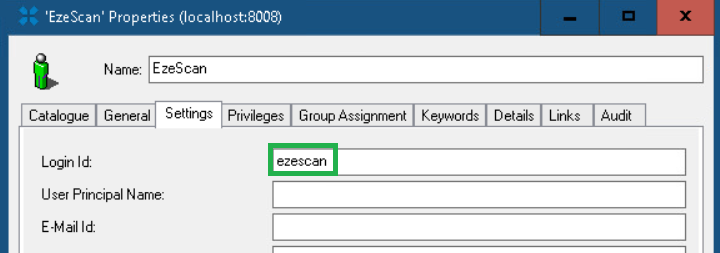
Incorrectly assigning the name of the user instead of their Login Id may result in authentication with the Objective Nexus server failing with a HTTP 403 Forbidden error. The impersonated user, or a belonging group, must also be configured in the application registration’s 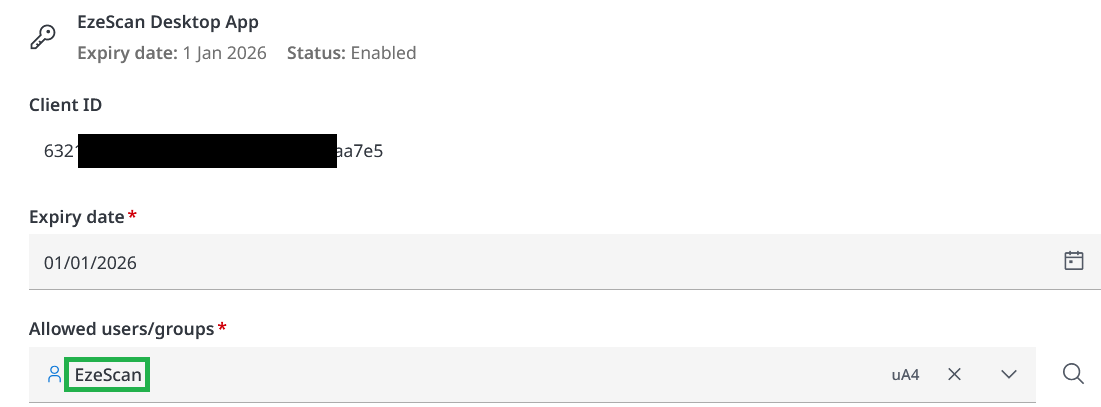
|
|
Ignore SSL Certificate Errors |
Ignore all SSL certificate validation errors. Enabling this will make the connection insecure and vulnerable to MITM attacks. Do NOT use this option unless you know what you are doing. |
Click the Test button to verify that the application can successfully connect to the server and authenticate your credentials.
Import Documents
Allows the DRA module to fetch all electronic documents from Objective Nexus.
|
Option |
Description |
|---|---|
|
Restrict File Types |
Specify which file extensions can be imported. Leave this field blank to import all file types. |
Watcher
When enabled, the watcher periodically scans for recently created or modified documents using the Objective Nexus search engine.
Important Notes:
-
The number of results returned during each scan is limited by the
MAX_SEARCH_RESULTS_UPPER_LIMITsystem preference, typically set to 1000. If a large volume of new or updated documents is added within a short period, some items may be missed due to this limit. -
There is a delay between when a document is created or modified and when it is indexed by the search engine. To account for this, configure the Throttling → Watcher Offset option.
Set this offset to a sufficient period (e.g., 300 seconds) to allow time for indexing before the watcher runs.