
LEAP
What is LEAP?
LEAP is a matter-centric legal practice management platform.
EzeScan EWA now integrates directly with LEAP to capture, index, and deliver documents directly into the correct client matter with the right metadata, reducing manual steps and improving compliance.
Why integrate EWA with LEAP
Accelerate ingestion from scanners, MFDs, email, or watched folders into LEAP matters
Search and browse within Leap365 to select a matter folder to upload documents to. Add any other required metadata (e.g. user, folder, document name, date)
Consider using AI to find and extract data automatically from legal documents instead of typing values in.
Apply consistent naming and filing rules to every document
Optionally notify matter owners when new documents are uploaded
Requirements
EWA version 4.0.5 or higher, licensed for RIA module use.
An authorized user account for Leap365 online services at one of these sites:
Web browser access to Leap365 client for local verification of uploaded content.
Tasks to complete
Add a LEAP365 integration and test LEAP Credentials
Login to WebApps as a user with admin permissions.
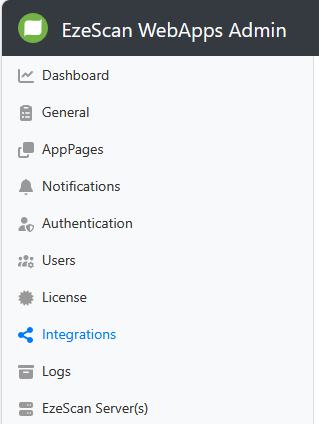
On the left hand side admin panel menu select Integrations
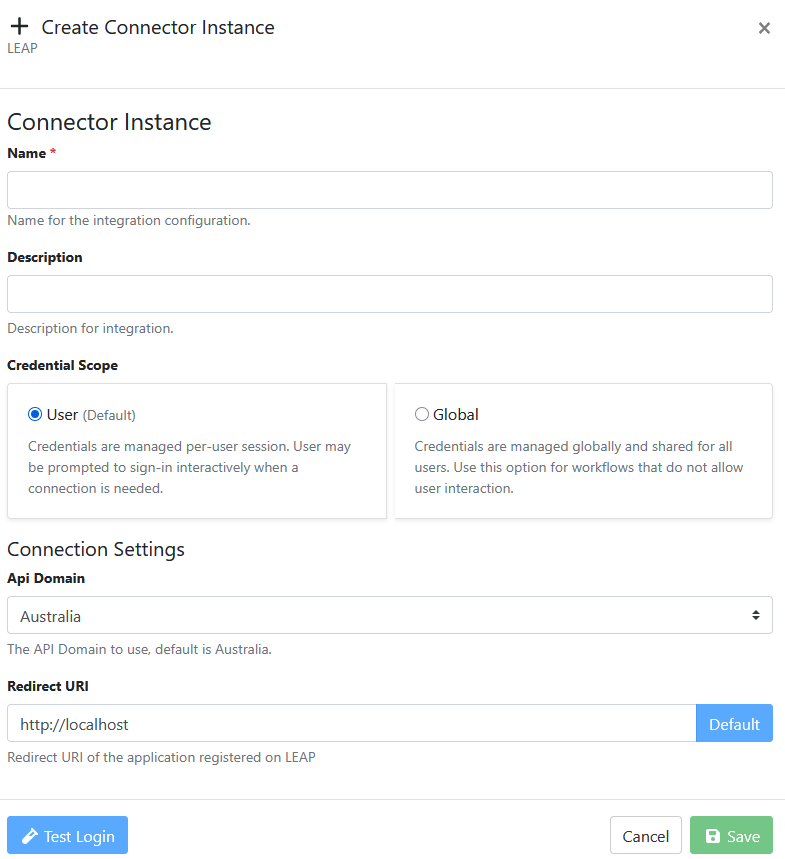
Use  button to add a new integration using Leap365.
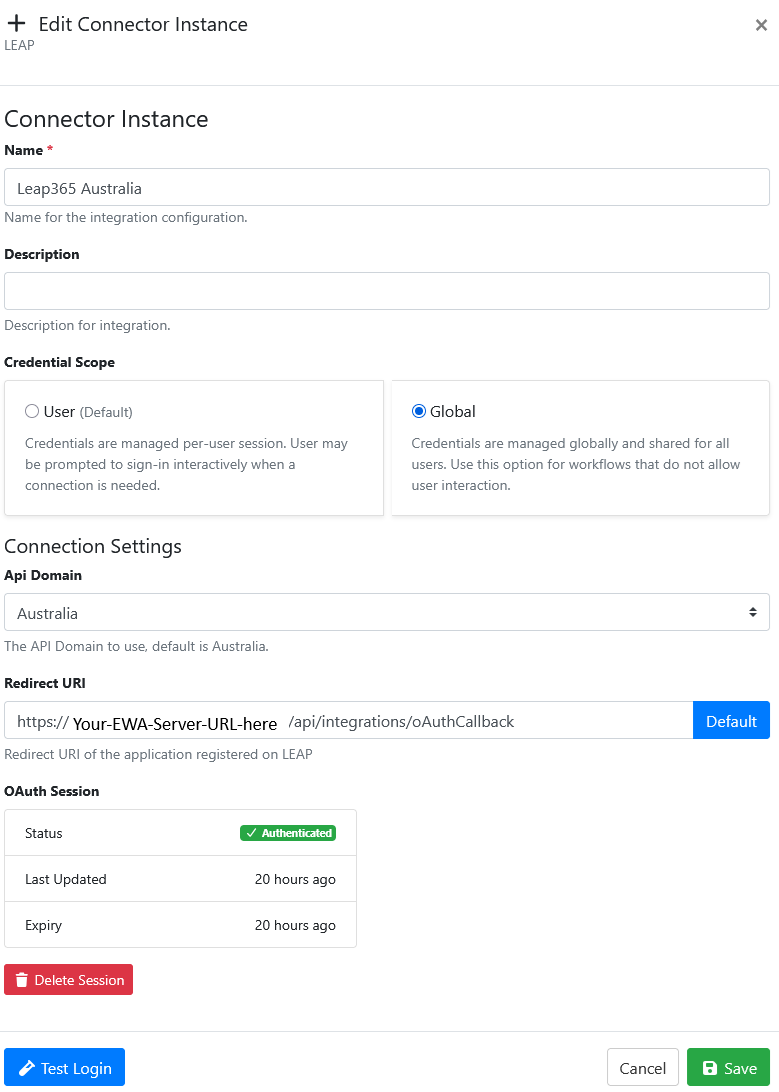
The example below shows how we connected to Leap365 in Australia
Test the integration by pressing 
The Leap365 login webpage should appear. Enter your Leap365 username and password. Press login.
If the login credentials user were authorized by Leap365, EWA will display this message

Build a RIA page to collect metadata from documents
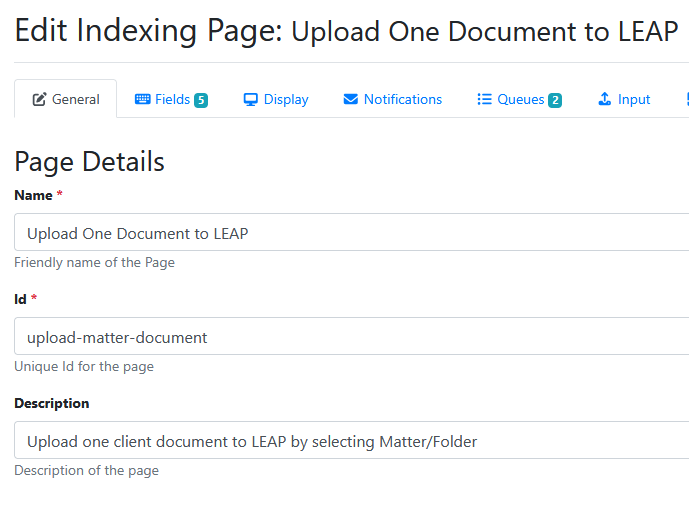
Build a simple RIA page that collect these 5 fields of metadata.
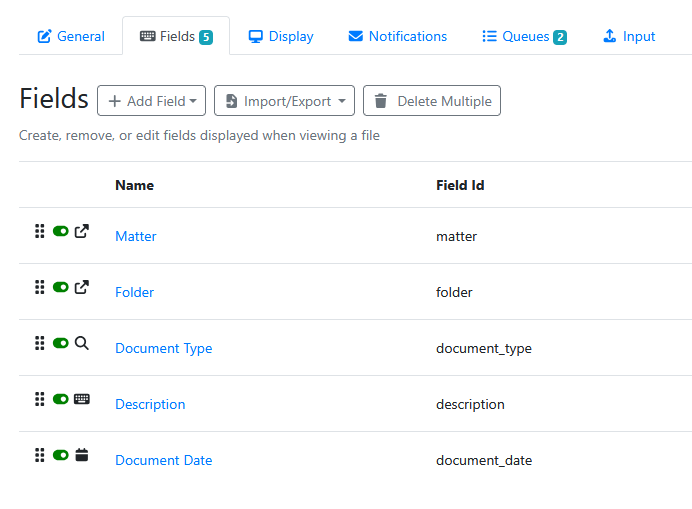
Configuring a Matter search field
The Matter field is configured to the use the Leap365 integration, and for the user to Search for a matter by name (e.g. Interstate Trucking)
It is built using an Integration Find field type.
Once the Integration Find field is selected , make sure to configure the Integration tab options as follows:
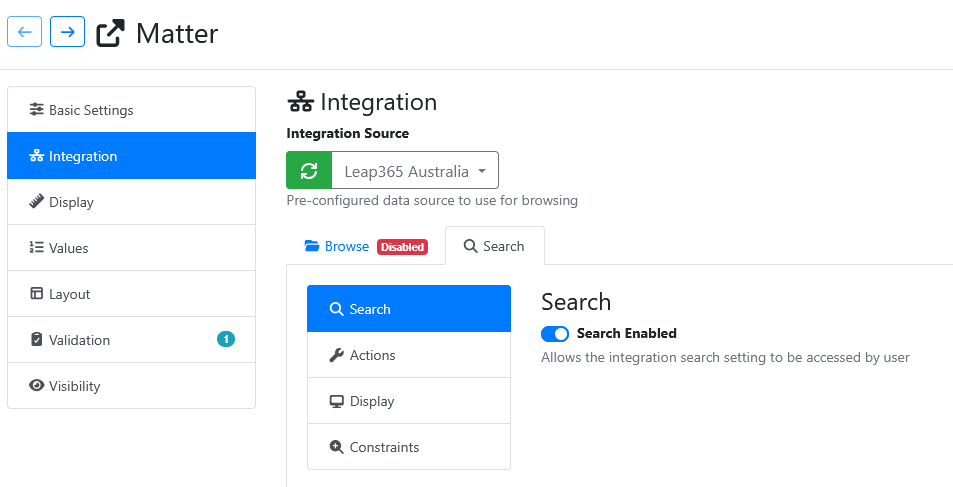
Configuring a Folder browse field
The Folder field is configured to the use the Leap365 integration, and for the user to Browse folders within the matter selected in the previous field.
It is built using an Integration Find field type.
Once the Integration Find field is selected , make sure to configure the Integration tab options as follows:
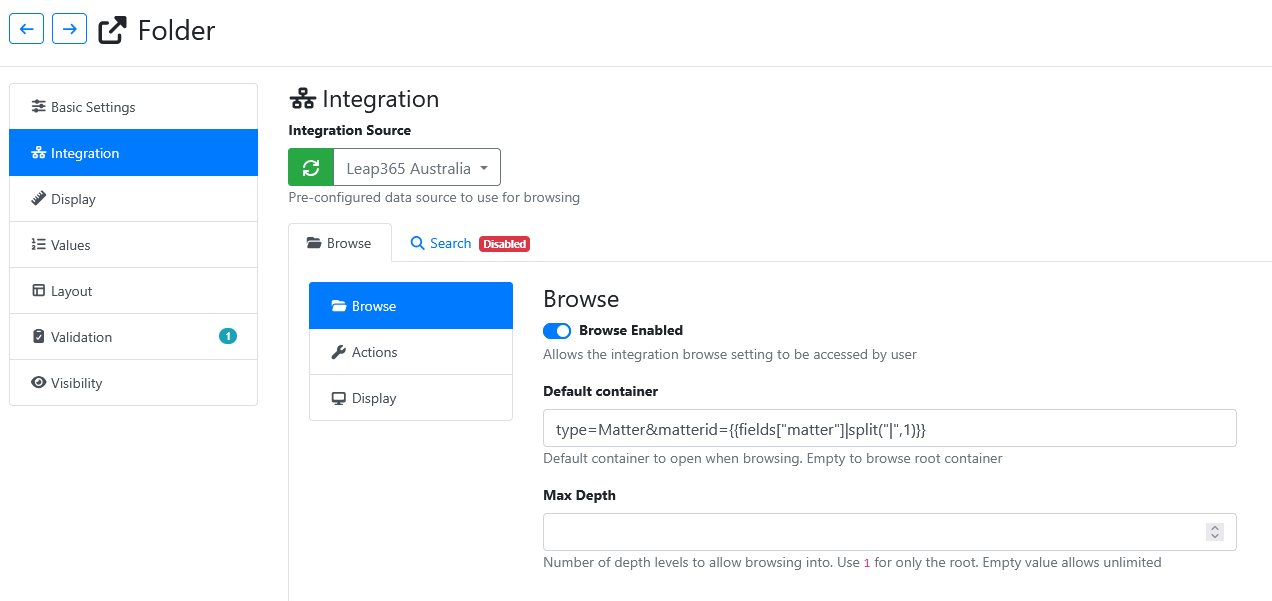
The default container (folder) to start browsing down from is defined by this value below:
type=Matter&matterid={{fields["matter"]|split("|",1)}}
In this example we can browse into folders called Documents, Correspondence etc,
Configuring a Document Type list
The Document Type field is a drop down list of document types.
It this instance, is being built using an Database Lookup field (You could hard code a short list of document types, or use a SQL connection to pull the list from SQL table)
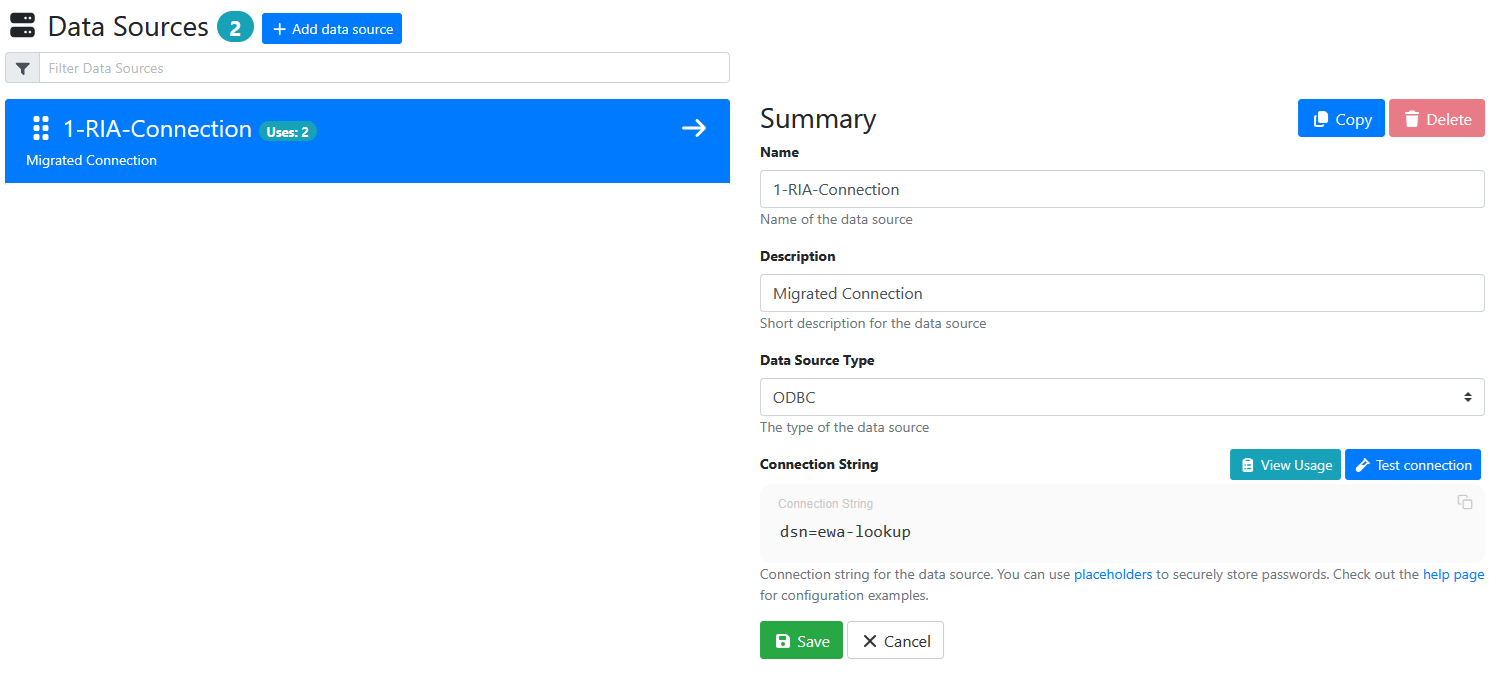
In this example we are using a SQL table provided by a CSV file.
Here is how the data source was setup.
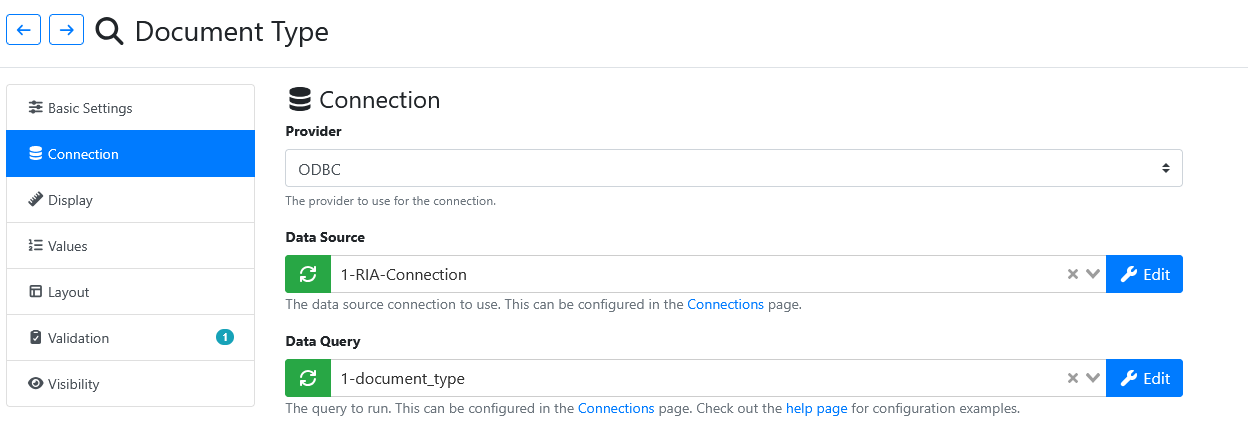
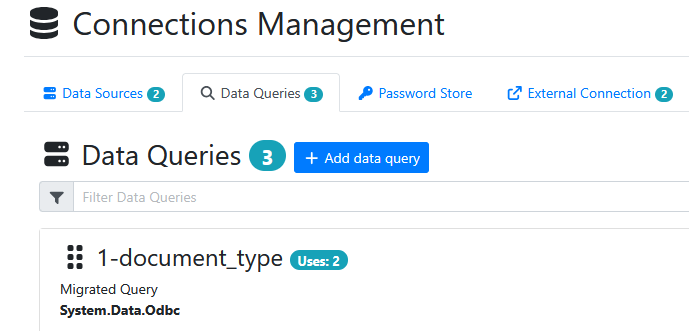
Here is how the SQL data query was setup.
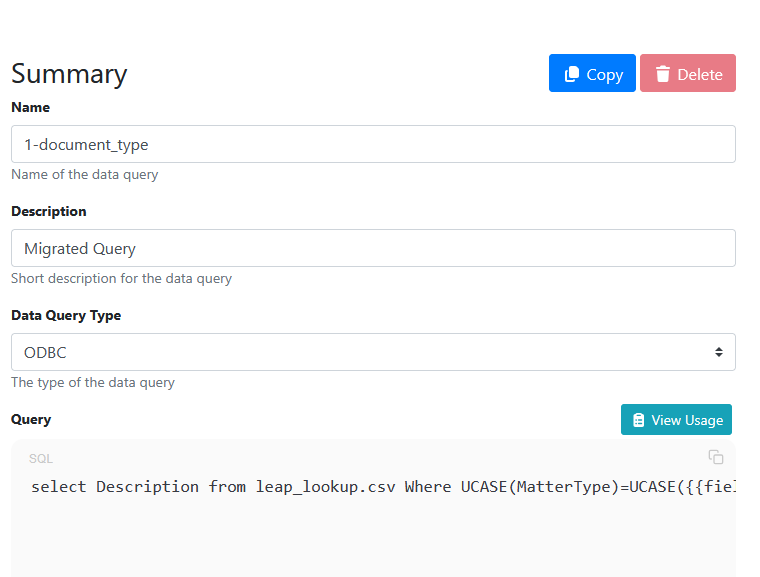
The full SQL statement used was:
select Description from leap_lookup.csv Where UCASE(MatterType)=UCASE({{fields["matter"]|split("|",3)}}).
The document types table from LEAP had been exported in CSV format into a file named leap_lookup.csv.
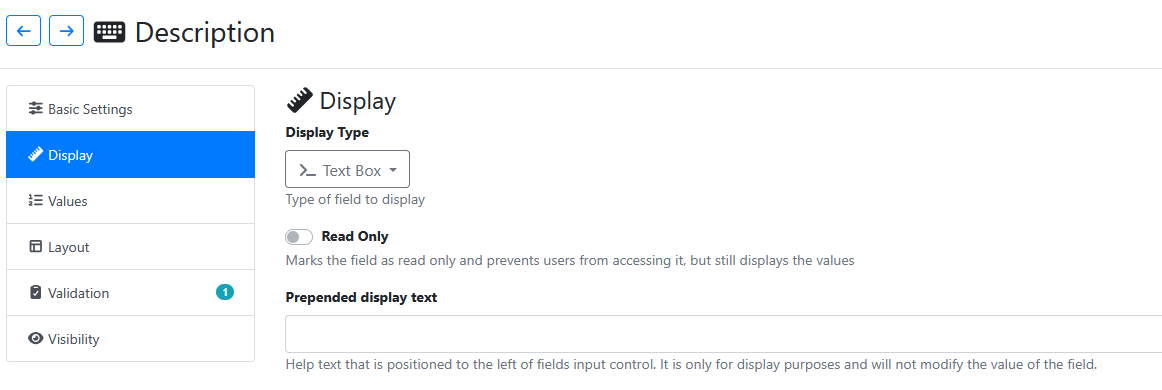
Configuring a Description field
The data entered into this field will be used to name the document within Leap365.
It built using a Text Box field that allows for data entry.
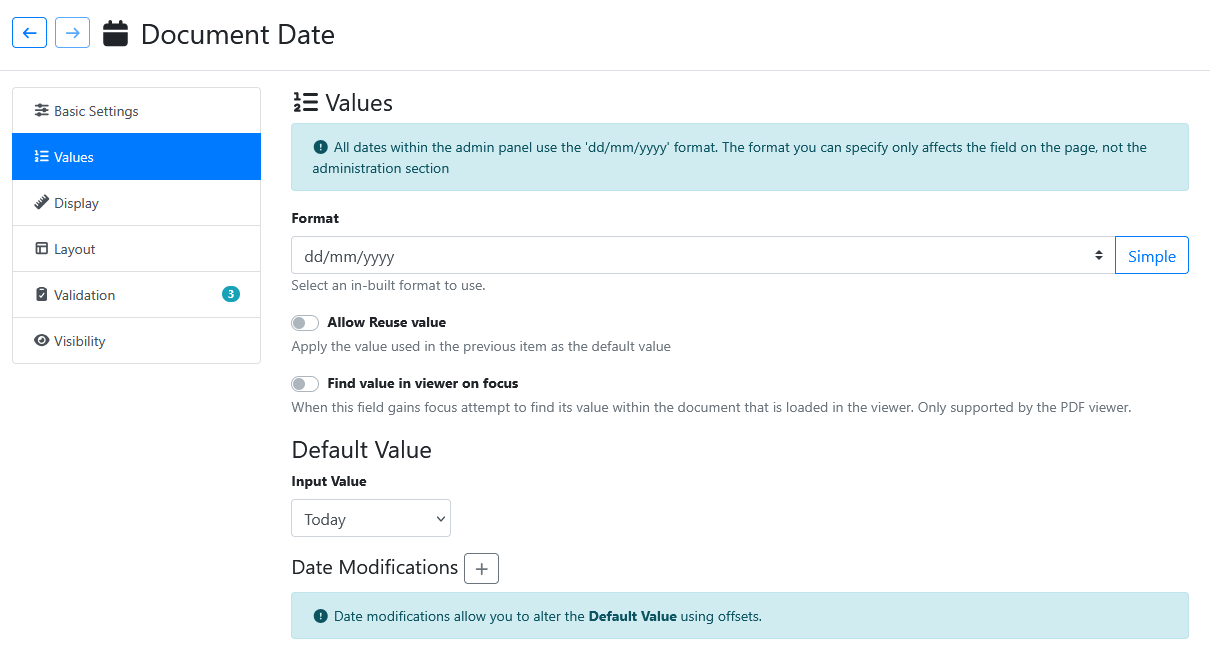
Configuring a Document Date field
It is built using a Text Box field that allows for data entry, but which is being populated by a default value of today's date in dd/mm/yyyy format as follows:
Adding Action Stages to Update Metadata,and Upload to Leap365
Use the Actions tab to add 2 new stages to the Upload (i.e. Submit) action.
Update Metadata
Integration Upload
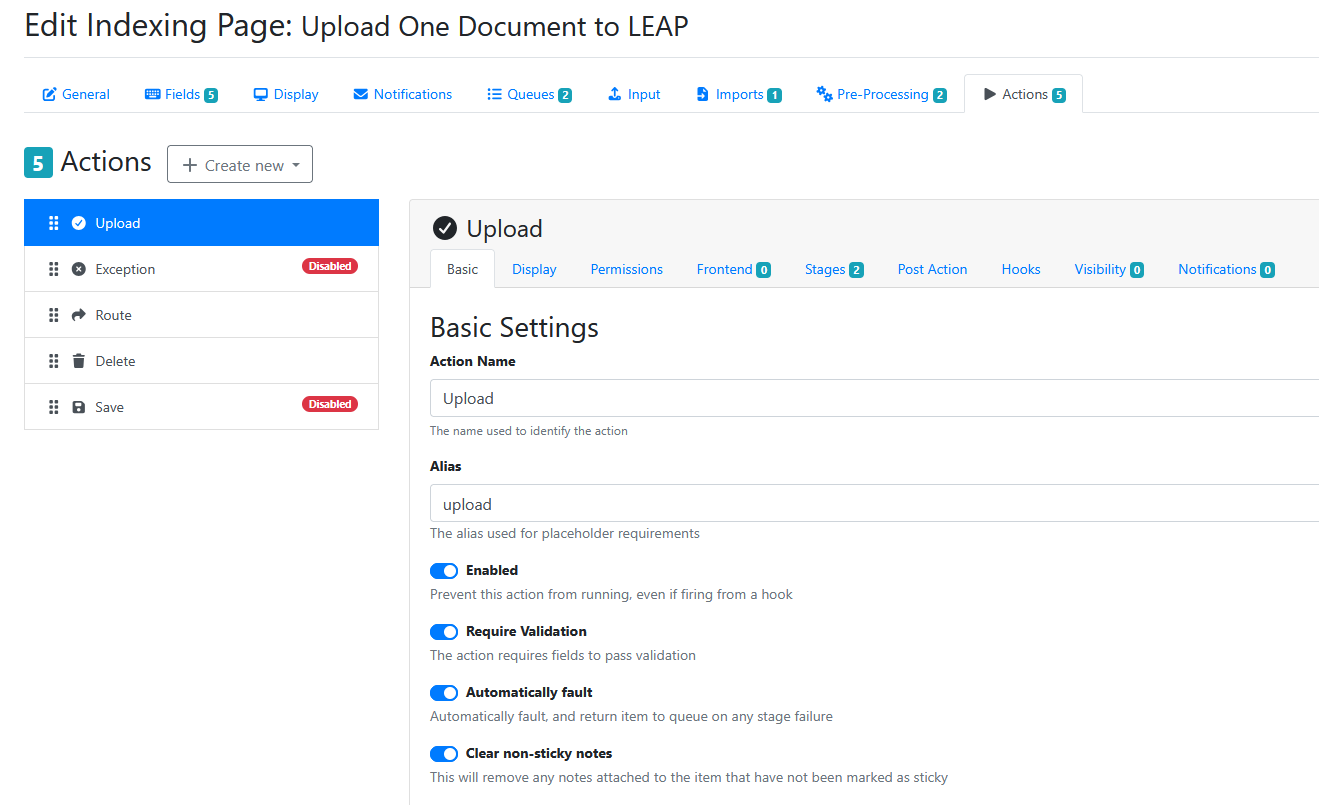
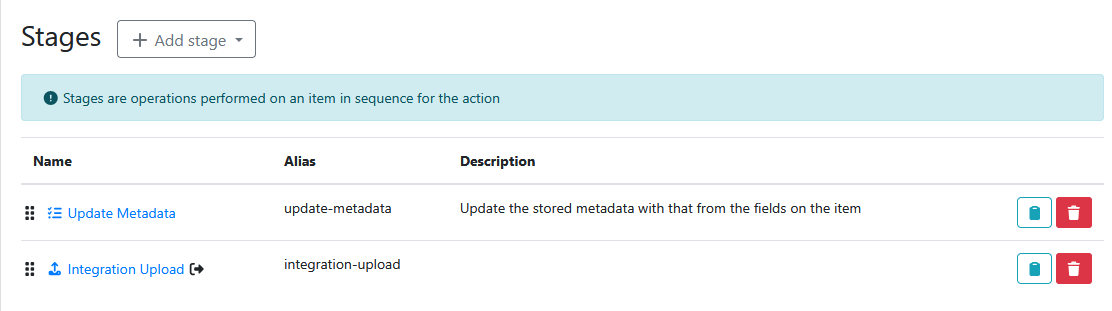
This is how the Update Metadata stage is configured.
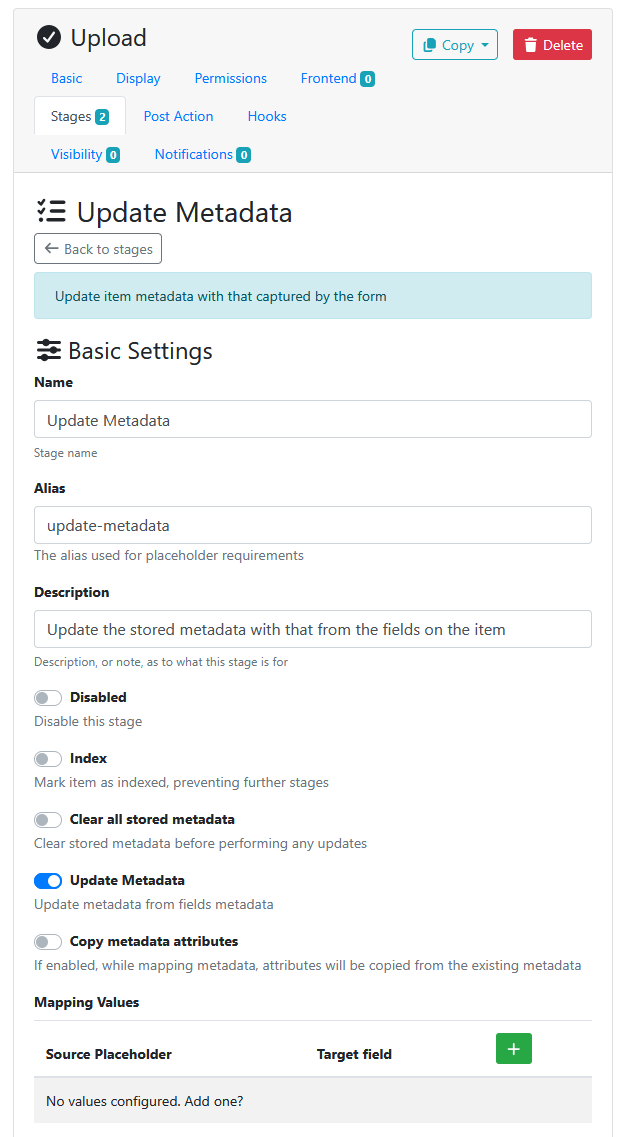
This is how the Integration Upload stage is configured.
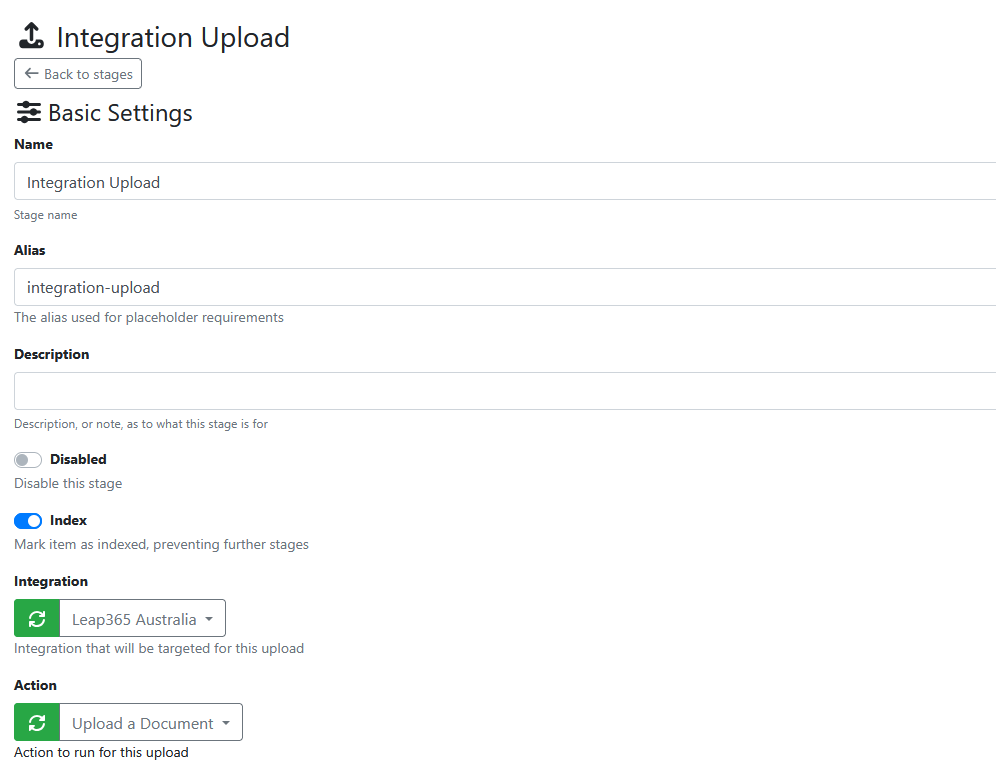
And here you can see how the RIA fields are mapped across into their corresponding Leap365 fields.
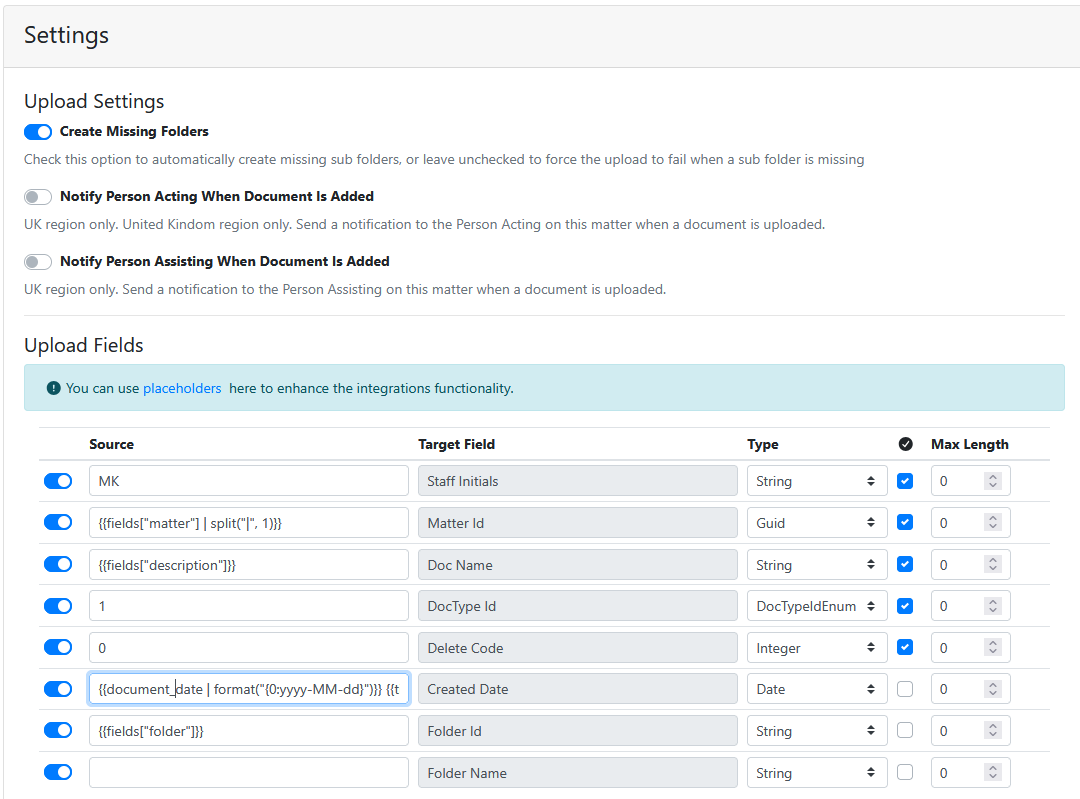
These target fields are being populated in Leap365 as follows:
Staff Initial hard coded to a value of MK
Matter is populated using this string containing one placeholder {{fields["matter"] | split("|", 1)}}
Doc Name is populated using this string containing 1 placeholder {{fields["description"]}}
Doc Type ID hard coded to 1 (1 is document, 2 is memo, 3 is voice file)
Delete Code is hard coded to 0 (just use 0)
Created Date is populated using this string containing two placeholders {{document_date | format("{0:yyyy-MM-dd}")}} {{time | format("{0:HH:mm:ss}")}}
Folder Id is populated using this string containing one placeholder {{fields["folder"]}}
You can obviously modified these to suit your own needs.
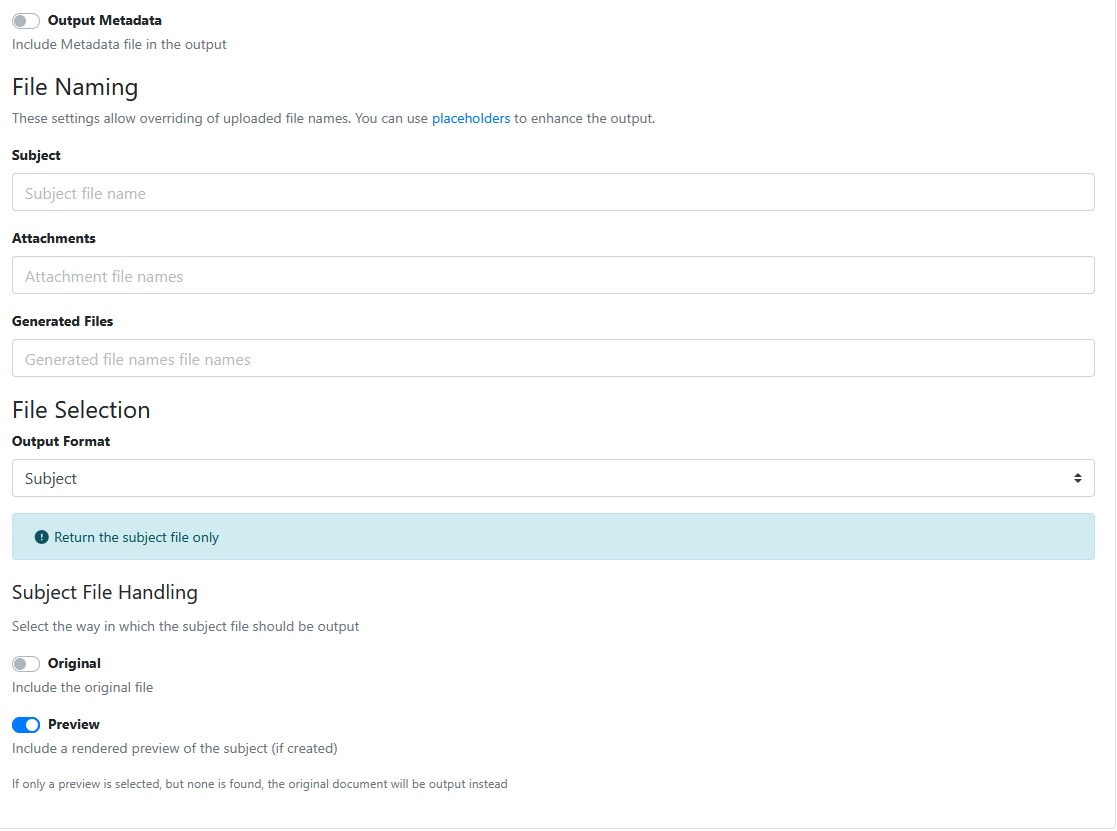
In this instance the upload is configured to upload the document that was previewed in the viewer. The preview is used , rather than the original file because it contains any edits made by the user in the viewer (e.g. delete pages, rotate pages).
There is an option to include an extra separate metadata file, which is not required because the metadata is already being applied to the document in Leap365.
Typical Workflow
Launch the RIA App Page.
Use the Upload button to upload a sample test document to the RIA App Page queue..
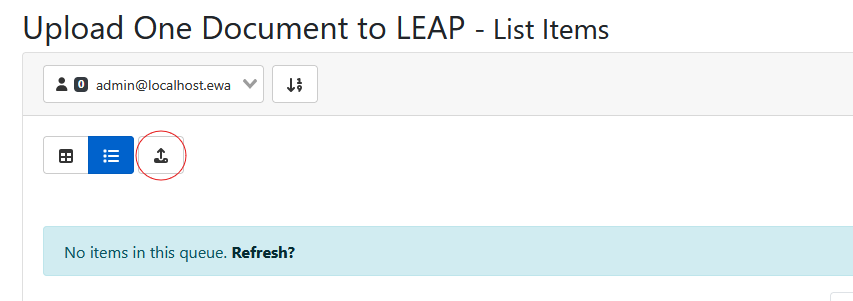
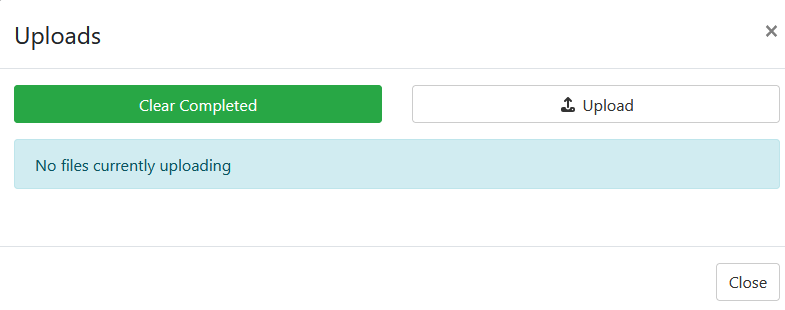
Use the Upload button to browse for and select a file to upload to the RIA Page.
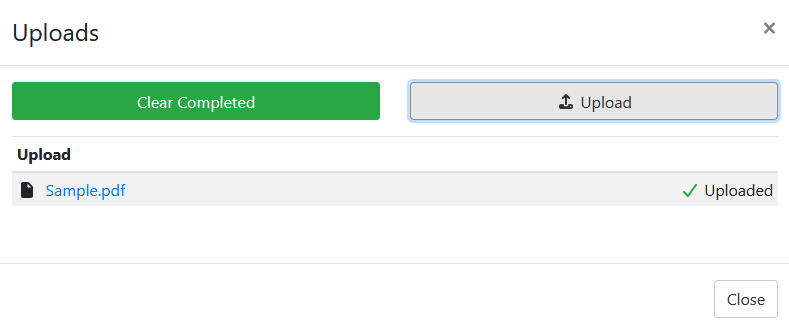
Press the Close button. The document now appears in the app page queue.
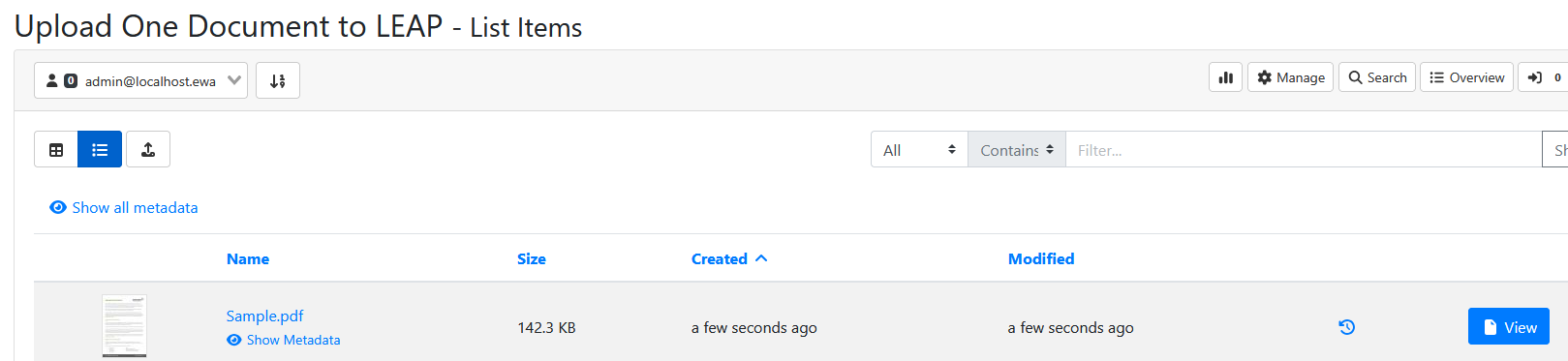
Press the View button to open the document in the viewer.
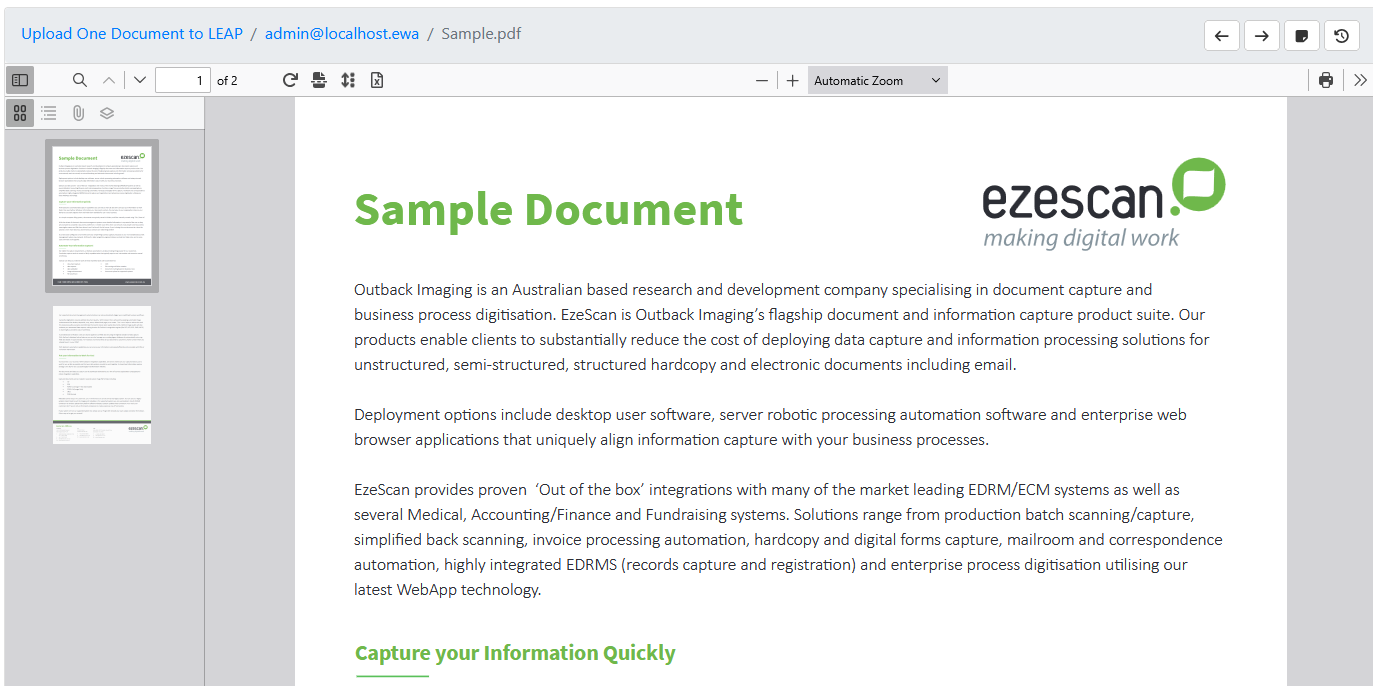
The indexing panel showing the metadata fields is shown on the right hand side.
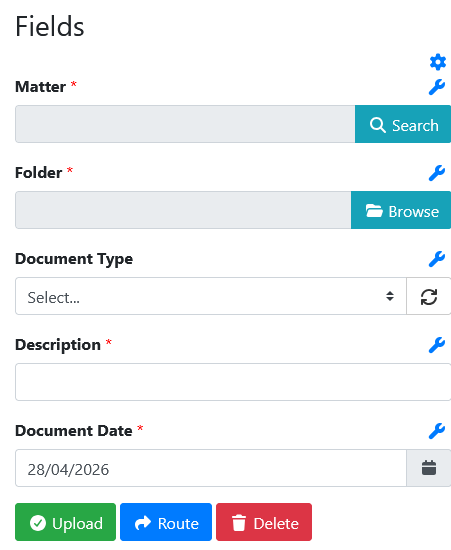
Select the Matter number by pressing the field search button on the Matter field.

The LEAP Matter search form is displayed.
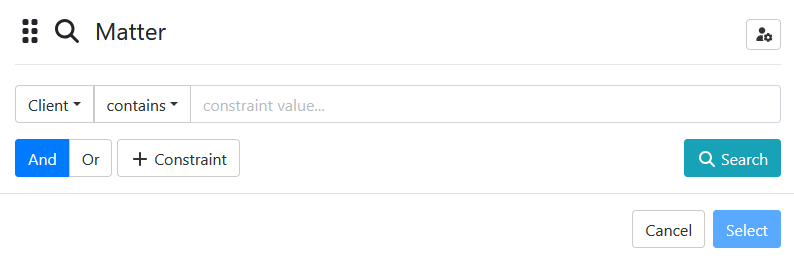
Enter 'Interstate Trucking in the client contains value area and press search.
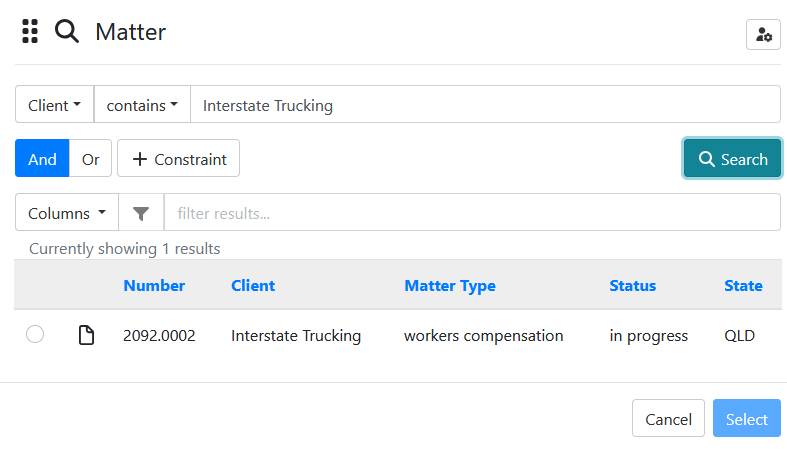
Select the row.

Press Select to close the form. The selected row data is now displayed in the Matter field.

Next browse for folders available on that matter by pressing the Folder field browse button and choosing the Documents folder.

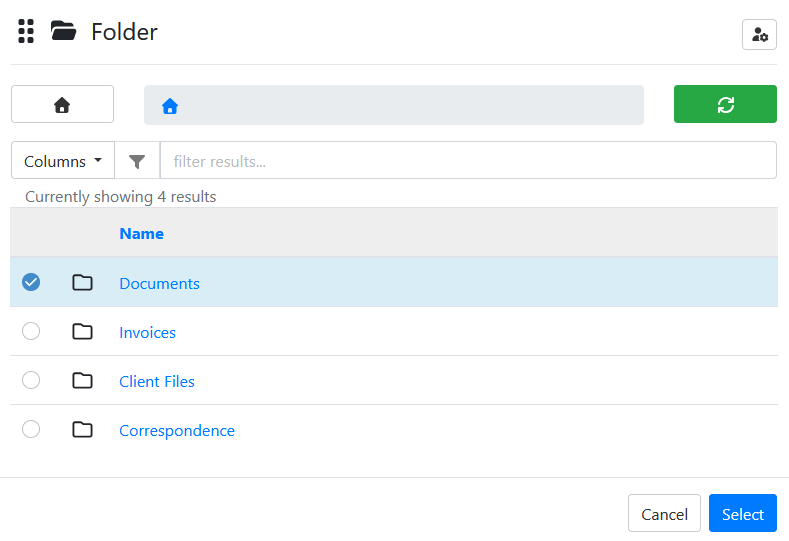
Press the Select button. The folder selected is displayed in the Folder field.

In the Document Type field, drop down the list of values and select one (e.g. Correspondence)

In the Description field, just type a name for the document (.e.g. Test File 5).

The Document Date field will default to today's date, or you can alter the value by using the date picker.

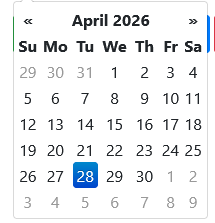
Once all field data is verified its time to press the submit button. The document should be sent to the configured Leap365 instance and disappear from the RIA Page queue.

Login in using Leap web and confirm that a PDF file was saved into the desired folder of the specified matter. Check that the document name was correctly applied and that the document date was correctly applied.
Search for Matter named ‘Interstate Trucking’

Open the Matter, Browse to the Documents folder.
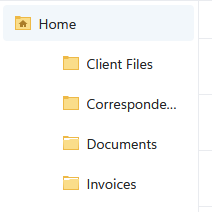
Navigate into the Documents folder and locate the uploaded file.

Open the file and confirm its contents are what you uploaded.
Best‑practice configuration
Matter search
Expose search fields for Matter Number, Folder, First/Second Party, and Matter Type
Display concatenated Matter Type and Description to mirror LEAP’s UI for faster operator selection
Naming rules
Use a standard convention such as: MatterNo - DocType - YYYYMMDD - ShortDesc
Derive date from document content where reliable, falling back to processing date
Metadata validation
Leverage dropdowns and lookups for Doc Type and Practice Area
Apply required field rules to prevent incomplete uploads
Troubleshooting
Change log highlights
Improved matter search to display combined Matter Type and Description for parity with LEAP clients
Optional notifications to Person Acting and Person Assisting on successful upload