
Purpose
Stages are the actual output operations that will be performed when the action button is clicked.
Stages execute sequentially and the output process is not completed until all of the configured stages have been successfully executed.
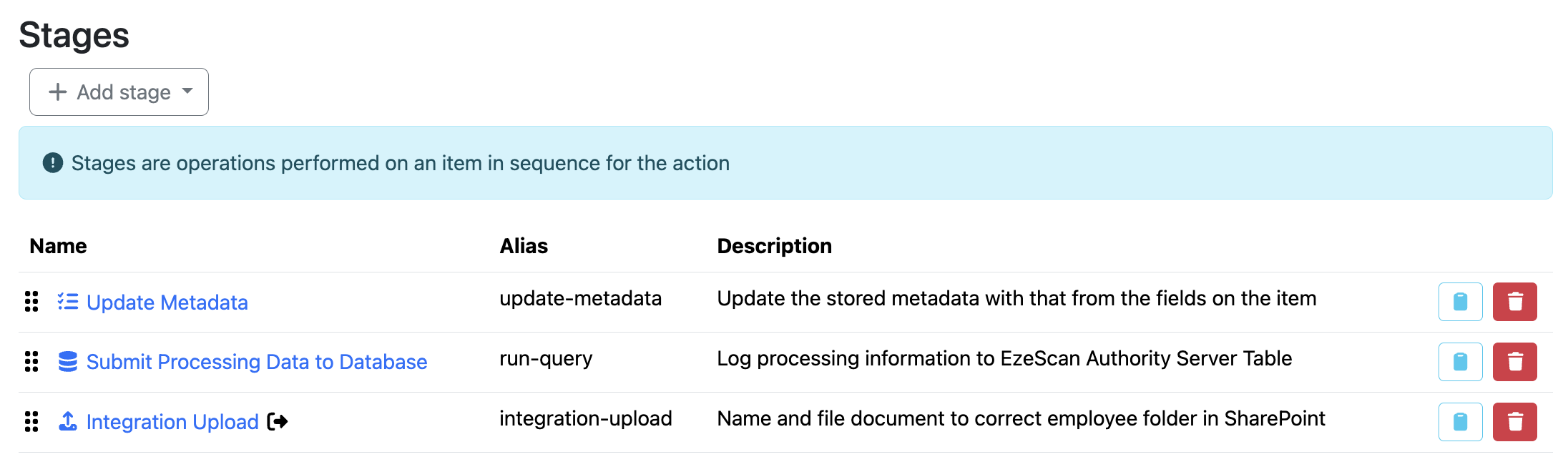
Adding/Deleting/Modifying Stages
|
Button/
|
Name |
Description |

|
Add Stage |
Add a stage from the drop-down list. Each new stage is added to the bottom of the stage list. |
|
|
Modify Stage |
To modify an existing stage, select the stage name in the list. |
|
|
Re-order stages |
Reorder stages by dragging and dropping them into the desired position. The order shown in the list determines the order in which stages are executed. |

|
Export to JSON |
Export the selected stage and its settings to a JSON file for importing into another field. |

|
Delete Stage |
Permanently delete the selected stage. This action cannot be undone. |

Available Stages
-
Add History Event -
Add Note Stage -
API Endpoint Stage -
Condition Stage -
Delete Item Stage -
EzeScan Server Stage -
Generate Attachment Stage -
Increment Counter Stage -
Integration Upload Stage -
Merge Attachments Stage -
Output To Azure Blob Storage Stage -
Output To Directory -
Redaction -
Rename Item Stage -
Route to Queue Stage -
Run SQL Query -
Send Email -
Send to Digital Forms -
Send to Remote Indexing -
Update Metadata Stage
Common Stage Settings
All stages share the following common settings:
|
Setting Name |
Description |
|
Name |
Name of the stage |
|
Alias |
The alias of the stage which will be used for placeholder requirements. |
|
Description |
Description as to what this stage is for. |
|
Disabled |
Ability to turn the stage off without deleting it. This is disbaled by default. |
|
Index |
Some stages have the ability to mark the item as “Indexed”. Marking an item as “Indexed” has the following affects:
Whether this setting is available and enabled by default depends on the stage type. When Mark as Indexed is enabled, the stage will display the following icon in the stages list, indicating that items reaching this stage will be marked as indexed and processing will stop. |

For stage-specific settings, refer to the documentation page for the relevant stage type.
Placeholders
Every stage has access to the following placeholders {{fields["field_id_here"]}} and {{metadata["metadata_id_here"]}}.
The {{fields["field_id_here"]}} placeholder gets the value of a field that has been submitted by the user.
You should use an Update Metadata stage to persist the value from the fields into the metadata.
The {{metadata["metadata_id_here"]}} placeholder gets the items current metadata value.
The metadata placeholder is perfect for updating a value in a stage and then referencing the updated value in subsequent stages.