
Overview
The Global Library tab in the administration interface provides a central location for managing settings that can be shared across multiple App Pages.
Currently, the Global Library only supports Global Fields.
Global Fields
Global Fields allow administrators to create and manage reusable fields that can be shared across multiple RIA and DFA App Pages.
Rather than configuring the same field individually on each page, administrators can create it once in the Global Library and reuse it wherever required.
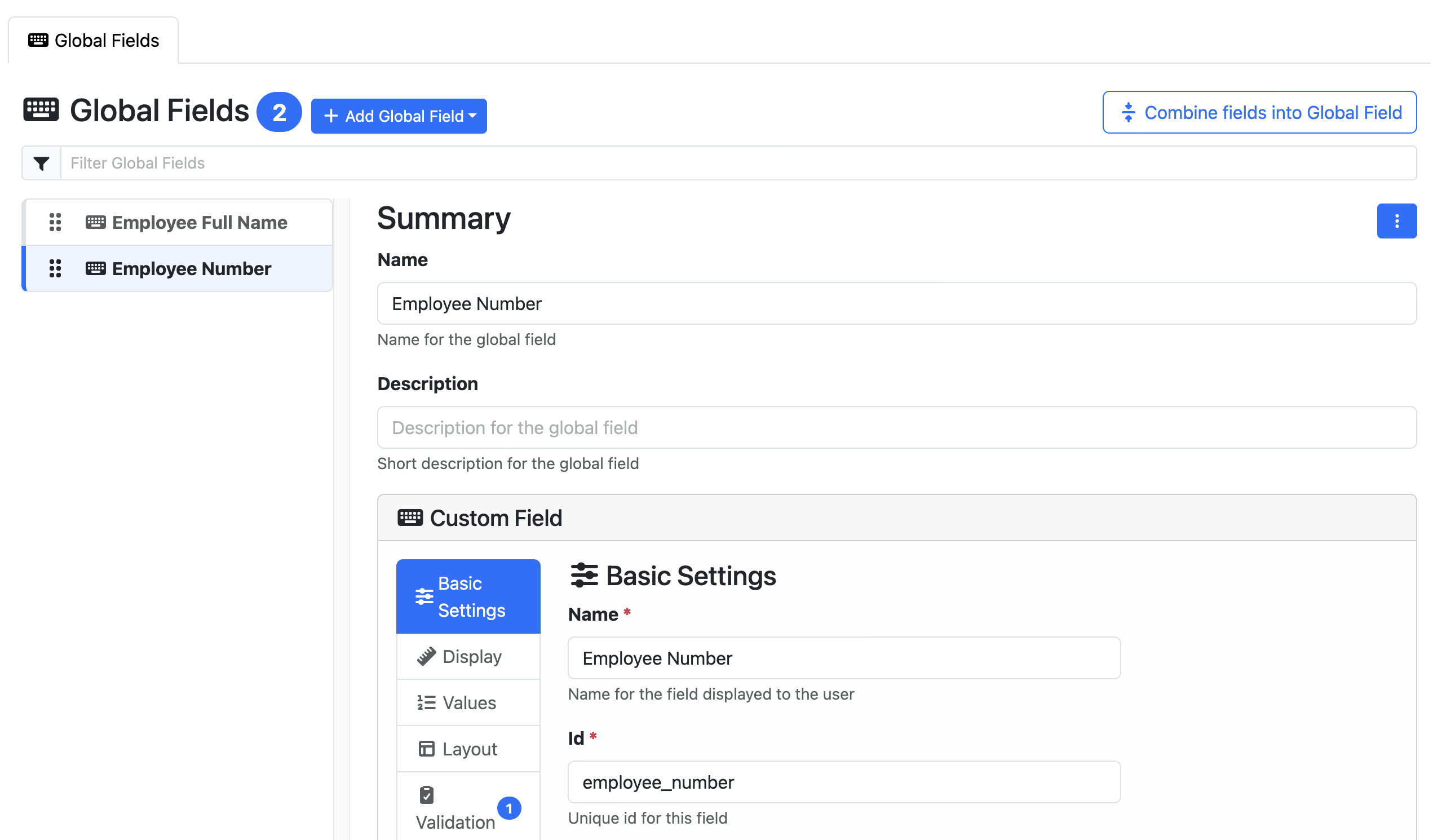
Creating a New Global Field
To create a new Global Field:
-
Navigate to Admin → Global Settings → Global Fields.
-
Select the field type you want to create from the Add Field drop-down menu.
-
Configure the field settings as you would when creating a standard App Page field.
-
Save the field to make it available for use across supported App Pages.
Adding a Global Field to an App Page
Once a Global Field has been created, it can be added to any supported RIA or DFA App Page.
To add an existing Global Field:
-
Navigate to the relevant App Page → Fields tab.
-
Select Add Field.
-
Scroll to the bottom of the field type list and select Global Field.
-
Choose the Global Field you want to add from the available options.
The selected Global Field will be added to the App Page, allowing you to reuse its existing configuration without recreating the field.
Converting an Existing Field to a Global Field
Existing App Page fields can be converted into Global Fields, allowing them to be reused across other pages.
To convert an existing field:
-
Navigate to the relevant App Page → Fields tab.
-
Locate the field you want to convert.
-
Select Edit → Extract as Global Field.
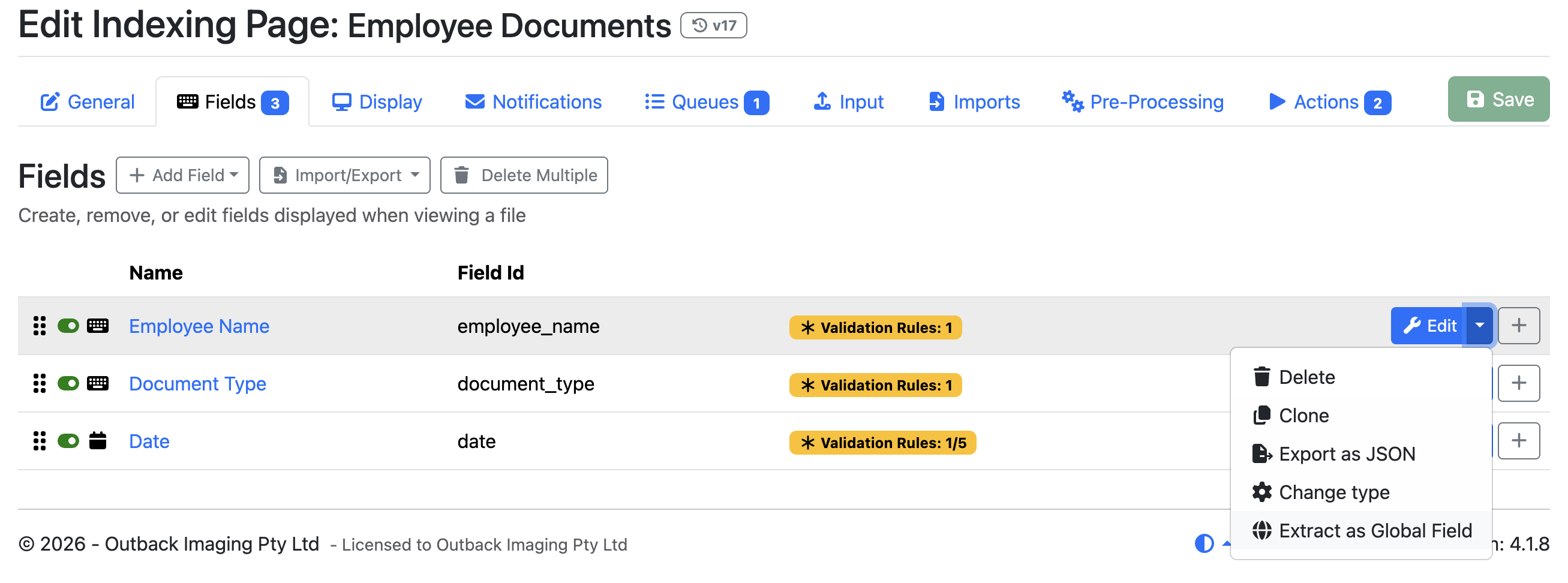
The existing field will be converted into a Global Field and identified in the list via Global Field tag.

Global Field settings cannot be modified directly from the App Page. To make changes to the field's configuration, select Edit to navigate to the Global Library → Global Fields page, where the field can be updated.