
Overview
The Connections page allows administrators to configure and manage the connection settings used throughout the platform. Connections are organised into four categories, each accessible from its own tab.
|
Connection Type |
Description |
|---|---|
|
Data Sources |
Configure database connections using ODBC connection strings or direct SQL database connection settings. |
|
Data Queries |
Create and manage queries that can be executed against configured data sources to retrieve information from external databases. |
|
Password Store |
Securely store passwords and generate placeholders that can be referenced in configuration settings. At runtime, these placeholders are automatically replaced with the stored password value. |
|
External Connection |
Configure and manage connections to external systems, services, and applications used by the platform such as Microsoft Azure AI Models. |
Common Fields
Each data source includes the following common configuration fields:
|
Field |
|
|---|---|
|
Name |
Enter a unique name to identify the data source within the platform. |
|
Description |
An optional description that provides additional information about the data source and its intended purpose. |
Data Sources
The Data Sources tab allows administrators to configure database connections using either ODBC or SQL connection strings. These connections can then be used by data queries and other platform features that require access to external databases.
Required Settings
|
Field |
|
|---|---|
|
Data Source Type |
Select the type of database connection to create: ODBC or SQL. |
|
Connection String |
Enter the connection string used to connect to the database. The required format will depend on the selected data source type and database provider. Use the Test Connection Button to validate the database connection or View Usage to identify where the data source is being used within the platform. |
Data Queries
The Data Queries tab allows administrators to create and manage queries that can be executed against configured data sources. These queries can be used to retrieve, validate, and populate information within EzeScan WebApps.
Required Settings
|
Field |
|
|---|---|
|
Data Query Types |
Select your data query type: ODBC, SQL, Authority Server or EzeScan Webapps Placeholder. |
|
Query |
Enter the query or expression to be executed. The format and syntax will depend on the selected query type. Check out the help page for configuration examples. |
Password Store
The Password Store tab allows administrators to securely store passwords and generate reusable placeholders. At runtime, placeholders are automatically replaced with the corresponding stored password value.
|
Field |
|
|---|---|
|
Name |
Enter a unique name for the password. This name is used to generate the placeholder value |
|
Placeholder |
Automatically generated based on the specified name. The placeholder follows the format |
|
Password |
Enter the password directly or upload a file containing the password value. Passwords can be provided in one of two ways:
To switch between Text Value and File Upload modes, click the icon to the left 

|
External Connection
The External Connections tab allows administrators to configure connections to external services and technologies that are used by EzeScan WebApps but are not configured as standard Integrations.
Available Connection Types
|
Type |
Description |
|---|---|
|
Azure AI Language |
Azure-based language services for text analytics, entity recognition, sentiment analysis, and natural language processing. |
|
Azure Content Understanding |
Azure-based content analysis services for extracting, classifying, and understanding information from documents and other content sources. |
|
Azure Custom Vision |
Azure-based computer vision services for image classification and object detection using custom-trained models. |
|
Azure Document Intelligence |
Azure-based document processing services for extracting text, tables, key-value pairs, and structured data from documents. |
|
Azure OpenAi |
Azure-based generative AI services for prompting, summarisation, content generation, and AI-assisted workflows. |
|
Azure Storage |
Azure-based storage services for managing files, documents, and application data. |
|
EzeScan Object Detection Model |
EzeScan-trained model for object detection, recognition, and classification. |
|
Microsoft Graph (mailbox) |
Microsoft 365 mailbox integration for email retrieval and processing within WebApps workflows. |
|
Presidio |
Sensitive data detection and redaction capabilities for personally identifiable information (PII). |
Common Settings
|
Setting |
Description |
|---|---|
|
Name |
A unique name used to identify the connection within the platform. |
|
Description |
An optional description that explains the purpose of the connection. |
|
Endpoint Url |
The URL of the external service endpoint that EzeScan WebApps will communicate with. |
|
Authentication Types |
API Key: Authenticates using an API key provided by the external service. Managed Identity: Uses a managed identity to authenticate with supported cloud services without requiring stored credentials. Service Principal: Authenticates using a service principal and associated credentials configured for the external service. |
Azure Storage Settings
|
Setting |
Description |
|---|---|
|
Access Key |
When using Access Key as the authentication type the following additional fields are required: Storage Account Name: Name of the storage account as displayed in the Azure Portal. It’s also the first part of the URL. Access Key: Access key for the storage account which can be found in the Azure Portal. This field supports the use of a password store placeholder. |
|
Connection Strong |
When using Connection String as the authentication type the following additional fields are required: Connection string of the storage account as displayed in the Azure Portal. This field supports the use of a password store placehold |
|
Managed Identity |
This can only be used when running the application inside an Azure resource. |
|
SAS URL |
When using SAS URL as the authentication type the following additional fields are required: A SAS URL that has been generated for the storage account using the Azure Portal. |
Microsoft Graph (Mailbox) Settings
|
Setting |
Description |
|---|---|
|
Name |
Name of the connection. |
|
Description |
Description of the connection. |
|
Authentication Type |
Inbuilt is the easiest method but you will need an IT administrator to allow our application access to the mailbox. |
|
Allow Shared Mailbox |
Tick this to also request the relevant Shared Mailbox Permissions
With this enabled the scopes above are requested in addition to:
|
|
OAuth Session |
Click the authorize button, if using an authentication method that requires interactive login then a Microsoft 365 login window will be displayed. 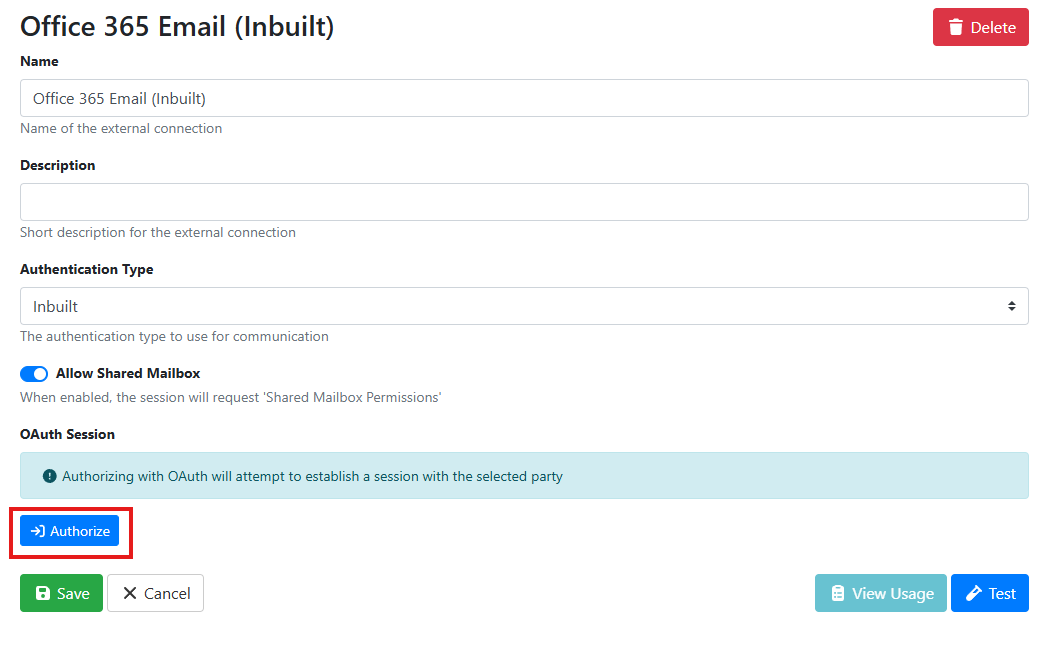
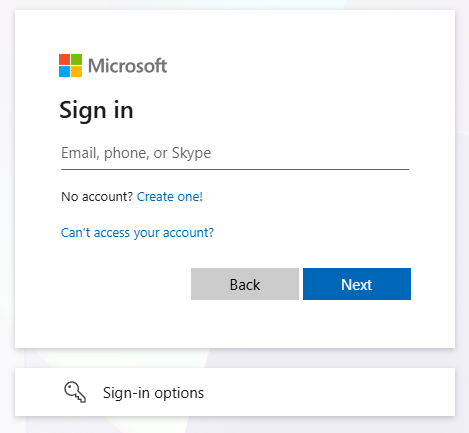
If it’s the first time connecting one of our products to your Microsoft 365 tenancy then an administrator will need to approve the connection, and you will see the following screen: 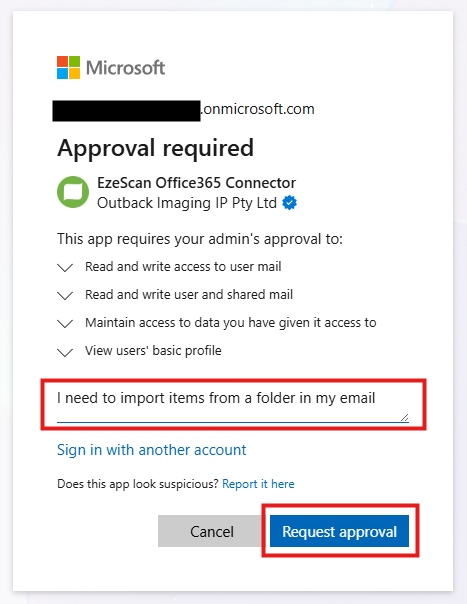
You will then see the following screen: 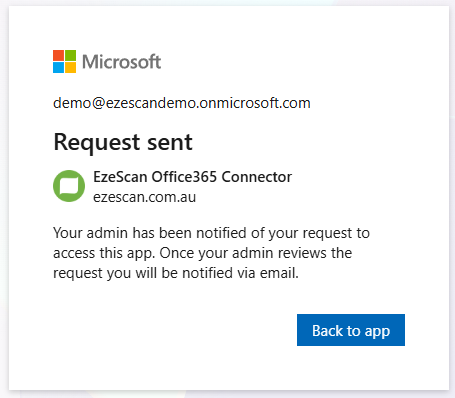
Please contact your administrator and have them navigate to the Azure Portal > Enterprise Applications > Admin consent requests and then approve the request for “EzeScan Office365 Connector”. 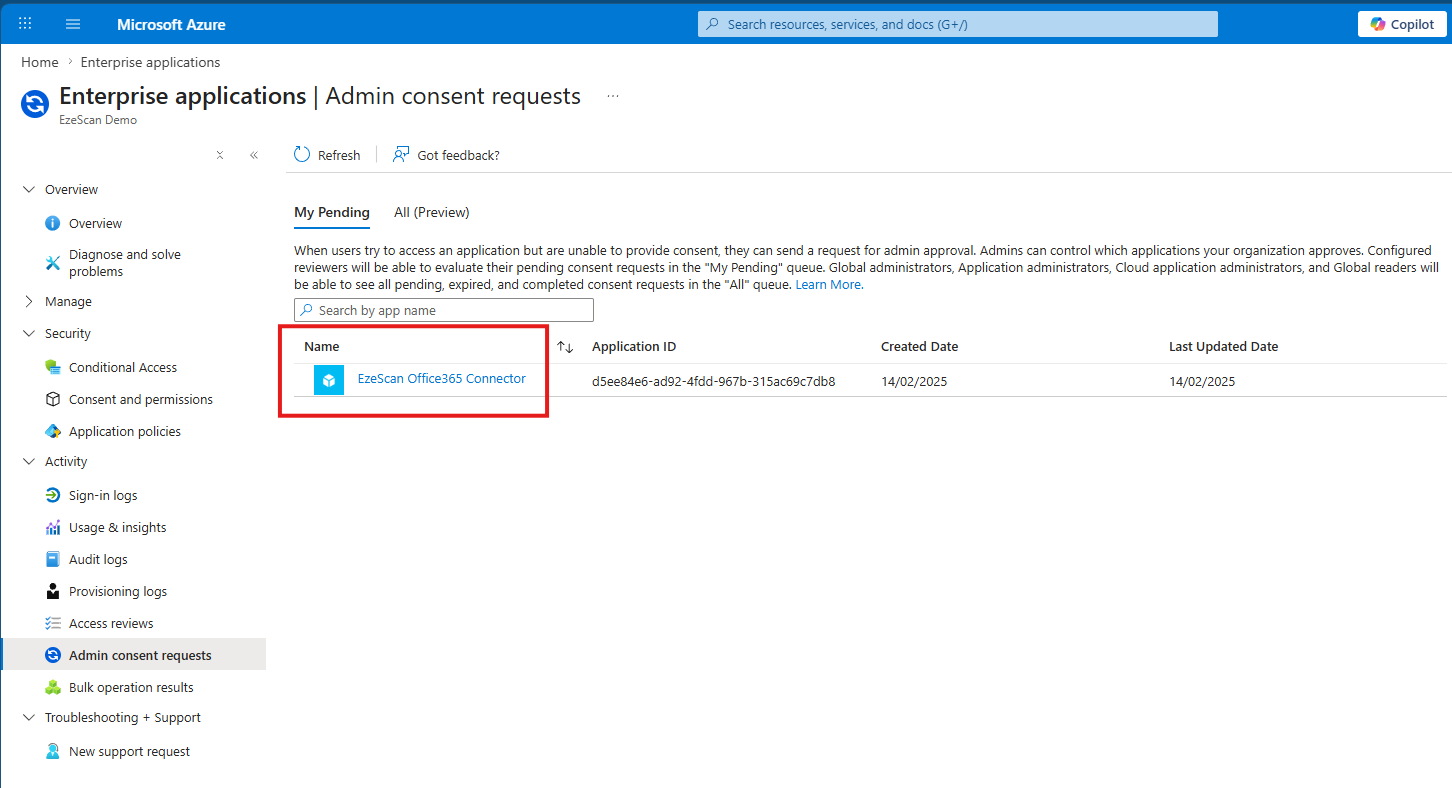
Once the connection has been approved by your tenant administrator navigate back to the connection and click the Authorize button again. If for some reason you have an OAuth Session with the status of “Initial” then click the Delete Session button. 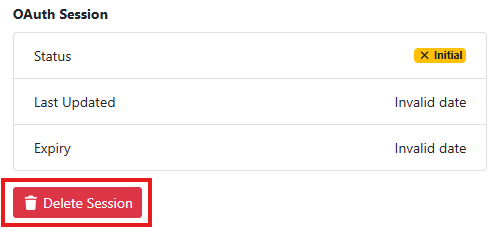
If the connection is successful, then your OAuth Session status window will look like the following:
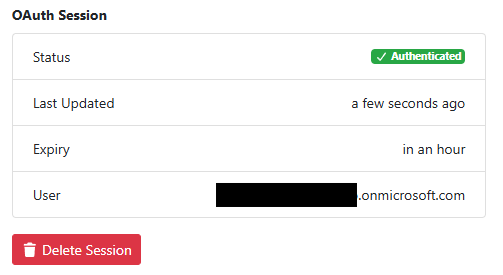
The email displayed in the User section must either be be the mailbox you wish to import from or have access to the target shared mailbox you wish to import form. |