
Purpose
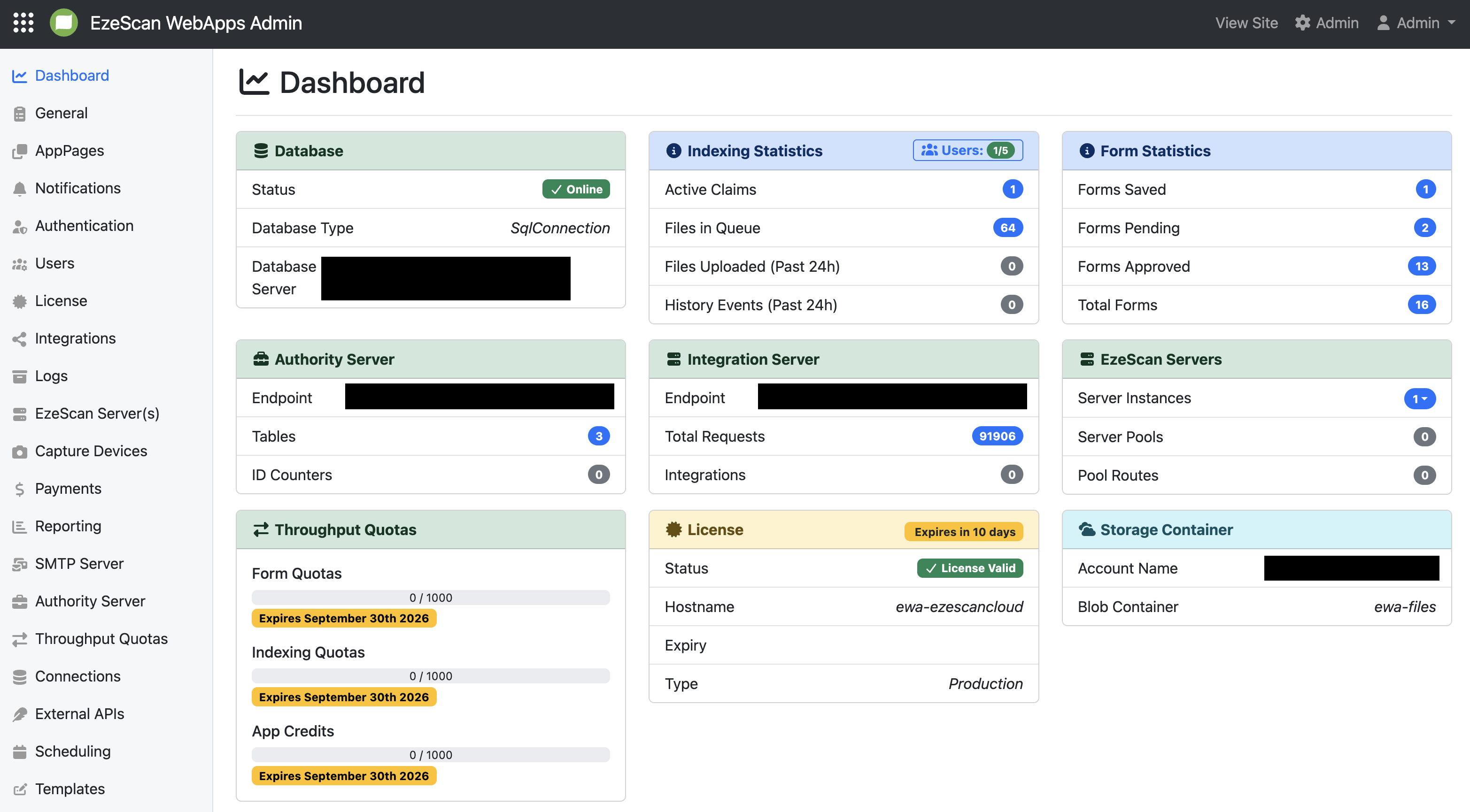
The dashboard tab provides information panels that provide an overview of the health of the installation.
Clicking on the panels will take you to the relevant configuration page for that specific part of the application.
Panel Colors
|
Panel Colour & Description |
Example |
|---|---|
|
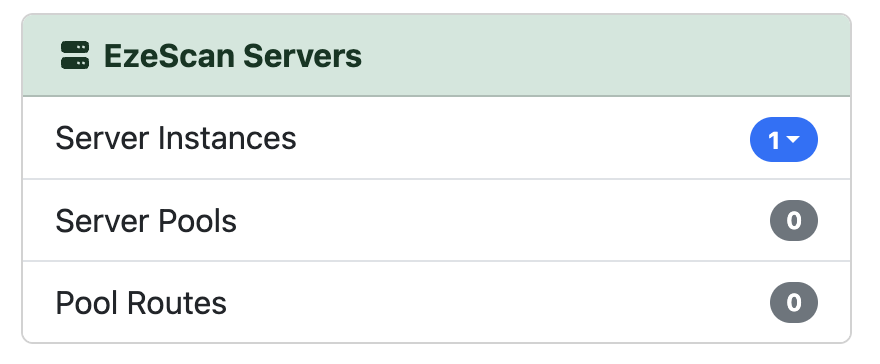
Green: A green panel indicates that everything is operating as normal. |
|
|
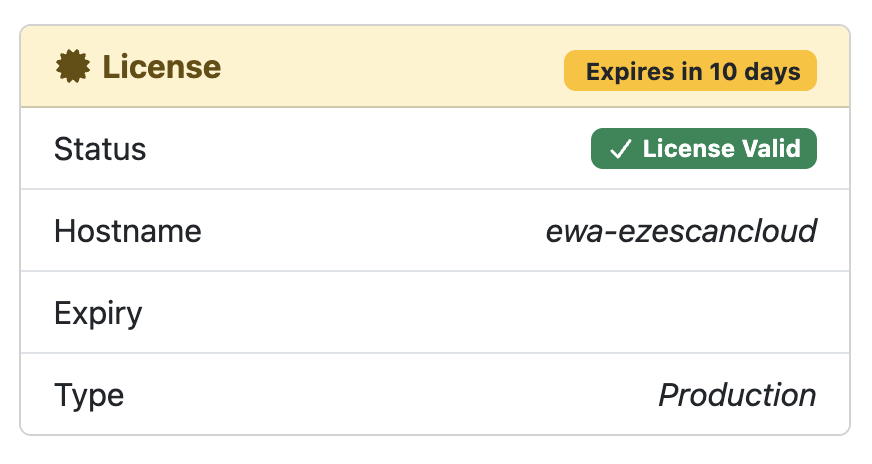
Yellow: A yellow panel indicates a warning state. These are generally non critical issues but the application is most likely still functioning correctly and should be investigated. |
|
|
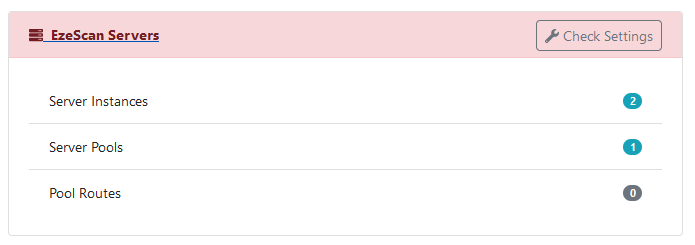
Red: A red panel indicates an error state. These are generally critical errors that will stop the application from functioning correctly and should be rectified immediately. |
|
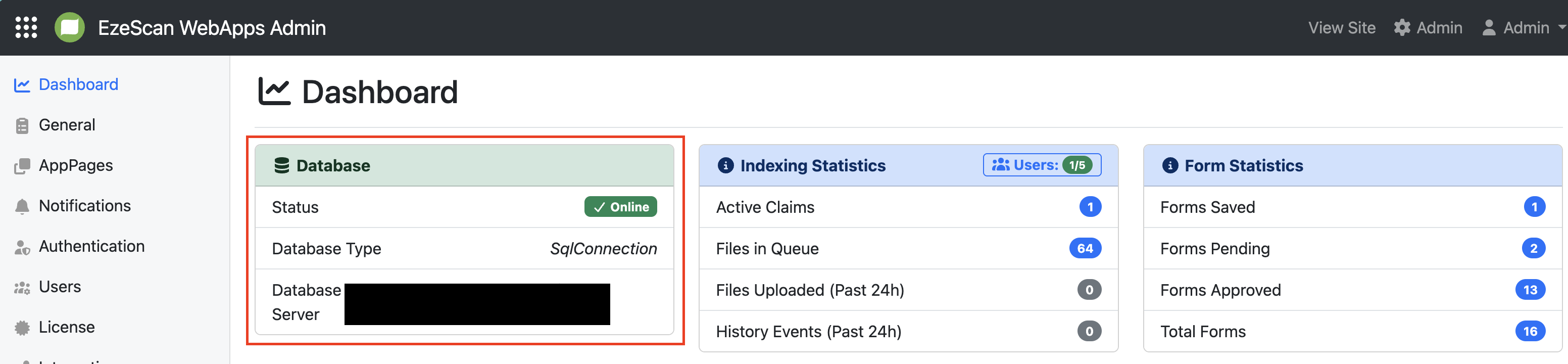
Database Management
Clicking on the Database panel will take you to the Database Management screen.
The database management screen displays the databases in use, their location and the size. Below is an example for an on-premises deployment of EzeScan WebApps.
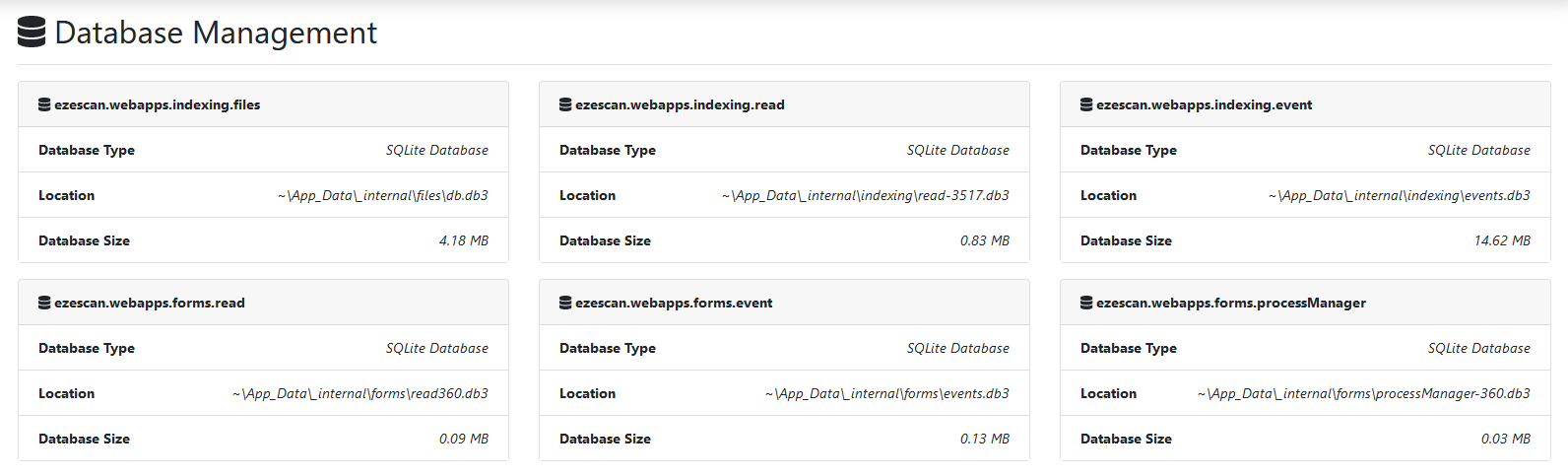
If your databases are running using Microsoft SQL server then you will get additional options to view and reorganize indexes.
Indexing Statistics
This panel provides an overview of document indexing activity across the platform, including documents currently awaiting processing and documents that have been indexed within the last 24 hours.
|
Metric Name |
Description |
|---|---|
|
Active Claims |
The total number of documents currently being processed by users. |
|
Files in Queue |
The total number of items waiting to be processed across all configured RIA pages. |
|
Files Uploaded (Past 24h) |
The total number of items uploaded during the last 24 hours. |
|
History Events (Past 24h) |
Total number of history events uploaded in the past 24 hours. |
Concurrent User Count
The Users count displayed in the upper-right corner of this panel indicates the number of users currently logged in and actively using the platform.
For example, a value of 1/5 means that 1 user is currently active and 5 concurrent user licences are available.
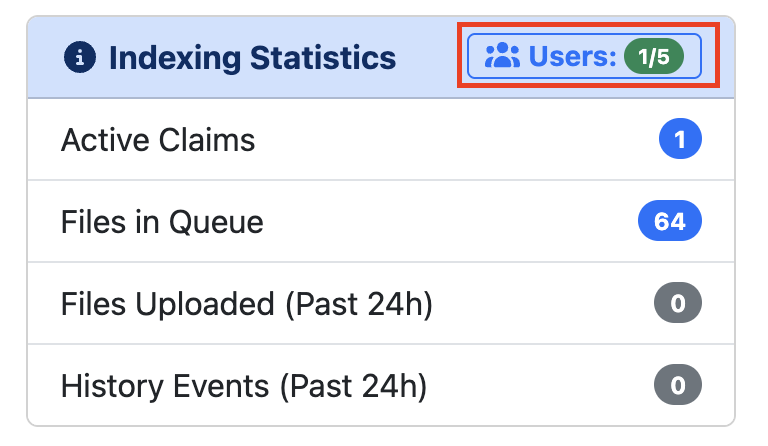
Managing Concurrent Users
Click the Users count to open the Concurrent Users screen. This screen displays all active indexing sessions and allows administrators to view and terminate them as needed.
To end an active session, click Remove Session next to the relevant user.
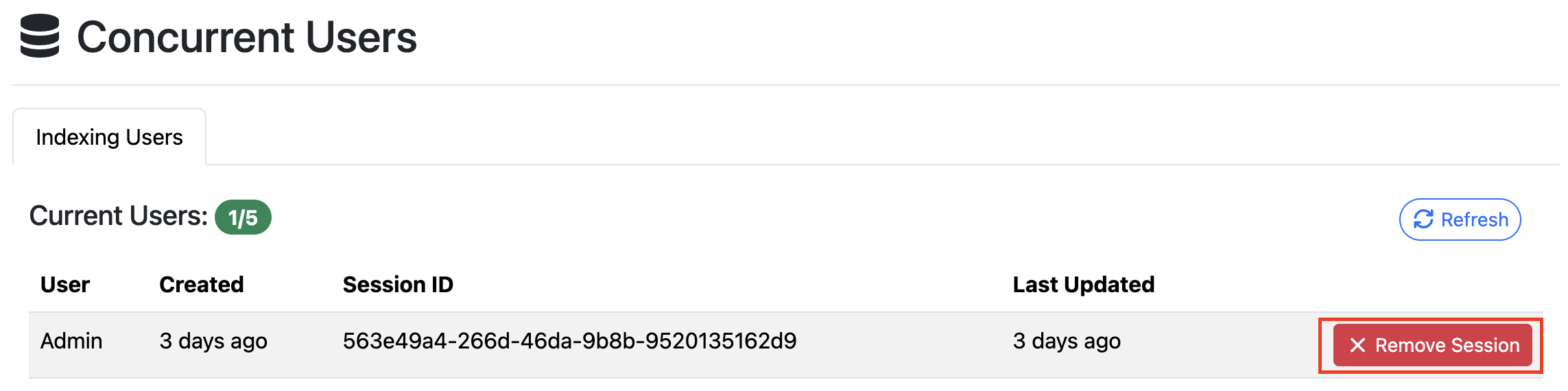
When a session is removed:
-
The session is terminated immediately.
-
The affected user must log out and then log back in to establish a new session.
-
Until they sign out and back in again, they will see the following message:
