
Purpose
The General tab allows administrators to configure and manage the general settings of the EzeScan WebApps Platform.
Nav Menu Tab
Navigation Settings
|
Setting Name |
Description |
|---|---|
|
Show RIA search textbox |
Provides a textbox on the main navigation that allows users to search for indexing items across all accessible pages. This is off be default. 
|
|
Search All By Default |
When using the navigation RIA search, default the parameter to search both the item names and every metadata field on all RIA items.
|
|
Show Intray link |
Provides a link in the top right-hand corner for users to access their inbox. 
|
Front End Settings
|
Setting Name |
Description |
|---|---|
|
Show in App Field Editing |
Enables administrators to edit fields directly from the application's front end. This setting is enabled by default. When enabled, users with administrator permissions will see:
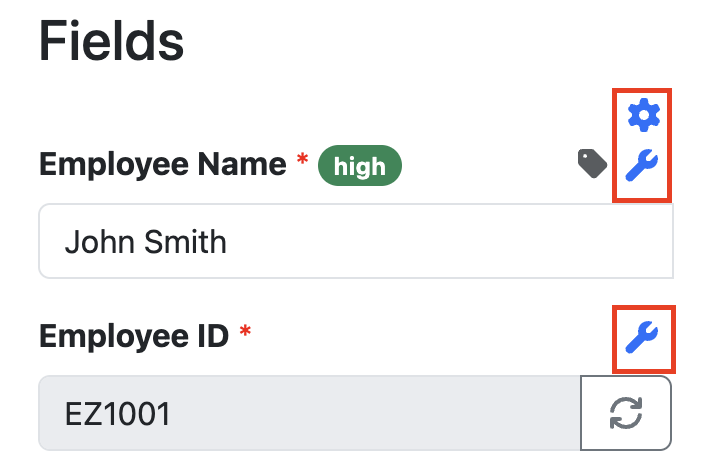
When disabled, fields and pages can only be edited through the administration interface. |
Menu Items
This section allows you to configure the header navigation menu that is displayed to end users.
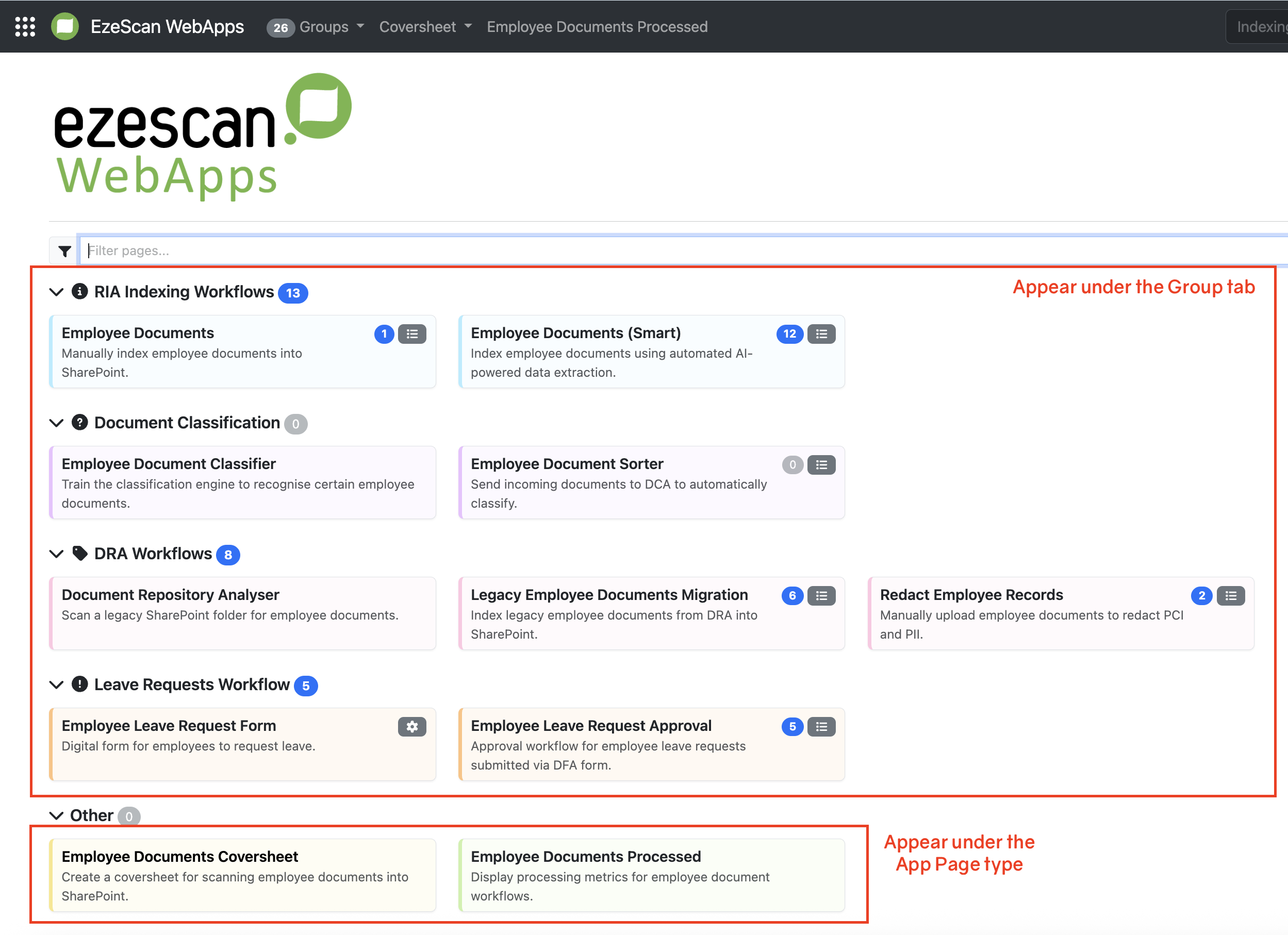
The screenshot below shows the default navigation hierarchy provided out of the box. Pages assigned to a group will appear under the Grouped Pages menu item, while pages that are not assigned to a group will appear under their respective page-type menu items in the navigation bar.
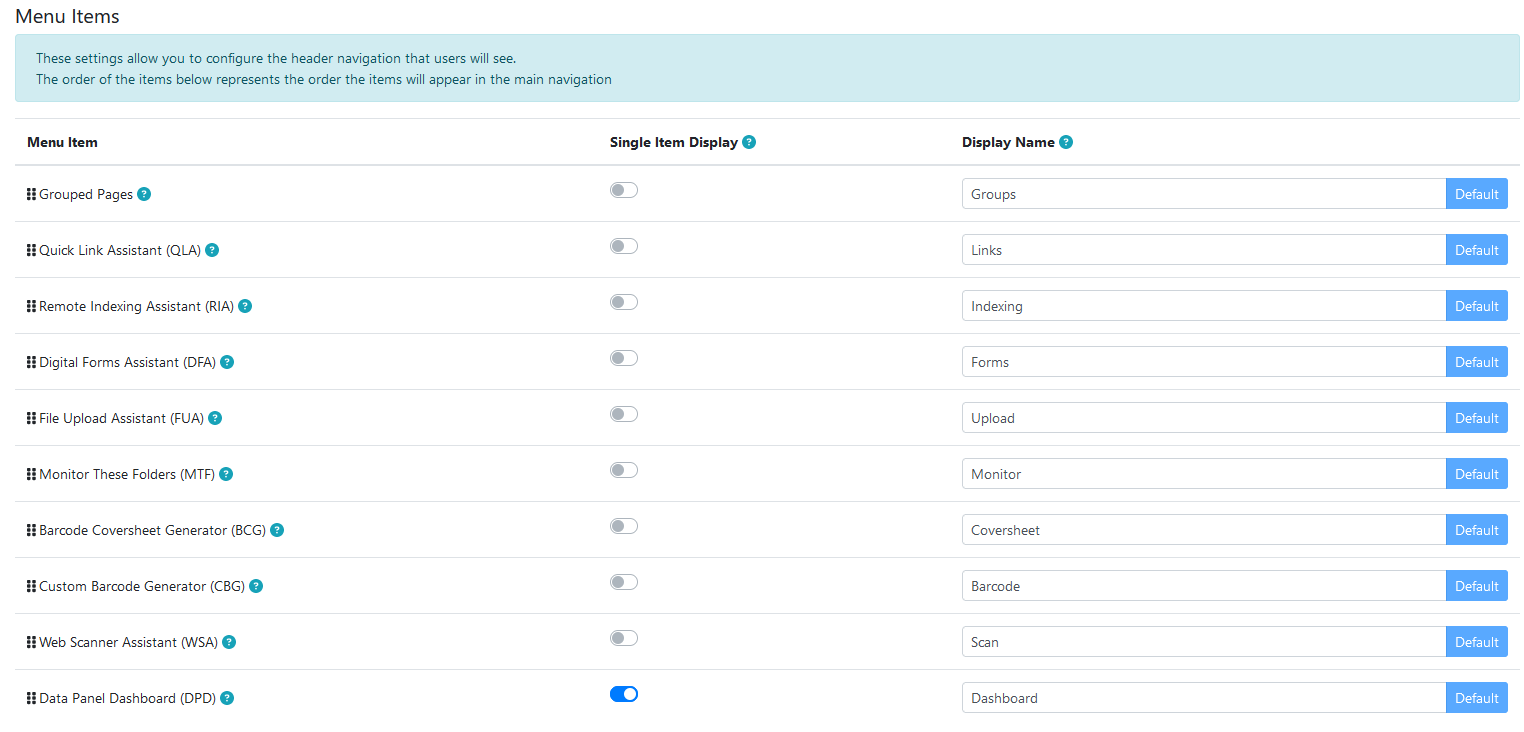
In the example shown below, the first four App Pages are assigned to groups and therefore appear under Grouped Pages. The remaining two App Pages are not assigned to a group, so they appear under their respective App-Page menu items. Employee Document Coversheet is a BCG page and therefore appears under the CoverSheet menu item. Employee Document Processed is a DPD page with Single Item Display enabled, so it appears as its own menu item in the navigation bar. Single Item Display only works when a single page exists for that page type.
Home Page Tab
Home Page Settings
|
Setting Name |
Description |
|---|---|
|
Ungrouped Pages Header |
When using app page groups if you have any pages left over then they will be displayed in a “group” under the header value set in this field. By default the value is “Other”. |
|
App Page Columns |
Controls how many columns are used to display App Page tiles on the home page. Select between 1 and 4 columns. Fewer columns create larger tiles, while more columns allow more tiles to be displayed on each row. For example, 1 column displays tiles at full width, while 4 columns display up to four tiles side-by-side. 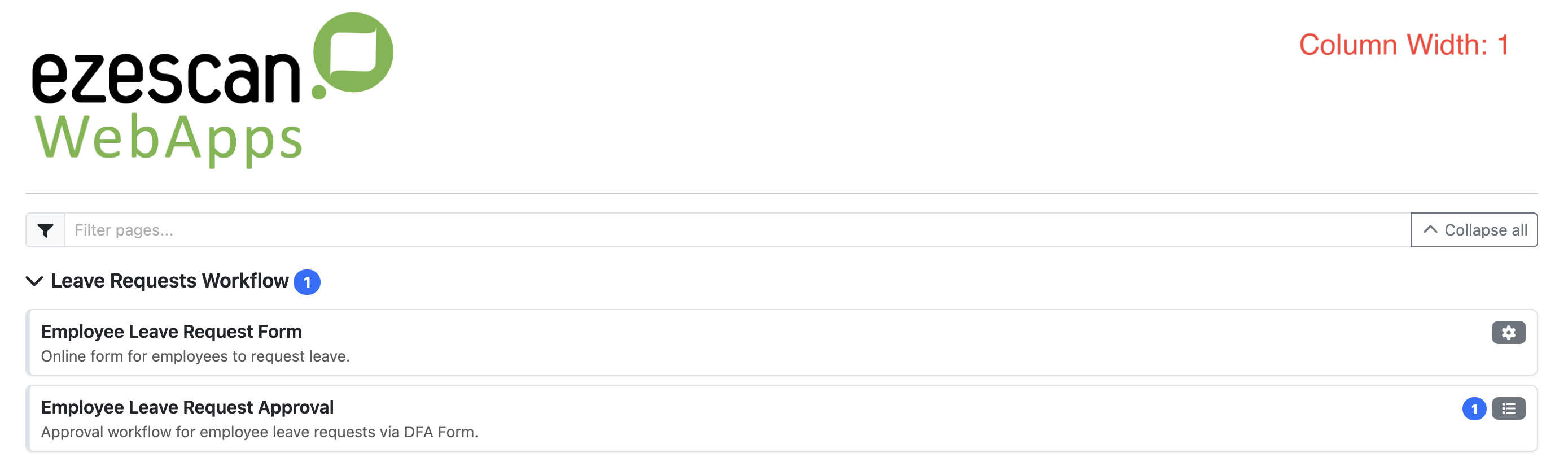
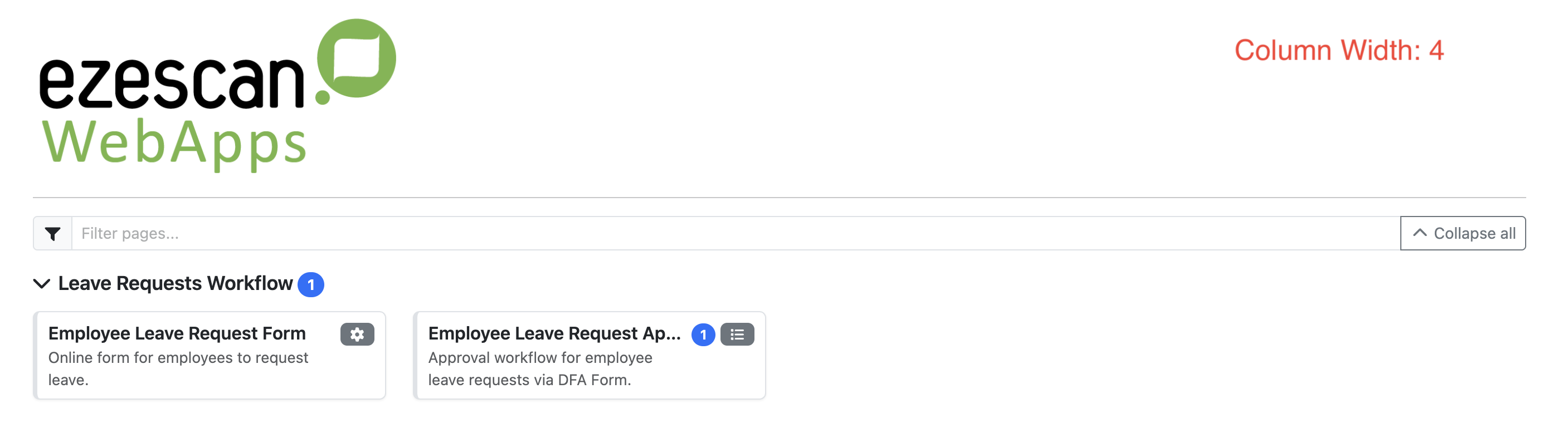
|
|
Show App Pages for Anyomous Users |
Allows users who are not logged in to view App Page tiles on the home page. When enabled, App Page tiles will be visible to anonymous users. Access to the page content is still controlled by the page's security settings. |
|
Hide ungrouped app pages |
Controls whether App Pages that have not been assigned to a group are displayed on the home page. When enabled, ungrouped App Pages are hidden from the home page. When disabled, ungrouped App Pages are displayed under the heading specified in the Ungrouped Pages Header setting. |
Login Page Tab
Login Help Text Html
This HTML block will appear below the login inputs and is designed to help users when logging in.
Example
<div class="row">
   <div class="col">
      <div class="form-group">
         <div class="alert alert-primary" role="alert">
            <h5>Demo User Credentials</h5>
            <hr>
            <p>Username: user</p>
            <p>Password: user</p>
         </div>
      </div>
   </div>
</div>
The code block above would show an informational alert to your users:
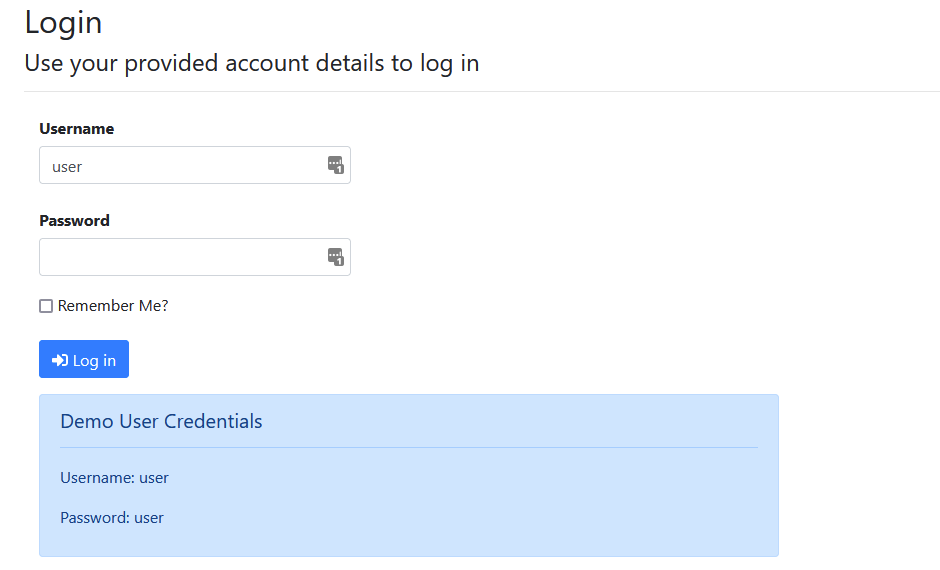
Logo Tab
Custom Logo
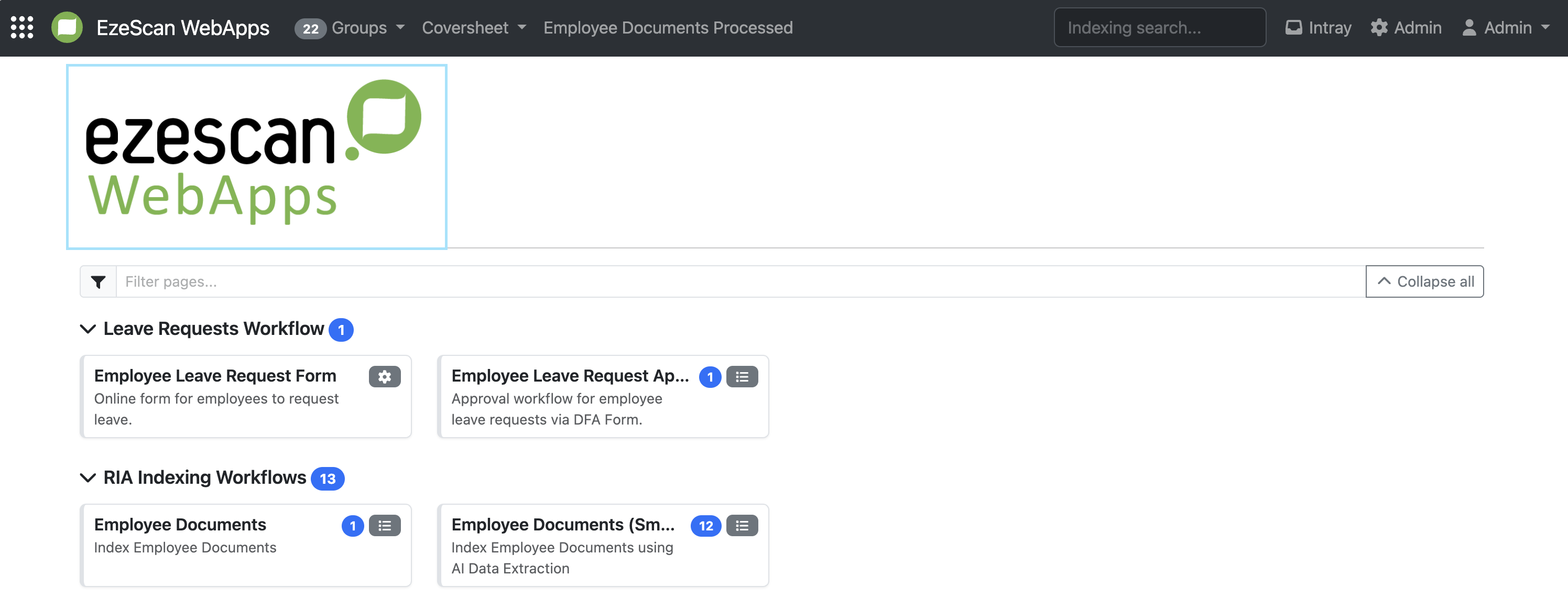
Ability to upload an image to display as a custom logo on the EWA home page.
Recommended size: 650 x 300 pixels
Recommended format: Png
|
Setting Name |
Description |
|---|---|
|
Upload a New Logo |
Use this field to upload an image that will be displayed as the application logo on the homepage. To upload a logo, click the field and select an image from your device, or drag and drop an image onto the field from your browser. |
|
Current Logo |
Displays the logo currently in use. When a new logo is uploaded, a blue arrow will appear between the current and new logo previews, indicating the pending change. To replace the existing logo, select Save and Upload Logo. To discard the uploaded logo and keep the current logo, select Cancel. 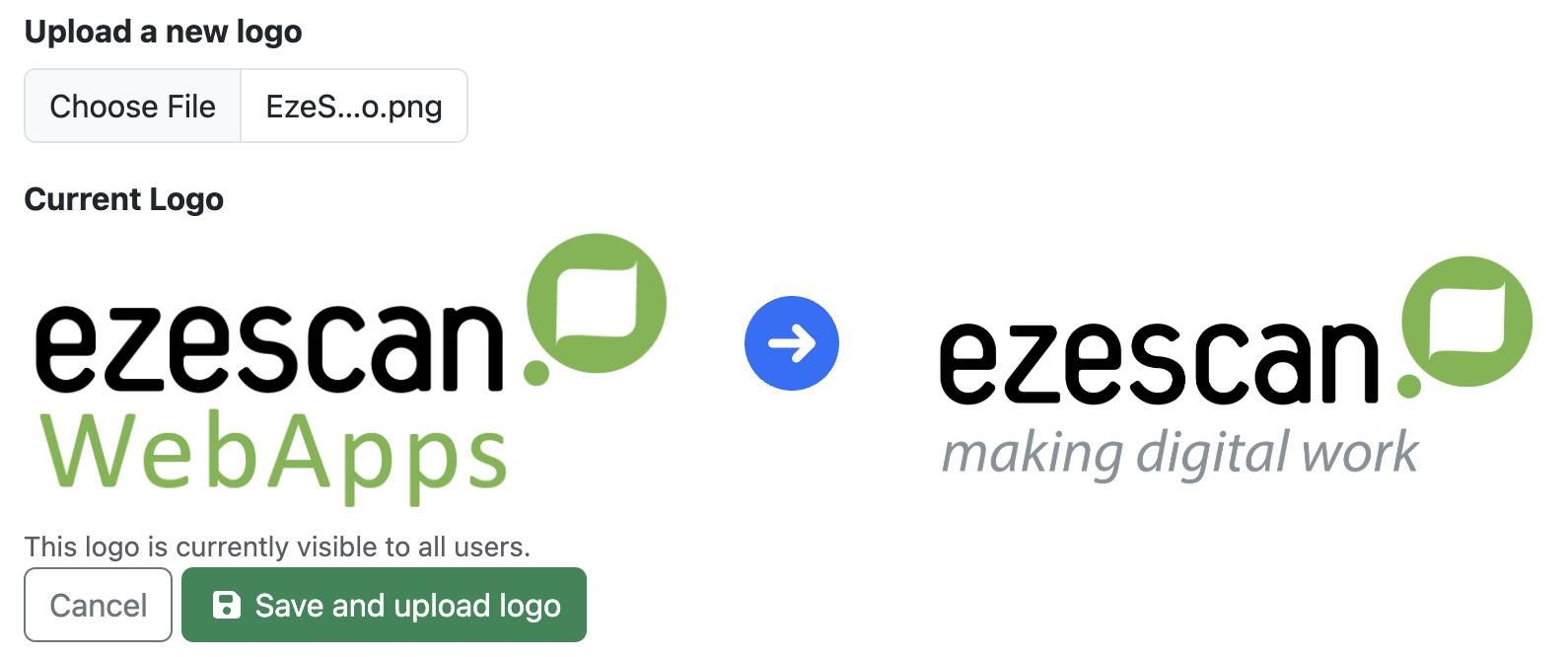
|
After saving changes you may need to force the browser to reload all files due to caching. You can do this by pressing Ctrl + F5. The cache will automatically update every 180 minutes.
Custom Icon
Ability to Upload an image to replace the favicon for the entire of EWA.
Recommended size: 180 x 180 pixels
Recommended format: png
|
Setting Name |
Description |
|---|---|
|
Upload a New Icon |
Use this field to upload an image that will be displayed as the favicon. To upload an image click the field and select an image from your device, or drag and drop an image onto the field from your browser. |
|
Current Logo |
Displays the favicon currently in use. |
Maintenance Tab
Maintenance Mode allows administrators to configure the system without users being able to access anything.
-
Users will be able to login, but not be able to view any pages.
-
The change will occur immediately and prevent users from processing items.
-
A default alert will appear unless you have configured a Global Message
-
You made need to refresh the page to see the messages
|
Setting Name |
Description |
|---|---|
|
Maintenance Mode |
Tick this to enable Maintenance Mode. |
Global Message Tab
A global message can be used to display a dismissible message to users at the top of the EWA page above the navigation bar. Once dismissed the message can still been seen by hovering over the yellow notification bell in the top right.

Global Message Settings
|
Setting Name |
Description |
|---|---|
|
Enabled |
If enabled then the global message will be shown to users on the site. |
|
Message |
Text to display in the message. This field can also support HTML tags to enhance the message. |
|
Background Colour |
The colour to use as the background of the message. One of 3 colours can be displayed: Info: Blue Warning: Yellow Danger: Red. |
|
Icon |
Icon to display to the left of the message. Select from the drop down menu or click advanced to use an icon from a supported vendor. |
|
Display Example |
Provides a real time example of what the configured alert will look like for your users. |
Global CSS Tab
The Global CSS tab allows administrators to apply site-wide styling changes or override existing Cascading Style Sheets (CSS) settings across the EzeScan WebApps Platform.
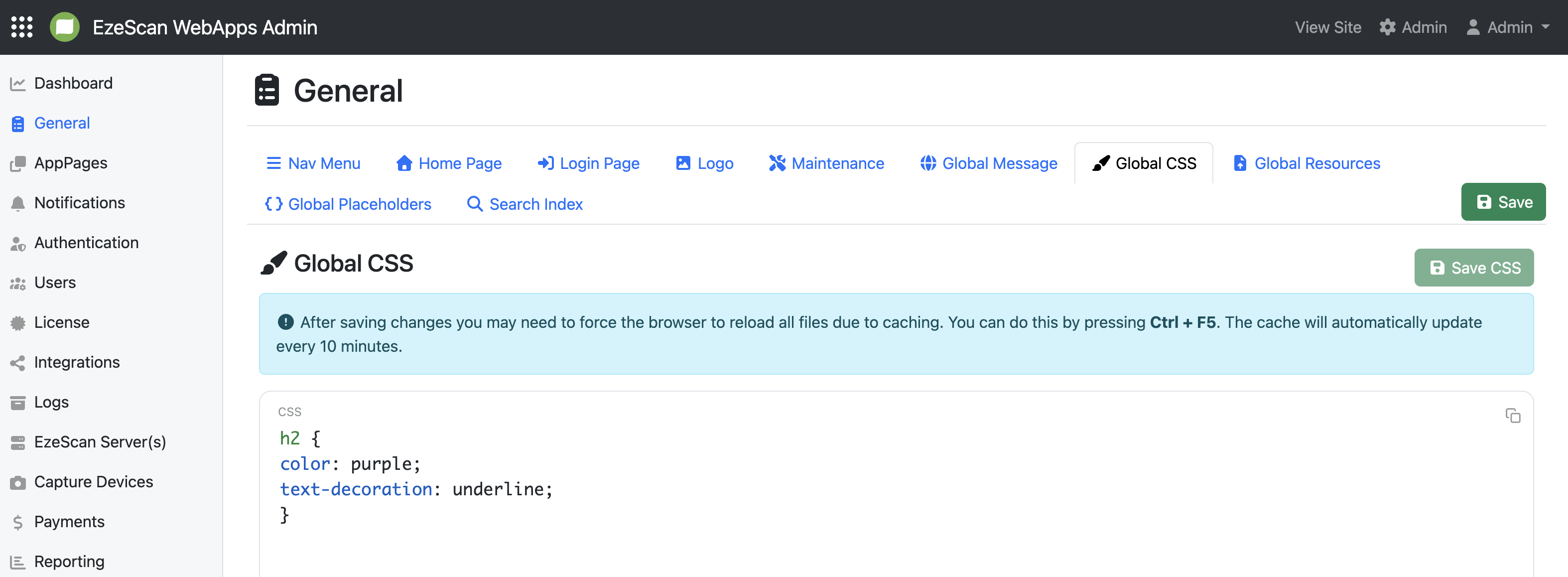
In the example above, a custom CSS rule has been applied to display all H2 headings in purple with an underline throughout the platform.
Global Resources Tab
The Global Resources tab provides a central location for uploading files that can be used throughout the website via a resource URL.These are useful to use in DFA share link headers and footers.
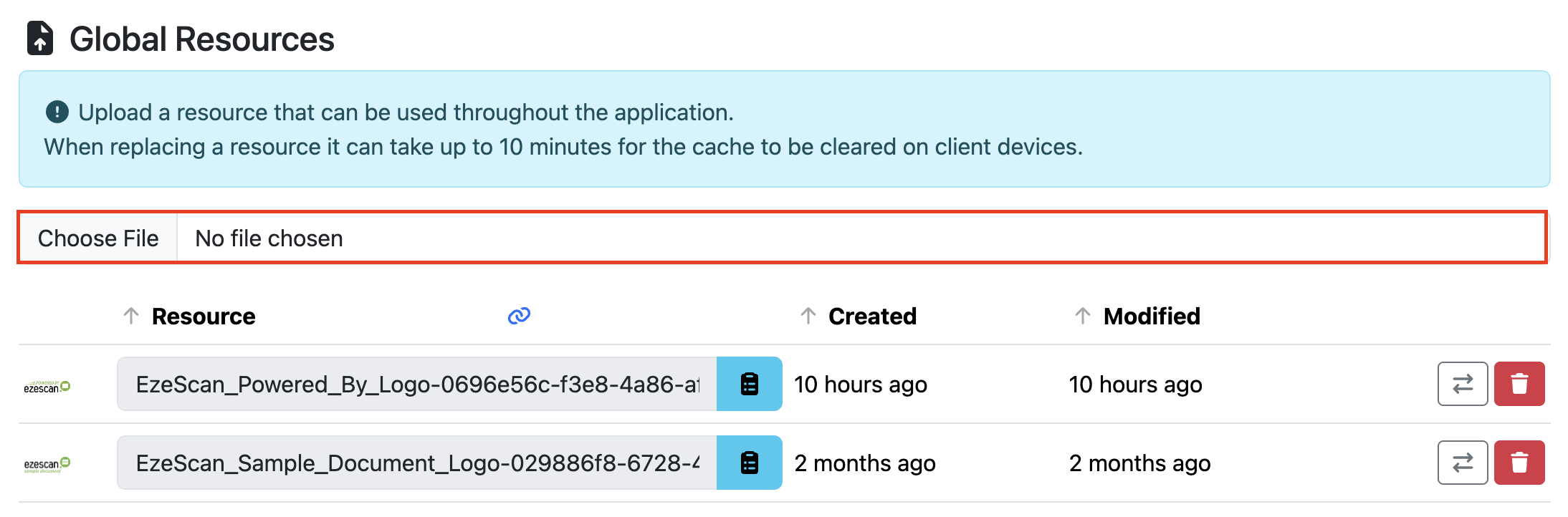
To upload a new resource, click Choose File and select a file from your device, or drag and drop a file onto the upload field. Once uploaded, the resource will appear in the list below along with its unique URL.
Use the Copy button to copy the full resource URL to your clipboard for use elsewhere in the application.
When replacing a resource it can take up to 10 minutes for the cache to be cleared on client devices.
Global Placeholders Tab
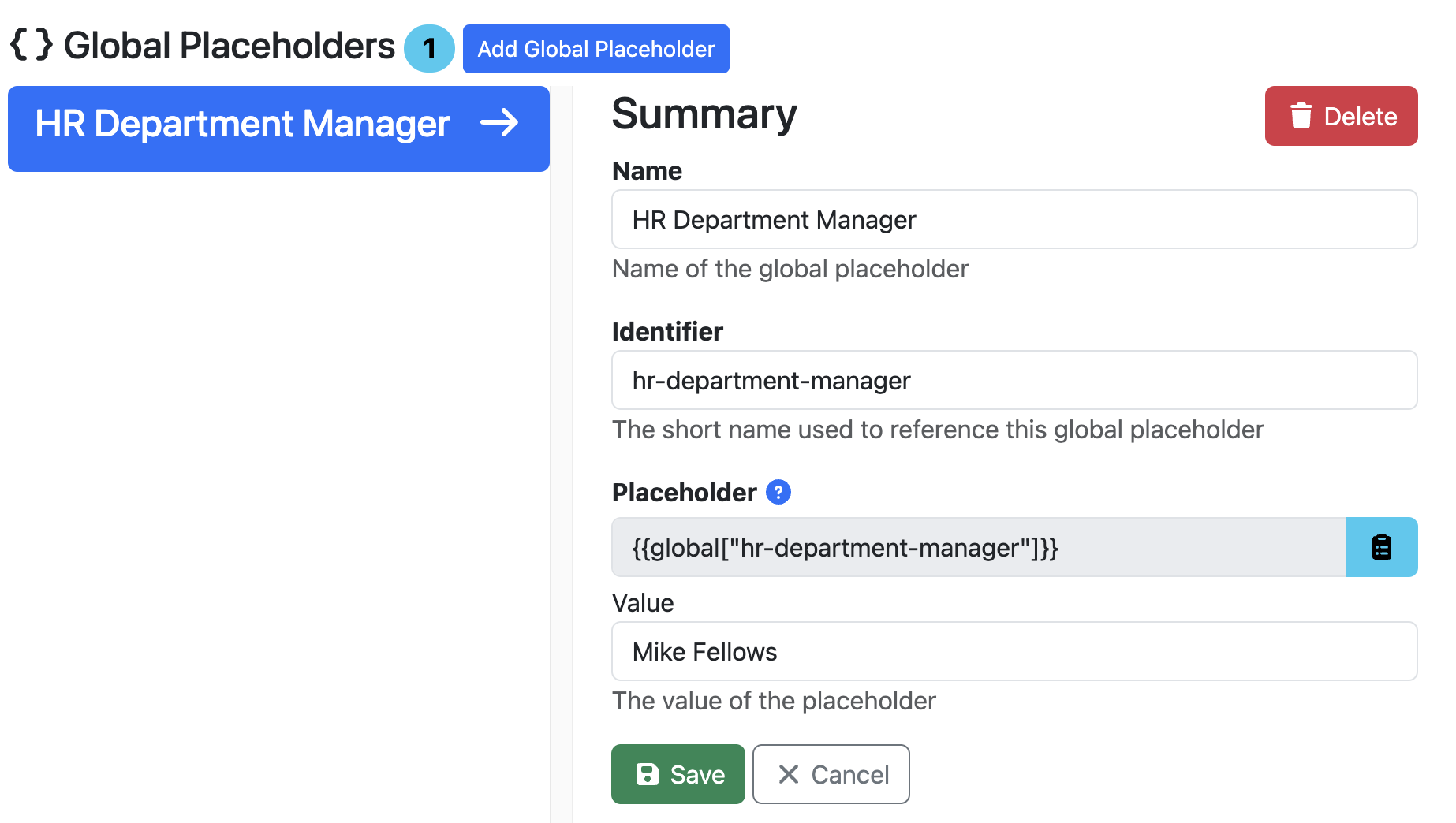
The Global Placeholders tab allows you to create reusable values that can be referenced throughout the website. This is useful for information that may change over time, as you only need to update the placeholder in one location rather than editing every instance where the value is used.
For example, you could create a placeholder for a department manager's name. If the manager changes, simply update the placeholder and all references will automatically use the new value.
Placeholder Field Settings
|
Setting Name |
Description |
|---|---|
|
Name |
A descriptive name for the placeholder. |
|
Identifier |
A unique short name used to reference the placeholder throughout the application. |
|
Placeholder |
The placeholder tag that can be copied and used where the value should appear |
|
Value |
The current value that will be returned when the placeholder is referenced. |
Example - HR Department Manager
Search Index Tab
The Search Index tab provides an overview of the application's search index.
|
Value |
Description |
|---|---|
|
Status |
Indicates whether the search index is operating correctly. |
|
Indexing Item Count |
The total number of items that have been added to the search index. |
|
Queued Items |
The number of items currently waiting to be added to the search index. |
Rebuild Search Index - If the number of queued items remains high for an extended period, or search results appear incomplete, the index may need to be rebuilt. Rebuilding the index forces all searchable content and metadata to be re-indexed.
You should not rebuild the search index unless advised by an EzeScan engineer.