
Purpose
Pre-processing consists of one or more confirgurable automated stages that are executed before a document progresses through the workflow. Multiple pre-processors can be configured, with each stage performing a specific task such as document preparation, classification, validation, or data enrichment.
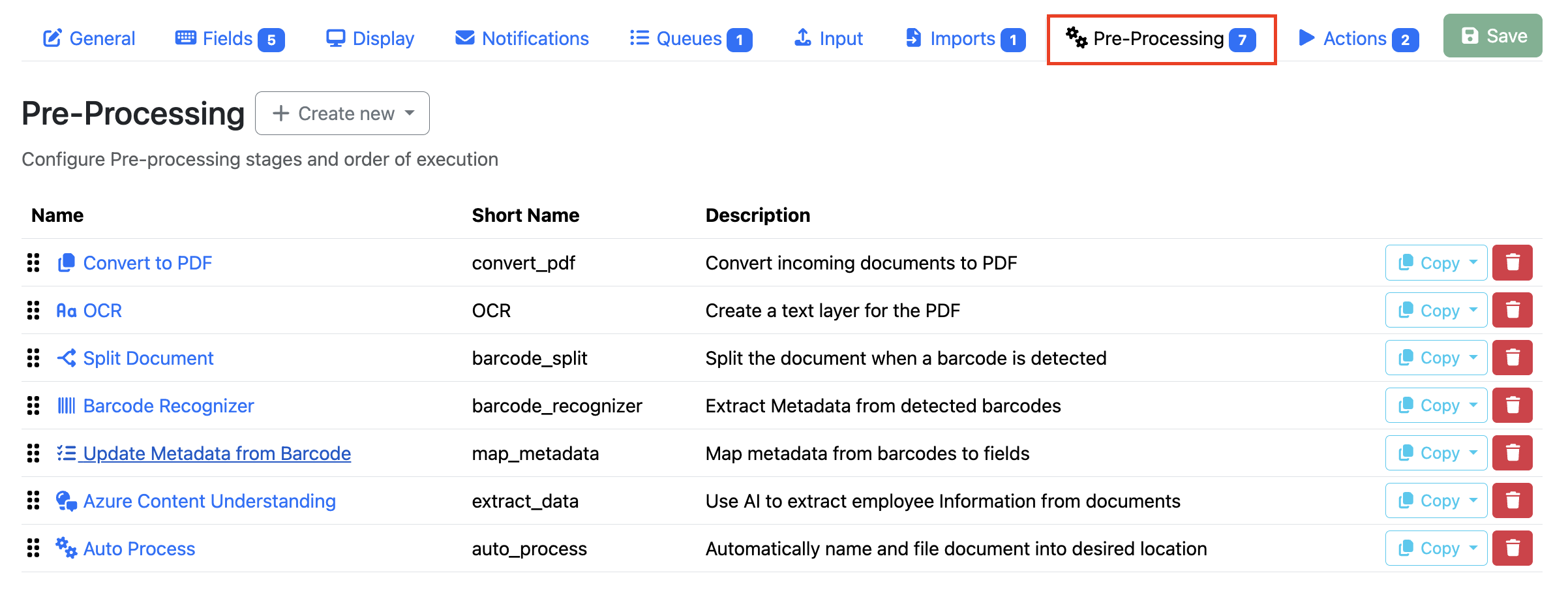
Adding/Removing/Editing Pre-Processors
|
Button/Icon |
Functionality |
Description |
|---|---|---|

|
Add a New
|
Select a pre-processor from the drop-down list to add it to the current pre-processor configuration. Alternatively, existing pre-processor configurations can be imported using the Import from JSON option available within the drop-down menu. Add newly added pre-processors will be added to the bottom of the list |

|
Copy |
Copies the selected pre-processor configuration in JSON format, allowing it to be reused or imported elsewhere. |

|
Delete |
Removes the selected pre-processor from the configuration. This action cannot be undone. |

|
Re-order |
Controls the order in which pre-processors are executed. Pre-processors run in the same order they appear in the list and can be repositioned using drag-and-drop. |
Types of Pre-Processors
|
Name |
Description |
|---|---|
|
Adds a sticky note to each item processed. |
|
|
Automatically triggers a specified action. |
|
|
Uses AI to extracts data from documents using field names configured on the Fields tab. |
|
|
Analyses documents using Azure Document Intelligence to extract key-value pairs, tables, and other document data. |
|
|
Uses AI to extracts data from documents using a prompt. |
|
|
Detects barcodes within a document and returns the decoded values as metadata. |
|
|
Send the document to the configured DCA engine to either predict or classify the document. |
|
|
Conditionally skips the execution of subsequent pre-processors. |
|
|
Counts the number of pages in a document. |
|
|
Removes selected pages from a document before further processing or output generation. |
|
|
Downloads documents referenced by hyperlinks within a document, commonly from emails. |
|
|
Creates a copy of a document for processing through multiple application pages or workflows. |
|
|
Routes a document to EzeScan Server for additional processing not available within EWA. |
|
|
Converts supported file formats to PDF. |
|
|
Increments an Authority Server counter value. |
|
|
Maps metadata values produced by previous processing stages to RIA fields. |
|
|
Merges document attachments into a single document for further processing. |
|
|
Reorders pages within a document before further processing. |
|
|
Generates a text searchable layer for the document. |
|
|
Converts standard PDF files into PDF/A-2b compliant documents. |
|
|
Used to modify PDF properties such as Document Title, Document Subject, Document Author, and Document Keywords. |
|
|
Identifies and locates certain types of information within a document. This is typically used to find dociments containing PII or credit card numbers. |
|
|
Changes the name of the indexing item. |
|
|
Executes SQL queries to retrieve, insert, update, or delete data. |
|
|
Splits a document into multiple smaller documents. |
|
|
Modifies and cleanses metadata generated by previous processing stages. |
|
|
Imports a pre-processor configuration from a previously exported JSON file. |
Common Pre-Processor Settings
When creating a pre-processing stage you have the following common settings:
|
Option |
Description |
|---|---|
|
Name |
This is the name of the pre-processing stage. It is displayed to the end user. |
|
Description |
This is a friendly description of the pre-processing stage that is only visible in the admin panel. |
|
Enabled |
If enabled then this pro-processor will be executed. |
|
Short Name |
This field provides unique identification for the stage. If an item has already executed a pre-processor with the same short name then the stage will be skipped. This field is commonly used in combination with the Run pre-processors option. For example say you have two indexing pages with the following pre-processors configured: Correspondence
Invoices
If an invoice incorrectly arrived into the correspondence page then it would fire off and run the Document Split and Clean-up pre-processors on the item. 
When a user then routes the item to the correct Invoices page we want to ensure it triggers the pre-processing again. 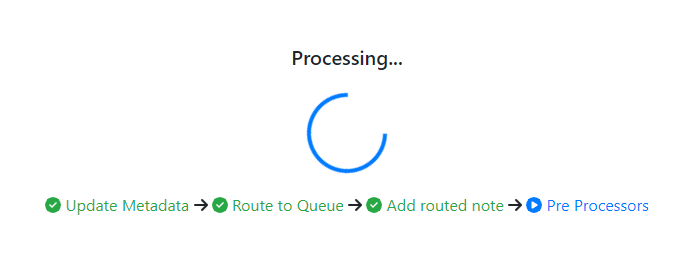
But this time because the short names are the exact same the item will actually skip the first two stages and jump straight to the Extract Invoice Data stage. 
You can see which stages (that have short names configured) have been already run on the item by opening the history for an item and looking at the Metadata tab. 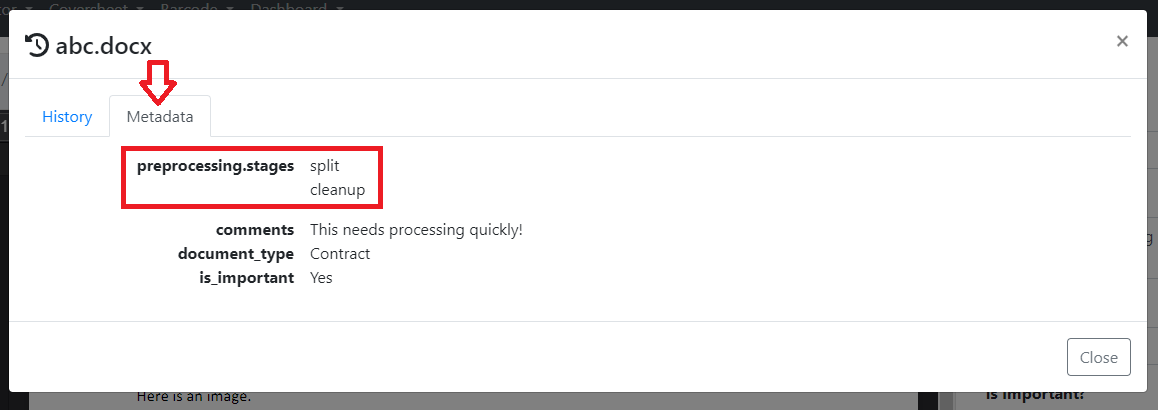
|
|
Skip on failure |
If this stage returns a failure result, then automatically continue on to the next stage. The is turned off by default. |
Configuration settings specific to each pre-processor are documented in the associated child pages.
Pre-Processors in Action on a RIA Page
How Pre-Processors Are Displayed in a Queue
When a document enters a RIA queue and has pre-processors configured, the document is sent for pre-processing before it can be viewed by the end user. While pre-processing is in progress, a blue Running badge is displayed in the queue.
The status indicators displayed alongside the Running badge show the progress of each configured pre-processor. During this time, the View button is disabled until processing has completed.
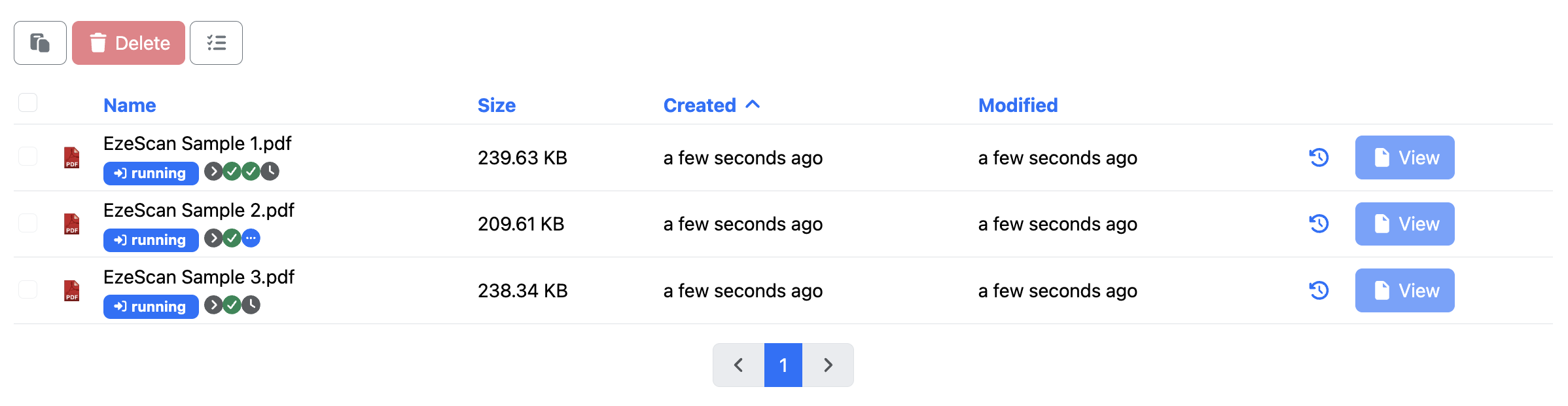
Once all pre-processors have finished, the View button is re-enabled and the pre-processor status indicators are removed from the queue.

|
Icon |
Stage Description |
|---|---|

|
The pre-processor has been skipped. An example of where this might occur is when an OCR pre-processor is used and configured to skip this step if a text layer is already detected |

|
The pre-processor is currently being executed. |

|
The pre-processor has completed successfully. |

|
The pre-processor is waiting to be executed. |
Detailed Pre-Processing View
Selecting a running pre-processor from the queue, or clicking the pre-processor icon at the top of the table, opens the Pre-Processing view.
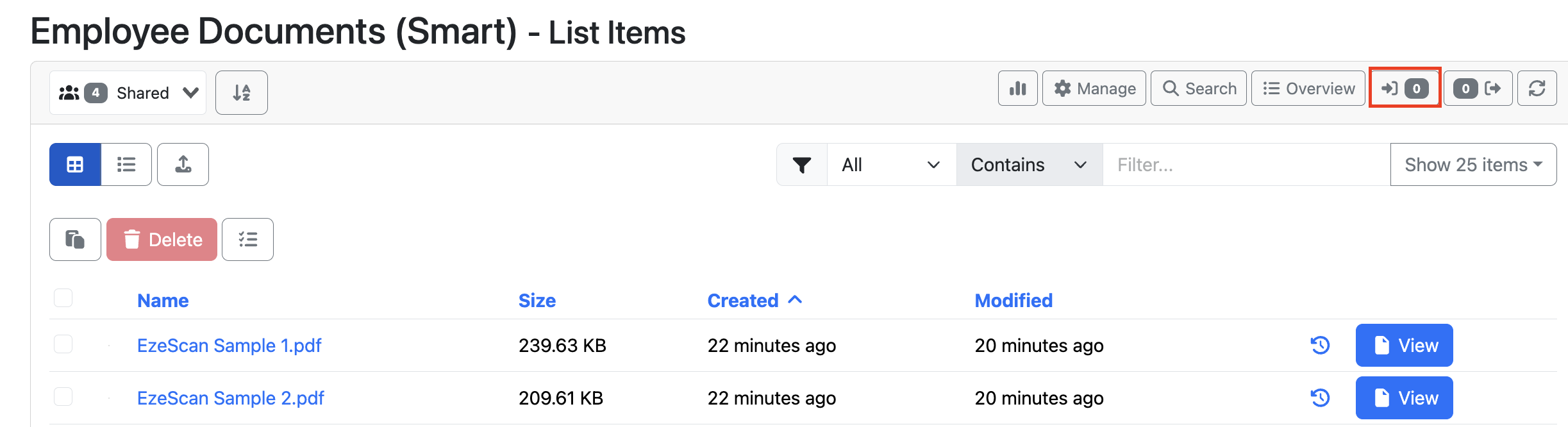
This screen provides a detailed overview of all configured pre-processors, including their current status and any completed processing steps. Expanding a pre-processor displays additional information about the action being performed. Users can also select individual stages to view the corresponding log file.
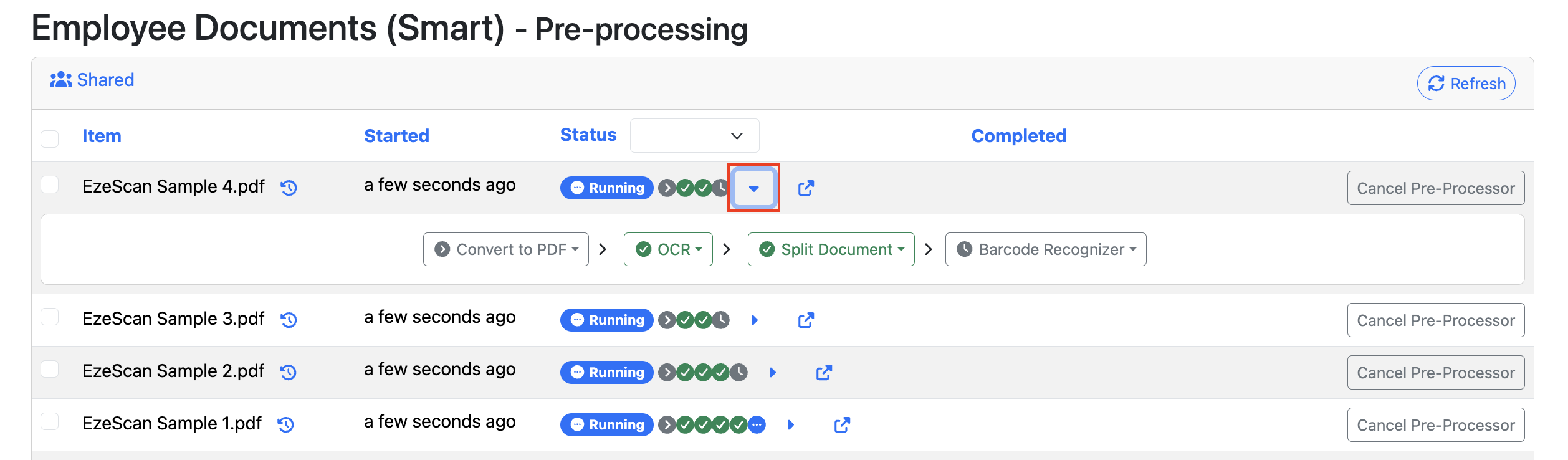
Stopping, Skipping, or Retrying Pre-Processors
Users and managers can cancel or retry a pre-processor. The ability to skip a pre-processor is restricted to managers.