
An image only PDF is one which is typically created by using a document scanner to scan a hardcopy document. It only contains picture(s) of the scanner page(s), There is no text layer.
Whereas a text searchable PDF is one that contains both the picture(s) of the scanned page(s), and a text layer containing every word that is shown on that page. That text layer allows words to be cut cut from that layer or searched for.
The OCR pre-processor is used to generate OCR text from a PDF document's pages. That data in that text layer can be passed into RIA Fields, or passed into an Open AI model for analysis and data extraction.
The OCR screen looks like this:
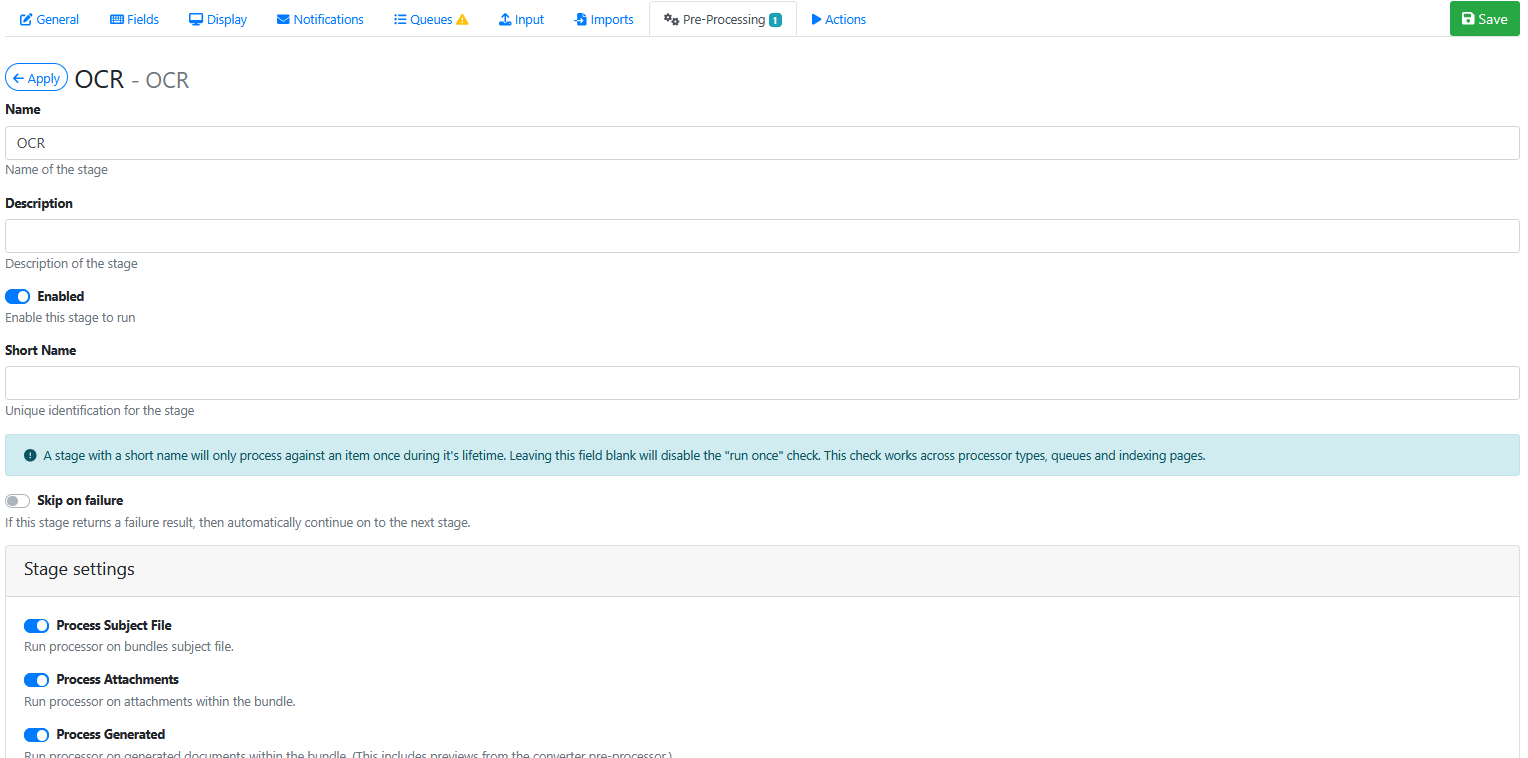
Stage Settings
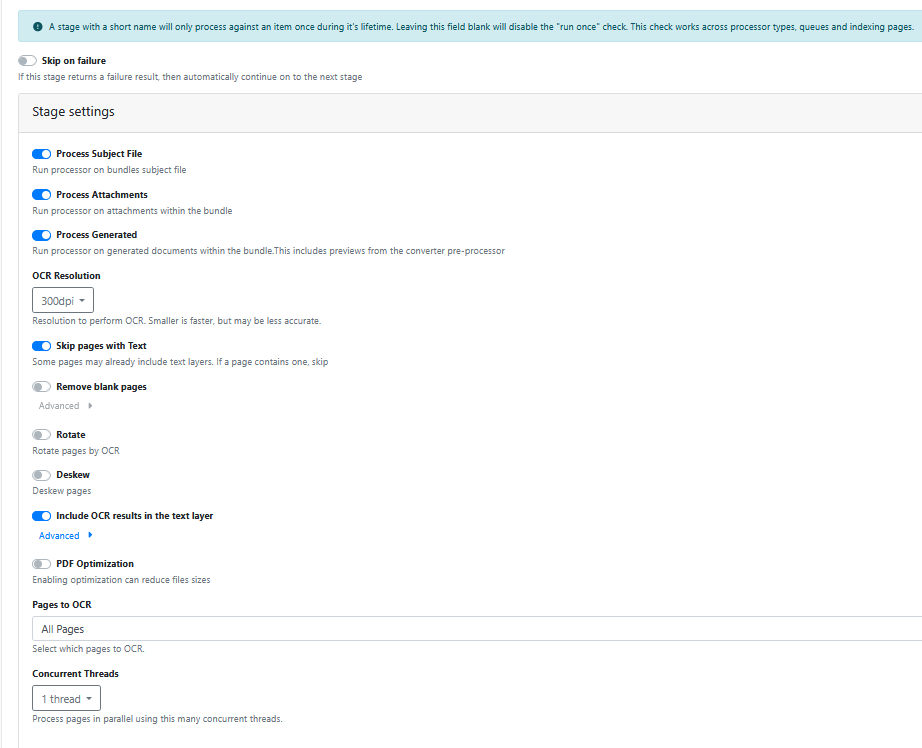
Process Subject File
Always enabled.
Process Attachments
Enabled if you want to OCR attachment pages.
Process Generated
Usually enabled
OCR Resolution
Leave at 300 DPI
Skip Pages With Text
You might enable this option, if your document PDF pages are already text searchable and you want to keep that existing text layer and not re-ocr that page to create a new text layer for it.
Remove Blank Pages
Enable this option if you want to remove document pages during the file converter processing.
Rotate
Enable this option if you want the OCR engine to rotate the page to the correct orientation (portrait or landscape) based on the OCR text orientation.
Deskew
Enable this option if you want the OCR engine to deskew (straighten) the page so is as close to 100% straight as is possible. Mainly used to help straighten documents generated by the scanning hard copy paper documents. where the images may be skewed to the left or right as the pages are scanned.
Include OCR Results In The Text Layer
Usually enabled.
PDF Optimisation
When enabled, may help to reduce the size of the PDf file
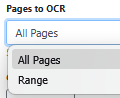
Pages to OCR
Defaults to All.
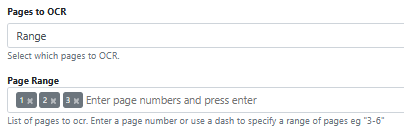
Supports a page range option:
When Range is selected use the Page Range field to specify which pages to include. The example below shows pages 1,2,3 selected.
Concurrent Threads

Defaults to 1 OCR thread.
If you are going to set this value higher than 1, we suggest adjusting the OCR thread count in small increments (e.g. from 1 to 2, 2 to 3, 3 to 4) to ensure that the server operating system and EWA continues to function normally with any extra OCR thread loads being applied to it.
Never change this setting to be higher than the total number of CPU cores, and always make sure that the CPU still has adequate cores available for normal operating system usage and for other processes that might be running on the server.
OCR Guidelines
The time taken for a single thread to OCR a single page is typically between 3-6 seconds.
OCR of a single page consumes 100% of a CPU core until the page OCR completes.
Make sure your server is deployed on hardware that uses fast CPU frequency. The higher the CPU clock rate the faster the OCR.
Pages with little or no text take less time to OCR than pages with hundreds of words to OCR.
Pages with graphics and shading will slow down the OCR process.
Images scanned at 300 DPI are optimal for OCR processing.
Performing OCR on a small document with 1-3 pages is fairly quick.
Performing OCR on a large document with 500 pages will cause a massive OCR bottleneck, stuck waiting for that document to OCR, before any other documents OCR can be run.
Consider limiting file sizes sent to OCR, or only OCR large files between 7pm and 5am, or consider enabling more OCR threads.