
Accessing Your DCA Page
To access your DCA page, navigate to the Home page and click the associated DCA page tile. Alternatively, you can access the page through the application's navigation menu by selecting the relevant DCA page from the list of available pages.
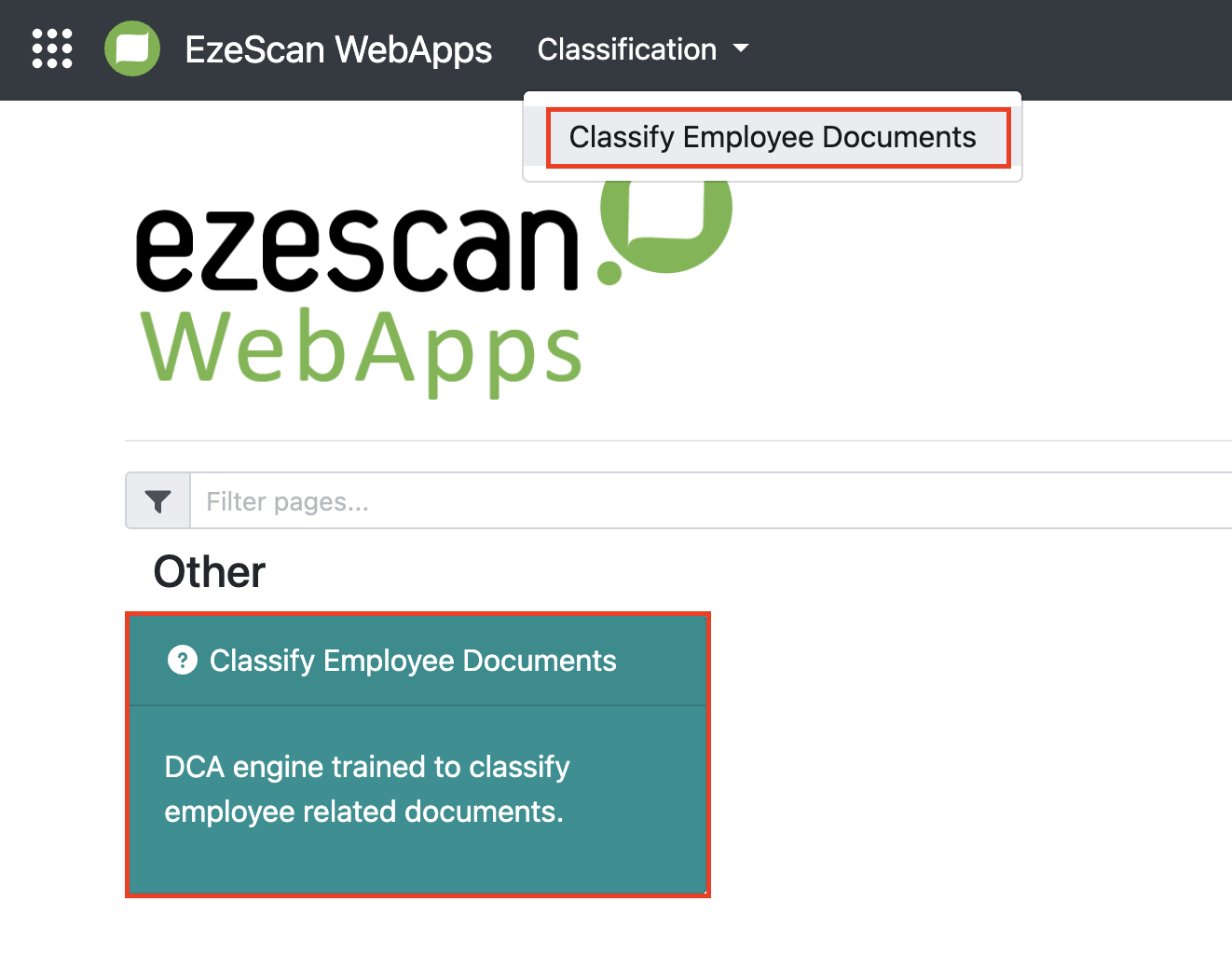
DCA Training Screen
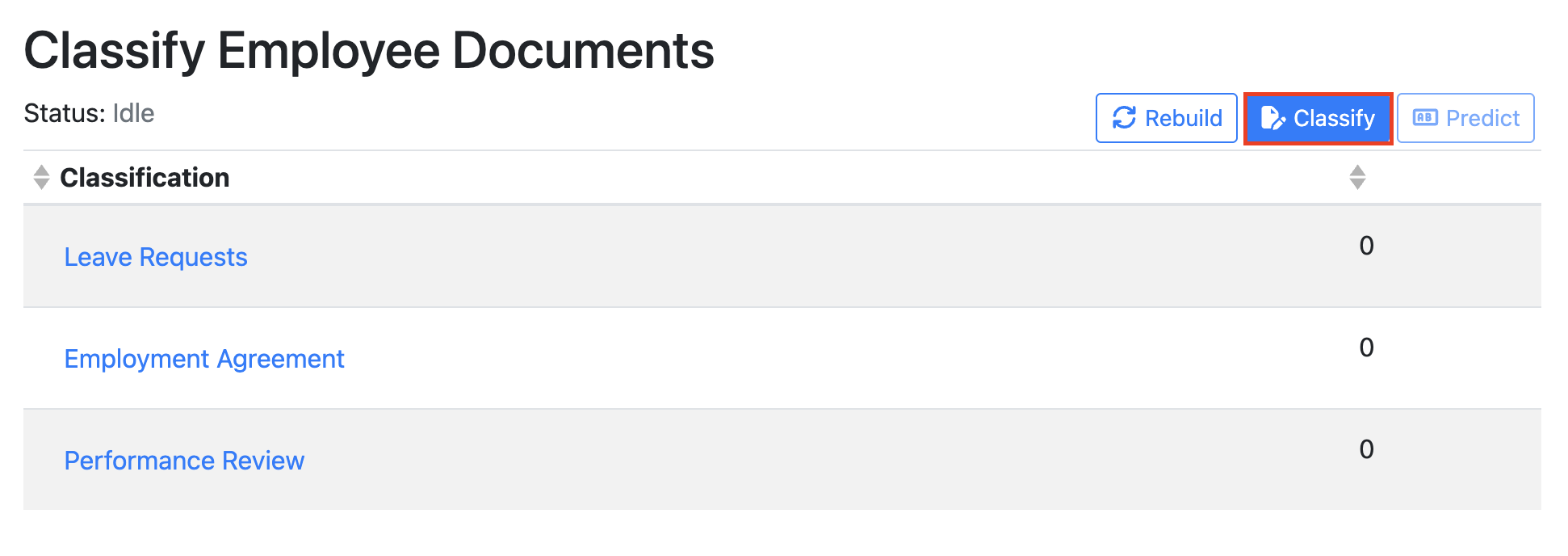
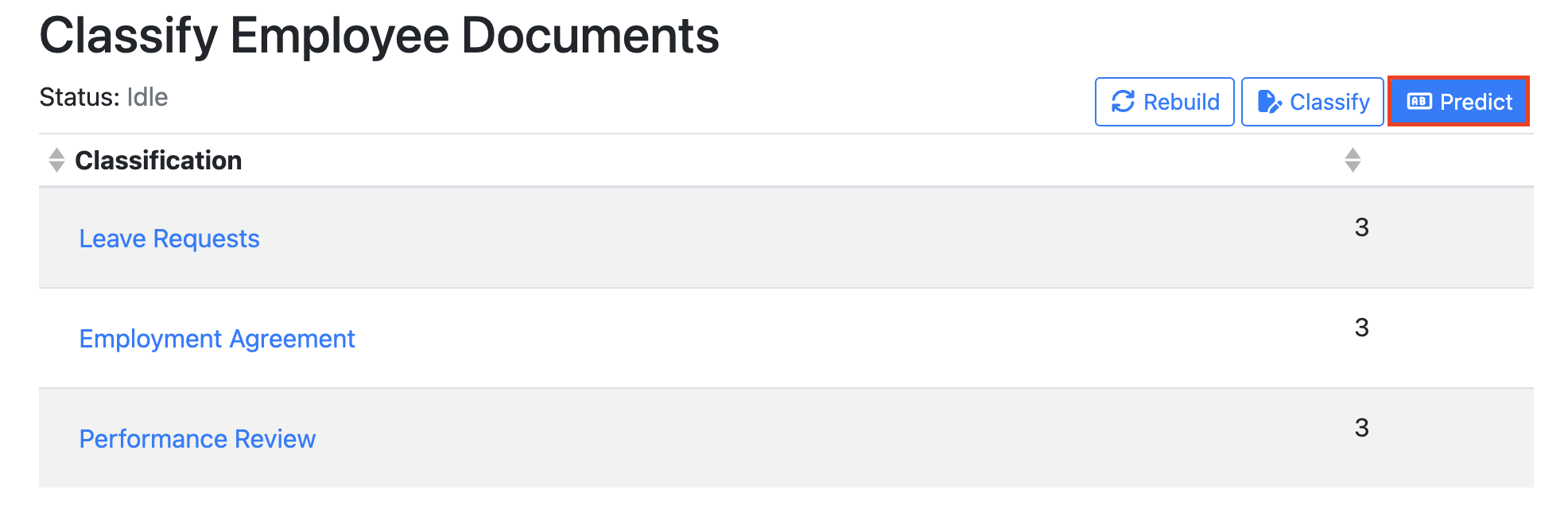
This screen allows you to train and test the DCA classification engine against the classification categories you have created.
Classification Table
The numbers displayed on the left side of the table indicate the number of training documents currently assigned to each classification category. For a newly created category, this value will be 0 until training documents have been uploaded and assigned to that category. To begin trainning the engine select the Classify Button.
Uploading Training Documents
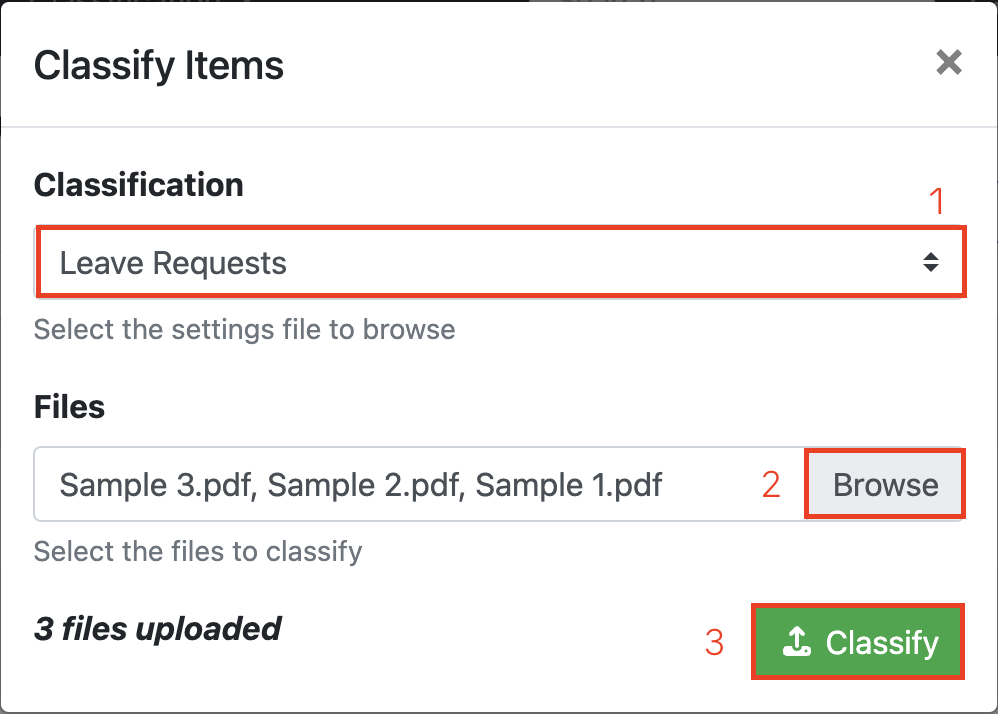
Select a classification category from the Category drop-down list, then click Upload to add a collection of sample documents that will be used to train the engine for that category. The uploaded documents should be representative examples of the document type you want DCA to recognise.
In the example below, we have uploaded three Leave Request documents as training samples.
Click Classify to assign the documents to the selected category. Once the classification has been completed, a green Files Classified confirmation message will be displayed. Click Close to return to the main DCA screen.
Building the Engine
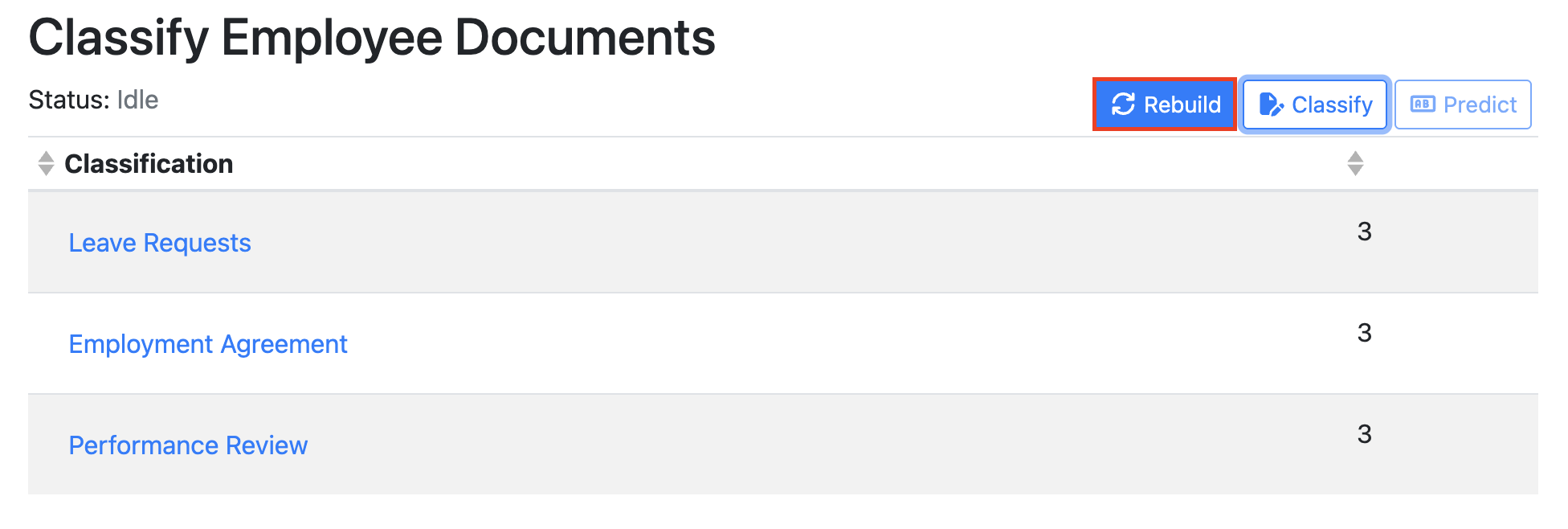
Although the table will now display the number of documents that have been classified and assigned to each category, the classification engine has not yet been trained on those documents.
To train the engine, click Rebuild. This initiates the training process and updates the classification model using the documents assigned to each category. Once the rebuild has completed, a green confirmation message will briefly appear. The engine will then be trained and ready to use the uploaded samples when classifying new documents.
Note: You will not be able to train or “Rebuild” the engine until you have classified at least two different classification categories.
Testing your Engine
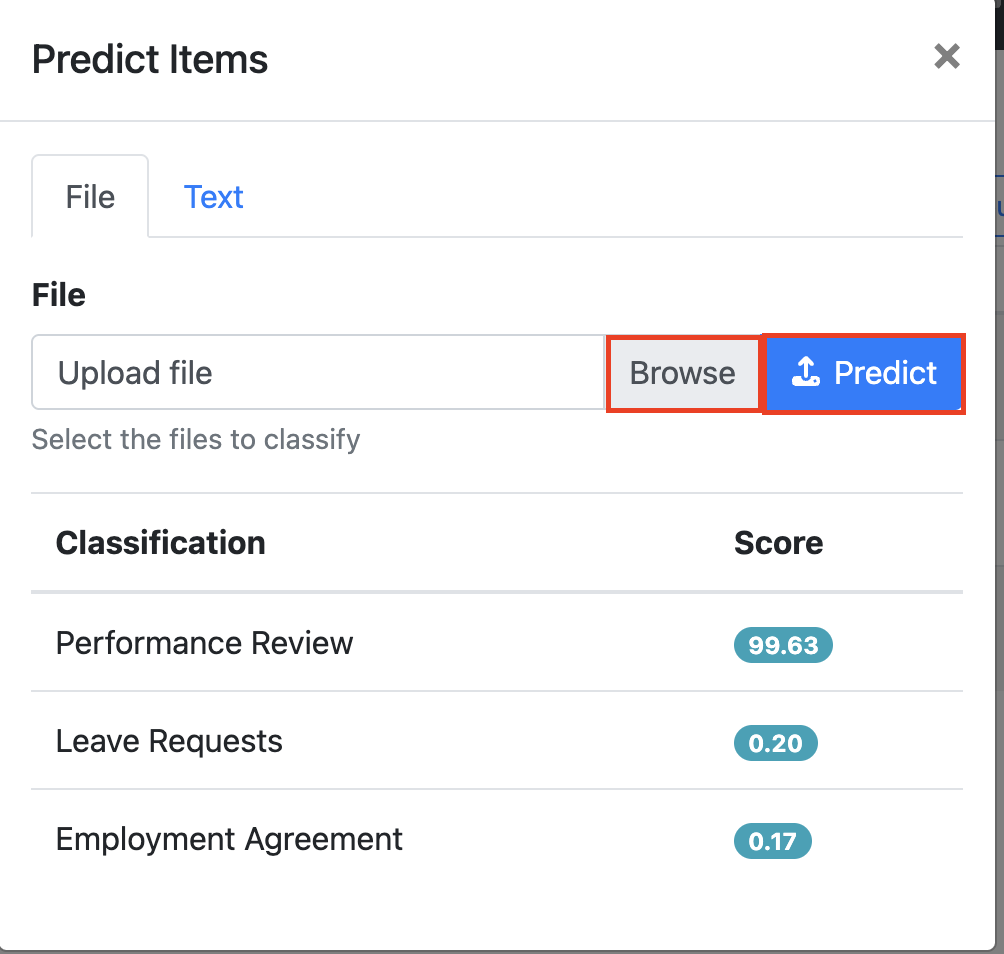
Once the engine has been rebuilt, you can test the classification model by clicking Predict button.
Upload a document and click Predict. DCA will analyse the document and return a confidence score for each classification category, indicating how closely the document matches the categories the engine has been trained on.
Review the results to determine whether the document has been correctly identified. When finished, click the X in the top-right corner of the window to close the prediction results and return to the training screen.
To learn how to congiure your DCA engine into a RIA workflows see this how to article: Creating a RIA Workflow using DCA to sort Incoming Document Types