
Categories Tab
The Categories tab is where you define the document classification categories used by DCA. Each category represents a document type that the classification engine will be trained to recognise.
These categories must be created before the engine can be trained, as they define the document types against which training samples are assigned.
Adding/Deleting a Classification Category
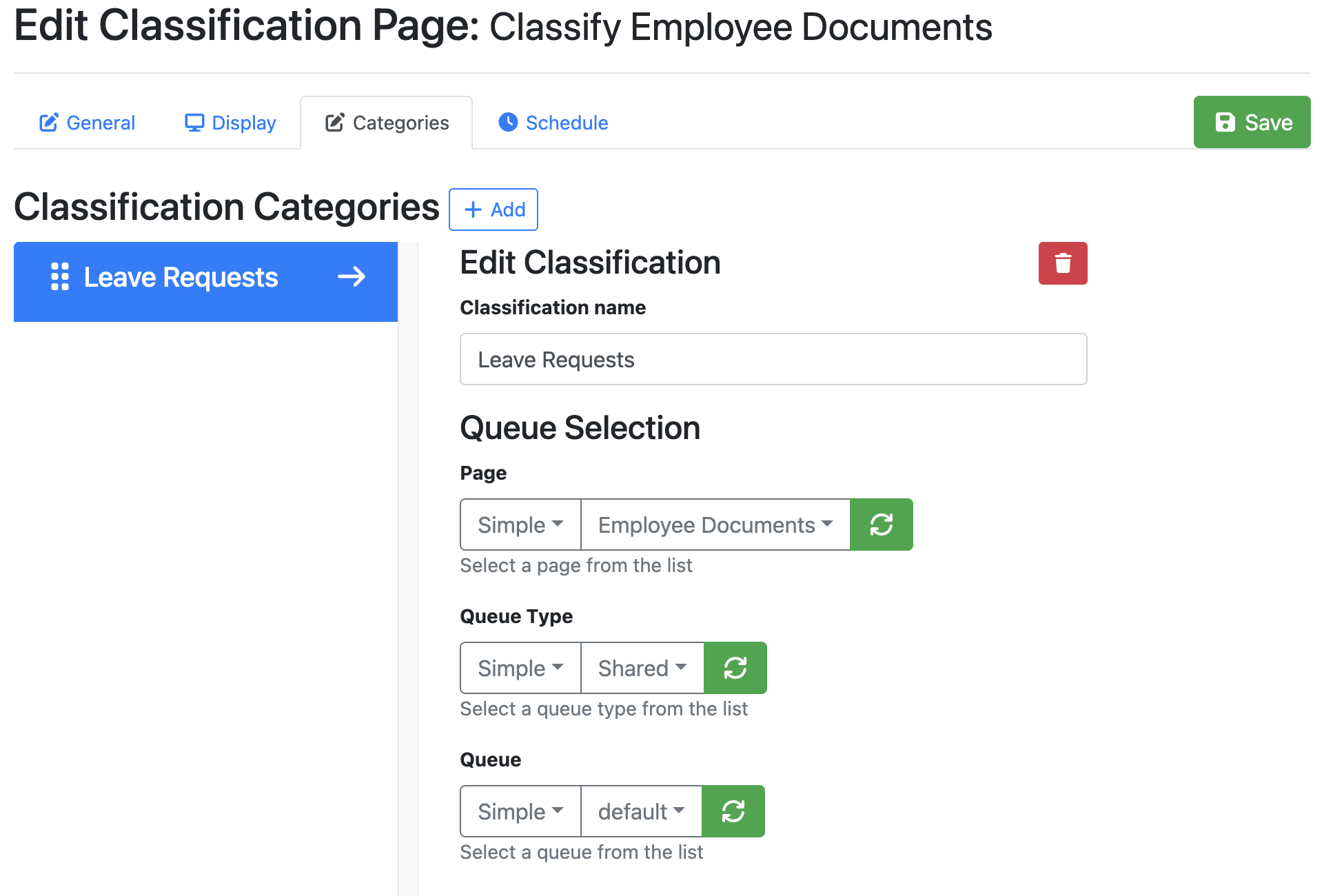
Classification Name
Enter a Category Name for the classification category. The name should clearly reflect the document type that will be used to train the classification engine.
Queue Selection
Under Queue Selection you will need to select the Page you would like to send classified documents to. You have three options:
|
Choice |
Explanation |
|---|---|
|
Simple |
Allows you to select a pre-configured RIA Page from the drop-down menu |
|
Manual |
Allows you to manually enter either a page name or ID |
|
Ignore |
Allows you to not select a page. |
You must then select a Queue Type from the following:
|
Choice |
Explanation |
|---|---|
|
Simple |
Allows you to select a queue type from the drop-down menu |
|
Manual |
Allows you to manually enter either a queue type name or ID |
|
Ignore |
Allows you to not select a queue type |
You must then select a Queue from the following:
|
Choice |
Explanation |
|---|---|
|
Simple |
Allows you to select a queue from the drop-down menu |
|
Manual |
Allows you to manually enter either a queue name or ID |
|
Ignore |
Allows you to not select a queue |
Once you have completed the required fields, click Save to create the classification category.
Note: A minimum of two classification categories is required before the DCA engine can be trained. This allows the machine learning model to compare and differentiate between document types during the training process.