
Dashboard Tab
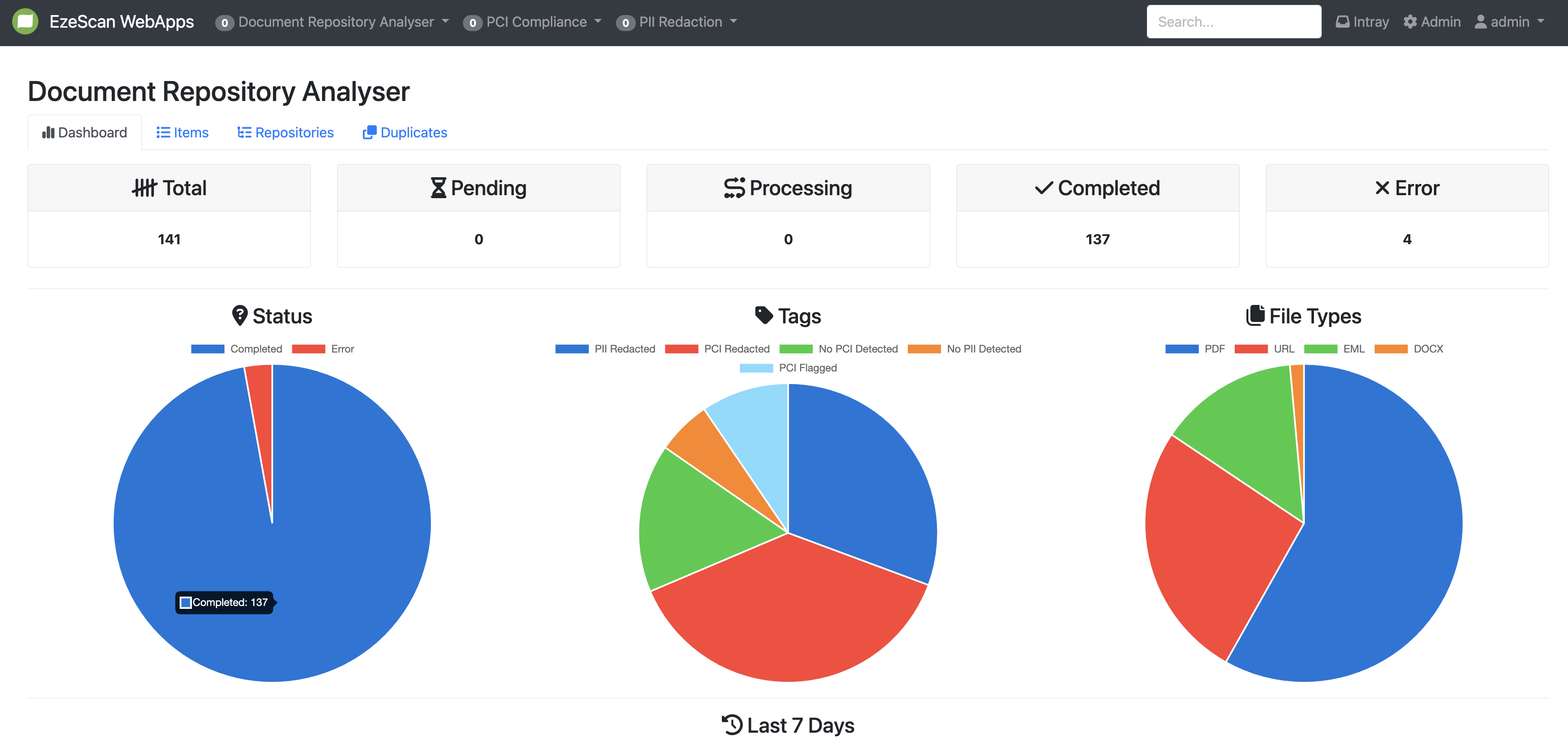
There are 5 tiles (named Total, Pending, Processing, Completed and Error) that show the number of documents at various stages of the DRA processing lifecycle. If you click on the number value shown under the tile heading it will take you to the items tab, where those items at that processing stage will be shown to you.
Items Tab
|
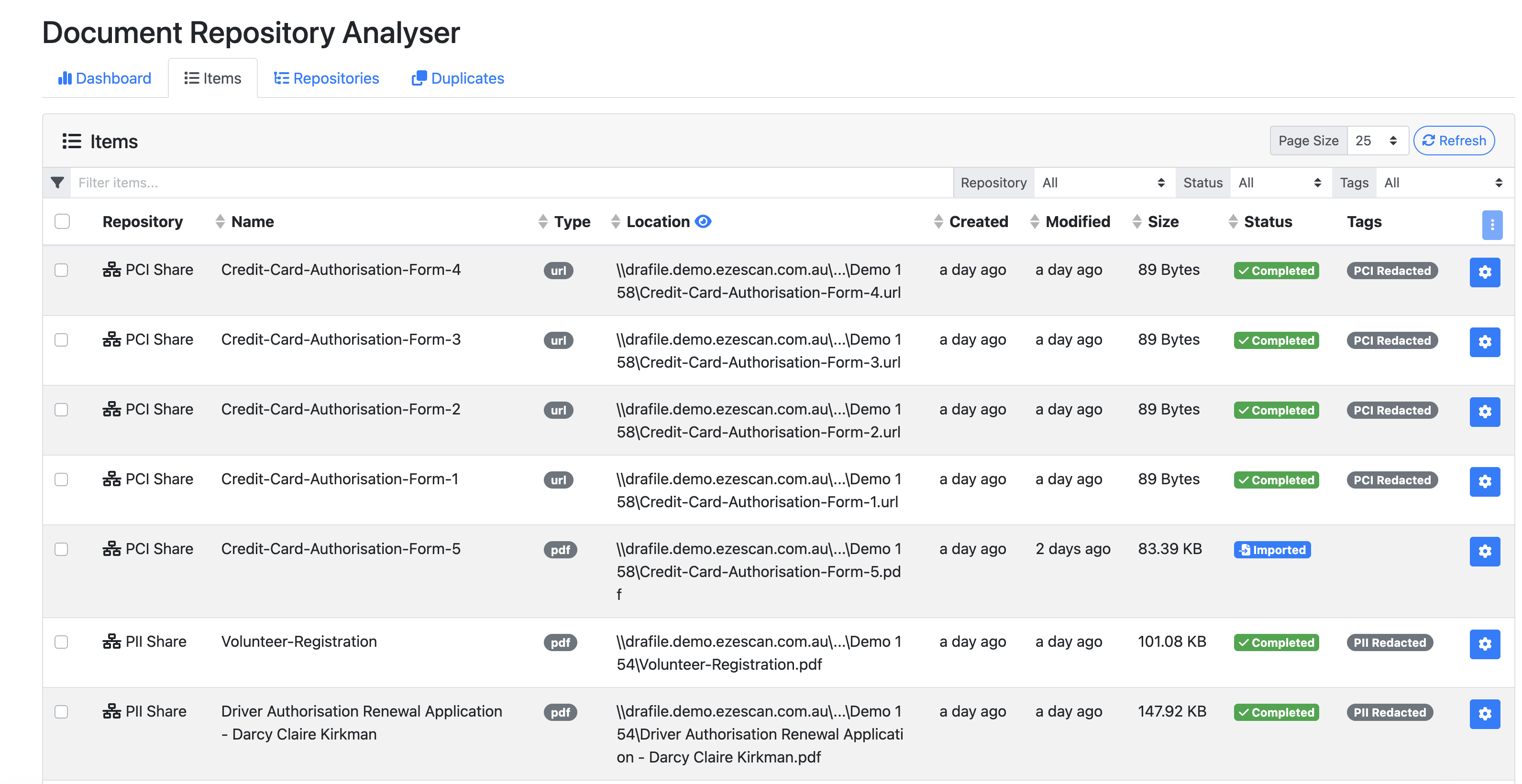
Column |
Description |
|---|---|
|
Repository |
Displays the repository name of where it came from. |
|
Items |
Displays the name of the file. |
|
Type |
Displays the file type. |
|
Location |
Displays the file path within the repository of where the item is located. |
|
Created |
The day the file was created. |
|
Modified |
The date the file was last modified. |
|
Size |
The size of the file. |
|
Status |
The status of the file. |
|
Tags |
Any workflow tags applied to the documents. |
|
Blue Cog |
Gives you the ability to manually add or delete a tag. |

Bulk Editing Items
Use the check boxes in the left hand column of the table to select one or more items to bulk action items. Once selected, click the Blue Action Items button in the top right hand corner of the table to select one of the following bulk actions.

|
Bulk Item Actions |
Description |
|---|---|
|
Add Tags from Items |
Ability to add tags to one or more items. |
|
Delete Tags from Items |
Ability to delete tags from one or more items. |
|
Reset Items |
Ability to reset one or more items. |
|
Delete Items |
Ability to delete one or more items. |
Repositories Tab
|
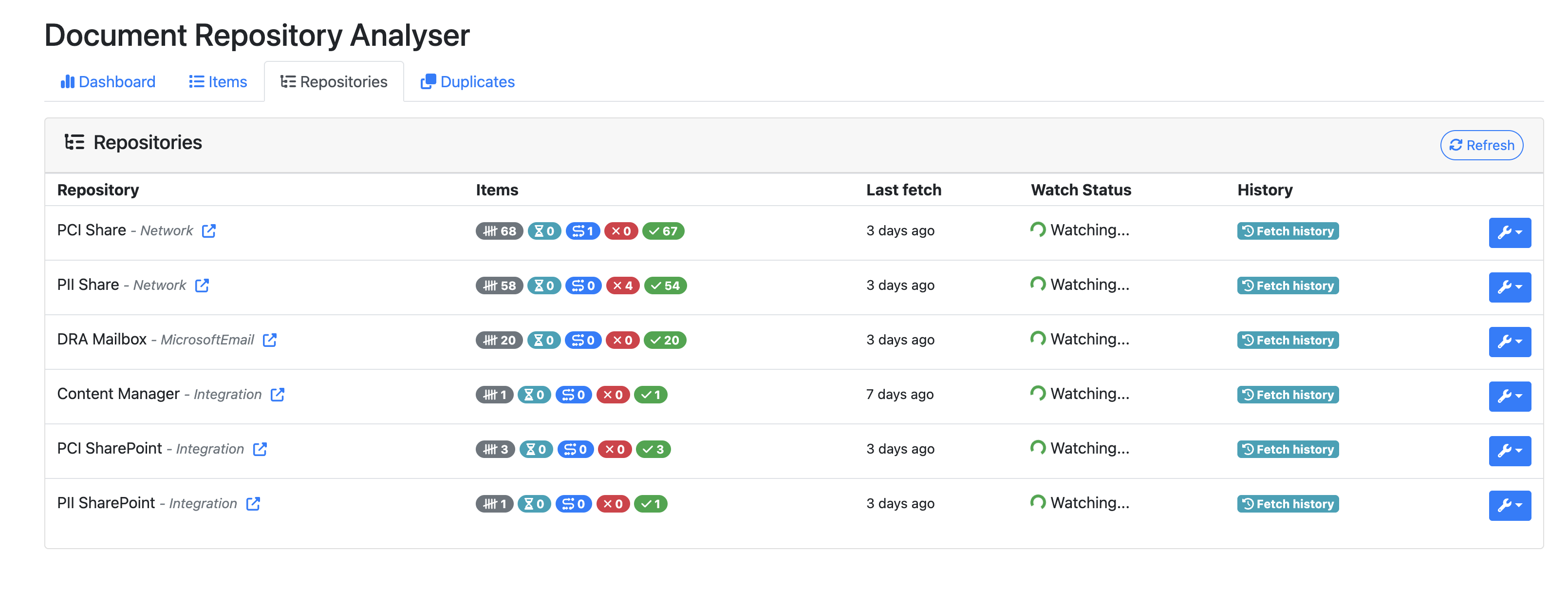
Column |
Description |
|---|---|
|
Repository |
Displays the repository name and its type. Users can click the blue box with an arrow ( |
|
Items |
Gives a total of the items in the different stages. |
|
Last Fetch |
Indicates the date and time of the most recent repository fetch. |
|
Watch Status |
Displays whether the repository is currently being monitored. |
|
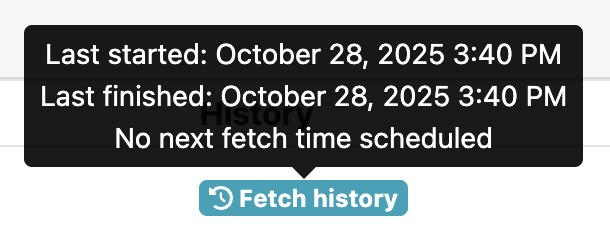
History |
Hover over the value in this column to view:
|
|
Blue Spanner |
Provides options to:
|






Duplicates Tab
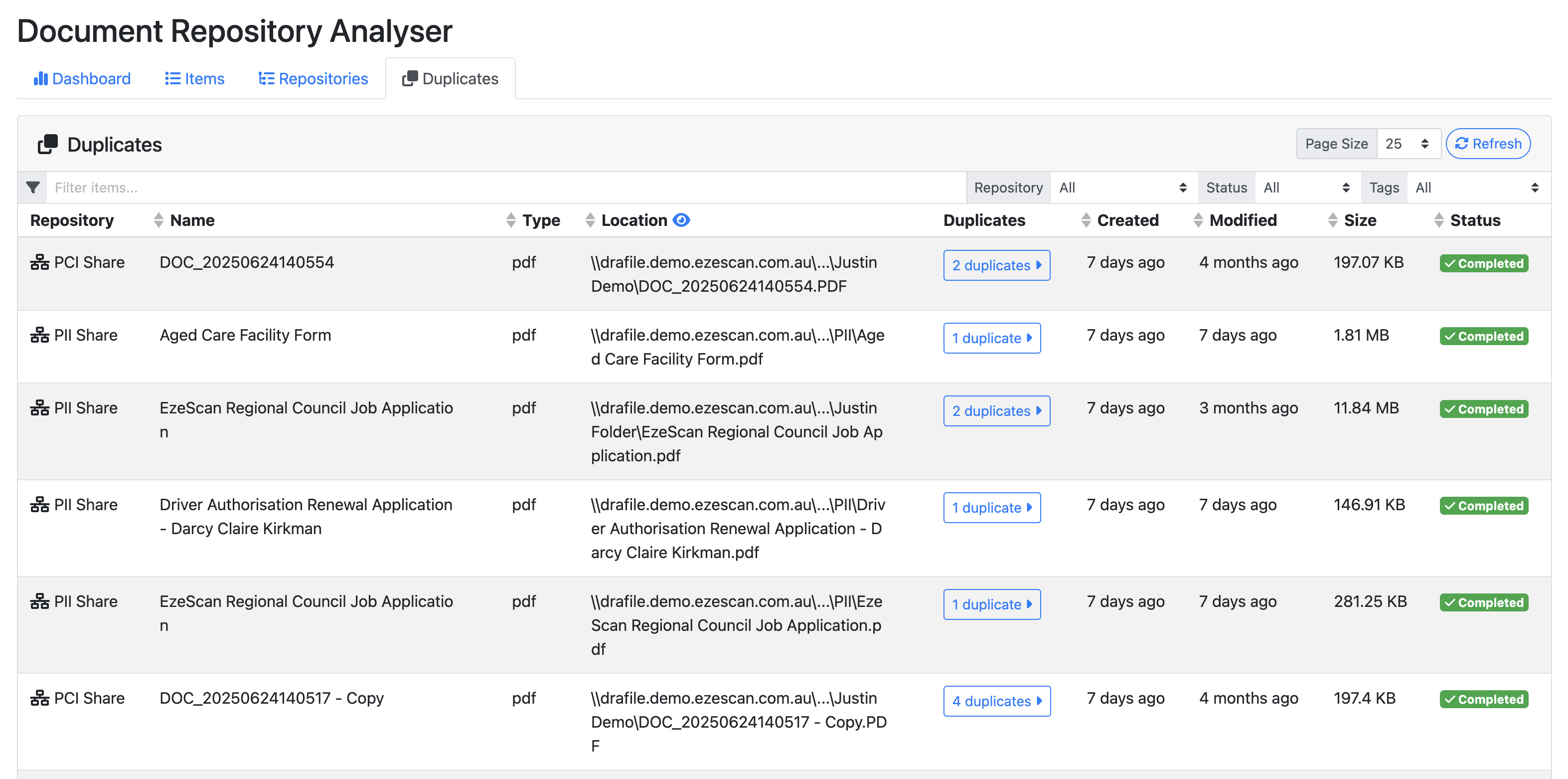
|
Column |
Description |
|---|---|
|
Repository |
Displays the repository name of where it came from. |
|
Name |
Displays the name of the file. |
|
Type |
Displays the file type. |
|
Location |
Displays the file path within the repository of where the item is located. |
|
Duplicates |
Indicates how many duplicates have been found of that file. When this button is pressed a table is displayed showing all the duplicates listed by the Repository and the Location they were found in. 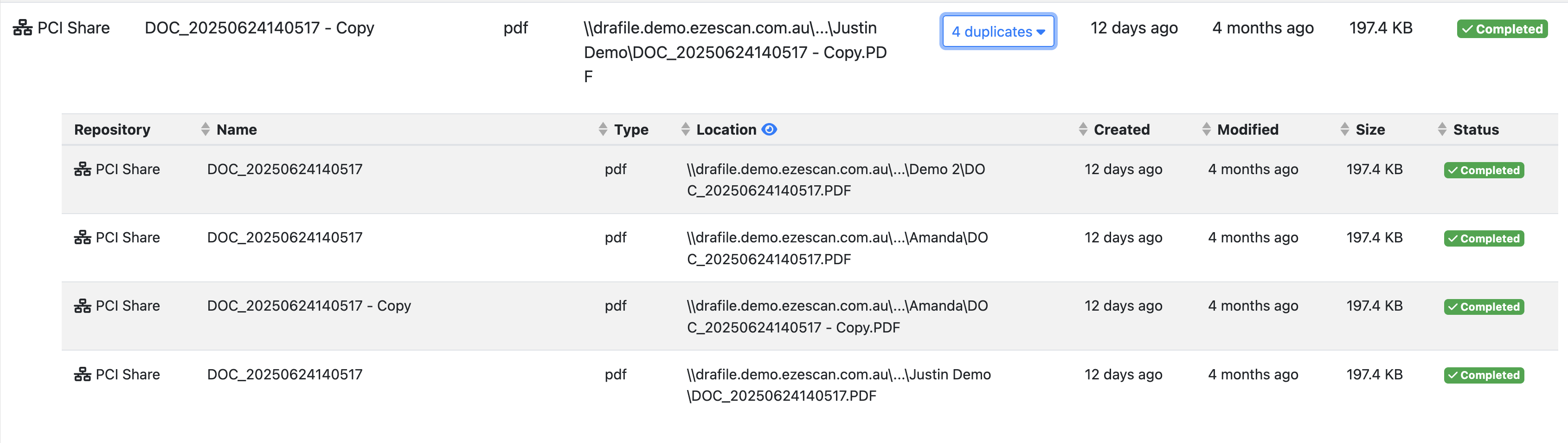
|
|
Created |
The day the file was created. |
|
Modified |
The date the file was last modified. |
|
Size |
The size of the file. |
|
Status |
The status of the file. |