Repositories Tab
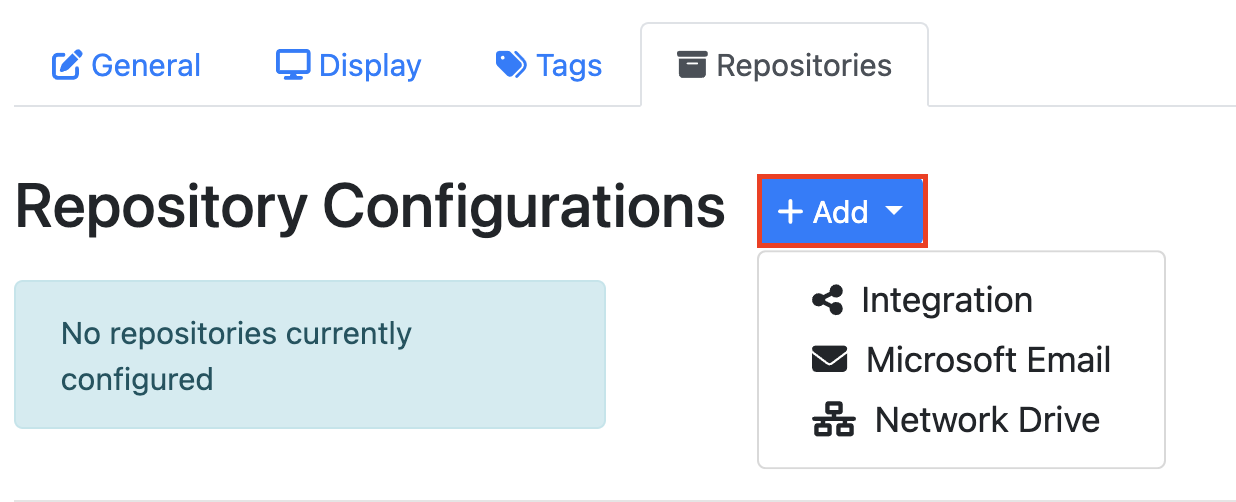
This tab gives you the ability to connect a repository to be crawled. There are three types of repositories that can be configured:
-
Integration
-
Microsoft Email
-
Network drive
To add a repository click the blue Add button and select your repository type from the drop-down menu.
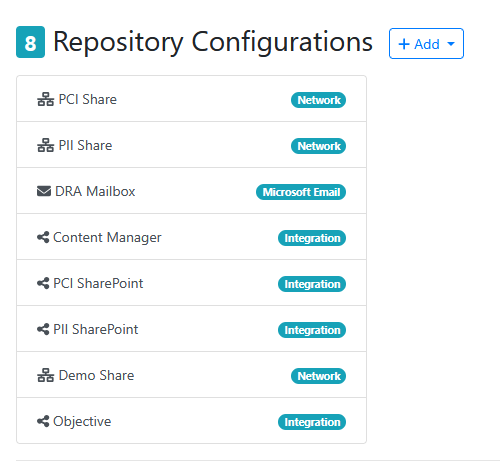
It is possible to add one or more repositories to a DRA Page as shown in the example below:
Basic Tab
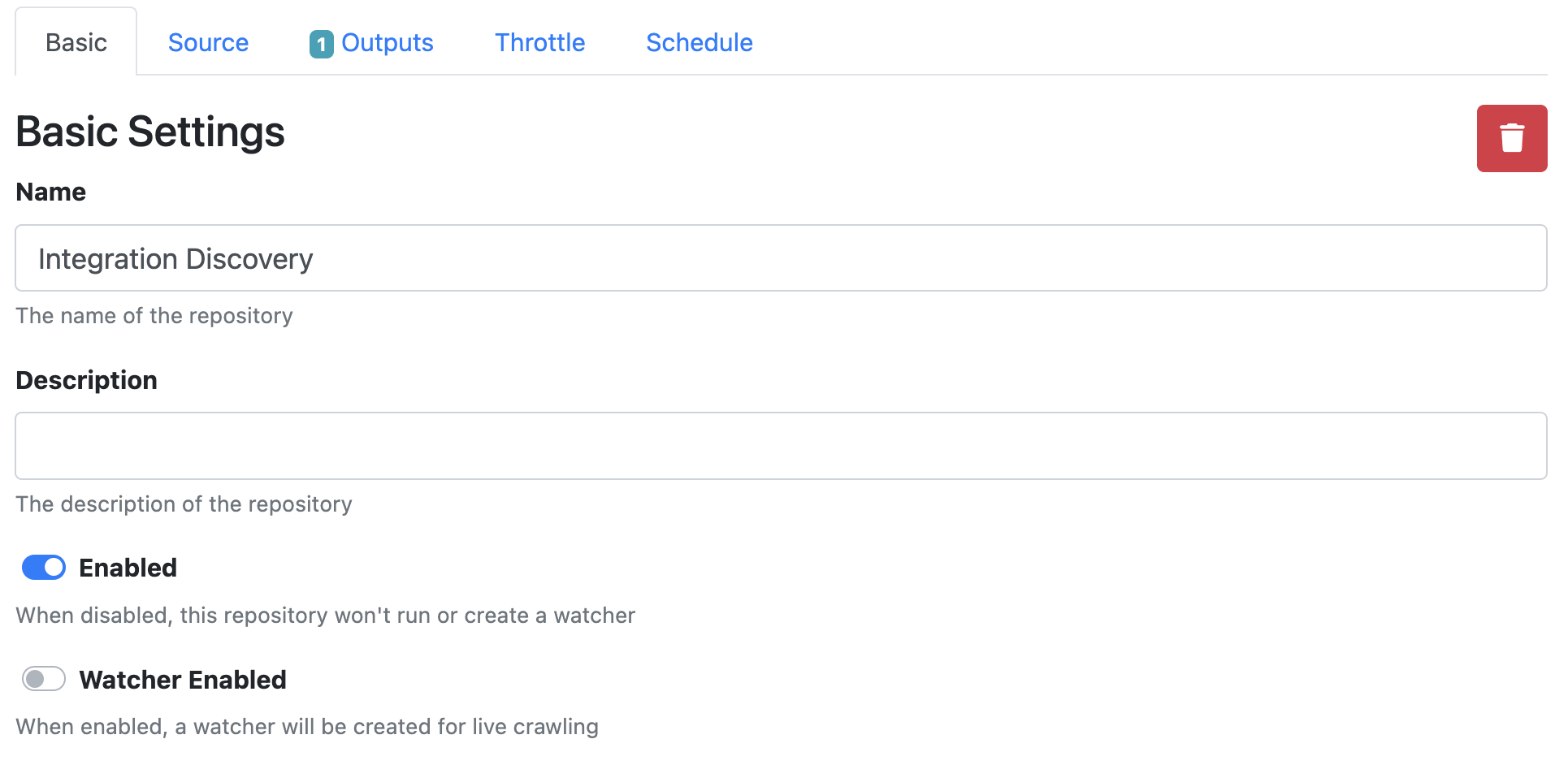
The basic tab is where you can set the repository name, description and watcher settings.
|
Setting |
Description |
|---|---|
|
Name |
Give the repository a custom name |
|
Description |
Describe what the repository is |
|
Enabled |
This is enabled by default. When disabled, this repository won't run or create a watcher. |
|
Watcher Enabled |
This is not enabled by default. When enabled, a watcher will be created for live crawling. |
Source Tab
For Integration Repository
Document and Content Management Systems like OpenText Content Manager, Microsoft SharePoint and Objective ECM.
For Microsoft Email Repository
For Network drive Repository
Outputs Tab
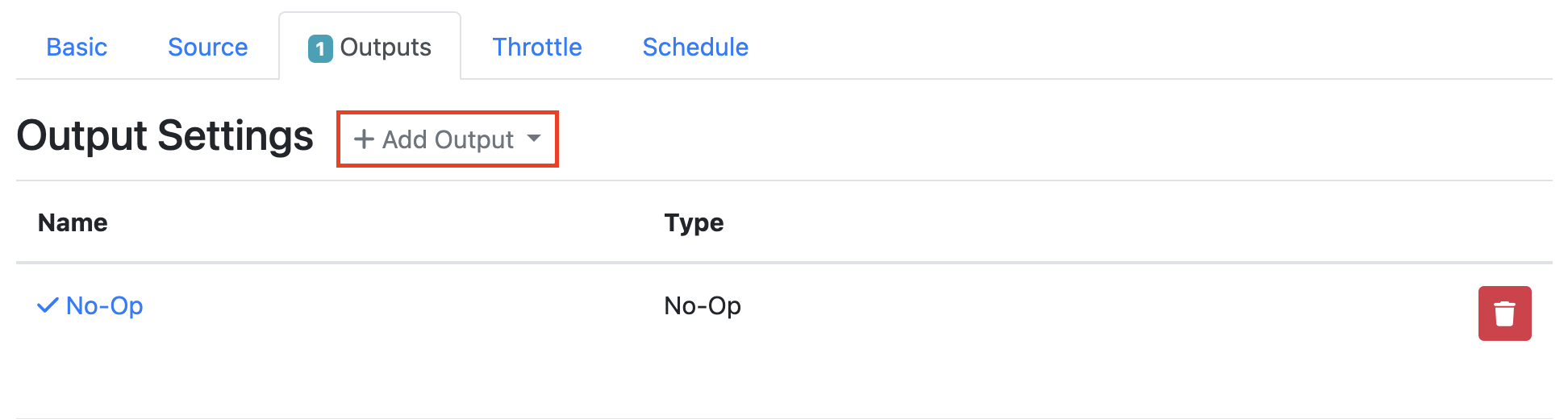
The output tab is where you can configure the output actions for that repository.
To add an output click the Add Output button and select an output from the dropdown menu.
Note: The type of available outputs will depend on the type of repository being configured.
For Integration Repository
|
Output Options |
Description |
|---|---|
|
Integration Output |
Content Manager
Objective ECM
SharePoint
|
|
No-Op |
No changes will be made to the original file. A No-Op is applied by default. |
For Microsoft Email Repository
|
Output Options |
Description |
|---|---|
|
Add Email Category |
Adds an email category to the email. |
|
Delete Email |
The original email will be deleted once the file is output. |
|
Move Email |
Moves the email to the target folder once it has been output. You will need to select the email folder to move the email to. |
|
No-Op |
No changes will be made to the original file. A No-Op is applied by default. |
For Network drive Repository
|
Output Options |
Description |
|---|---|
|
Delete |
The original file will be deleted once the file is output. |
|
No-Op |
No changes will be made to the original file. A No-Op is applied by default. |
|
Replace |
The original file will be replaced with the output file. |
Throttle Tab
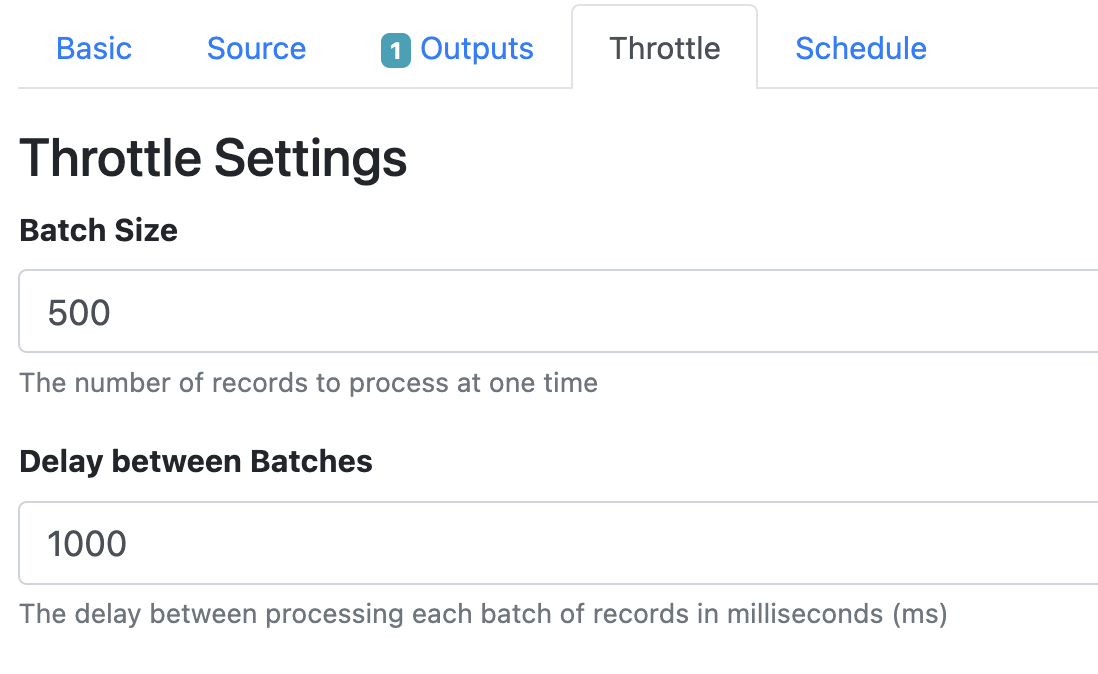
The throttle tab lets you configure a throttle limit to the number of records being discovered at one time and how often.
|
Setting |
Description |
|---|---|
|
Batch Size |
Set the number of records to process at one time. This is set to 500 by default. |
|
Delay Between Batches |
Set the delay between processing each batch of records in milliseconds (ms). This is set to 1000 by default. |
Schedule Tab
The Schedule tab gives you the ability to configure the discovery repository worker to run automatically on set days at a set time.
By default a schedule is not enabled.
To create a schedule you will need to click the toggle on the Schedule Enabled.
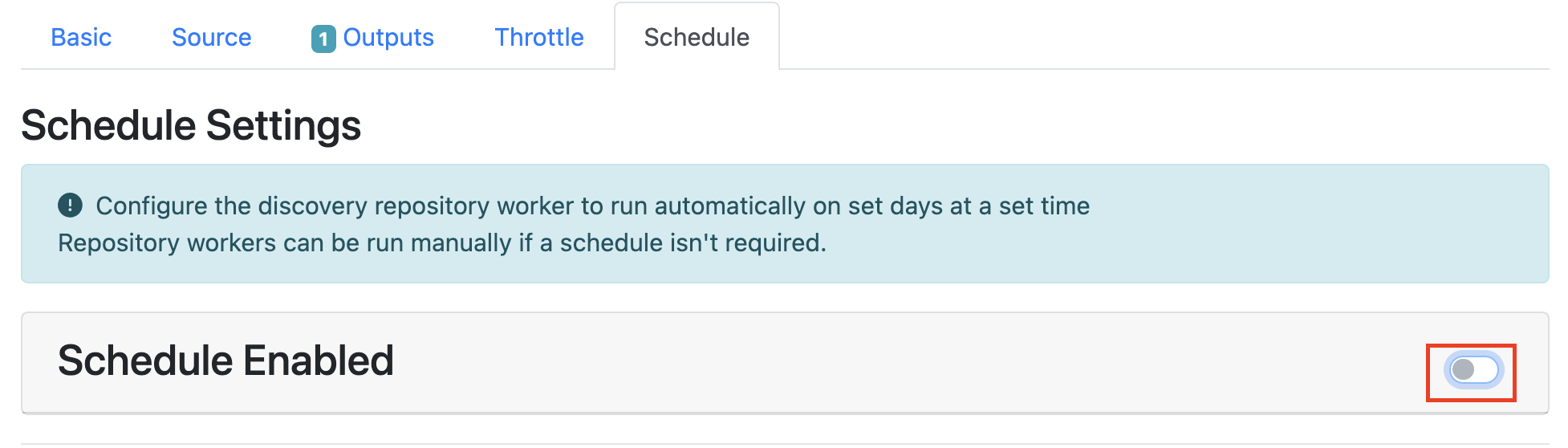
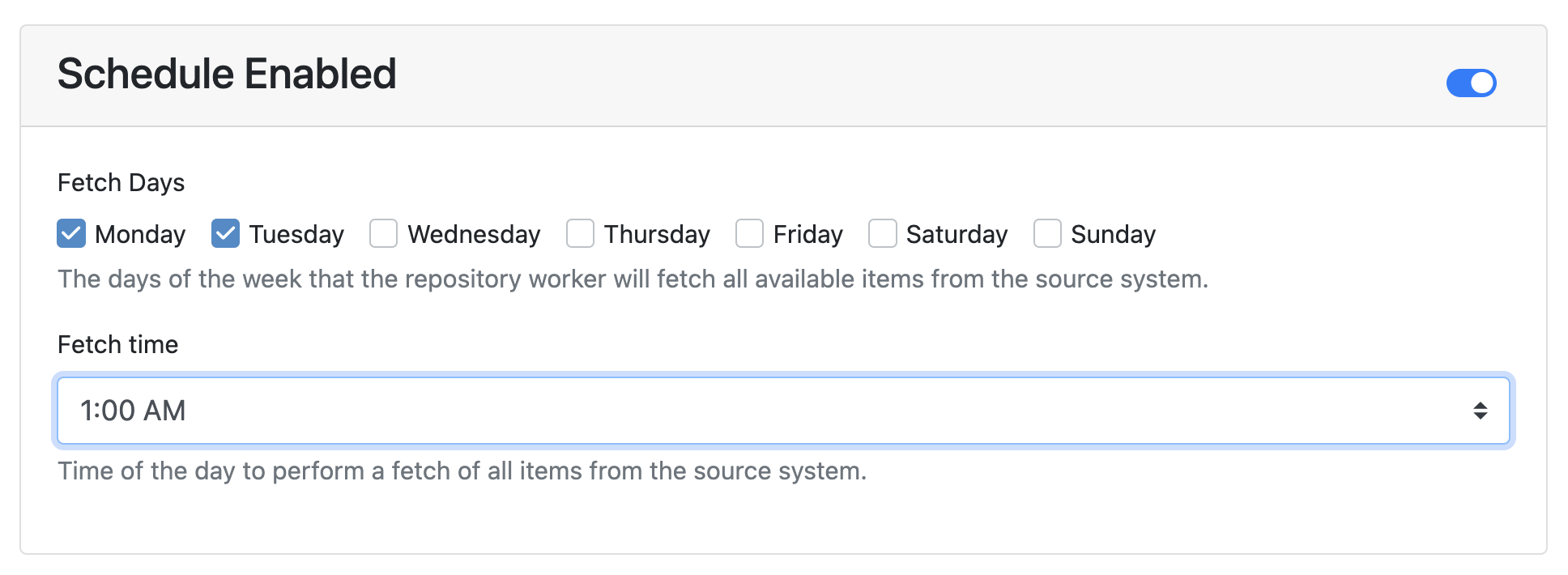
Click the checkbox of the days you want the repository worker to fetch items and select a fetch time from the drop down menu.