
Purpose
The Barcode Settings tab allows administrators to configure the barcode type and barcode settings used on the coversheet, as well as define the information displayed within the generated PDF.
Barcode Settings
|
Setting Name |
Description |
|
Barcode Type |
Select the barcode font type to use on the coversheet from the drop down menu. The default barcode is PDF417. 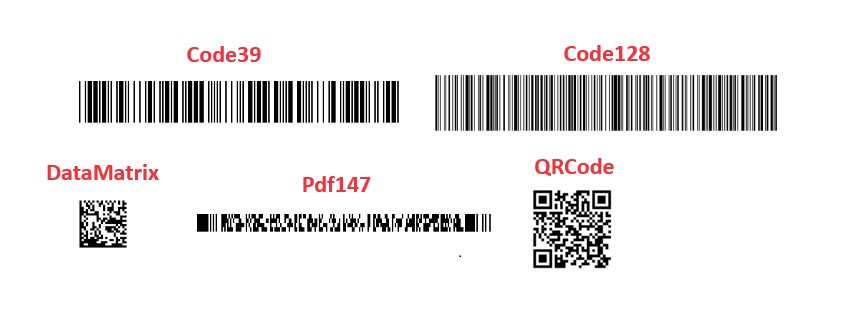
|
|
DPI |
Type in the DPI value to use for the generated barcode. Otherwise use the up/down arrow keys towards the right of the text down to increase or decrease the default value of 96. |
|
Columns |
Type in a value for the number of columns to use in supported barcode types. Alternatively use the up/down arrow keys towards the right of the text down to increase or decrease the default value of 8. |
|
Generated By Field |
Add the coversheet creators username or email address to the barcode data. This will also appear in the list of field on the coversheet. 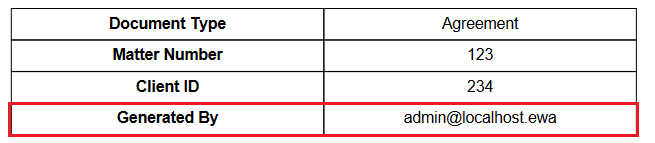
|
|
Data Format |
Select how the barcode data is generated from the drop down menu. Values is selected as the default option. Values Example output: value 1%value 2%value 3. Key Value pairs example output: field1=value 1%field2=value 2%field3=value 3 |
Output Display
|
Setting Name |
Description |
|
Output Format |
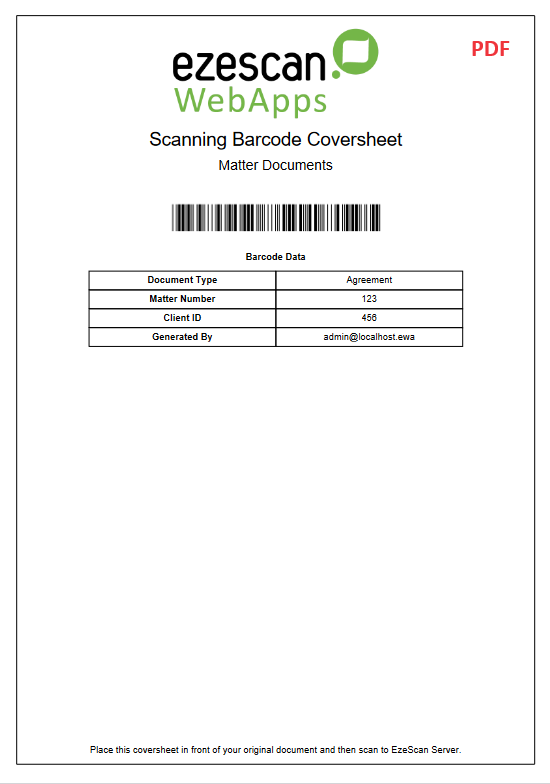
Select whether you would like to output the barcode coversheet as a PDF or Webpage. 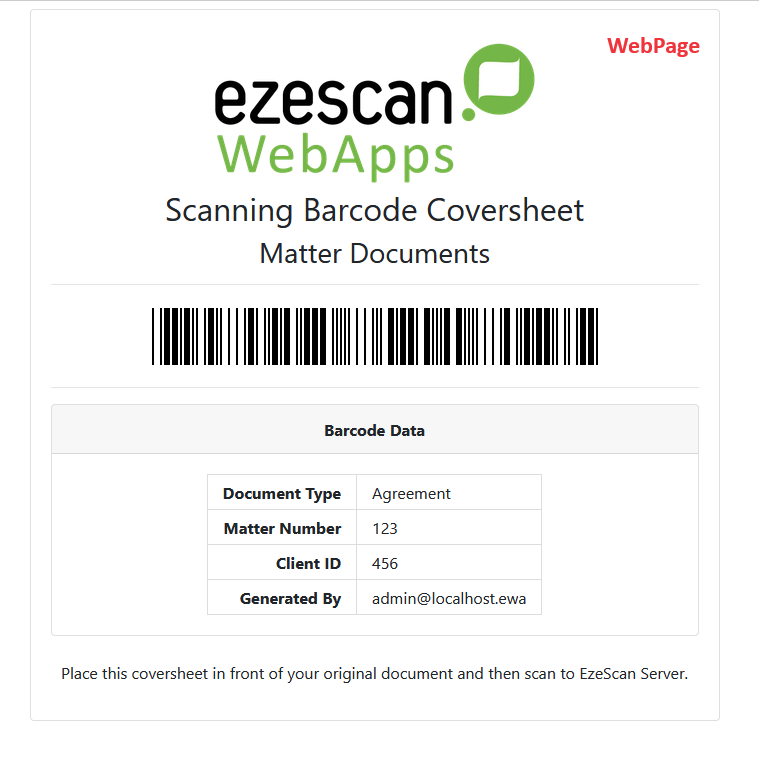
|
|
Title |
Enter a title that will appear at the top of the coversheet. If left blank, the title will appear as “Scanning Barcode Coversheet”. 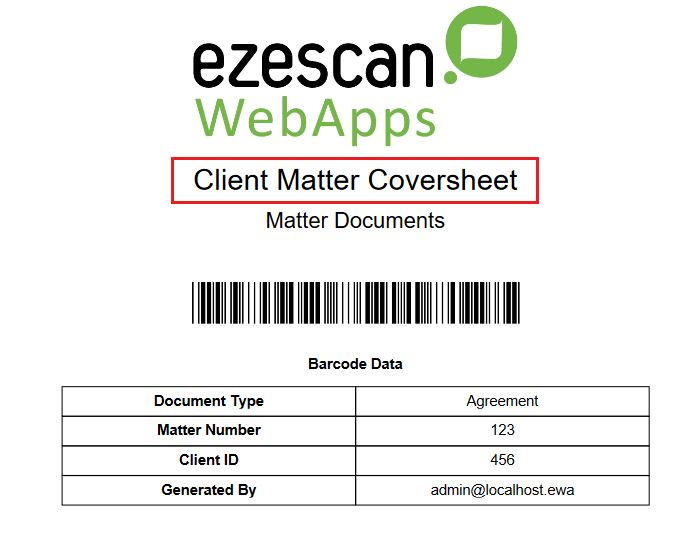
|
|
Barcode Data Label |
Enter text to display above the table of barcode data values. If left blank, the default “Barcode Data” will be used. 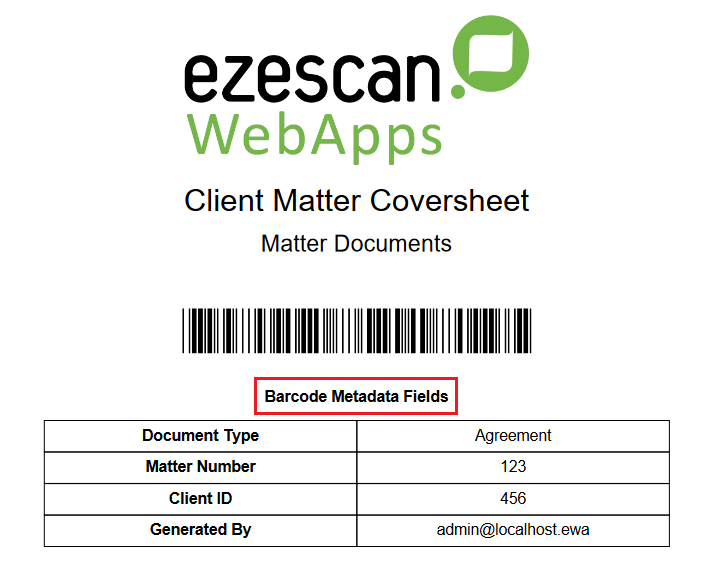
|
|
Footer Text |
Enter text to display at the bottom of the coversheet. If left blank, the default text “Place this coversheet in front of your original document and then scan to EzeScan Server” will be used. 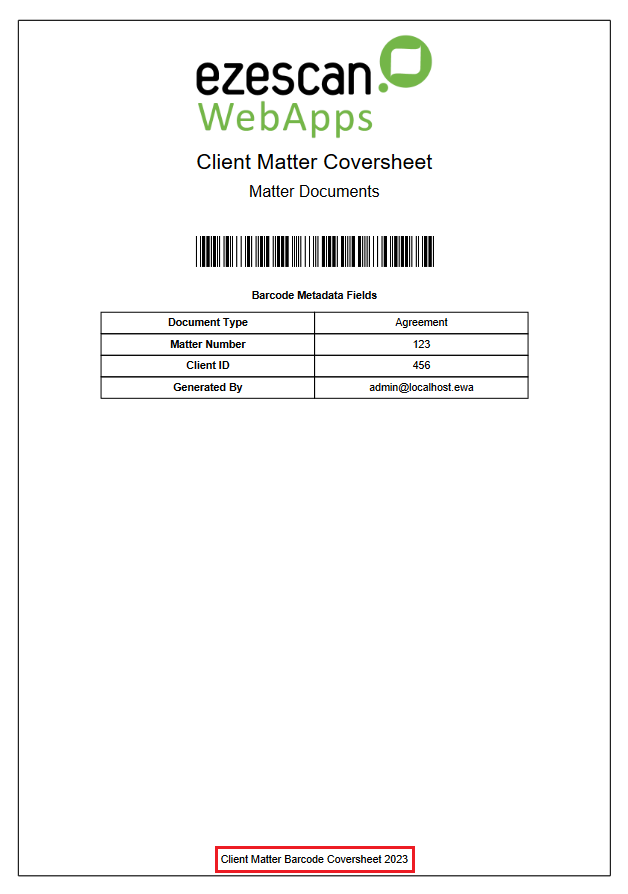
|
Generate Page Display
|
Setting Name |
Description |
|
Generate Button Text |

Enter custom button text for generating the coversheet. If left blank, the default “Generate Coversheet” will be used. 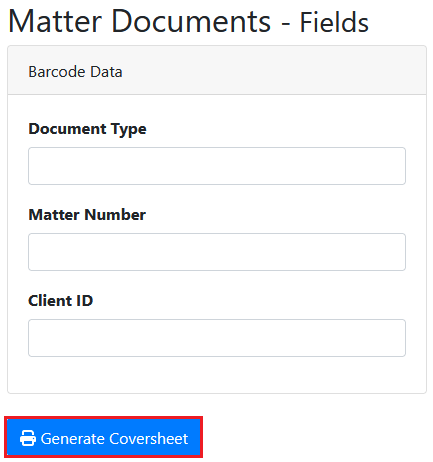
|
|
Included Fields |
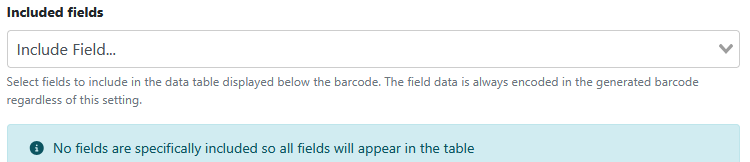
When blank, the default behaviour is to include all fields in the grid displayed below the barcode font on the printed cover sheet. If you want only a subset of fields add the field names to include here.
|
|
Excluded Fields |
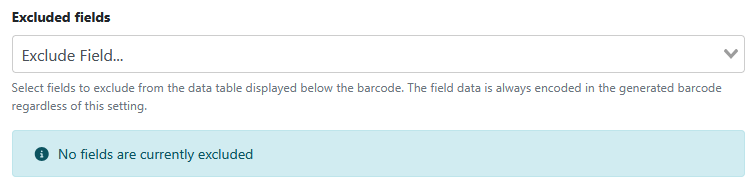
When blank, the default behaviour is to not exclude any fields in the grid displayed below the barcode font on the printed cover sheet. If you want only a subset of fields add the field names to exclude here. |