
The backup and restore process may differ based on your database configuration.
Step-by-step guide
Backup application files
-
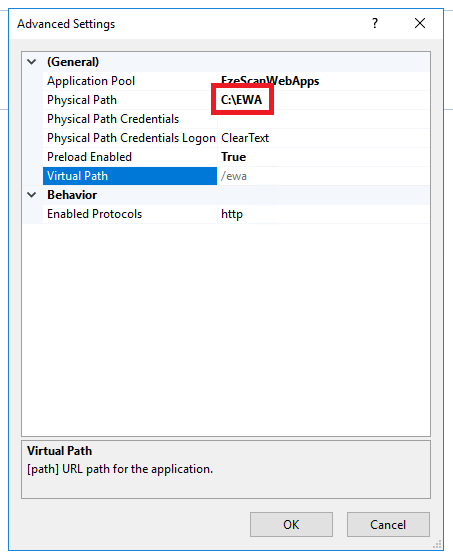
Locate your EzeScan WebApps installation path by looking at the Advanced Settings in Internet Information Services (IIS) Manager.
-
Stop the website or application pool in IIS to bring the site offline.
-
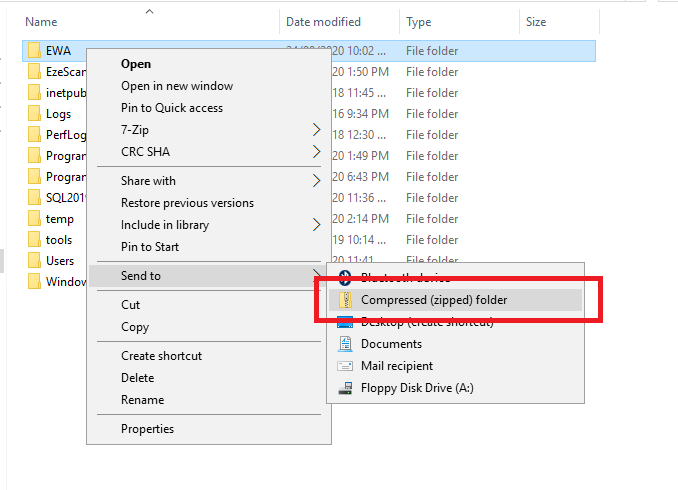
Browse to the EzeScan WebApps installation path and then right click > Send to > Compressed (zipped) folder.
-
This will create a zip file you can then move to a safe location
If your installation is using Microsoft SQL server then you must backup the database separately.
Restore application files
-
Coming soon...
Backup Microsoft SQL Server databases
-
Coming soon...