
Google API Client Registration
-
Open Google API Console in your web browser.
-
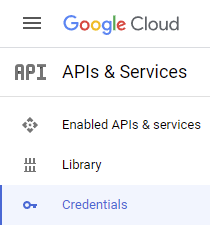
Navigate to APIs and Services
-
Open Credentials page
-
Click Create Credentials
-
Select OAuth client ID
-
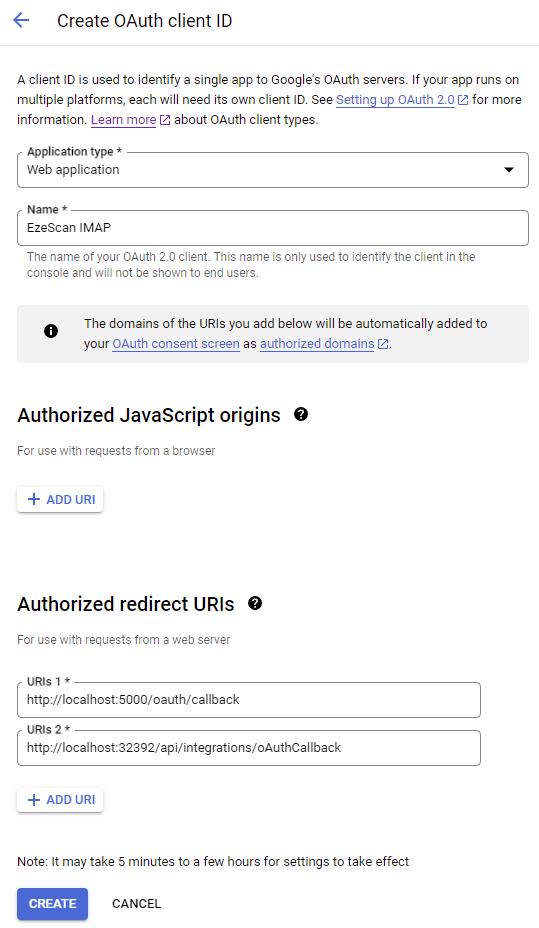
Select application type Web application
-
Enter a name such as EzeScan IMAP
-
Add the following URLs to Authorized redirect URIs for sign-in from EzeScan Desktop
http://localhost:5000/oauth/callback -
Add the following URL to Authorized redirect URIs for sign-in from EzeScan Server web interface
http://localhost:32392/api/integrations/oAuthCallback
Note: left part http://localhost:32392 should be replaced with scheme and authority of the public address (if applicable). -
Click Create
-
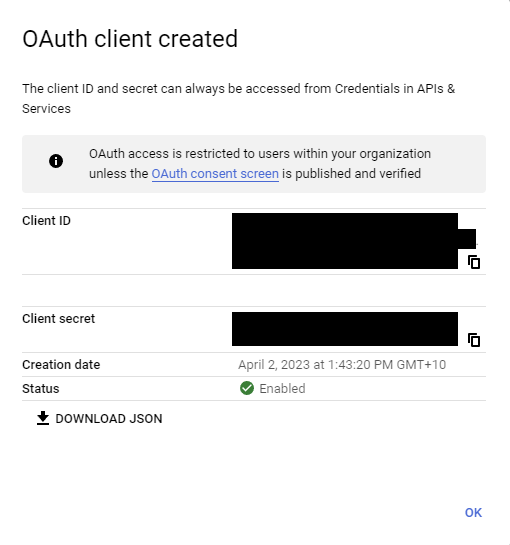
Copy the Client ID and Client secret to a safe location
Check IMAP is enabled in Gmail
-
Open Gmail in your web browser
-
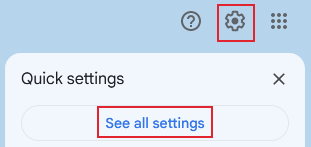
Open the quick settings panel
-
Click on See all settings
-
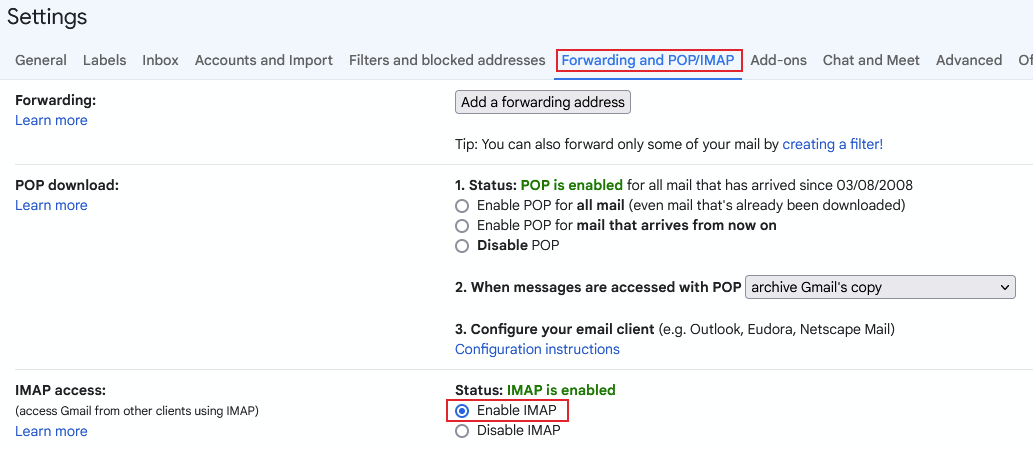
Select Forwarding and POP/IMAP tab
-
In the IMAP access section select Enable IMAP
-
Click Save Changes
IMAP Connection Settings
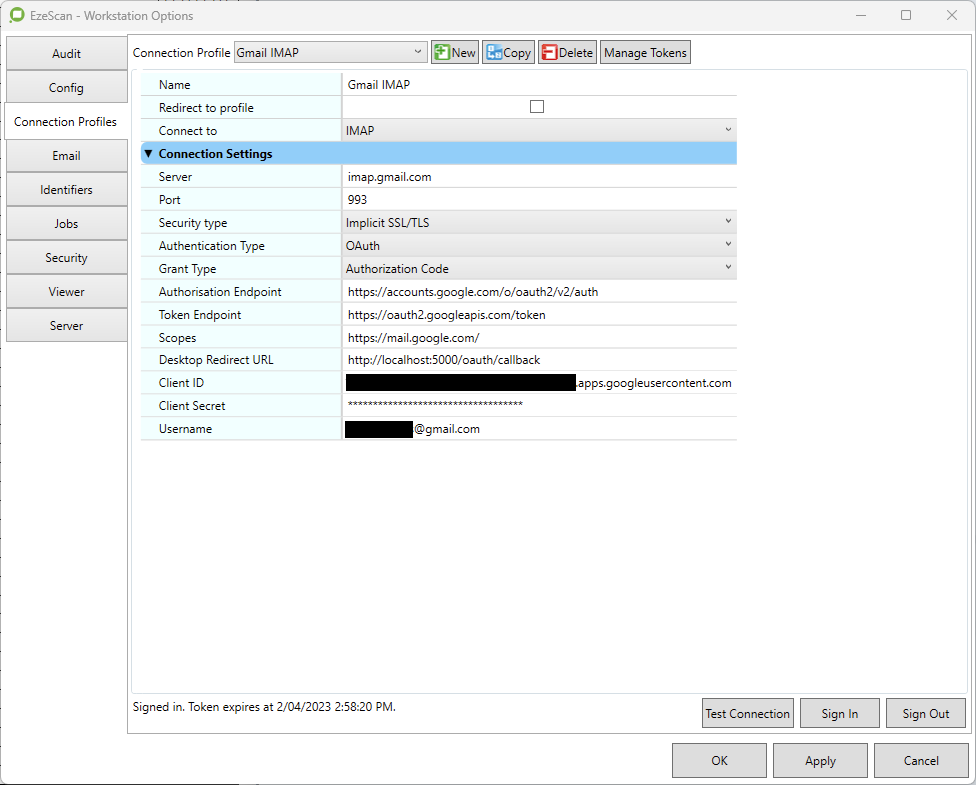
The following are the connection settings to configure in EzeScan > Workstation Options > Connection Profiles.
|
Option |
Value |
|---|---|
|
Server |
imap.gmail.com |
|
Port |
993 |
|
Security Type |
Implicit SSL/TLS |
|
Authentication Type |
OAuth |
|
Grant Type |
Authorization Code |
|
Authorisation Endpoint |
https://accounts.google.com/o/oauth2/v2/auth |
|
Token Endpoint |
https://oauth2.googleapis.com/token |
|
Scopes |
https://mail.google.com/ |
|
Desktop Redirect URL |
http://localhost:5000/oauth/callback |
|
Client ID |
The client id captured when creating the Google API client registration. |
|
Client Secret |
The client secret that was captured when creating the Google API client registration. |
|
Username |
The email address of the mailbox to import from. For example, user@gmail.com |
Click Sign In button to login to the respective Gmail account.
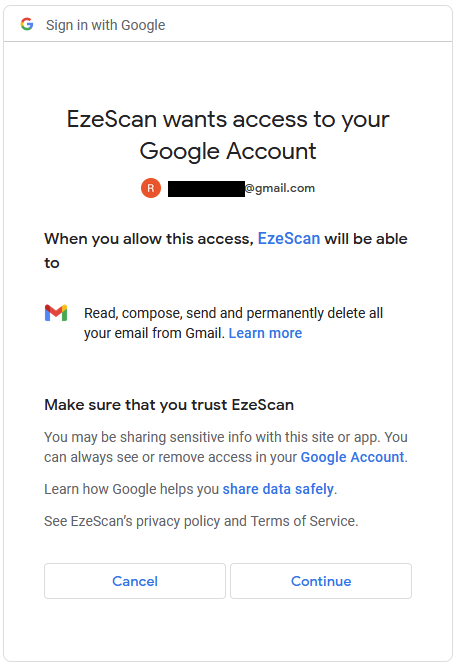
Use the Test Connection button to ensure the connection to Gmail is working.