
This integration enables EzeScan to import documents from, and export documents to, an Amazon S3 bucket.
Requirements
-
EzeScan 5.1.27 or higher.
-
Amazon S3 bucket with Access Key authentication.
Connection Settings
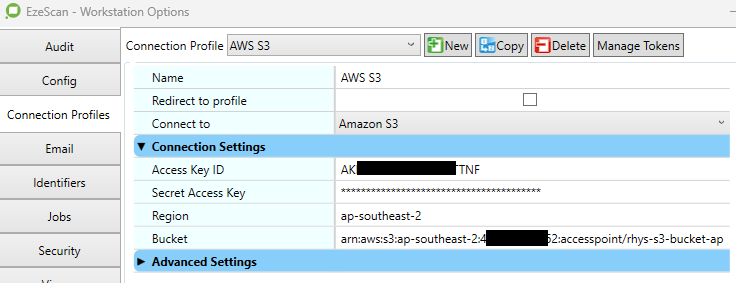
It is recommended that the following connection settings be configured globally using a Connection Profile in Admin menu → Workstation Options.
This integration requires an AWS IAM access key and secret generated for an IAM user with permissions to the target Amazon S3 bucket.
The IAM user must be granted the following permissions:
s3:PutObject
s3:GetObject
s3:DeleteObject
|
Option |
Description |
|---|---|
|
Access Key ID |
The AWS Access Key ID associated with the IAM user that has access to the target bucket. |
|
Secret Access Key |
The AWS Secret Access Key associated with the IAM user that has access to the target bucket. |
|
Region |
The AWS Region in which the target bucket is hosted (for example, |
|
Bucket |
The name of the Amazon S3 bucket to connect to, or the full Access Point ARN if an S3 Access Point is used. |
Import Document
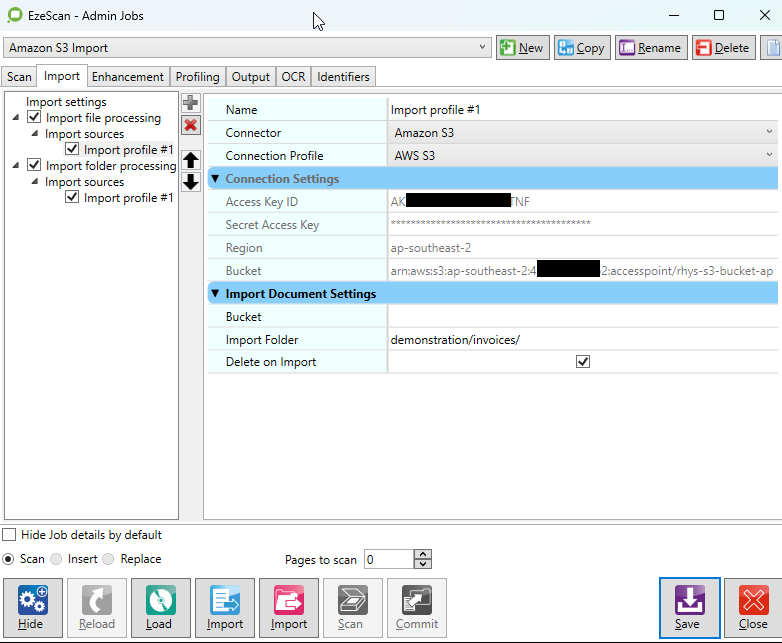
Allows user to browse and select a file to download from an bucket. Files can optionally be deleted after they are downloaded from the bucket.
Import Settings
|
Option |
Description |
|---|---|
|
Bucket |
The name of the Amazon S3 bucket to import from, or the full Access Point ARN if an S3 Access Point is used. Leave this blank to use the bucket configured in the connection settings. |
|
Import Folder |
The folder within the bucket to browse for files. Leave blank to import from the bucket root. Use a forward slash (/) as the directory separator. |
|
Delete on Import |
Deletes the file from the bucket after it has been successfully downloaded. By default, this option is unchecked and the source file is retained. |
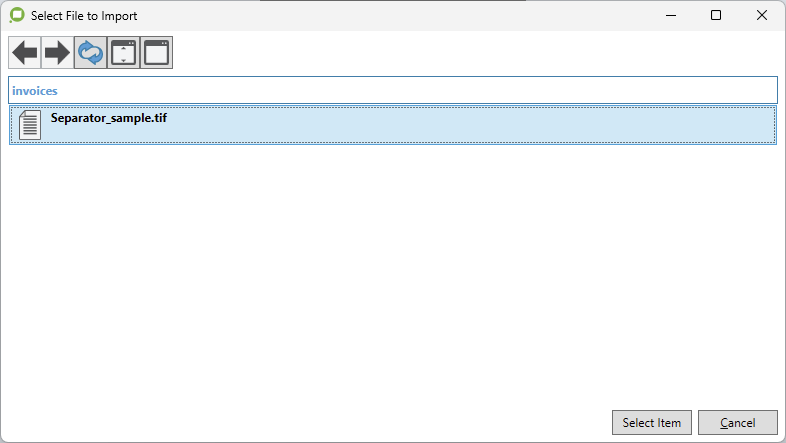
The below browse window is shown when initiating import file from a Job with this feature enabled. The user can use the Select Item button to accept and download the selected file.
Bulk Import Documents
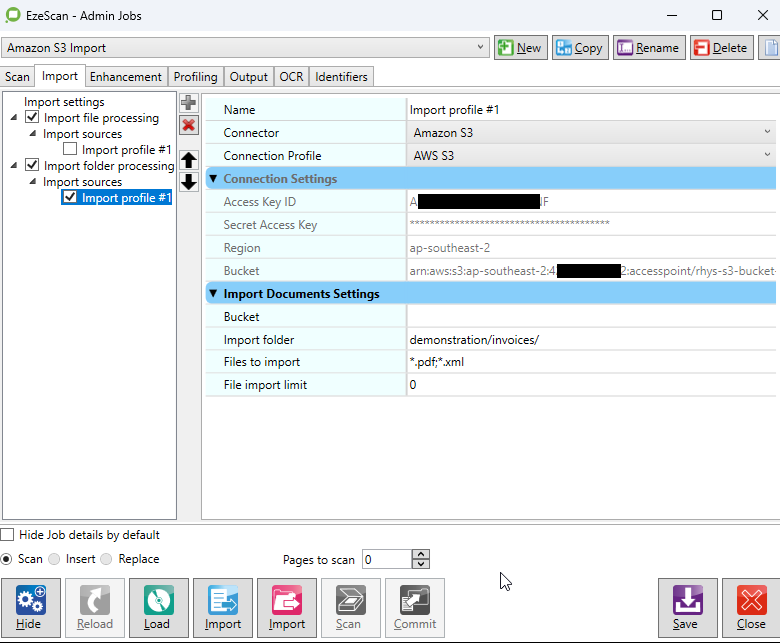
The connector can be configured as an import folder source in both Jobs and Routes. Files are filtered using File Types specified in the respective Job or Route’s import settings. Files are deleted from the bucket as they are downloaded to import folder path.
Import Settings
|
Option |
Description |
|---|---|
|
Bucket |
The name of the Amazon S3 bucket to import from, or the full Access Point ARN if an S3 Access Point is used. Leave this blank to use the bucket configured in the connection settings. |
|
Import Folder |
Import files from this folder within the bucket. Use forward slash (/) as directory separator. |
|
File import limit |
The maximum number of files to import per session, or leave as 0 for unlimited. |
|
Files to import |
Specify the files to import using a semicolon list (e.g. |
Output Document
The connector can be configured as an output destination for both Jobs and Route Rules.
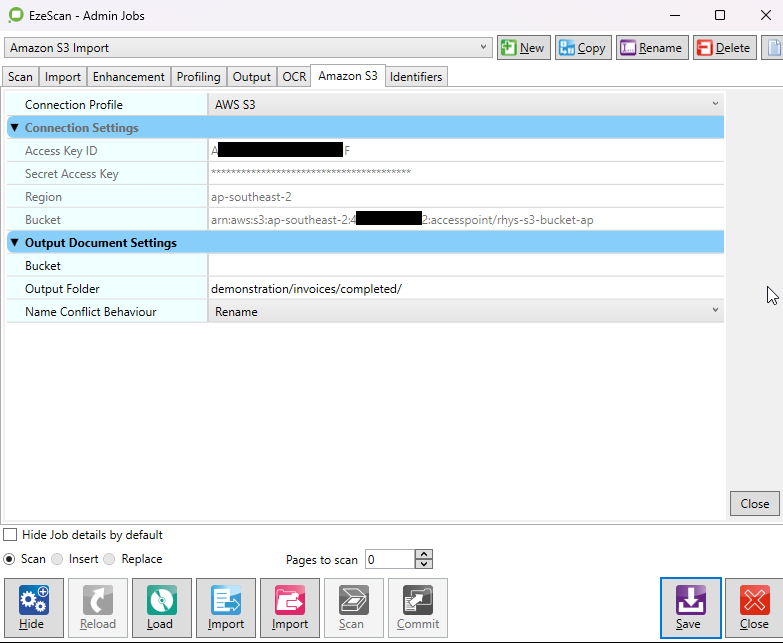
Output Settings
|
Option |
Description |
|---|---|
|
Bucket |
The name of the Amazon S3 bucket to output to, or the full Access Point ARN if an S3 Access Point is used. Leave this blank to use the bucket configured in the connection settings. |
|
Output Folder |
Output the document to this folder within the bucket, or leave blank to use the root directory. Use forward slash (/) as directory separator. |
|
Name Conflict Behaviour |
Specify how to handle conflict when a duplicate object key name is detected:
|
Upload Document
The connector can be configured as an upload target for both Jobs and Routes.
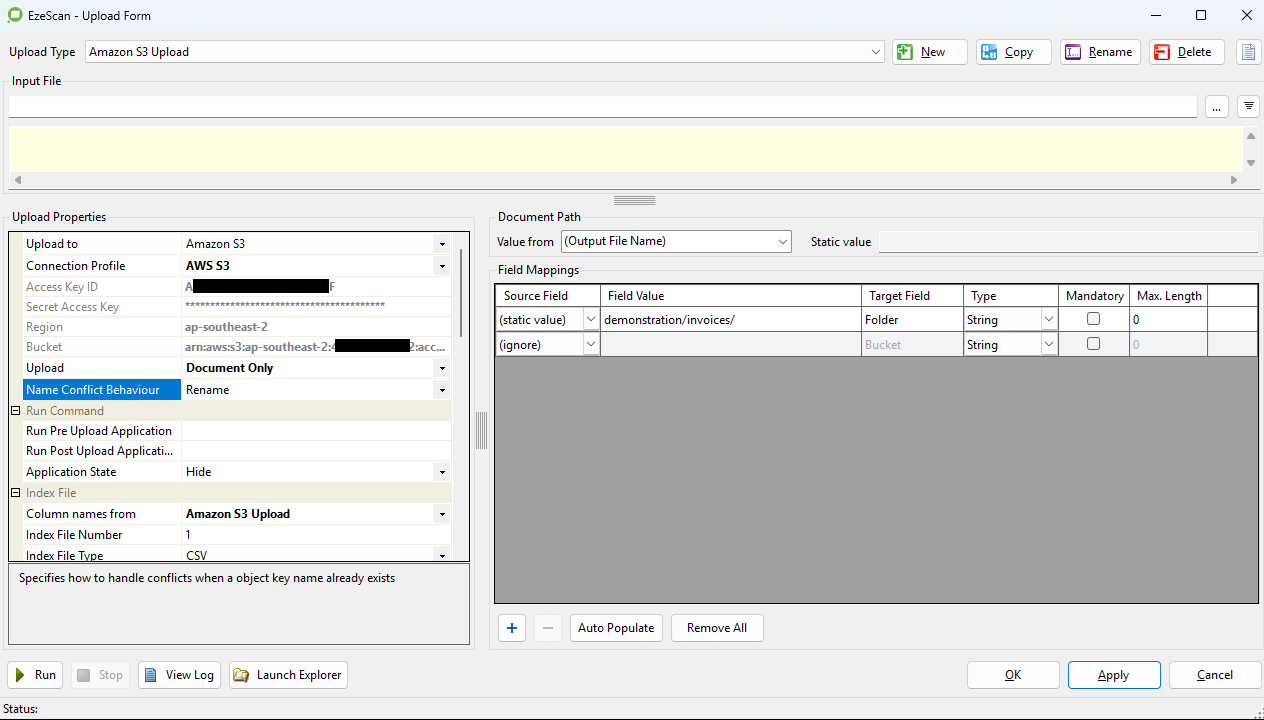
Upload Settings
|
Option |
Description |
|---|---|
|
Upload |
Select which item(s) to upload to the bucket. The available options are:
|
|
Name Conflict Behaviour |
Specify how to handle conflict when a duplicate object key name is detected:
|
Upload Field Mappings
|
Field Name |
Description |
|---|---|
|
Bucket |
The name of the Amazon S3 bucket to upload to, or the full Access Point ARN if an S3 Access Point is used. Leave this blank to use the bucket configured in the connection settings. |
|
Folder |
Upload the document and/or index file to this folder within the bucket, or leave blank to use the root directory. Use forward slash (/) as directory separator. |
Custom Fields
Custom fields can be added using the [+] button to populate object metadata.
Each field name will be used as the metadata key and must only contain only lowercase letters, numbers, dashes (-), or dots (.).
For example:
invoice-number