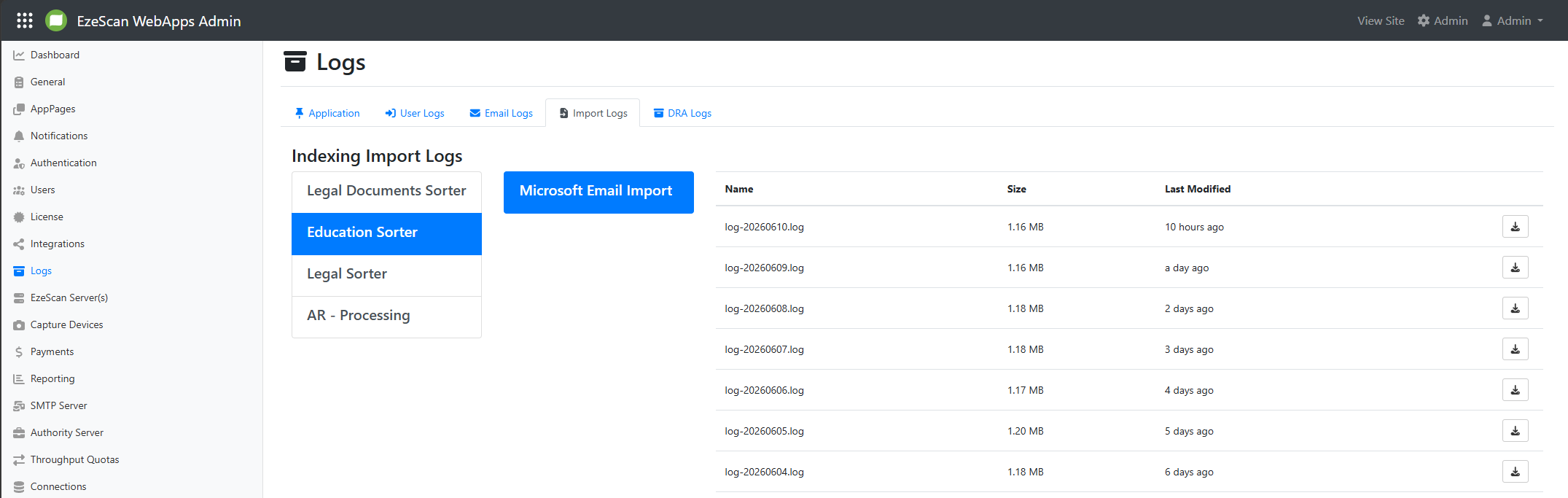
In version 3.11 or higher, functionality has been added to hook up a mailbox to import documents to a RIA page.
After creating a connection to Microsoft Graph (Mailbox) via the admin panel, you will need a Tenant Administrator to approve the connection to your Microsoft 365 Tenancy if it's never been linked before.
Instead of using the Inbuilt authentication type your administrator may wish to use the Custom option to grany access to specific mailboxes without having to login as a particular user account interactively.
If this is the case, then your tenant administrator will need to create custom app registration with the relevant permissions required and grant that application access to the required mailboxes.
Setting Up an Email Mailbox Connection in Web Apps
-
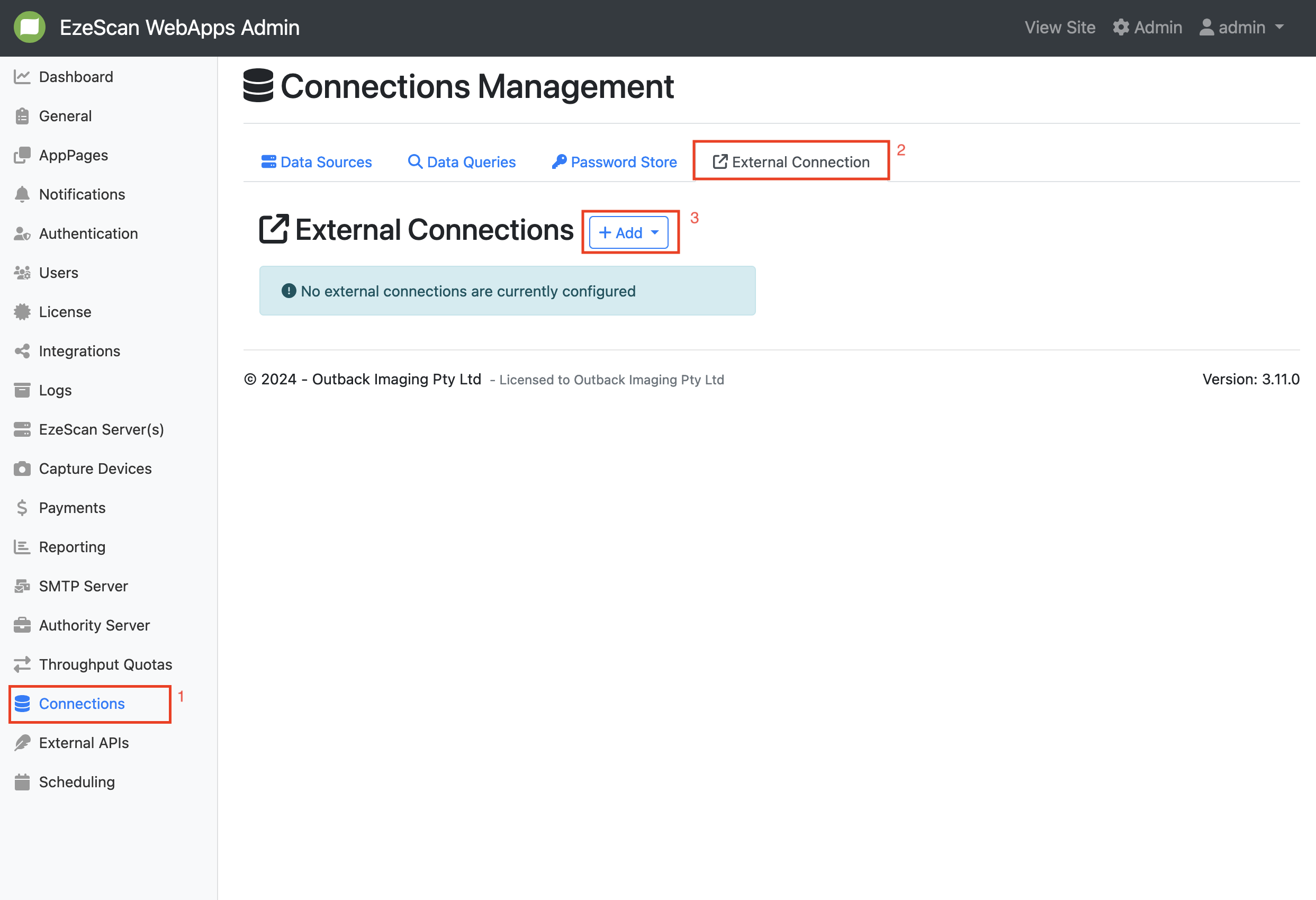
Go to the Connections Management Tab on the Admin Menu, External Connection Tab and Select + Add.
-
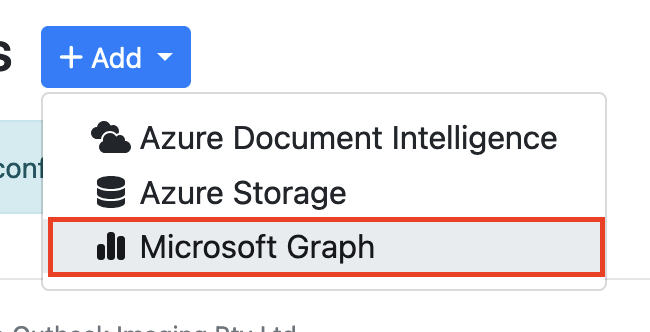
Select Microsoft Graph from the drop down.
-
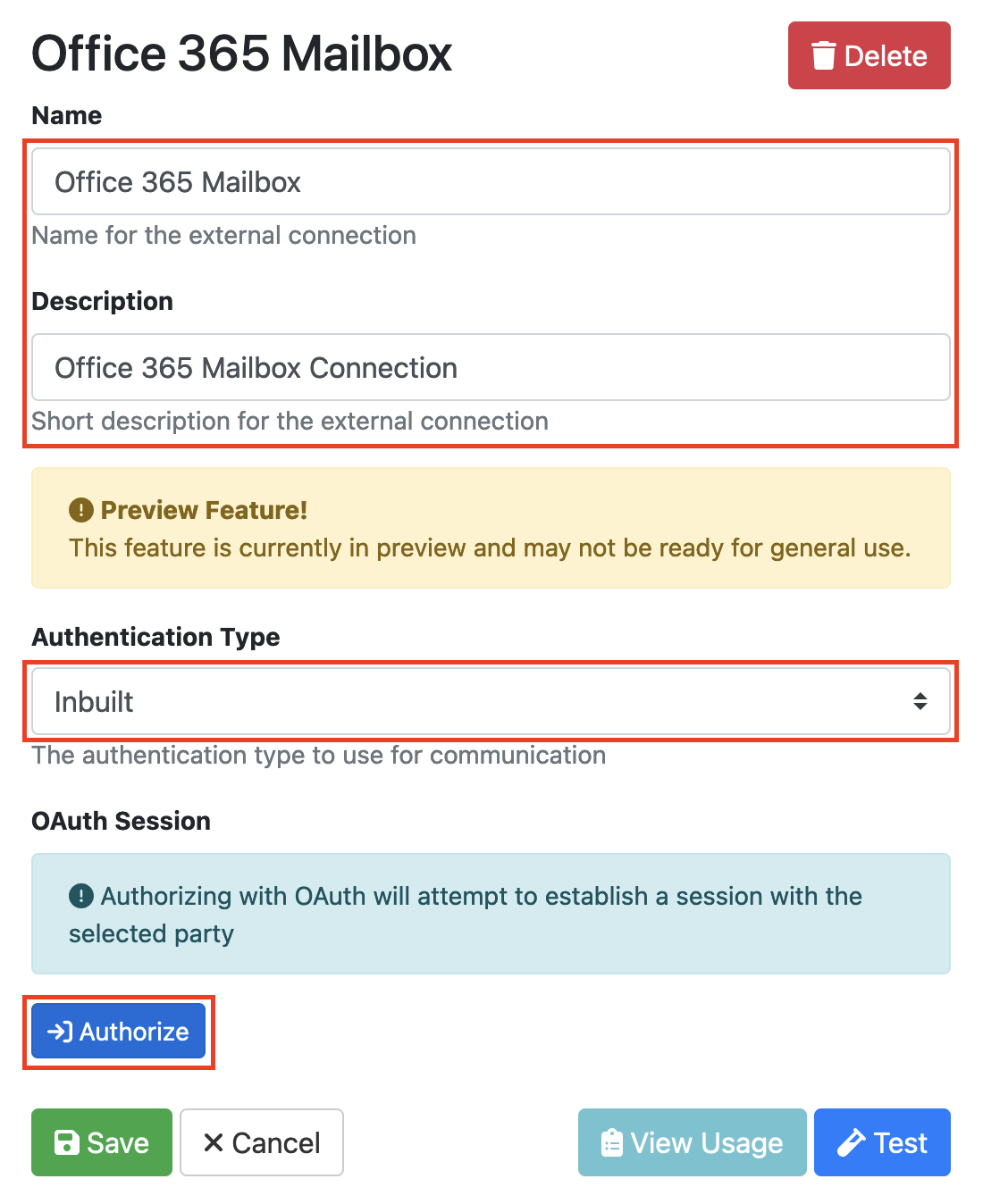
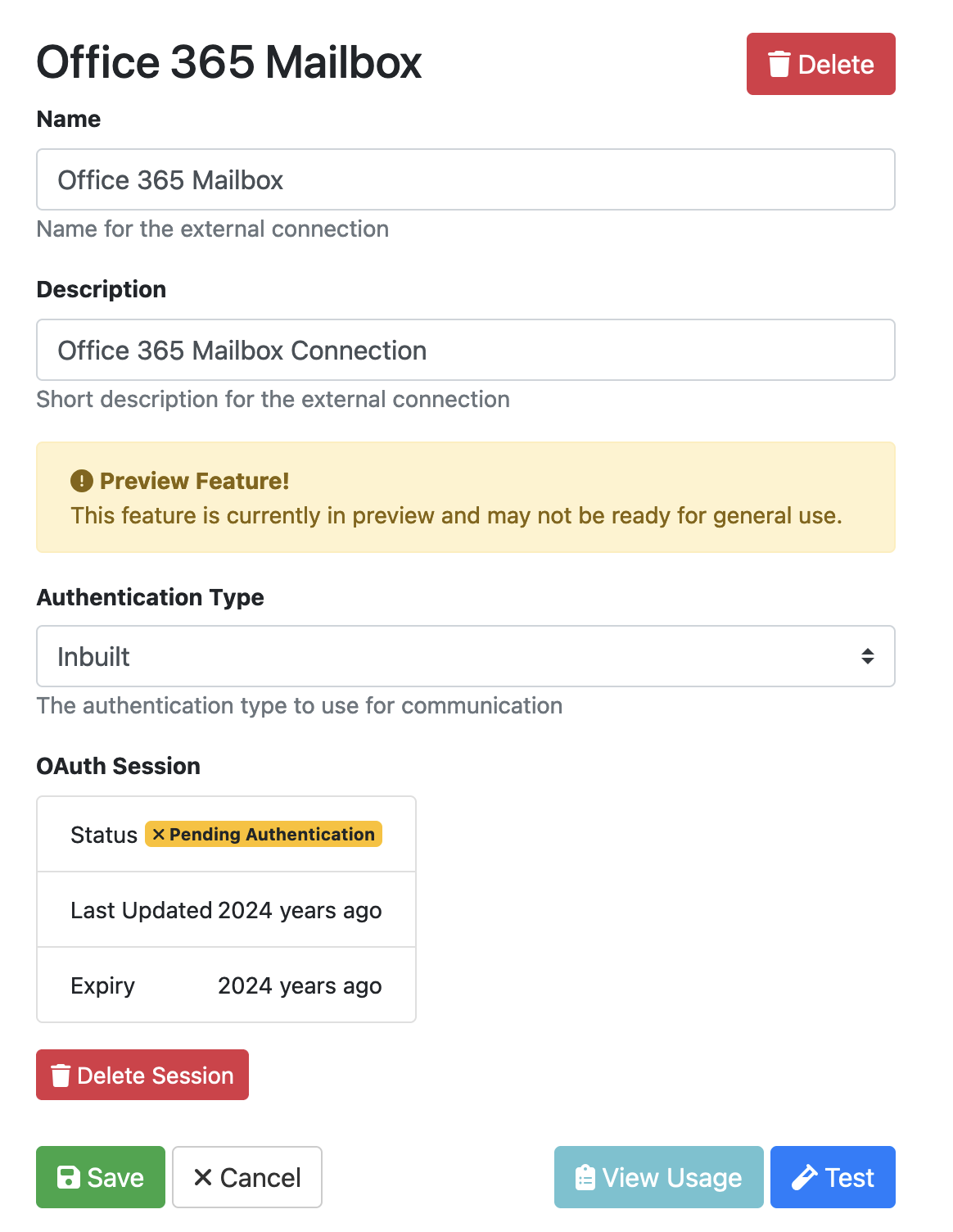
Give the Mailbox Connection a name & description, select Inbuilt from Authentication Type and Select the Authorise Button. You can learn more about these settings here: Microsoft Graph (Mailbox)
-
If the authorization is successful you will get a confirmation message.
-
If you get a ‘Pending Authorization’ tag you will need to log a support ticket to get the authorization issue sorted.
Adding an Email Import to your RIA Page
-
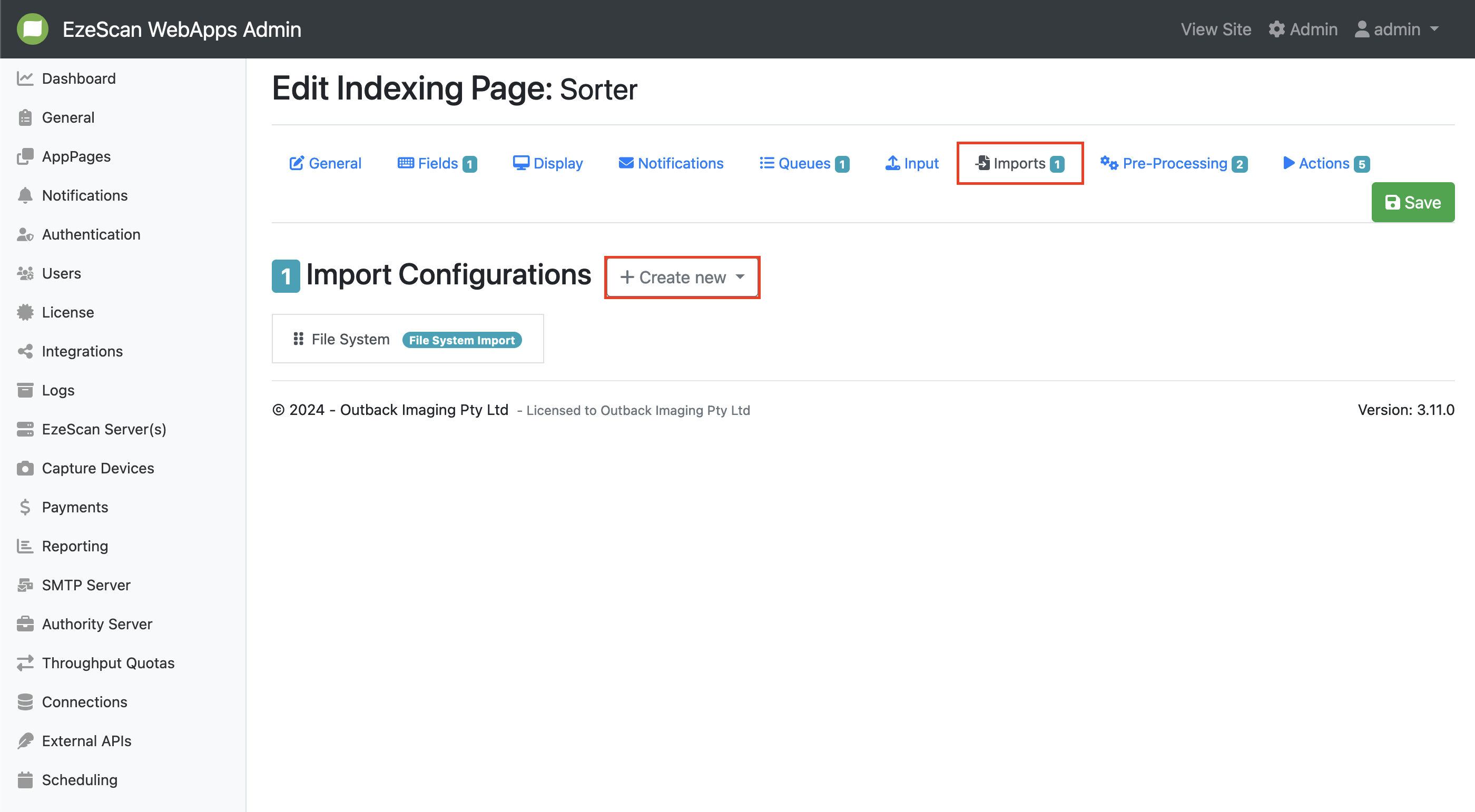
To add emails to your RIA Page, go to your document RIA page > Imports > Create New
-
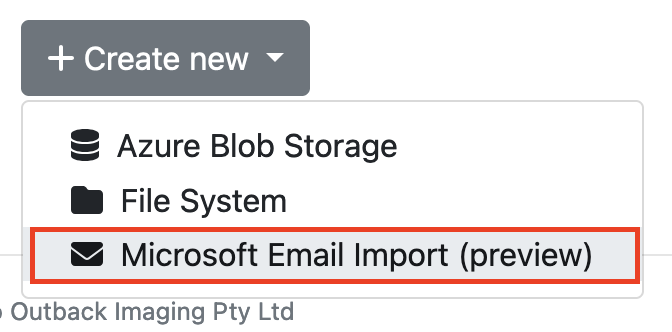
Select Microsoft Email Import from drop-down menu
-
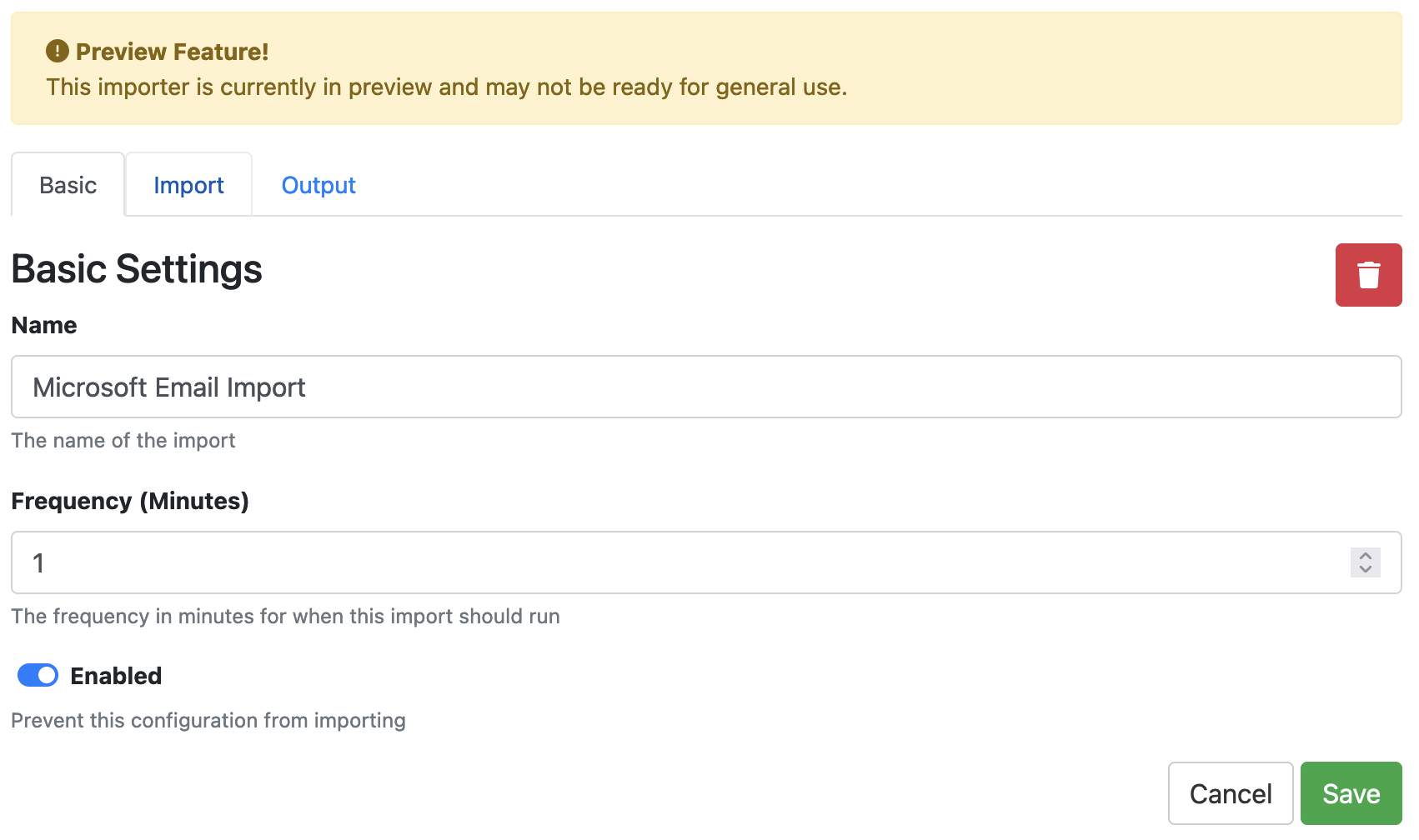
You can set a frequency for the import to run, this is set to 1 by default.
-
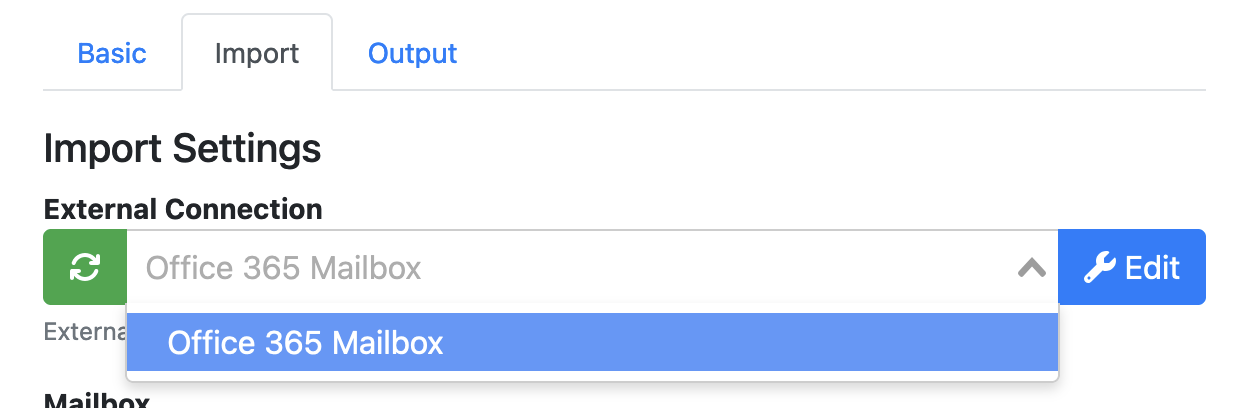
On the Import tab, Select the External Connection you created from the drop-down menu.
-
Enter the Email Address for the mailbox or shared mailbox you wish to download items from.

-
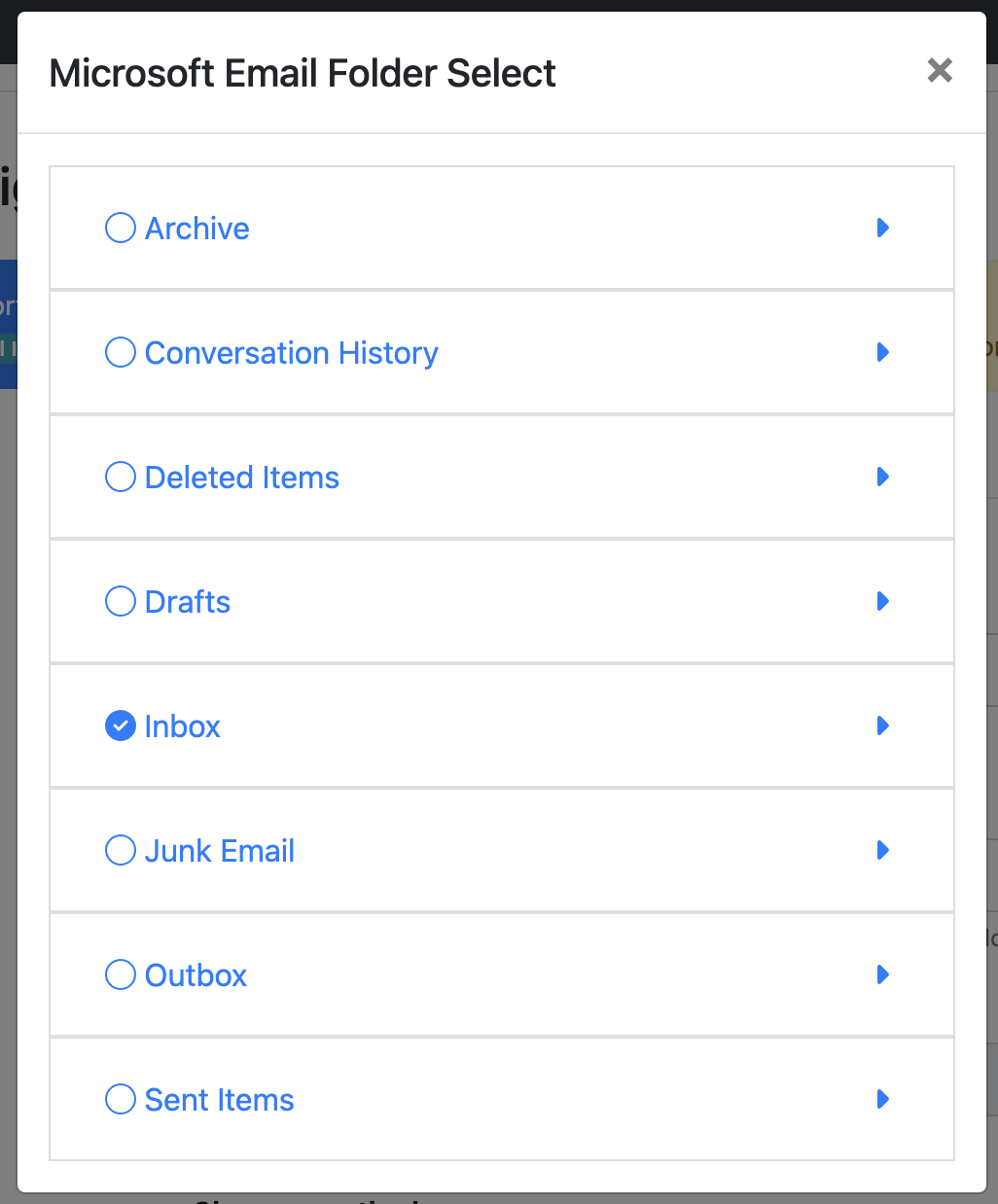
Select an email source folder to import from look-up.
-
Select a Clean up method
|
|
|
|---|---|
|
Delete File |
The file will be deleted from the inbox once it has been imported. |
|
Move Email |
The email will be moved to the destination once it has been imported. Select an email source folder to move the processed emails to. |
-
On the Output Tab Select the queue type and queue you want to output the emails to. Select Save.
|
Choice |
Explanation |
|---|---|
|
Simple |
Allows you to select a queue/ queue type from the drop-down menu |
|
Manual |
Allows you to manually enter either a queue/ queue type name or ID |
|
Ignore |
Allows you to not select a queue/ queue type |
-
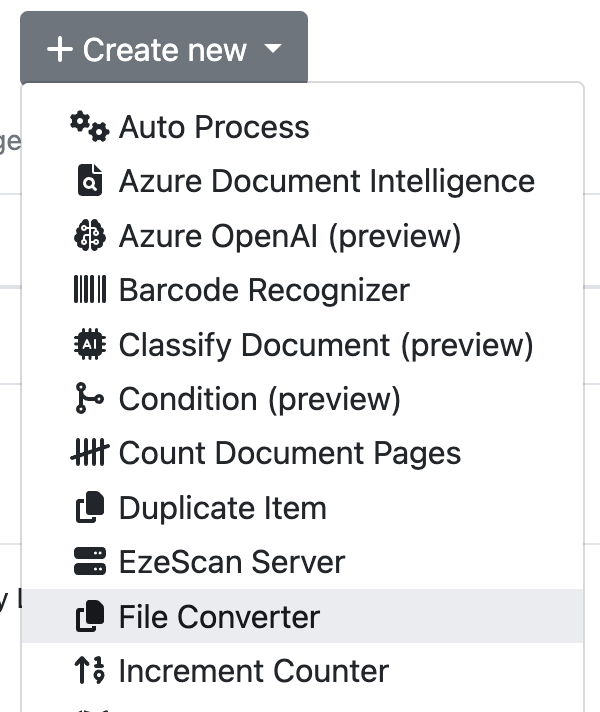
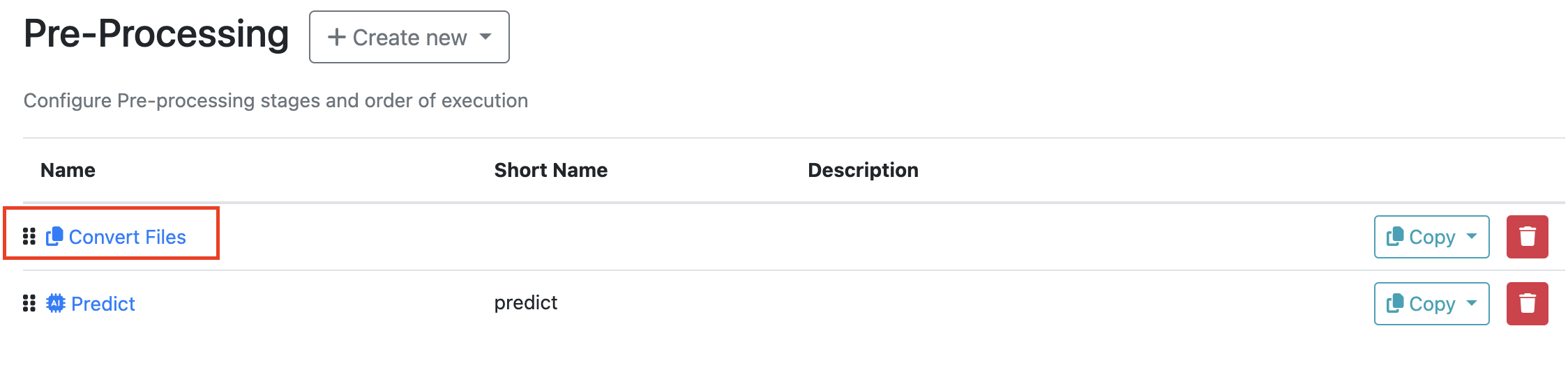
For the emails to be classified they will need to be converted from eml files to PDFs via a pre-processor. Go to the Pre-Processing tab, Select + Create New and Select File Converter.
-
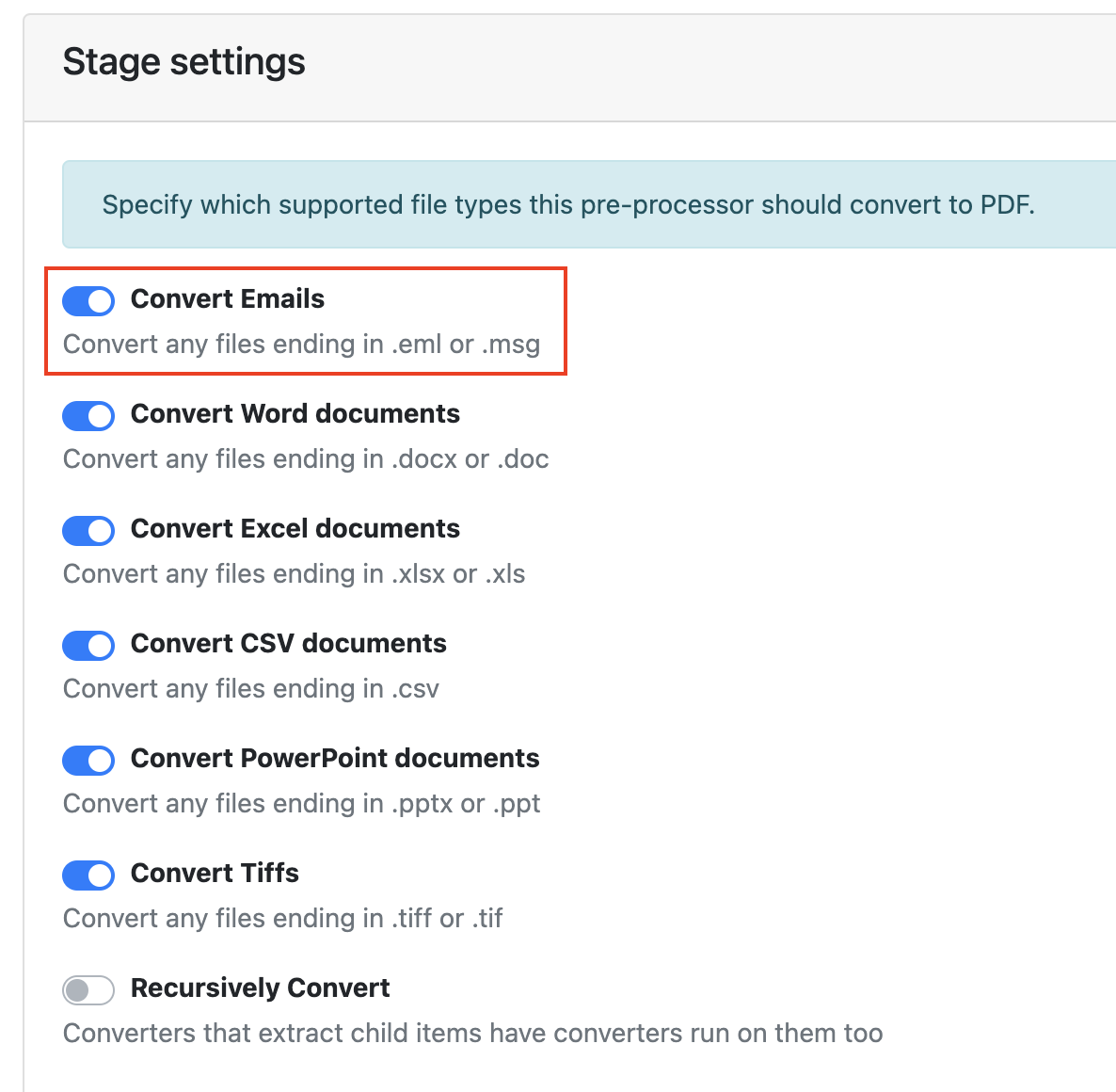
In the Stage Setting, ensure Convert Emails is toggled on. Click Apply.
-
Check that the Convert Files pre-processor is the first on the list so it runs before the classification.
-
After saving the Import Configuration and the Indexing page you will need to wait for the Import job to run. You can check the import logs in the Logs Admin Menu Items > Import Logs tab