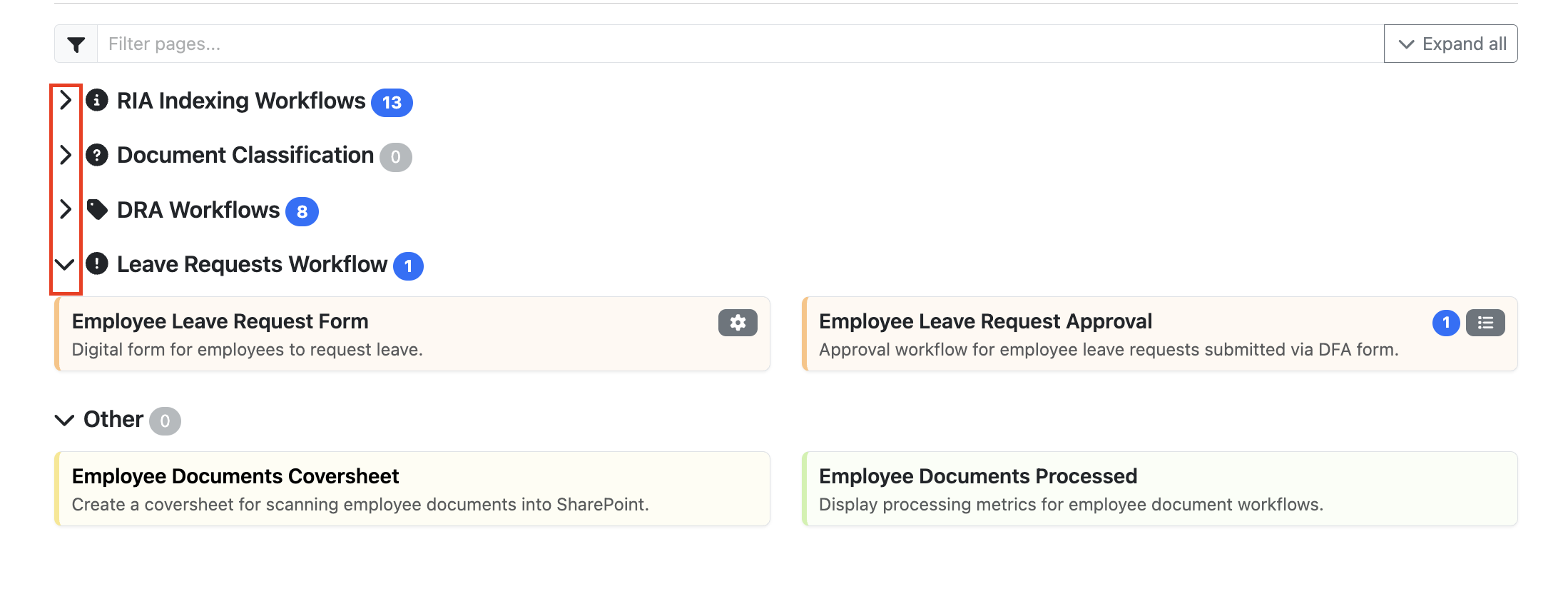
Version 4.1.1 introduces a refreshed and more flexible homepage experience in EzeScan WebApps. These changes make it easier for administrators to organise applications, improve visual recognition for end users, and provide greater control over how homepage tiles are displayed.
Visual Changes
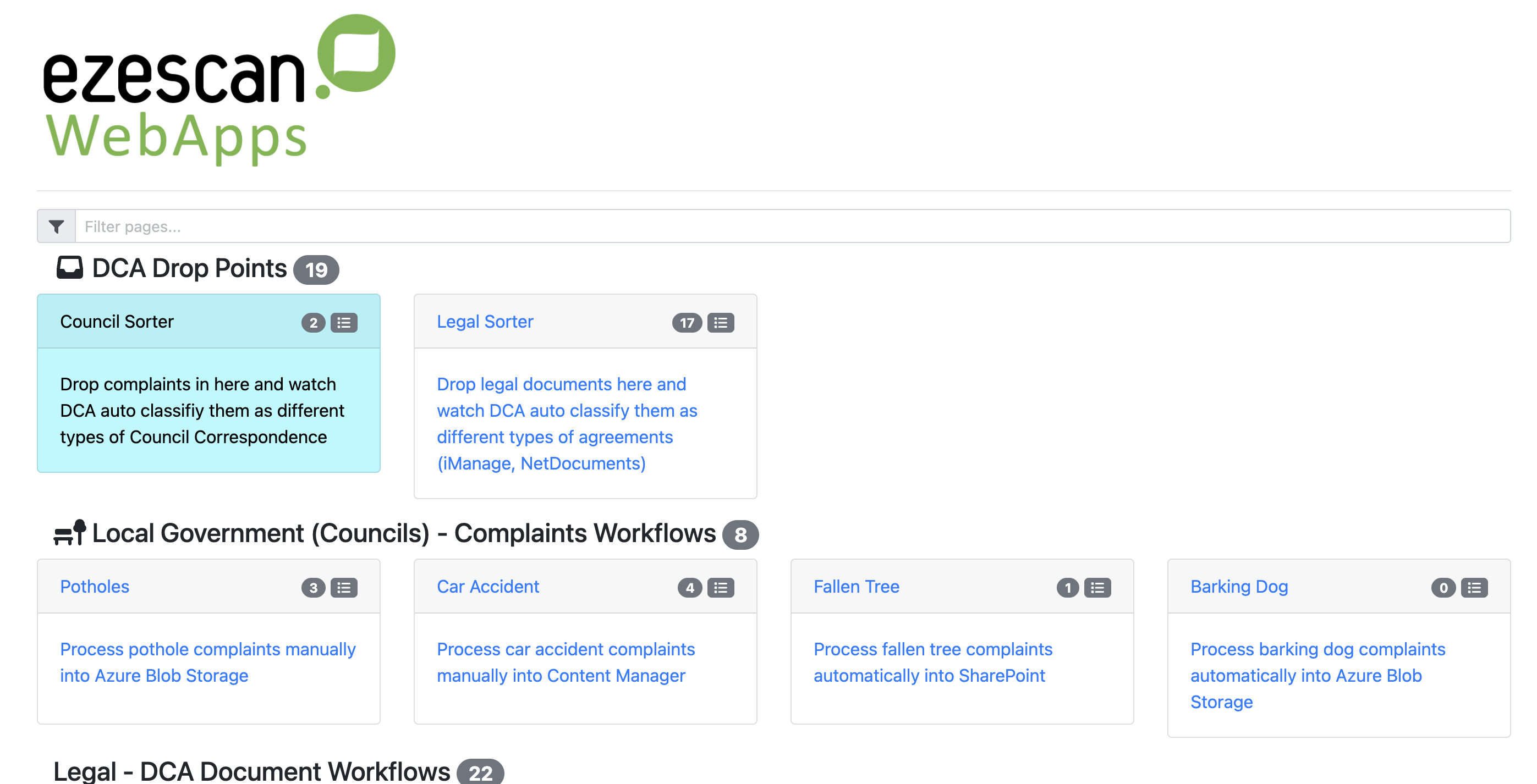
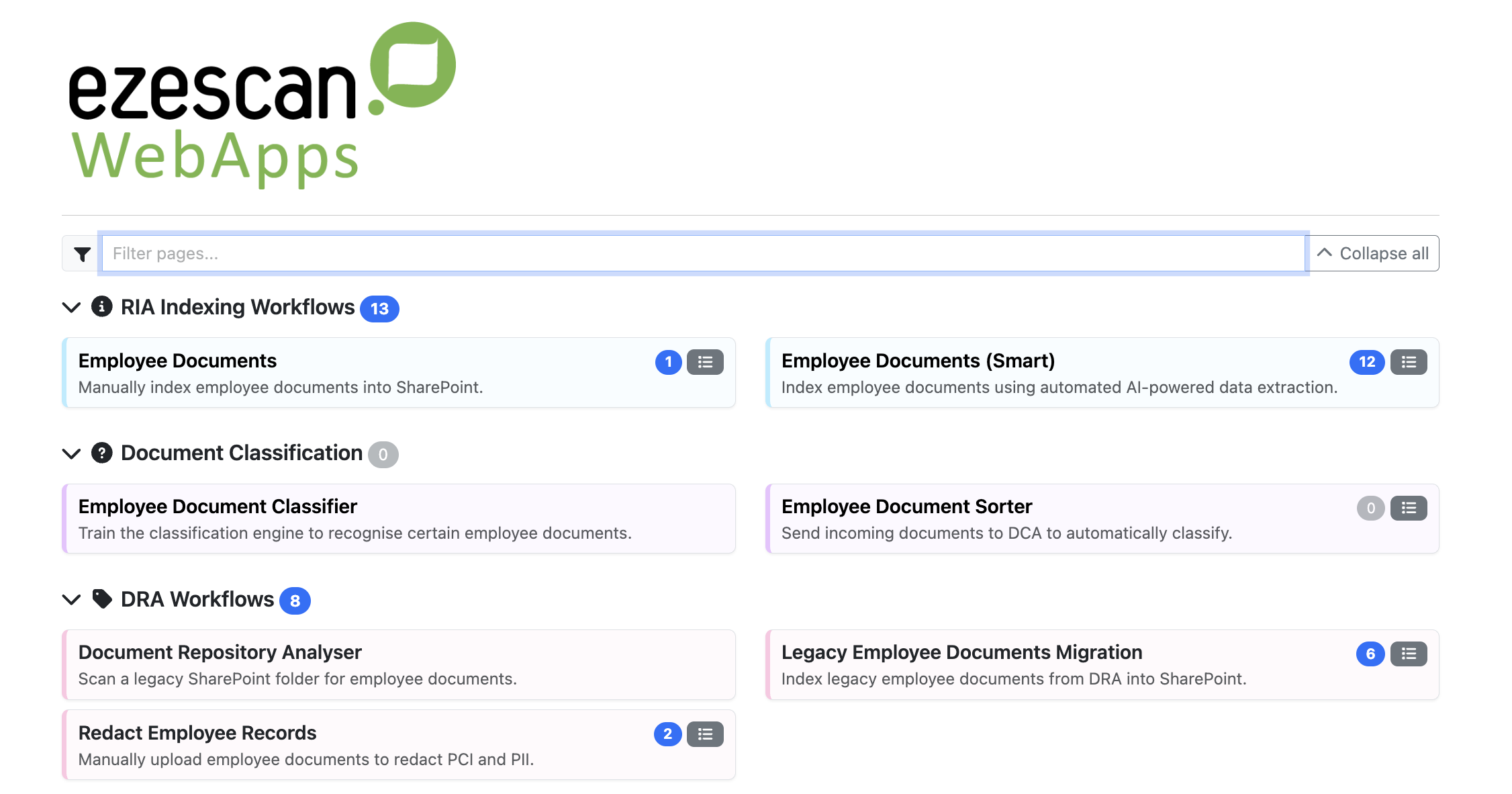
The homepage has been refreshed with a cleaner and more modern appearance.
Tile colours now use a lighter background with the configured colour applied more subtly, providing better visual consistency across the page.
Page titles are displayed in bold, making them easier to read, while tile icons have been increased in size to improve visibility.
Queue indicators have also been updated, with the document count bubble now displayed in blue when documents are waiting in the queue and grey when the queue is empty, making active queues easier to identify at a glance.
Configurable Changes
Tile Widths
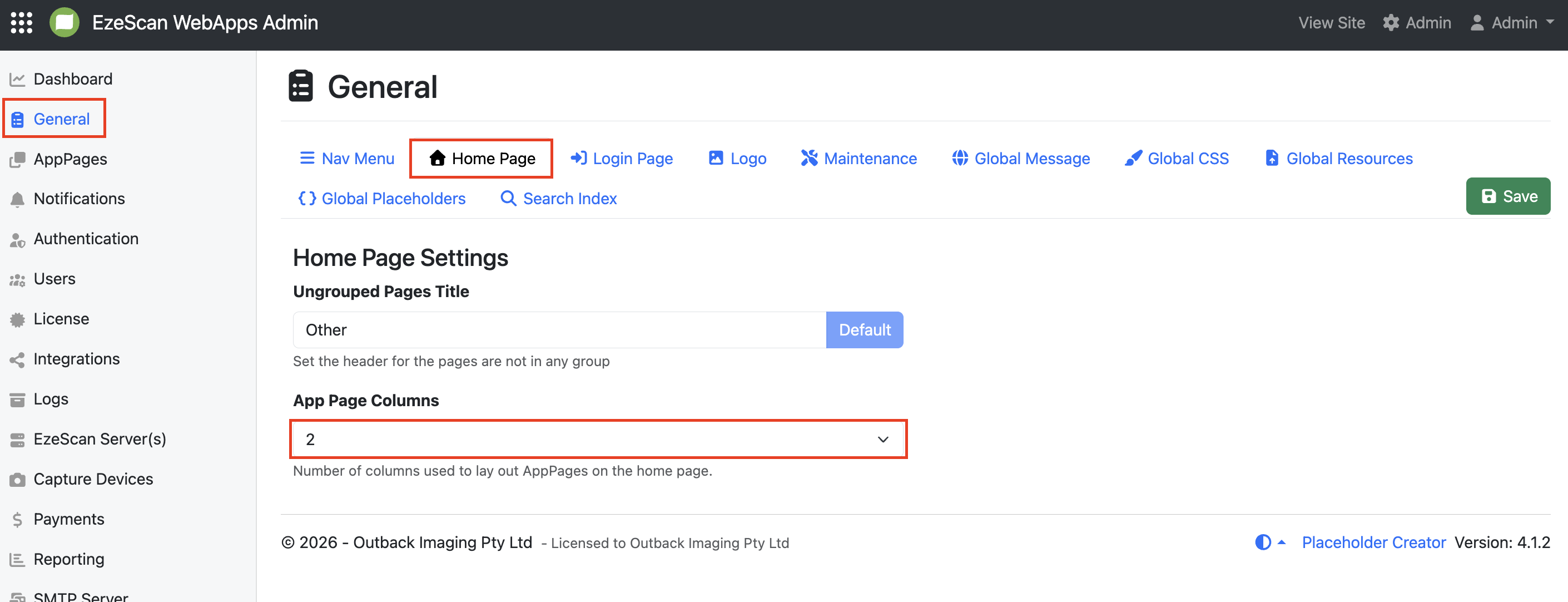
The most significant enhancement in version 4.1.1 is the ability to control the width of homepage tiles. Administrators can now choose how many tiles are displayed across the page, allowing the layout to be tailored to different screen sizes and user requirements. Tiles can be configured to display 1, 2, 3, or 4 tiles per row.
This is configured under the Admin Menu → General → Home Page Tab. It will be set to 4 as default.
Tile Colour
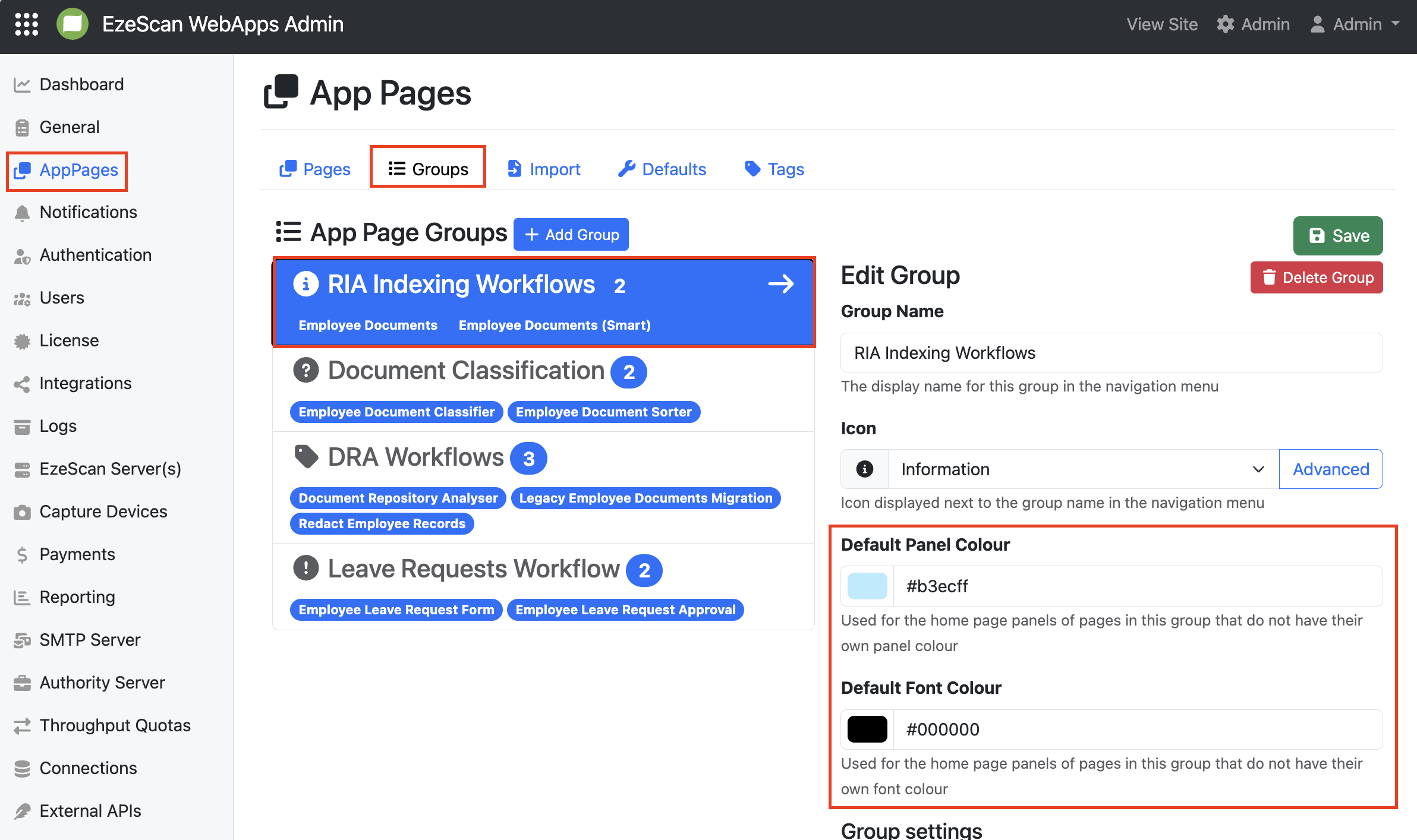
Tile colours can now be assigned at the App Page Group level rather than having to configure each tile individually. The App Page Groups Sccreen now include Panel Colour and Font Colour settings. When configured, all tiles within the group inherit these colours.
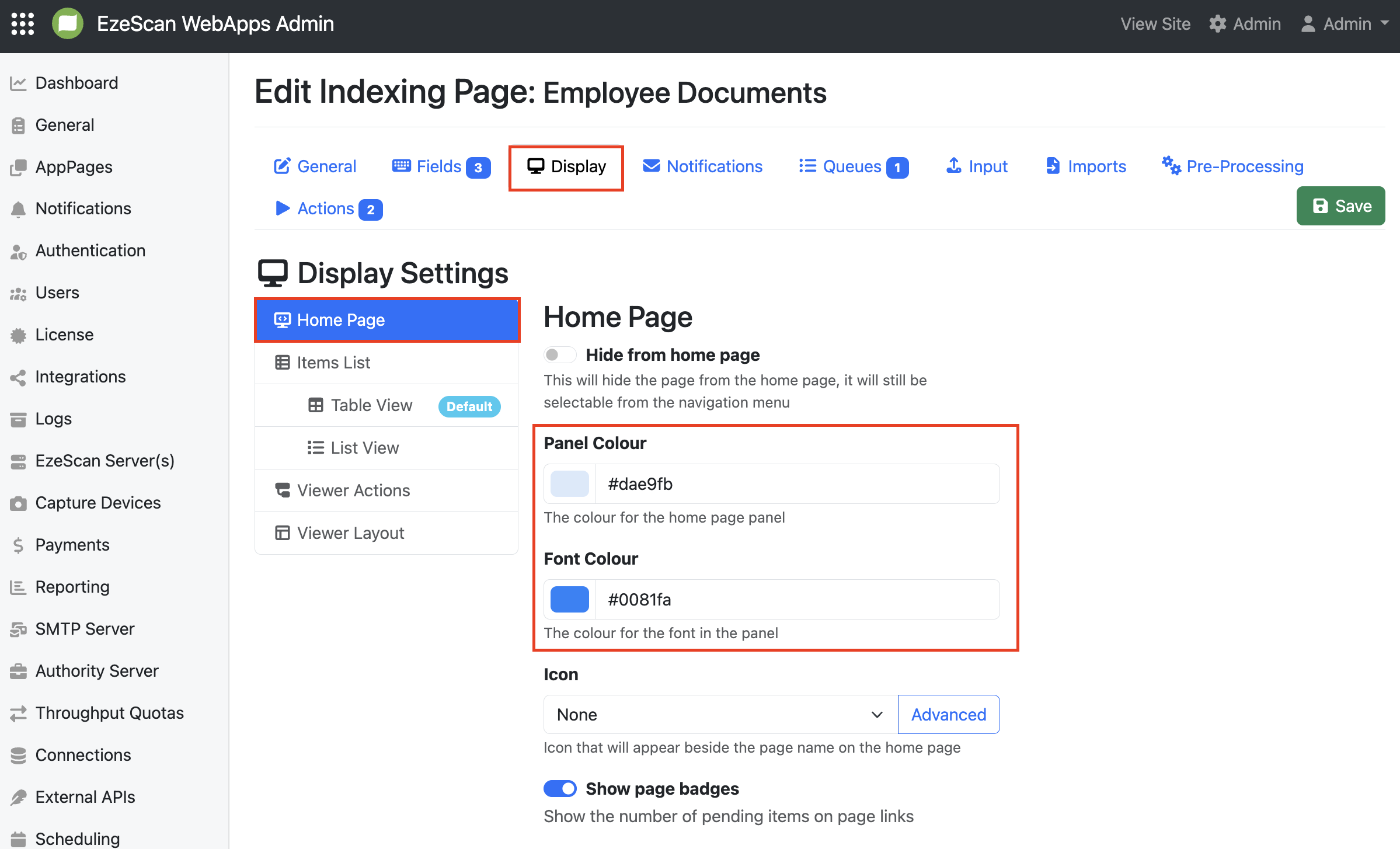
If required, a tile's colour can still be overridden on the individual App Page Display settings. To remove a custom tile colour override, clear the colour value from the field. The inherited App Page Group colour will then be used.
Show or Hide App Page Groups
Users can now expand or collapse App Page Groups using the arrow icon displayed beside each group heading. The homepage remembers the user's last selection, so collapsed groups remain hidden the next time the homepage is opened.