Overview
This page explains the types of AI powered data extraction models avaibale for use within the EzeScan WebApps platform to automatically extract metadata from a document.
This guide provides an overview of the available AI models, deployment options, and supported configuration methods.
Table of Contents
1. Supported Azure AI Models
We currently support the use of the 5 Azure Foundry AI Models. Please note not all models support deployable on-premise containers and support has been added to EzeScan WebApps in different versions.
|
Models |
Description |
Support on-premise container |
Min WebApps Version |
|---|---|---|---|
|
Extracts text, key-value pairs, tables, and structured data from documents such as invoices, forms, and contracts. |
|
3.11 |
|
|
Provides access to large language models (LLMs) for content generation, summarisation, classification, and intelligent document processing. |
|
3.11 |
|
|
Analyses and extracts information from unstructured content using AI-powered understanding models. |
|
4.0.8 |
|
|
Performs natural language processing tasks such as entity recognition, sentiment analysis, key phrase extraction, and document classification. |
|
3.12.9 |
|
|
Enables image analysis and custom image classification for visual document and image processing scenarios. |
|
3.12.5 |
2. Deployment Options
WebApps supports AI in both On-Premises and EzeScan Cloud deployments.
In an On-Premises deployment, customers are responsible for provisioning, configuring, securing, and maintaining their own Azure AI resources and subscriptions.
In an EzeScan Cloud deployment, the Azure AI resources are provisioned and managed by EzeScan, with AI usage controlled through App Credits included as part of the customer's subscription.
2.1 On-Premises Deployments
For ‘On Premise’ deployment of EzeScan WebApps, the customer will need to have their own Microsoft Azure Portal Account in which they configure their own resource deployments for the models they wish to consume. Customers are also responsible for selecting the region and network restrictions to the resource. Customers are solely 100% responsible for paying their Azure resource usage fees to Microsoft for the Microsoft AI services they are subscribing to.
2.2 EzeScan CLOUD Deployments
For EzeScan Cloud deployments, supported AI services are provisioned and managed by EzeScan as part of our cloud platform. AI usage in EzeScan Cloud is measured using App Credits. Credits are consumed as documents are processed by AI services, and notifications will be issued as your available credit balance approaches its configured limit.
Every document that is processed using these Azure models will consume App Credits. App credit usage for each document processed is recorded in each pre-processor log file.
Important: AI functionality is only available if it was included in your subscription agreement or sales quote. Your quote will specify the number of App Credits allocated to your tenancy.
3. AI Consumption and Pricing Models
3.1 Document Intelligence Pricing
Basically, Microsoft Azure Document Intelligence charges a fee per page processed. The pre-trained default models provided ‘out of the box' are the cheapest to use. Custom user trained models built by the customers are 3-4 more expensive to use per page than the pre-trained models.
Both CLOUD and On Premise deployment supports the use of pre-trained default models available within an Azure region. Models like:
-
-
-
Read (only performs OCR whereas other models below perform OCR and data extraction)
-
General Document
-
Contract
-
Invoice
-
Receipt
-
Business Card
-
Identity Document
-
and any other new built-in models released by Microsoft
-
-
On-premise Deployment can also be configured to utilise a custom Azure AI DI model built, trained and maintained by the customer. EzeScan Cloud is currently not supporting using a customers own custom model that they may have built and trained on the Azure Portal.
Here’s a pricing model comparison based on September 2026 Microsoft pricing:
|
Model |
Price/Page AU |
Price/Page UK |
Price/Page US |
|---|---|---|---|
|
Read |
0,225 cents |
0,1125 pence |
0,15 cents |
|
Prebuilt |
1.5 cents |
0.7 pence |
1 cents |
|
Custom |
4.5 cents |
2.1 pence |
3 cents |
The pricing shown above was accurate on 17th September 2026 based on Microsoft US pricing and foreign exchange conversion rates used to converting USD into AUD and GBP
Model prices can change and models can be removed or added at any time.
Foreign exchange conversion rates vary on a daily basis.
So please refer to the latest Azure pricing available online at Microsoft for their current model pricing and availability.
3.2 Azure OpenAI Models
Basically, Microsoft Azure OpenAI charges a fee based on model type and token usage. Tokens are consumed based on a combination of:
Input tokens (approximately = amount of words + punctuation in the text layer)
Command tokens (approximately = amount of words + punctuation in the instruction command).
Output tokens (approximately = amount of words + punctuation in the generated output text)
Basically adding more words and punctuation to either the input prompt or input instructions, or more words being generated in the output text, means that the number of token used to process the Open AI conversation will be higher, so the cost will be higher.
You can reduce AI cost by configuring AI to only process some of the document pages instead of all of them. Most critical information is located on page 1 of a document. Use a page range of ‘1', not ‘All'.
AI models also have limits for the numbers of input, command and output tokens (they call it context). When you exceed the model context limit AI will not generate output text properly. It may truncate the JSON response part way through. You can get round this problem by either:
-
Changing the page range from ‘All’ to ‘1-3’.
-
Use the Truncate Tokens options to reduce the number of tokens being used by the incoming text layer. If you were using gpt-35-turbom model the token limit is 16K. Set the truncate tokens options to 13K. This will work, provided that the size of the command tokens and generated output tokens does not exceed 3K.
-
Switching to a different model that has higher token limits, or using the the Truncate Length option to tell Web Apps to try and keep the total tokens used below a certain limit. For the gtp-35-turbo model the token usage must not exceed 16K tokens., whereas for the gpt-40-mini model the token usage must not exceed 80K tokens.
Here’s a pricing model comparison based on September 2026 Microsoft pricing:
|
Model |
Assumptions |
Price/Page AU |
Price/Page UK |
Price/Page US |
|
|---|---|---|---|---|---|
|
GPT 4.1 mini |
600 input tokens/page 40 output tokens/page |
0.048 cents |
0.024 pence |
0,032 cents |
0,1125 pence UK/page |
|
GPT 4.1 |
600 input tokens/page 40 output tokens/page |
0.24 cents |
0.12 pence |
0.16 cents |
0.7 pence UK/page |
P.S. Don't forget to include the cost for the Azure DI Read model if you are using that to OCR each page of content.
The pricing shown above was accurate on 17th September 2026 based on Microsoft US pricing and foreign exchange conversion rates used to converting USD into AUD and GBP
Model prices can change and models can be removed or added at any time.
Foreign exchange conversion rates vary on a daily basis.
So please refer to the latest Azure pricing available online at Microsoft for their current model pricing and availability.
3.3 Azure Content Understanding Models
When using Azure Content Understanding Microsoft charges a fee for content extraction and a fee for contextualization.
Content Extraction
The content extraction fee is based on 3 tier structure of either Minimal, Basic or Standard with each tier having a different pricing level.
-
Minimal: Digital born documents requiring little or no OCR.
0.001 US cent per page
-
Basic: OCR text extraction for image based documents
0.1 US cent per page
-
Standard: OCR plus layout understanding, tables, structure, etc
0.5 US cent per page
Contextualization
When using Content Understanding analyzers that perform extraction, classification, segmentation, figure analysis, or other AI reasoning, Microsoft charges for contextualization
-
Standard contextualization:
0.2 US cent per page
(based on heavy use of 2000 tokens per page)
-
Advanced contextualization (Preview):
0.3 US cent per page
(based on heavy use of 2000 tokens per page)
Here’s a pricing model comparison based on September 2026 Microsoft pricing:
|
Assumption |
Extraction Level |
Contextualization Type |
Price/Page AU |
Price/Page UK |
Price/Page US |
|---|---|---|---|---|---|
|
2000 tokens per page |
Minimal |
Standard |
0,302 cents |
0,151 pence |
0,201 cents |
|
2000 tokens per page |
Minimal |
Advanced |
0,452 cents |
0,226 pence |
0,301 cents |
|
2000 tokens per page |
Basic |
Standard |
0.45 cents |
0.225 pence |
0.3 cents |
|
2000 tokens per page |
Basic |
Advanced |
0.6 cents |
0.3 pence |
0.4 cents |
|
2000 tokens per page |
Standard |
Standard |
1.05 cents |
0.525 pence |
0.7 cents |
|
2000 tokens per page |
Standard |
Advanced |
1.2 cents |
0.6 pence |
0.8 cents |
The pricing shown above was accurate on 17th September 2026 based on Microsoft US pricing and foreign exchange conversion rates used to converting USD into AUD and GBP
Model prices can change and models can be removed or added at any time.
Foreign exchange conversion rates vary on a daily basis.
So please refer to the latest Azure pricing available online at Microsoft for their current model pricing and availability.
3.4 Azure Language Models
Azure AI Language is a collection of NLP (Natural Language Processing) services that analyze text. Unlike Azure AI Document Intelligence, which reads documents and OCRs pages, Language works on the text after you've extracted it.
Main features
PII Detection
Finds personally identifiable information such as:
-
Names
-
Addresses
-
Phone numbers
-
Email addresses
-
Credit card numbers
-
Social Security Numbers
-
Bank account numbers (sometimes)
-
Driver's licence numbers (sometimes)
Named Entity Recognition (NER)
Identifies entities such as:
-
People
-
Organizations
-
Locations
-
Dates
-
Products
For Azure AI Language services (PII detection, NER pricing is not per page. It's billed per text record, where 1 text record = up to 1,000 characters.
To compare with your document workloads, you need to estimate characters per page.
Typical business document
|
Assumption |
Value |
|---|---|
|
Characters per page |
2,000-3,000 |
|
Text records per page |
2-3 |
|
5-page document |
10-15 text records |
Microsoft do not publish the tier pricing on their website at this time, making it difficult to present a price comparison table.
3.5 Azure Custom Vision Models
Azure Custom Vision is a service for building your own image recognition models without needing deep machine learning expertise.
You upload labeled images, train a model, and then use it to classify or detect objects in new images.
What it can do
1. Image Classification
Answer questions like:
-
Is this a driver's licence?
-
Is this a check/cheque?
-
Is this a W-2?
-
Is this a paystub?
-
Is this an invoice?
Input an image and get back a class label with a confidence score.
2. Object Detection
Locate specific objects within an image.
Examples:
-
Find the signature block
-
Find a company logo
-
Find a license plate
-
Find a barcode
The model returns bounding boxes around detected objects
What it does NOT do well
For your document-processing and redaction projects, it's important to understand that Custom Vision:
❌ Does not read text well
❌ Does not extract fields from documents
❌ Does not find PII in OCR text
❌ Does not understand document semantics
Assuming that you need to read every document page to detect if contains the type of images you have trained your model against, the cost per page to detect one of your trained model image types is:
|
Price/Page AU |
Price/Page UK |
Price/Page US |
|---|---|---|
|
3 cents |
1.5 pence |
2 cents |
The pricing shown above was accurate on 17th September 2026 based on Microsoft US pricing and foreign exchange conversion rates used to converting USD into AUD and GBP
Model prices can change and models can be removed or added at any time.
Foreign exchange conversion rates vary on a daily basis.
So please refer to the latest Azure pricing available online at Microsoft for their current model pricing and availability.
4. Configuring AI Data Extraction Models
Before AI models can be used within WebApps workflows, a connection to the AI service must first be configured.
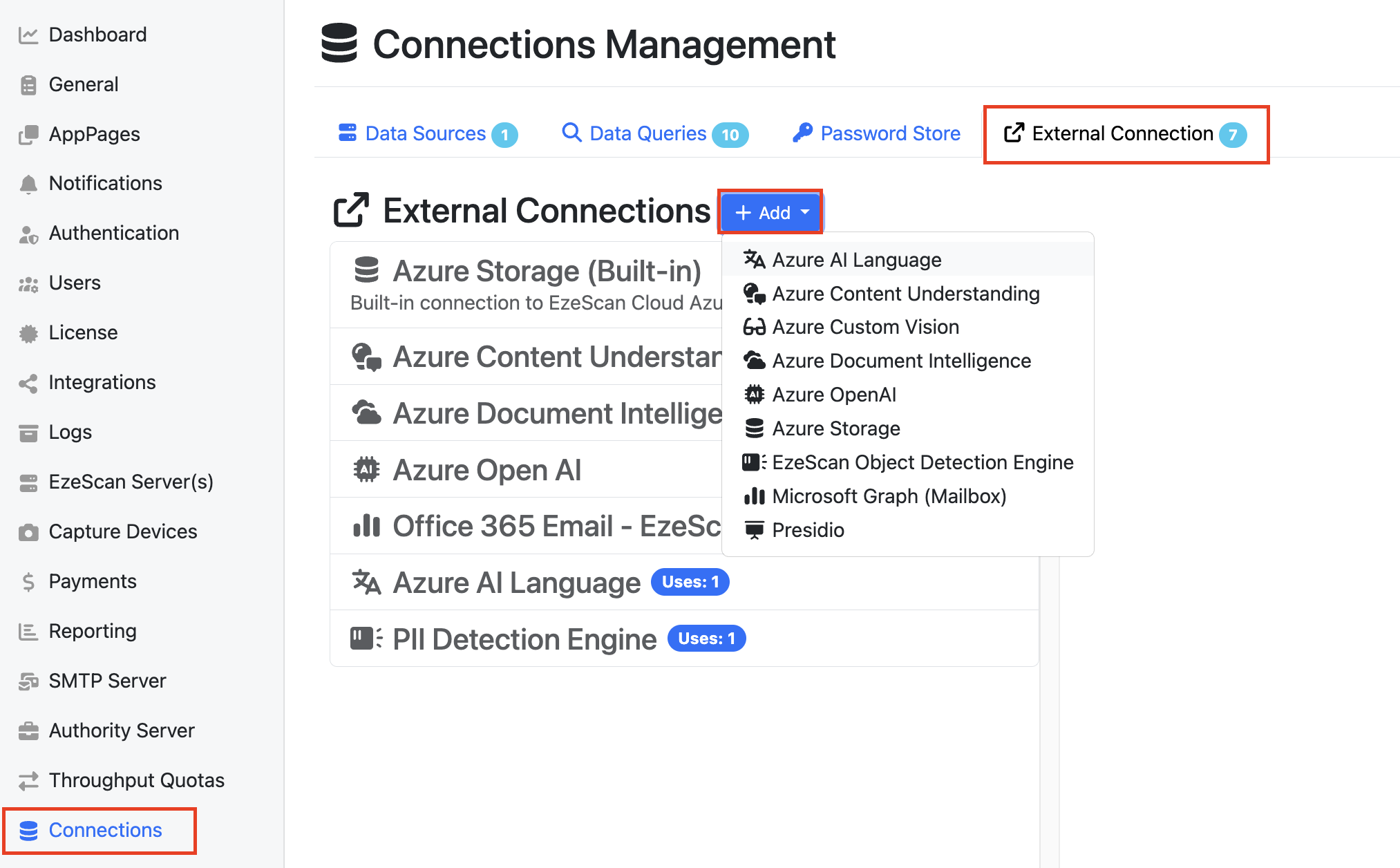
AI connections are created from Admin Panel → Connections → External Connections.
When creating a new connection, select the required AI service from the Connection Type drop-down list and complete the relevant configuration settings for the selected provider.
Note: AI connections only need to be configured once and can then be reused across multiple RIA pages and workflows.
Other helpful resources:
How to deploy and connect to an Azure OpenAI resource
How to deploy and connect to an Azure Content Understanding resource
5. Configuring AI Data Extraction Models in a RIA Page
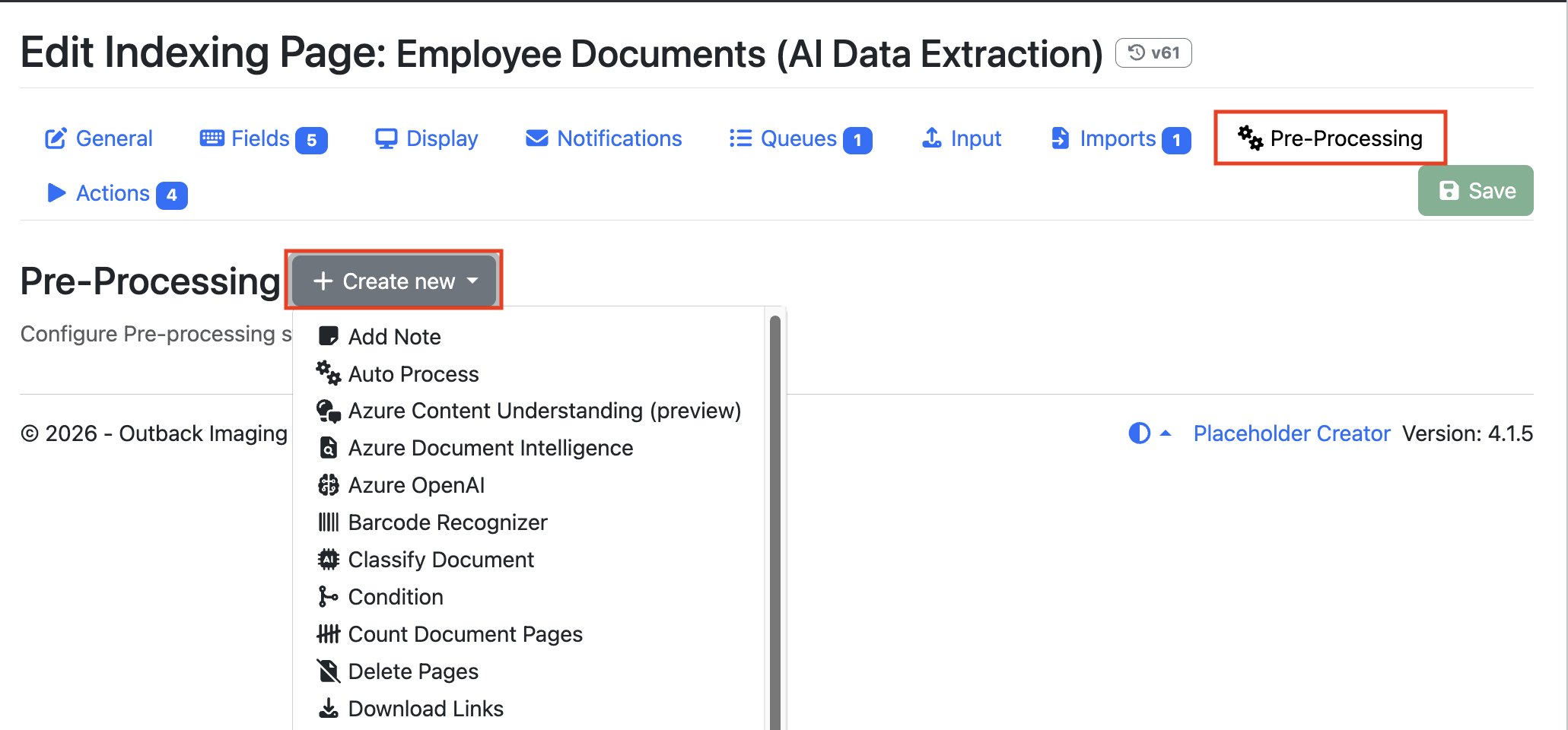
Once an AI connection has been configured, it can be used within a RIA page to automatically extract metadata from documents. AI data extraction models are added and configured through the Pre-Processors tab of the RIA page.
5.1 Generating a text layer (File Conversion & OCR)
Before AI can extract data from a document, each page must contain a text layer. The text layer provides the machine-readable content that AI uses to locate and extract information.
To ensure documents are ready for AI data extraction, the following two pre-processing steps should be configured on the RIA page:
-
File Conversion: Converts any incoming files that are not already in PDF format to PDF. This pre-processor is typically used with the default settings and rarely requires additional configuration.
-
OCR (Text Layer Generation): Creates a text layer for documents that do not already contain one. This can be achieved using either the built-in OCR pre-processor or the Azure Document Intelligence Read model. If you need to capture handwritten content, Azure Document Intelligence is recommended as it generally provides the best results.
5.1.1 Configuring Azure Document Intelligence to Generate a Text Layer
-
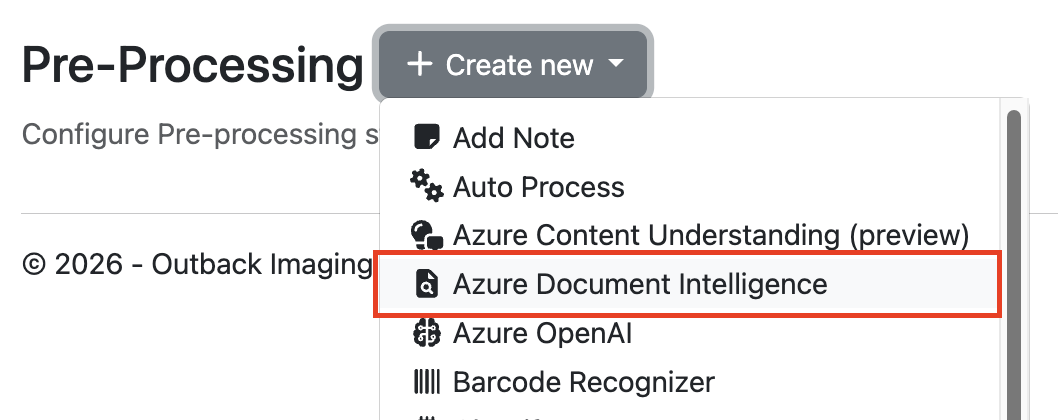
Select the Azure Document Intelligence pre-processor from the Create New drop-down menu.
-
Under Stage Settings, select your Azure Document Intelligence connection.

-
Select Read from the Model Type drop-down list.
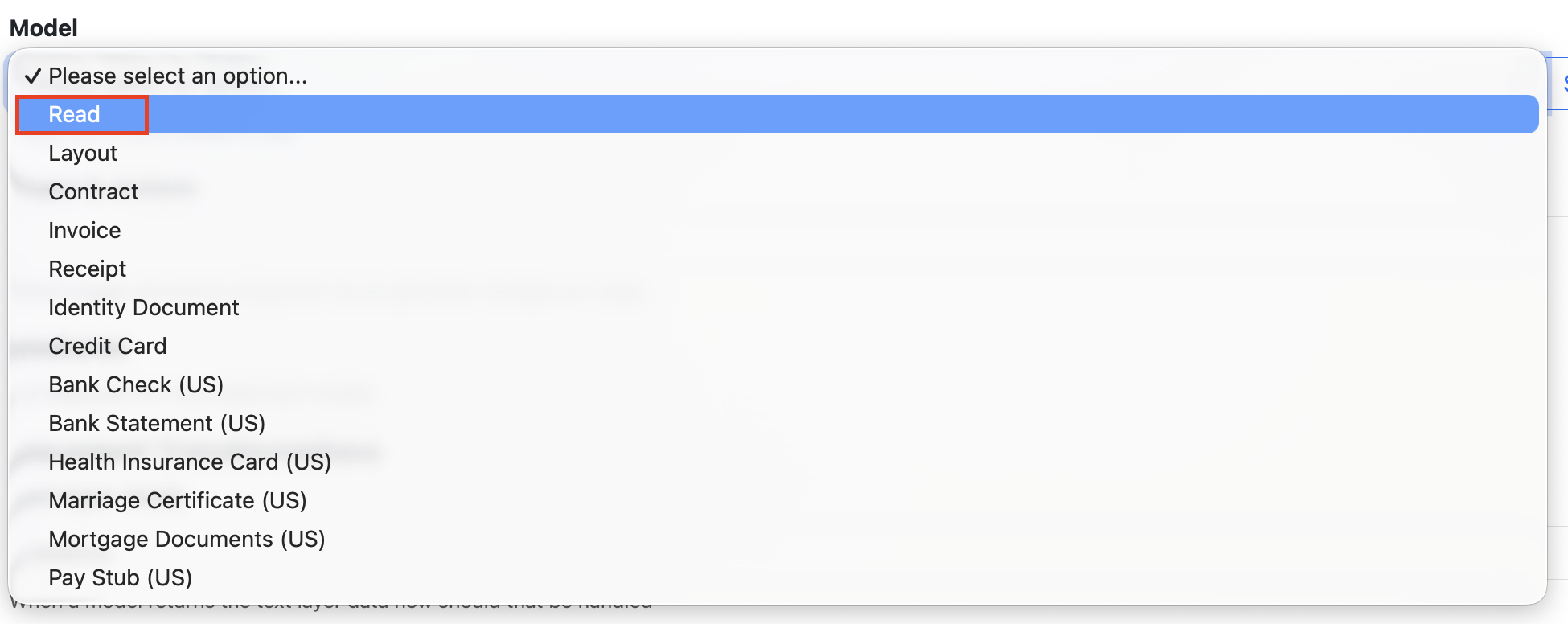
-
Click Apply & Save.
For more information about the available settings for the Read Model see the Azure Document Intelligence documentation: Azure Document Intelligence
5.2 Configuring AI Data Extraction Models
After configuring the pre-processors required to prepare documents for AI extraction, you can add and configure your chosen AI data extraction model to extract the required information from the document.
5.2.1 Azure Document Intelligence
Method 1: if you choose to add the pre-processor Azure Document Intelligence ‘General Document' or ‘Invoice’ model, it will generate an OCR text layer, and it will include Key Value Pairs derived from that OCR data. You will also need to add a Map Metadata pre-processor to map the Key Value Pairs into the relevant RIA page fields
5.2.2 Azure OpenAi
You will command the OpenAI chat bot to read data from the page OCR layers, and output that data with field names that match the RIA page field id’s.
-
Select Azure OpenAI from the list of available pre-processors.
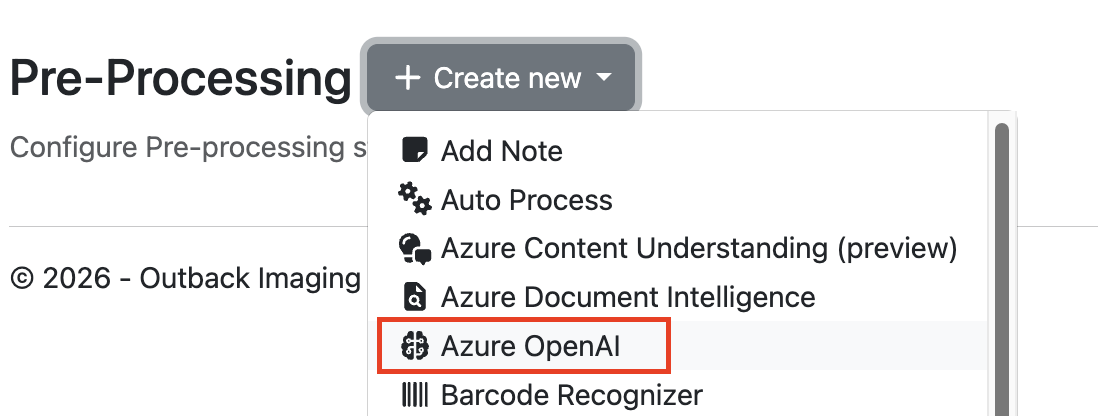
-
Under Stage Settings, select your pre-configured Azure OpenAI connection from the drop-down list.

-
Enter the deployment name of the Azure OpenAI model. The available model names will depend on the models that have been deployed and configured within your Azure OpenAI resource.
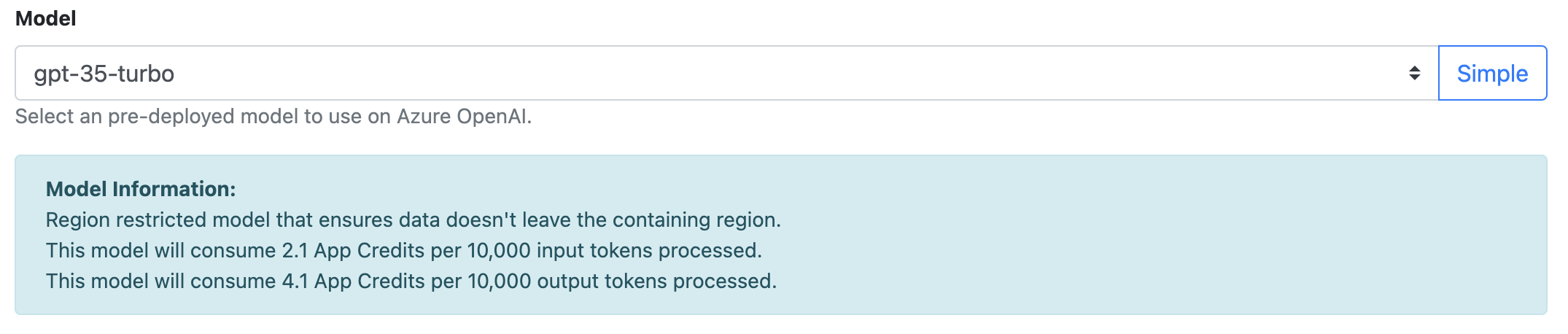
-
The next step depends on the type of information you want to extract. You can configure the model to return a single response, such as a document summary, or multiple values that can be mapped to different RIA page fields. By default, the Azure OpenAI pre-processor is configured to return a single response.
Configuring a Single Command Configuration
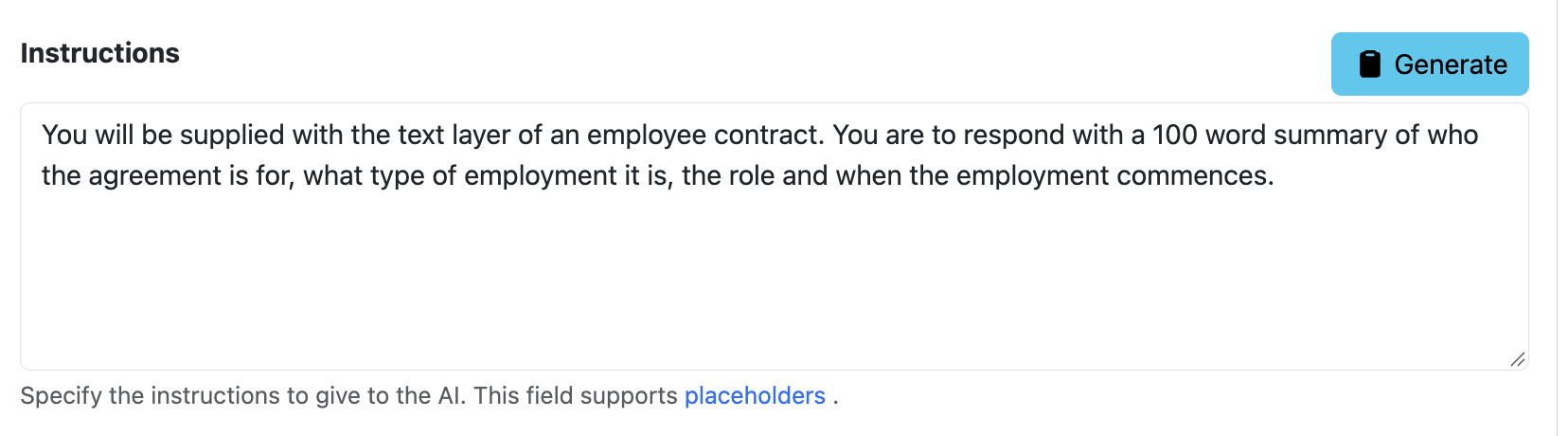
The Azure OpenAI pre-processor is configured by default to generate a short summary of the document. You can modify the instruction to return any information required from the document.
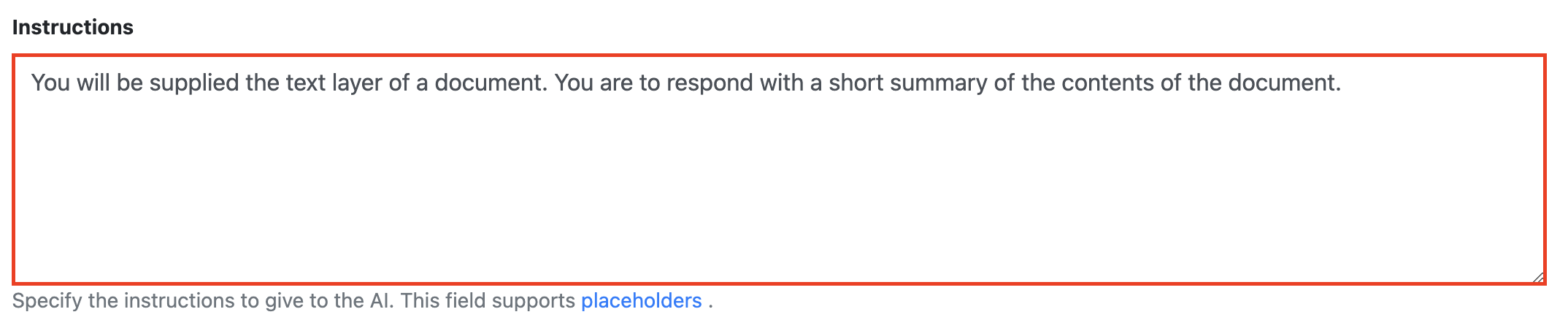
For this example, the default instruction will be moidified to generate a 100-word summary of an employment agreement.
-
Modify the text in the instructions box to suit your use case. Click Apply & Save.
-
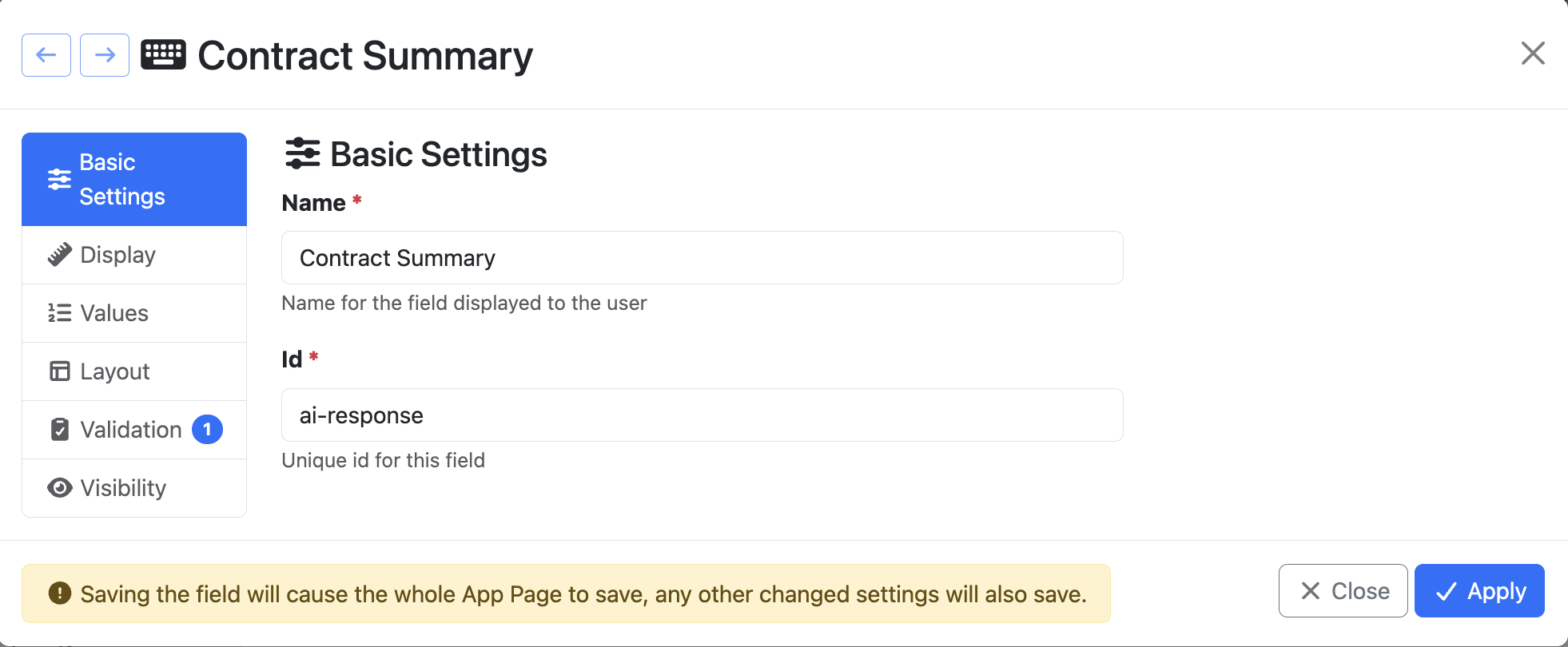
Go to the Fields Tab for your RIA Page and create a new custom field. Set the field ID to ai-response. The default single-response configuration returns its output to a field with this ID.
-
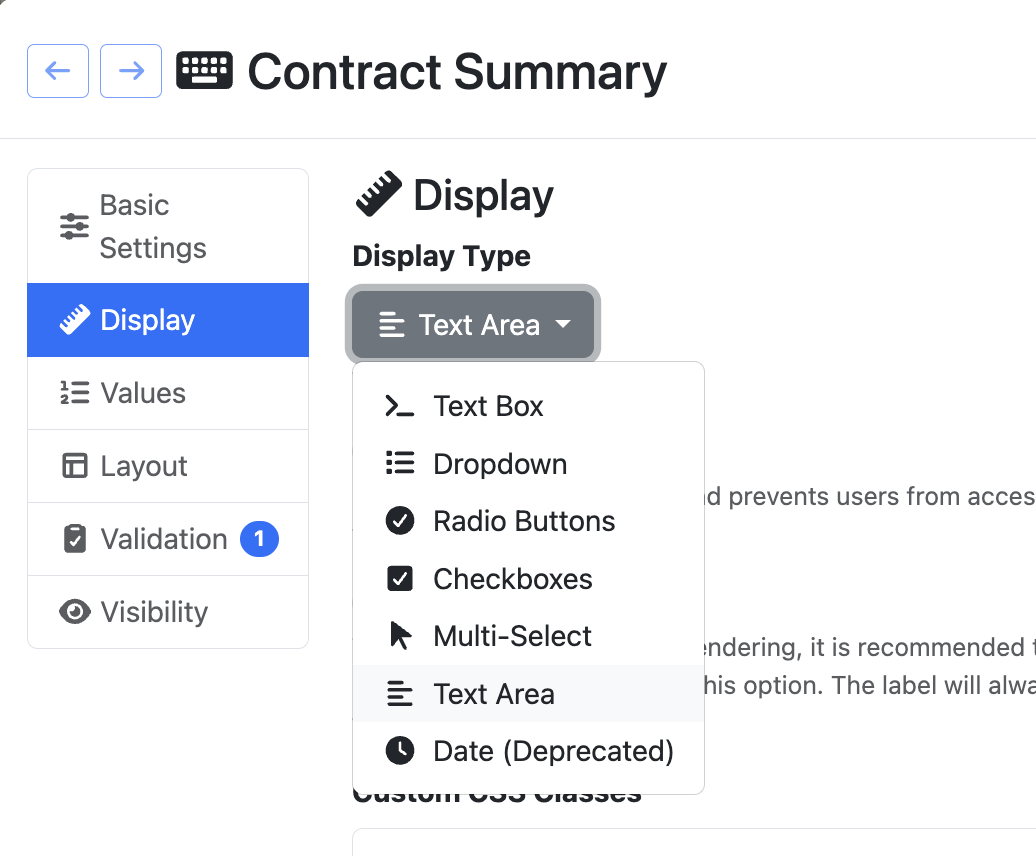
Change the field display type from Text Box to Text Area to provide sufficient space for the summary. Save the RIA page configuration.
-
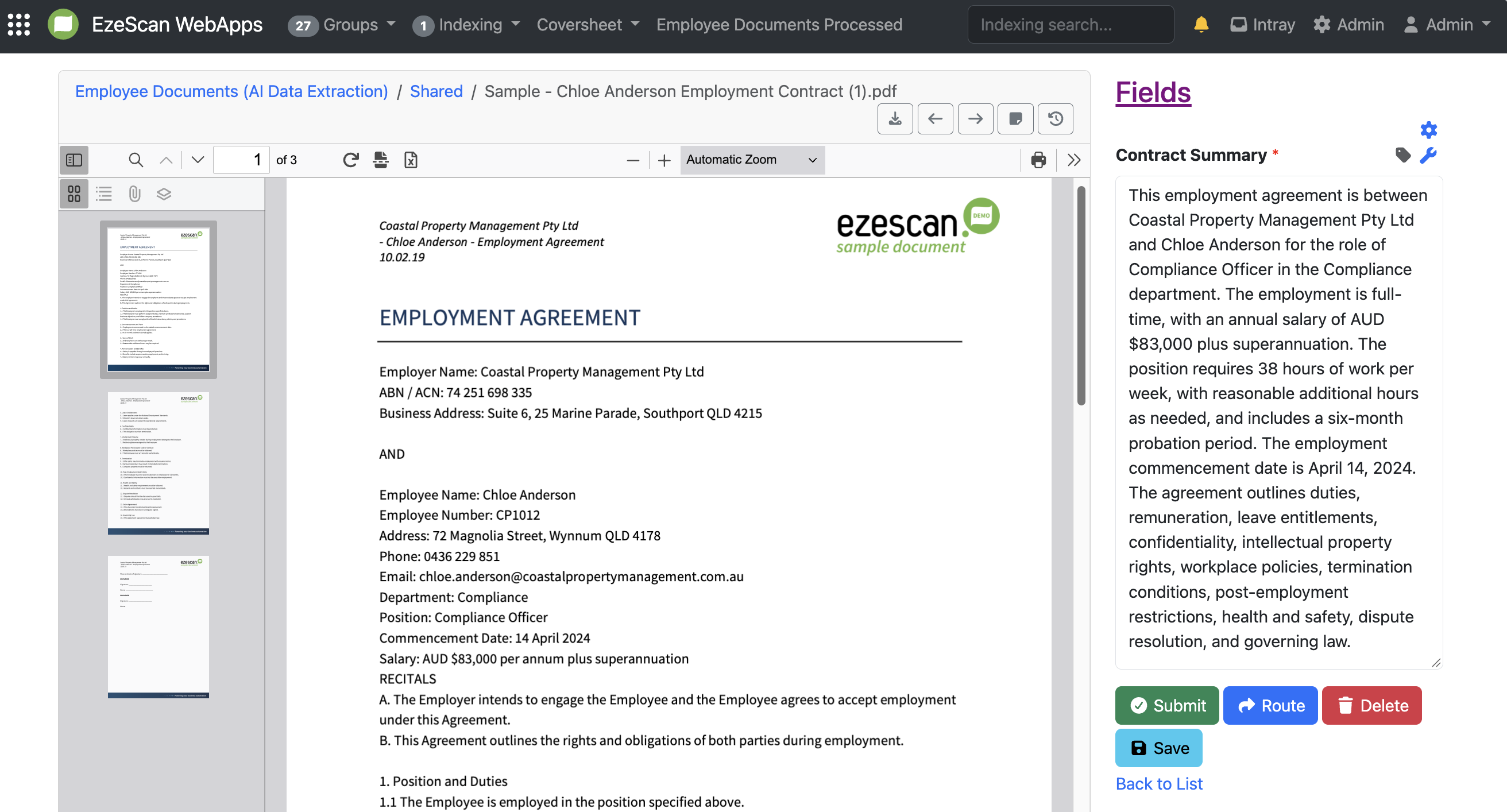
Go to the end-user page and submit a document for indexing. Once processing is complete, the AI-generated summary will be displayed in the ai-response field.
Returning Multiple Results
The Azure OpenAI engine can also return multiple values that can be mapped directly to metadata fields by returning the response in JSON format.
-
Find the Parse response as JSON toggle and turn it on.

-
Modify the instructions to specify the information you want the model to extract and how it should be mapped to your metadata fields.
In the following example, we are now asking the engine to find certain information within the contract and return them as seperate results that we can map to fields we are going to create.
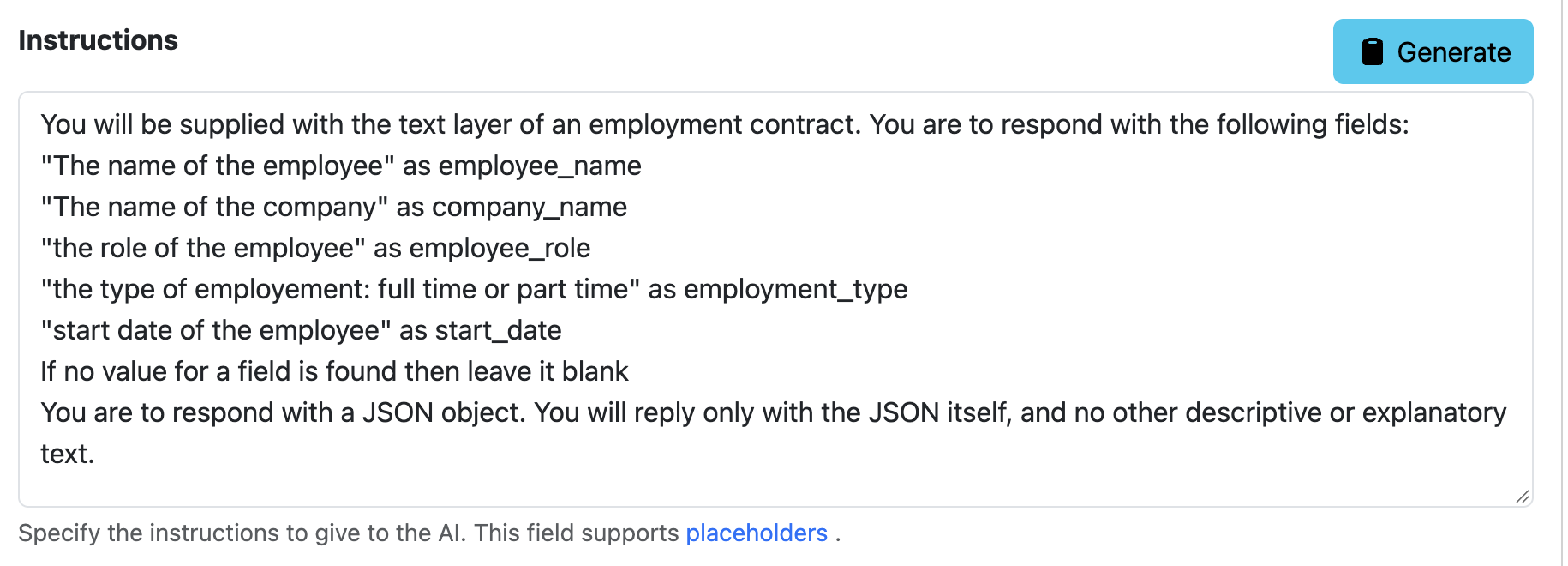
Not sure how JSON works? Here is the base structure of how you can ask the AI engine in JSON. It is recommended you keep the text in black and only modify that in red.
You will be supplied with the text layer of a complaint letter. You are to respond with the following fields:
"Type of complaint in 5 words" as complaint_type
"Person who submitted the complaint" as raised_by
If no value for a field is found then leave it blank
You are to respond with a JSON object. You will reply only with the JSON itself, and no other descriptive or explanatory text.
-
Go to the Fields tab and create fields with IDs that match the field names specified in your prompt. Save the page configuration.
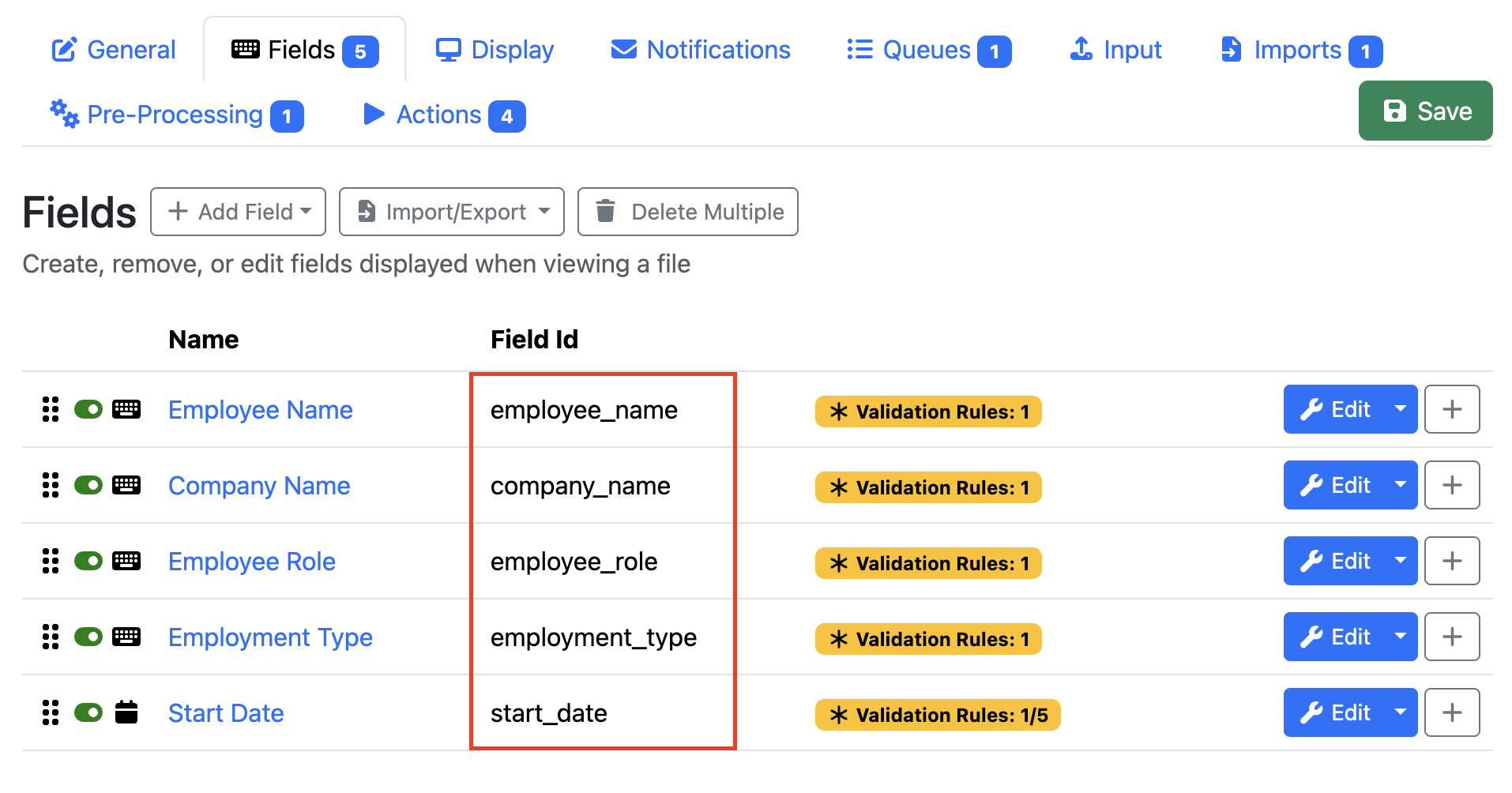
-
Navigate to the end-user page and submit a document for indexing. The model will populate the corresponding metadata fields with the extracted information.
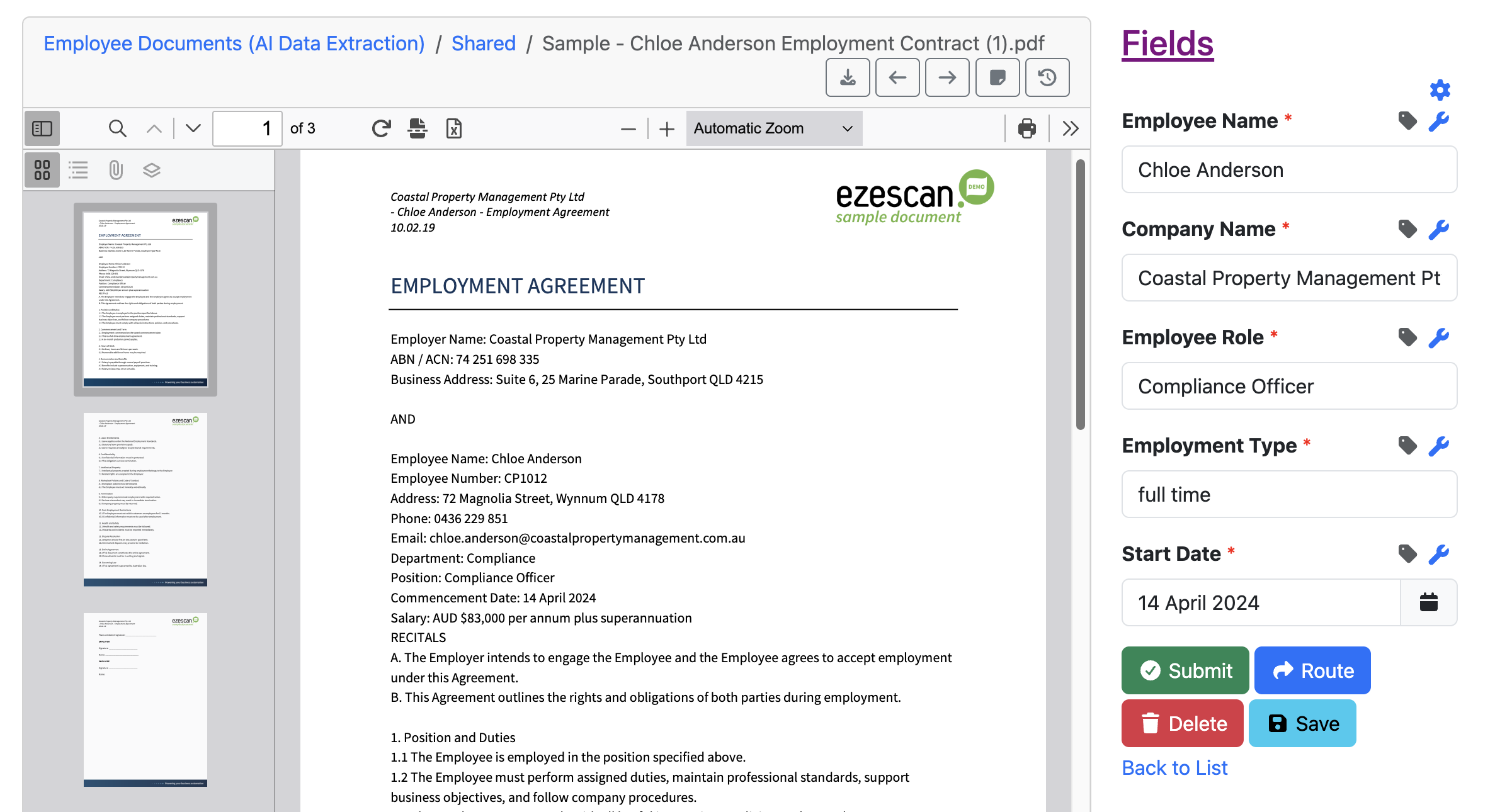
-
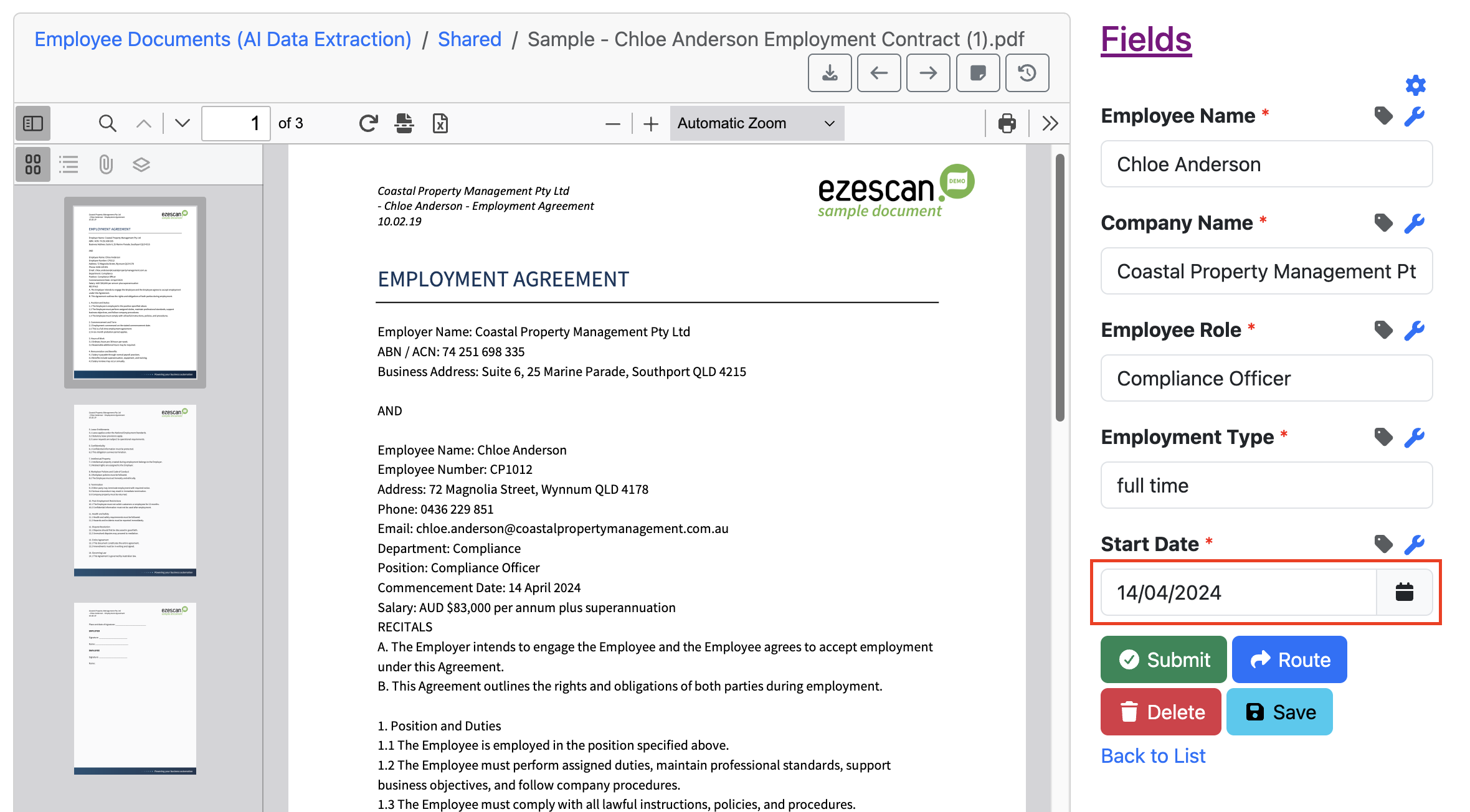
Notice that values are returned in the format they appear in the original document. For example, a date may be returned using the same format found in the source document. To standardise returned values, update the instructions to specify the required format. For example, you can instruct the model to return dates in a specific format such as dd/mm/yyyy.
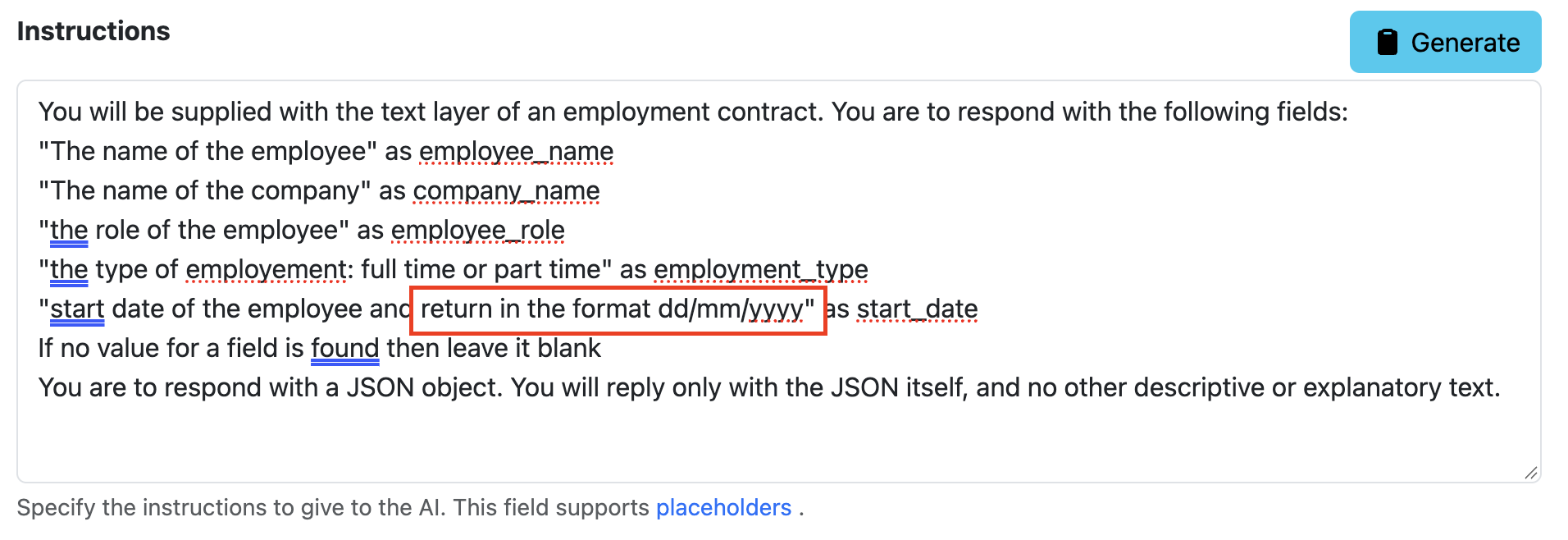
-
Reprocess the document. The returned values will now follow the format specified in your instructions.
6. Some Helpful Tips For Using AI Data Extraction
Using a Custom text field (text box or text area) when capturing values from AI Models
When creating a new field that will be populated from AI (especially OpenAI), consider just using a Custom text field (text box or text area)
-
-
By using a custom field, instead of a numeric field you will find that the OCR data found by the AI process such as an ABN number (e.g. 23 101 456 898) will be displayed in the field, without first having to remove spaces from it.
-
By using a custom field, instead of a numeric field you find that the OCR data found by the AI process such as Invoice Total (e.g. $1,634.31) will be displayed in the field, without having to remove comma’s from it.
-
By using a custom field, instead of a date field you find that the OCR data found by the AI process such as Invoice Date (e.g.24th September, 2024) will be displayed in the field, without having to first convert the date into a DD/MM/YYYY.
-
This also helps to improve the usability of Find Value in viewer on focus option, available on the field Values tab.
-

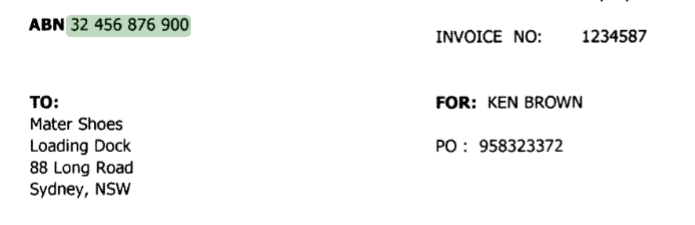
When enabled at the field level, if you click in the field of the RIA page indexing panel, the corresponding area of the image where the AI found the data will be highlighted in green as shown below.

The viewer displays this green highlighting over the image where the data is located.
Make use of an update Metadata stage to clean up data returned form the AI Models
-
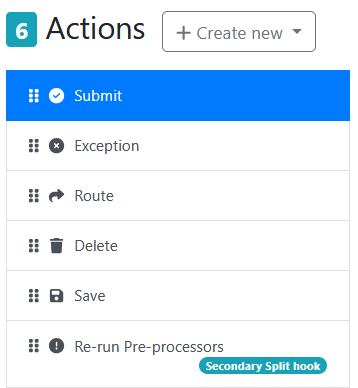
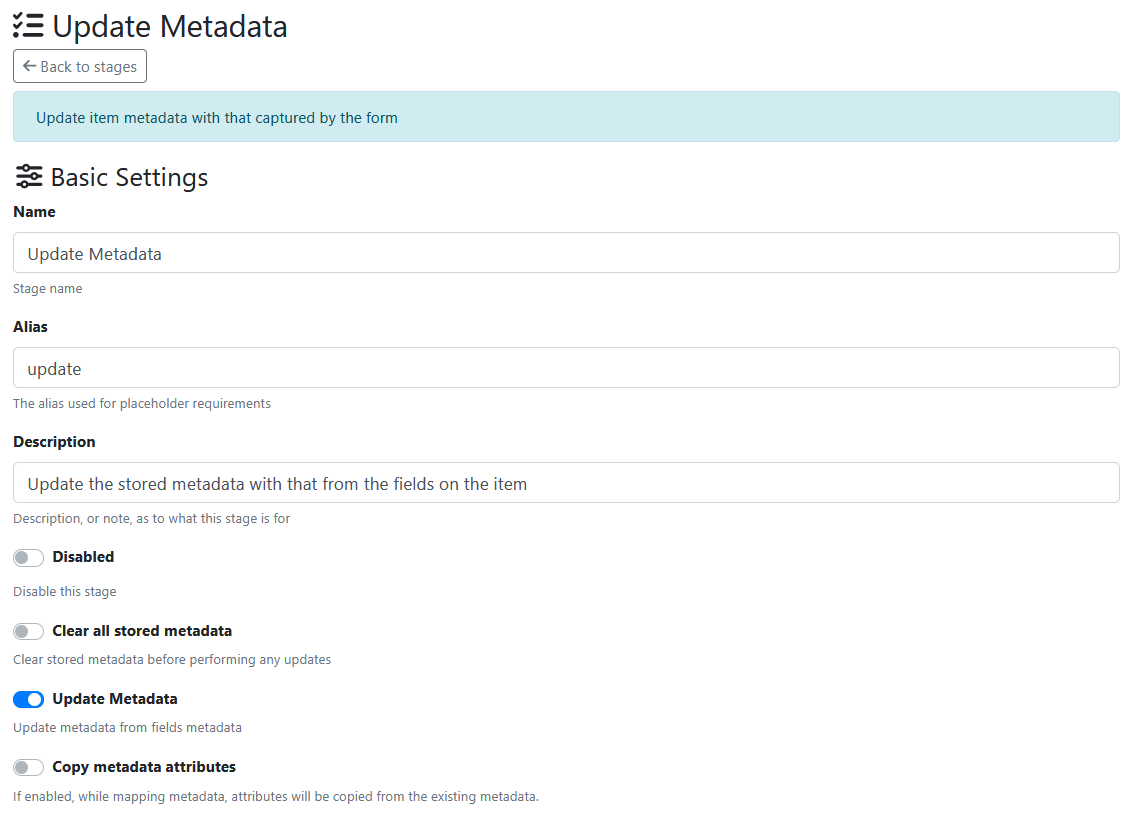
When using custom fields for AI data, you may need to use an Update Metadata stage to clean up the data (e.g. remove spaces, remove comma’s, convert date to a specific format) when the data is being written out during the Submit button action.
For example below, it shows the Mapping Values needed to:
-
remove all spaces from abn_number field output
-
convert long spaces to short spaces in supplier_name field output
-
remove all spaces from invoice_amount field output
-
replace comma with nothing in gst_amount field output
-
replace comma with nothing in invoice_total field output
-
format a variable date string in dd/mm/yyyy format
Here is some of the mappings that were used to help clean up the data as it was output.
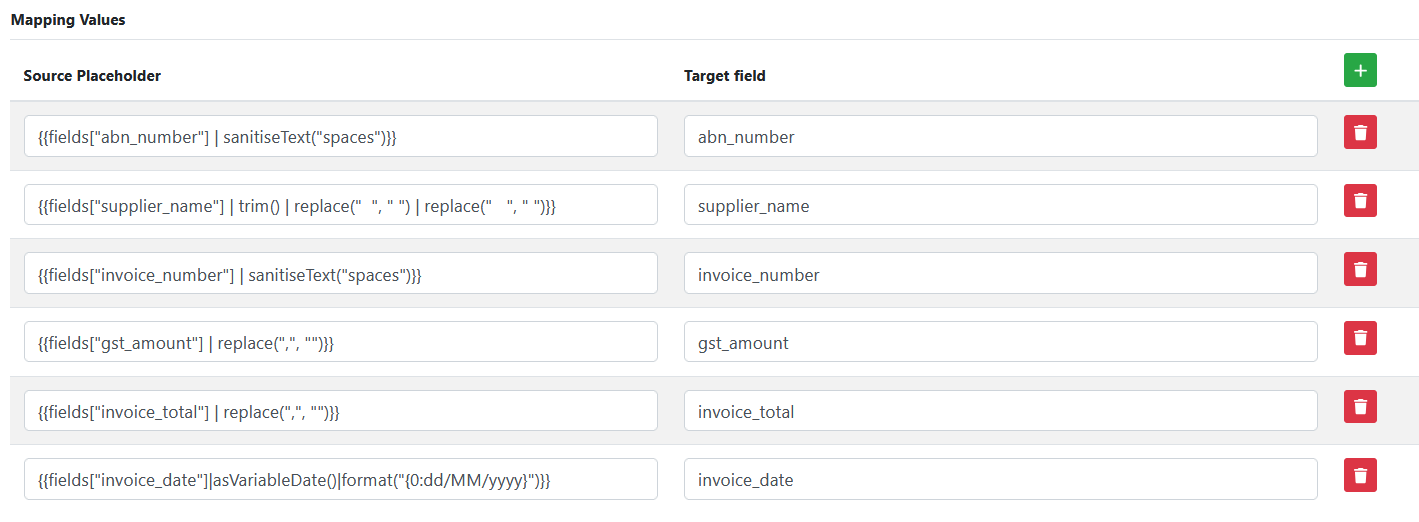
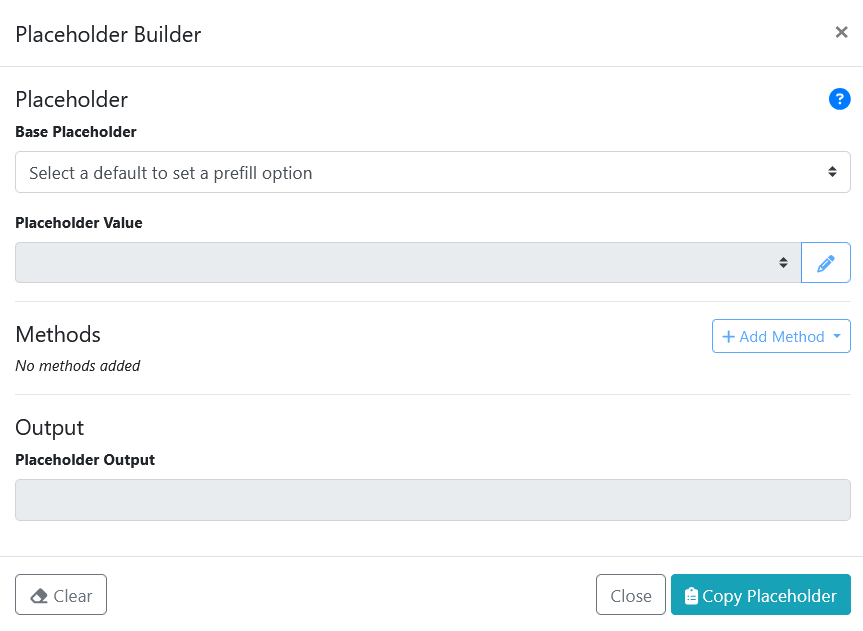
These source placeholders were built using the Placeholder Creator tool. Each placeholder value created in the tool was cut and pasted into the applicable source placeholder cell. The tool is visible when using the Admin panel in WebApps.

The Placeholder Builder form is shown below.