
Document Intelligence uses models to read data from documents.
There are 2 types of models supported in Document Intelligence on Microsoft Azure:
-
Default inbuilt models (e.g. ‘General Document’ and ‘Invoice’). These were pre-trained by Microsoft using large datasets. Work well in many cases, but you have then 'as is; because no retraining/modification to the base model is allowed by Microsoft.
-
Custom models. Built by the user using Microsoft Model building and training tools. Can be used to build custom solutions not supported by Default models. May require constant retraining/update if too small a dataset is used when training the model.
Basically both model types are trained to find key value pairs of data.
Hint: This discussion will focus on using built-in models only.
A Key value pair consists of 2 strings. The first string is the label or name of the data field. The second string is the actual data value. For example:
Label Value
Invoice Number: 100001
Date: 22/10/2024
Price: $100.00
A simplified way to look at how Key Value pairs work is that the software has been trained to look for some label text and then find the value that is written to the right of it or below it.
Thus for the data laid out on the document as
Invoice Number: 100001
Depending on the model being used the Key value pair would be output as
Kvp.InvoiceNumber, 100001 or as afr.InvoiceNumber, 100001
(Note: KVP names never include spaces in them)
Configuring a RIA page to extract data from Document Intelligence Key Value Pairs.
Create A RIA Page
-
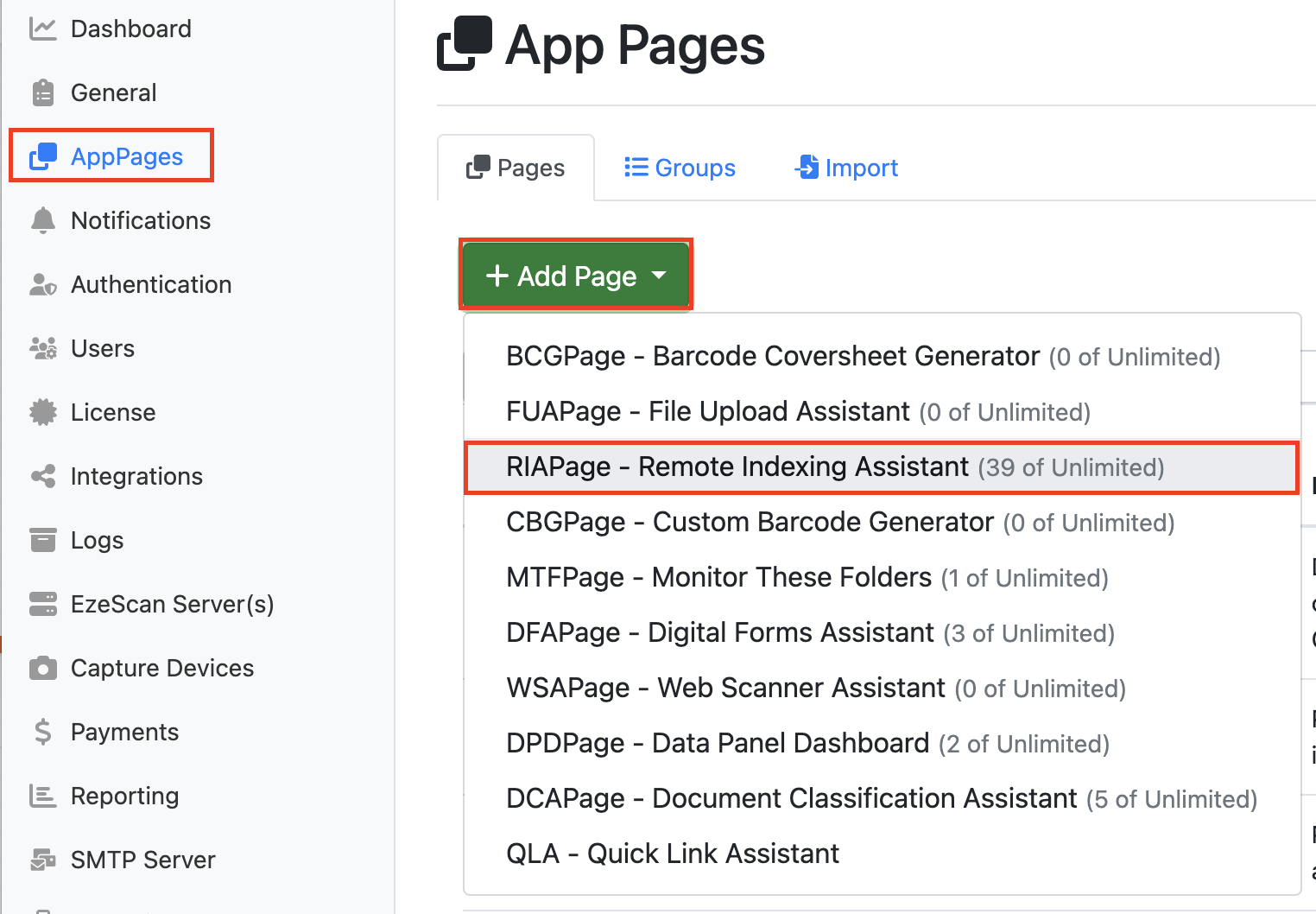
Create a new RIA Page. Go to the App Page tab on the Admin Menu, Pages Tab, + Add Page and select RIAPage - Remote indexing Assistant from the drop-down menu.
-
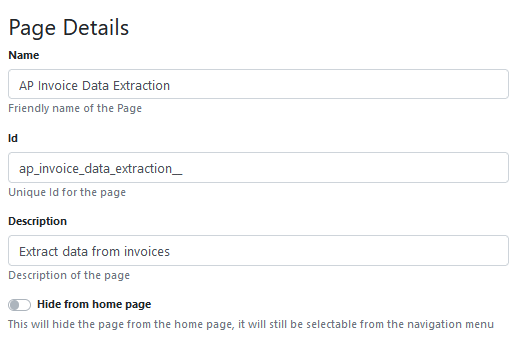
Give your RIA page a Name and Description.
-
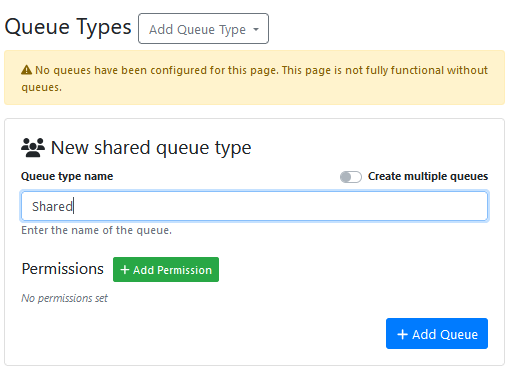
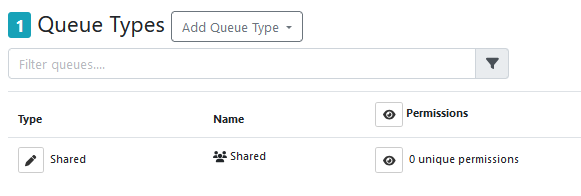
Create a Queue, and assign it
-
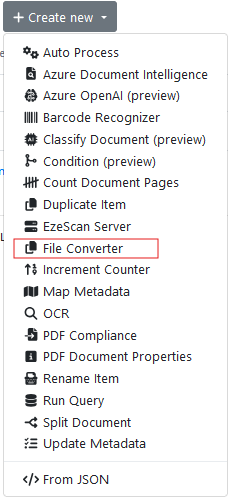
Go to the Pre-Processing Tab, Select + Create New and select File Converter from the drop down.
(Note: This file converter will be used to help to convert input documents that aren’t in PDF format to PDF format)
Name it as ‘File Converter’
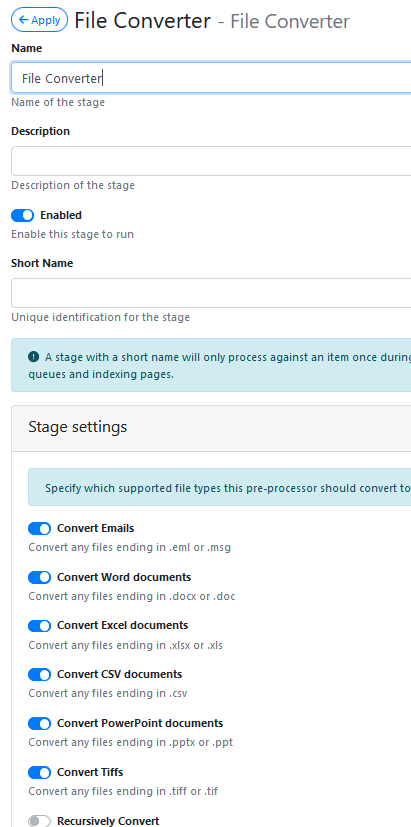
Apply and Save the changes.
-
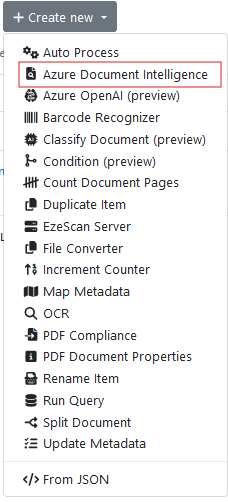
Go to the Pre-Processing Tab, Select + Create New and select Azure Document Intelligence from the drop down.
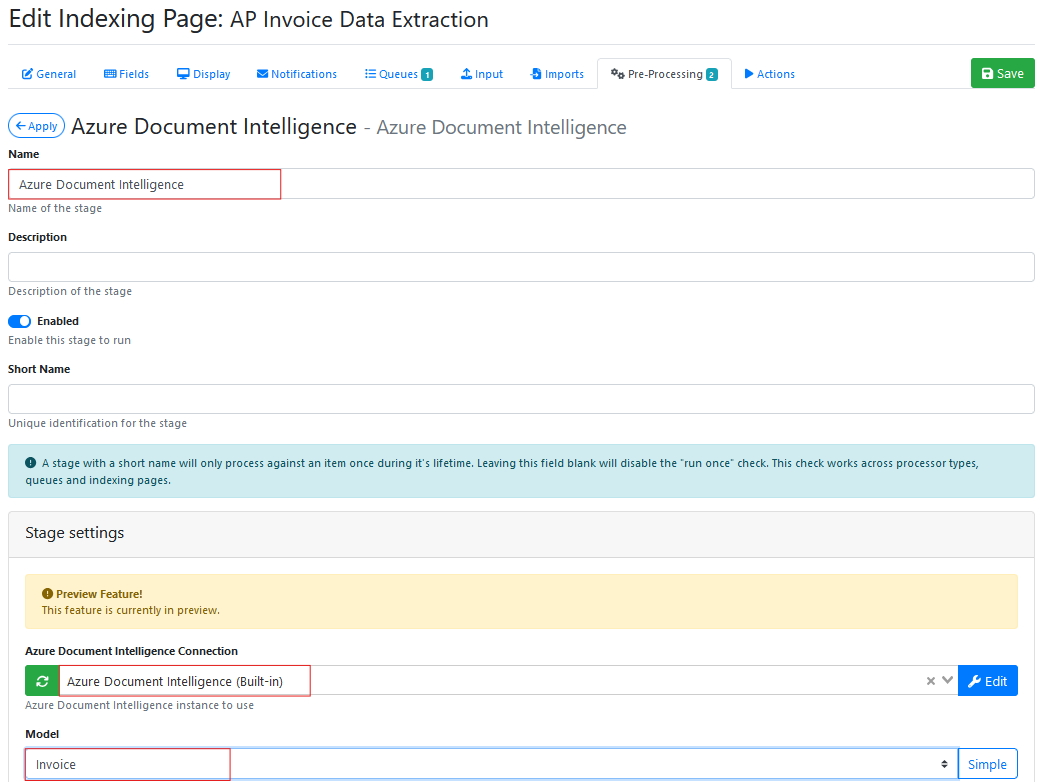
Name it as Azure Document Intelligence.
Select Azure Document Intelligence (Built-in) from the Azure Document Intelligence Connection drop down list.
Select ‘Invoice from the model type drop down list.
Scroll down further and tick ‘Key Value Pairs’
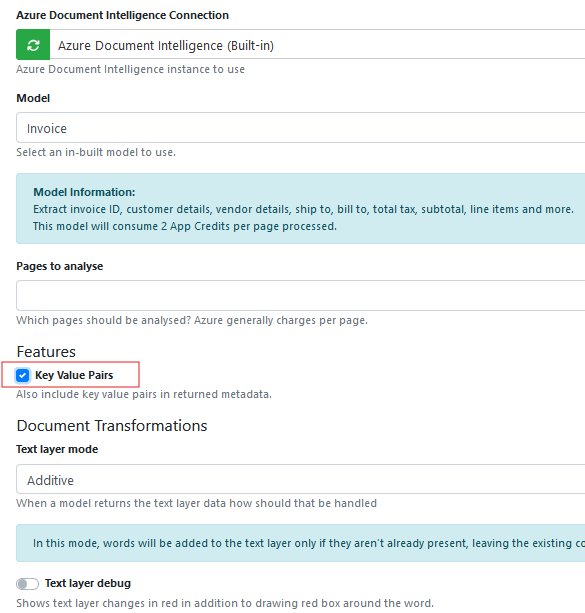
Apply and Save the changes.
-
Go to the Pre-Processing Tab, Select + Create New and select Map MetaData from the drop down.
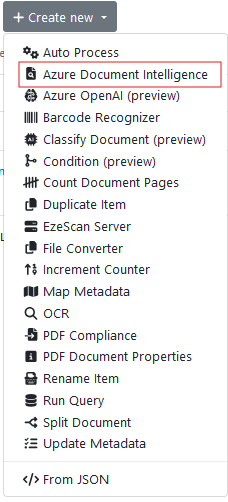
Name it as Map KVP Metadata
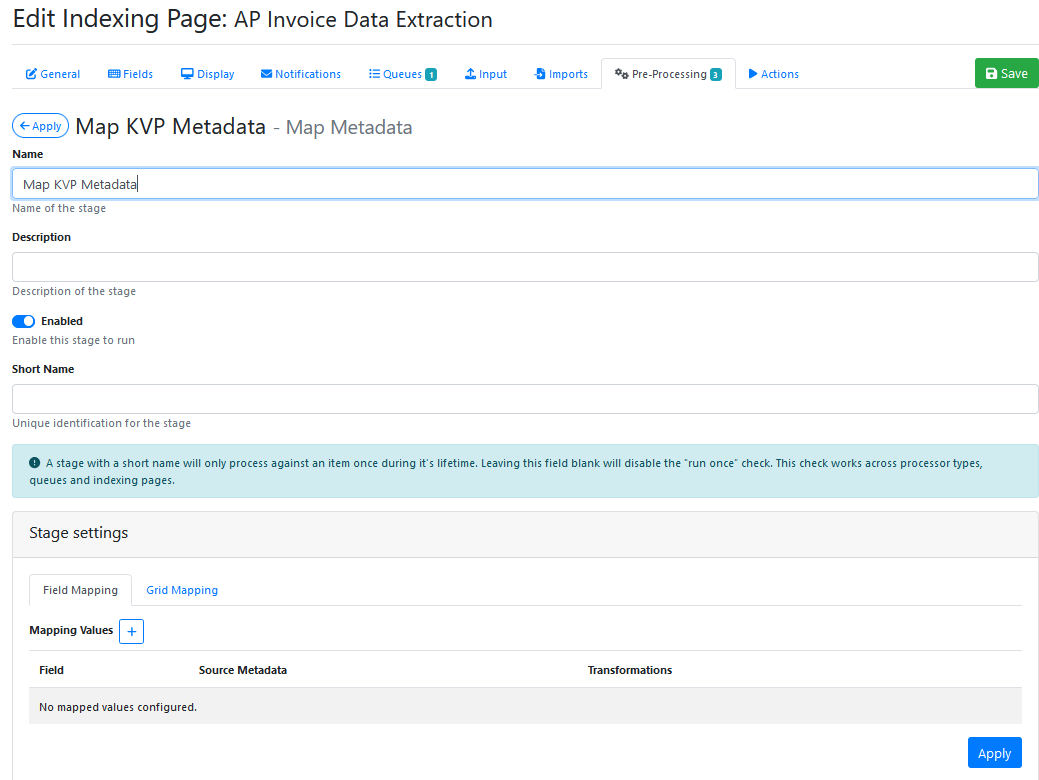
Apply and Save the changes you have made (even though no mappings were added at this time).
Note: Its not possible to map the actual Key Value Pairs yet, because you don’t know what names the Azure Document Intelligence (Built-in) Invoice model is going to generate.
When the first invoice is submitted to the RIA page and the Azure Document Intelligence pre-processor is run, look on the item history form, metadata tab it will display all of KVP name,value pairs returned by the model.
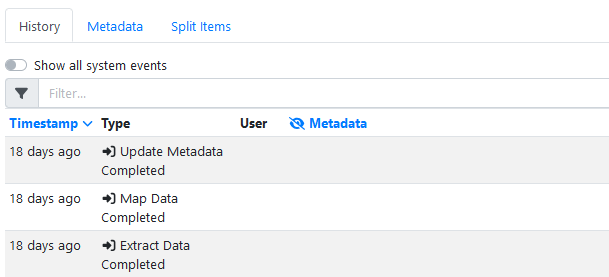
Click on the Metadata tab. The key value pairs and grid items are displayed. This can be a long list, so remember to scroll down to see more.
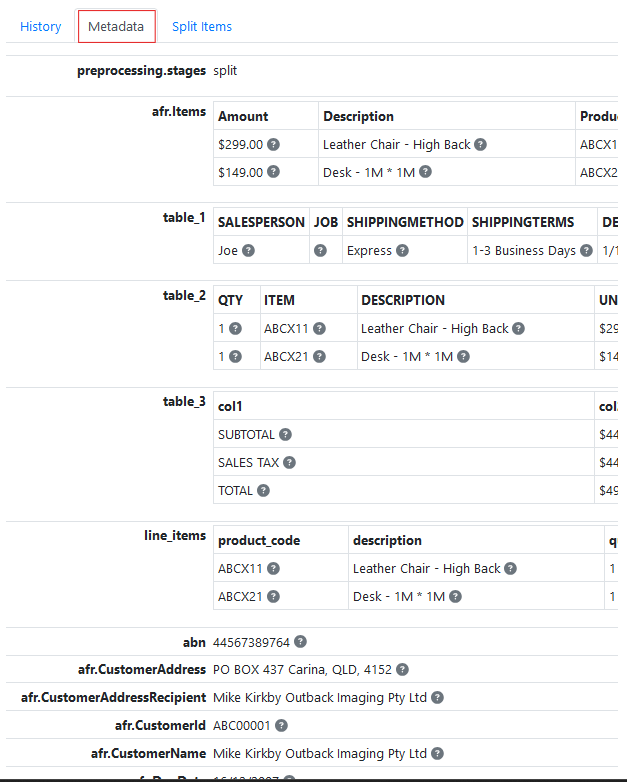
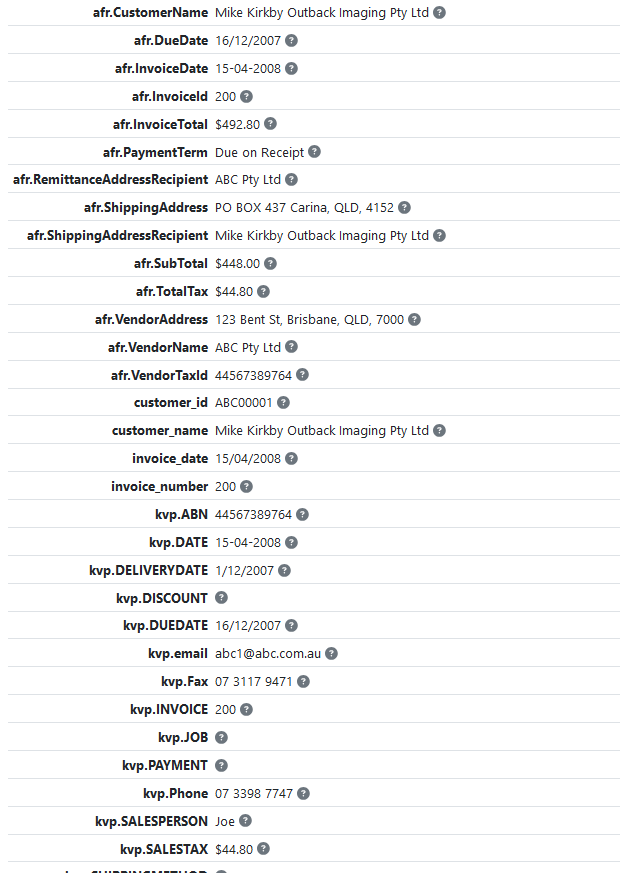
Find the KVP values that you want to display in the RIA Page fields.
Let's use these 2 results to show how this is done.
afr.InvoiceId 200
afr.InvoiceDate 15/04/2008
-
Edit the RIA App page and create 2 fields.
Invoice Date
Invoice Number
Hint: Write these field names down, so you can recall them for use in the next step.
Apply and Save the field edits that you made.
-
Edit Map KVP Metadata pre-processor that you created earlier.
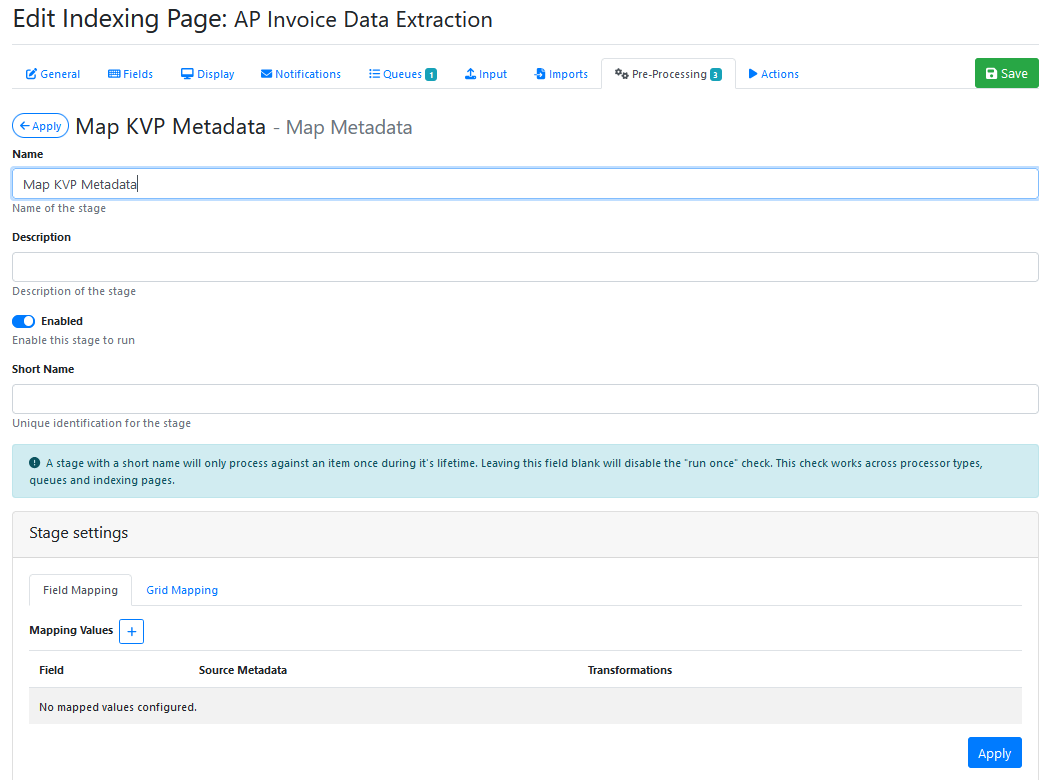
On the Field Mapping tab , press the Mapping Values + button, to add new mapped values.
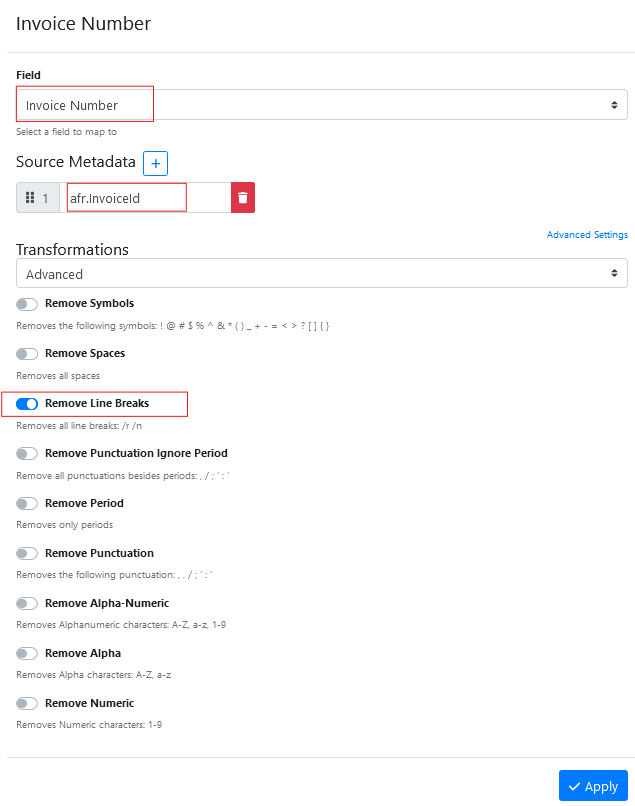
Select the field named ‘Invoice Number’ from the list.
Insert the text afr.InvoiceId into #1 mapping box (hint: it is case sensitive so make sure you type it exactly as it was displayed on the item history metadata tab)
Enable any transformations that you want to apply to the KVP data as it is read into the field.
Press Apply to save the new field mapping.
Repeat this step again for the Invoice Date field.
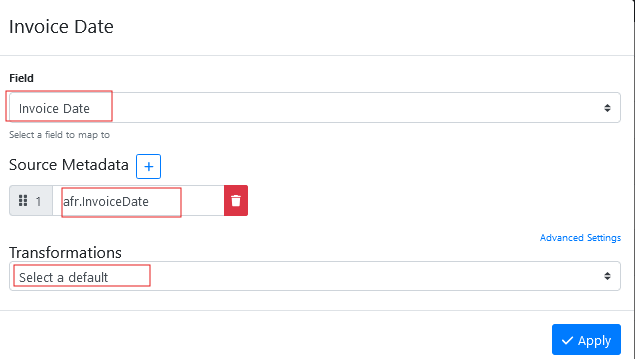
Select the field named ‘Invoice Date’ from the list.
Insert the text afr.InvoiceDate into #1 mapping box (hint: it is case sensitive so make sure you type it exactly as it was displayed on the item history metadata tab)
Enable the transformations that you wan to apply to the KVP data as it is read into the field.
Press Apply to save the new field mapping.
Repeat these steps for all the the invoice field data that you want to map across into other app page fields.
-
Once you’ve added your app page fields, added the File Converter pre-processor, added the Azure Document Intelligence Invoice Model pre-processor, added the Map KVP Metadata pre-processor and mapped the KVP pairs, you should drag and drop one of your sample invoices onto the app page.
-
All going well, the Azure Document Intelligence pre-processor should OCR the pages and create KVP data from the OCR data. The Map KVP Metadata pre-processor should map the KVP data into the relevant fields on the RIA page. The OCR data should automatically populate the app page fields.
-
Troubleshooting. If no data is displayed , check each of the pre-processor logs for the presence of any errors and check that the Item History Metadata tab to make sure the KVP is being generated, and then double check you didn’t make a typo in the Map Metadata screens for each mapping that you set up. Repeat the process of resolving each error and retesting until it works.