
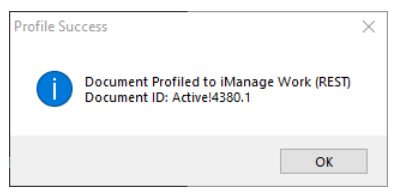
For many of the EzeScan integration solutions, EzeScan can display a prompt to the operator after a document is saved. This prompt will display the document id of the saved document.
The image below shows one examples of these messages.
Step-by-step guide
-
Click the Admin menu and choose Jobs.
-
Select the respective Job from the dropdown list.
-
Click the Output tab.
-
Click the Options button.
-
Click the Messages tab.
To enable displaying the Document ID after saving a document into an EDRMS, tick the Display EDRMS record number message box.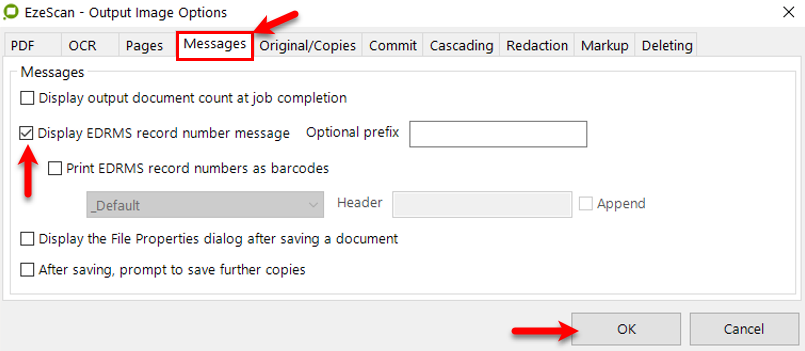
-
Click OK.
-
Click Save.
-
Click Close.
-
Rerun the JOB+KFI+UPLOAD to save another document into the backend system (i.e. and EDRMS or another supported system)
-
Confirm that the DocumentID modal is being displayed.