
Purpose
Endpoint Requests allow EzeScan to query, submit, or upload data to a web service or REST endpoint from within EzeScan workflows.
Use Endpoint Requests when you need EzeScan to communicate with another system, for example:
-
Querying a REST API to look up information during indexing.
-
Returning a value to a KFI field.
-
Extracting multiple named values for later placeholder use.
-
Uploading JSON or XML metadata and a document file to another system during Upload.
-
Calling internal or external APIs that require Basic authentication, OAuth, API keys, or custom headers.
Requirements
Most end points require Authentication of some kind or another. You must have been given the necessary authentication credentials to be able to successfully access the EndPoint.
Configuration
Endpoint Requests are configured separately from the Connection Profile that defines the target service Base URL and authentication settings. This allows multiple requests to reuse the same connection details.
Once an Endpoint has been created the Endpoint Request form provides various tabs to configure the Endpoint for use.
Detailed Information on how to create and manage the configuration of an Endpoint request is available in the online documentation here:
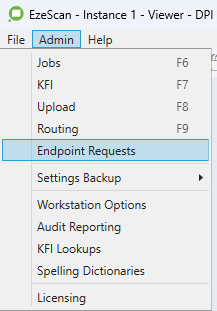
Configuring an Upload to use an Endpoint Request
When adding an Endpoint Request as a Upload destination to an UPLOAD it is added here:

Building the JSON payload
When configuring an Upload that is using an EndPoint Request connector, the UPLOAD form panel that you would normally use to maps the KFI fields to Target Fields in the connected system is not used.
Instead the payload is constructed using the JSON tab on the EndPoint Request form.
Press the Manage Button to launch the Endpoint Request Manager form.

This form is displayed.
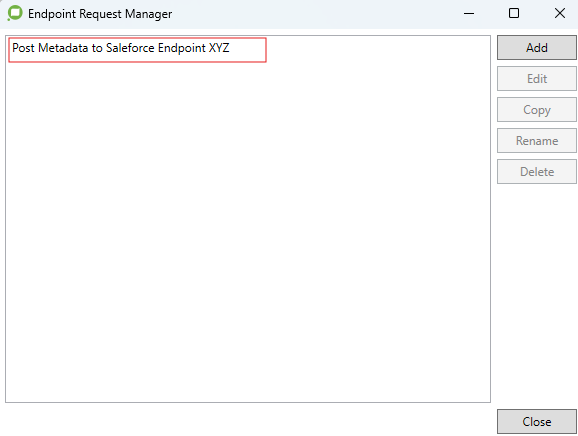
Select the endpoint in the list and press the Edit button.
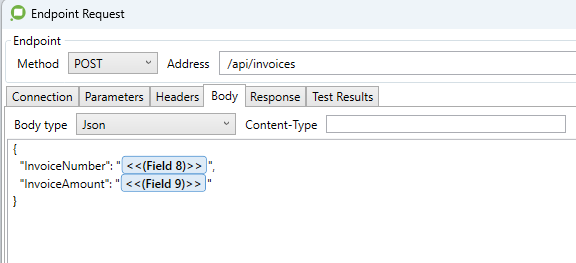
In the JSON body shown above, there are 2 lines in the payload.
The first line passes the KFI field data represented by the <<(Field 8)>> placeholder as a JSON object called InvoiceNumber.
The second line passes the KFI field data represented by the <<(Field 9)>> placeholder as a JSON object called InvoiceAmount.
When you are typing the JSON body values, there is a placeholder form that you can launch by typing << and waiting for the Placeholder form to display.
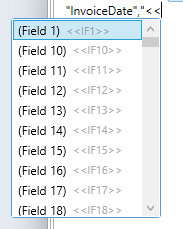
This list shows the short form of the placeholder names. That is because the Upload property below has not been mapped to derive the column names from a KFI.

If the Upload has been set to map the column names from a KFI, the list will contain the long user friendly names of the placeholders.
When the Upload runs, the Endpoint request connector substitutes all placeholder strings in the JSON payload.
For example:
<<[IF8]>>) is replaced with the actual the KFI field data value for invoice number (e.g. INV125764)
<<[IF9]>>) is replaced with the actual the KFI field data value for invoice amount (e.g. 100.00)