Integration find fields allow browsing, and searching of a connected EIS instance, as long as the integration provider supports Searching, Browsing, or both
General Configuration
This field requires setting up to a configured integration. This is selectable list of integrations.
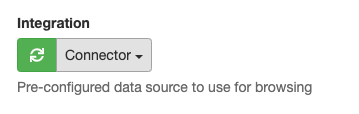
When selected, the available options for Integration Find field will be loaded.
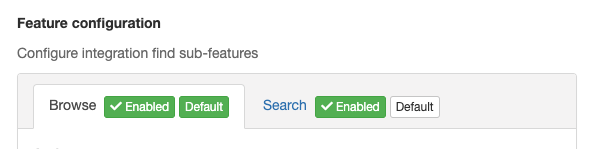
Find fields consist of two main functions; Search, and Browse. These can be disabled, and enabled, as well as configuring which display will appear by default when the user opens the search dialogue.
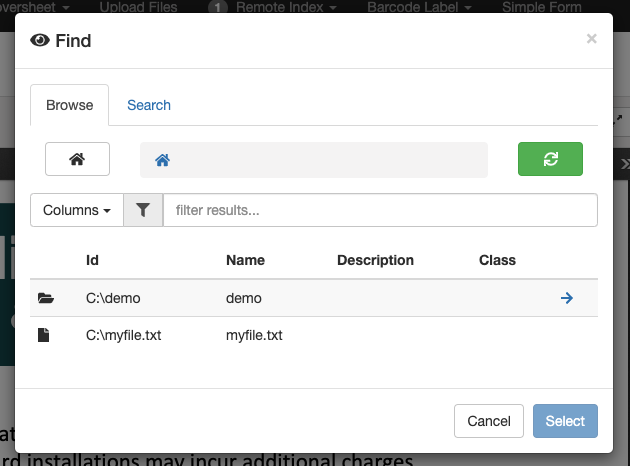
Browse
Browsing allows a record, document or container to be selected using the integrations native structure. This usually follows in the style of a folder structure familiar to most, but may vary based on the integration. It allows selection, navigation, and displaying of properties at the discretion of both configuration, and users.
Settings
(settings in bold are required)
|
Setting Name |
Description |
||||||
|---|---|---|---|---|---|---|---|
|
Action |
The browse action to perform. This is the type of browsing to perform against the integration |
||||||
|
Default container |
The root container that the browse should originate from. This forms the top of the tree structure, and when blank will return the default structure of the integration (usually a home direcotry, or the top of the system structure) |
||||||
|
Display Options |
Display options are configurable customisations to how the field dialogue will look to the end user.
|
||||||
|
Integration Settings |
Integration settings vary by the configured integration provider. For more information, refer to integration provider support. |
Value Configuration
Browse records can be represented in multiple ways in submitted metadata. See Value Configuration for more details on how to configure.
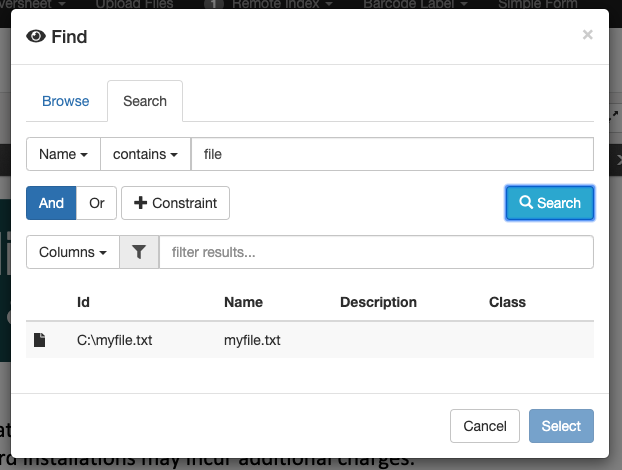
Search
Searching allows known record keywords, titles, or other properties to be queried using a set of conditions. These results often are agnostic of Integration content structure.
Settings
(settings in bold are required)
|
Setting Name |
Description |
||||||||
|---|---|---|---|---|---|---|---|---|---|
|
Action |
The browse action to perform. This is the type of browsing to perform against the integration |
||||||||
|
Display Options |
Display options are configurable customisations to how the field dialogue will look to the end user.
|
||||||||
|
Integration Settings |
Integration settings vary by the configured integration provider. For more information, refer to integration provider support. |
Value Configuration
Search records can be represented in multiple ways in submitted metadata. See Value Configuration for more details on how to configure.
Value Configuration
When complex result operations are required downstream of the field in a configuration, more advanced and detailed result configuration can be used to include broader returned record data.
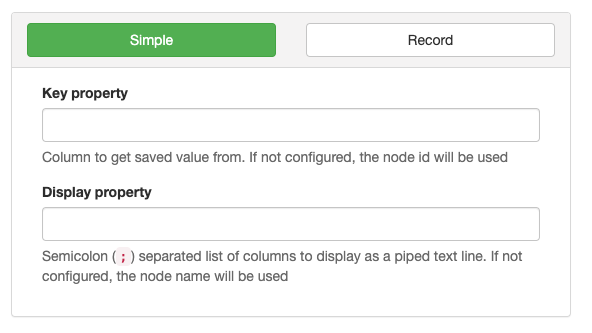
Simple
The simple value configuration returns key/value metadata, where the Key value is used to refer to the exact record, and Display is used to show a more sensical representation to users.
For example, consider the following object selected using the find field;
|
Property |
Value |
|---|---|
|
id |
123ABC |
|
name |
My Record |
|
property |
Some Property |
When the field is configured with;
|
Key |
id |
|
Display |
name;property |
The field will display as;
My Record | Some Property
Record
The record value configuration is used to return all, or a subset of properties using a proprietary key-value syntax used in EzeScan KFI Configurations, or by using pipe-delimited values. When not using All Values, a delimited list of properties is required. See Integration Properties.
Output Format
Output format can either be piped, or in KFI format. When piped, each property value will be recorded in position, with a pipe splitting each value. KFI Format is a special output format where each key and value is recorded in a continuous text value, and can be split using an EzeScan Server, or EzeScan Workstation product.
Integration Properties
Integration properties are key/value pairs of data attributed to each record, and vary with each Integration, and even within each integration depending on the record type.
Take note that property identifiers do not always relate to their display names.
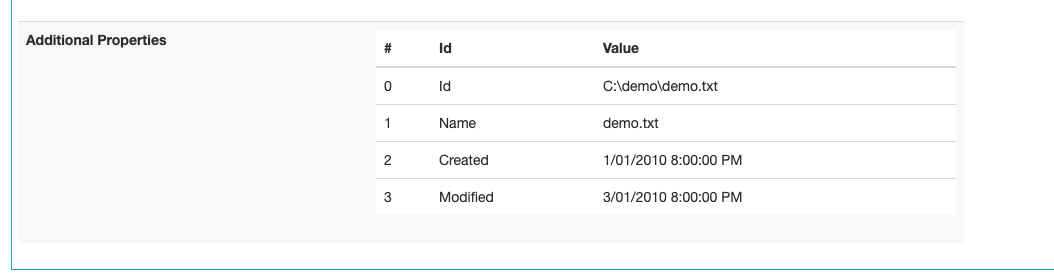
To get property names, use the EIS dashboard installed with your EIS instance. Perform a search/browse to a similar location, and select a sample record.
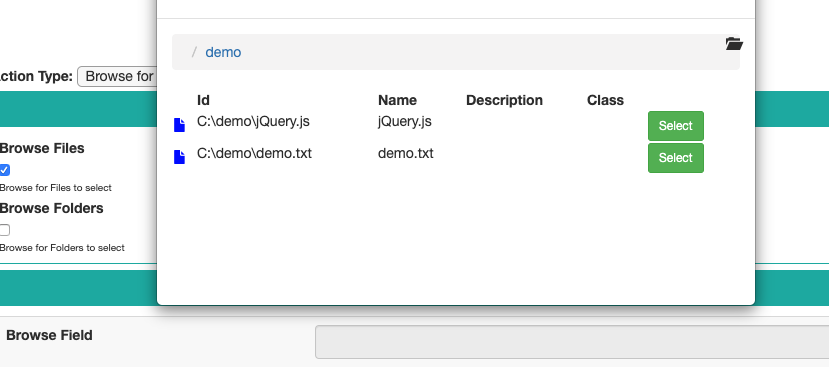
When "Select" is clicked, the full property set of the object is loaded and shown, and can be used in any property configuration. Use the Id column to identify each property required.