Before you start , make sure that the EzeScan Server service is installed and running.
This service interacts with that service.
To access the EzeScan Server Web Service web admin portal you could click on the EWS Admin link

Or copy and paste the base address into a web browser and press the Enter key.
http://localhost:32392
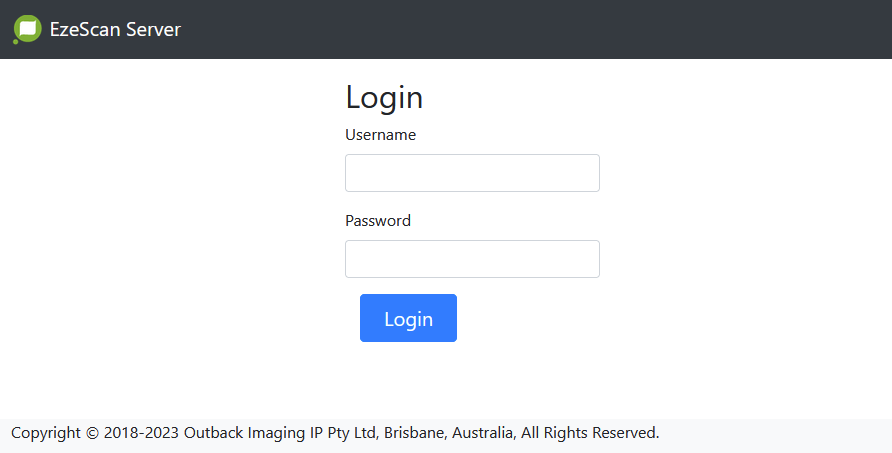
Either way, the following login page should be displayed.
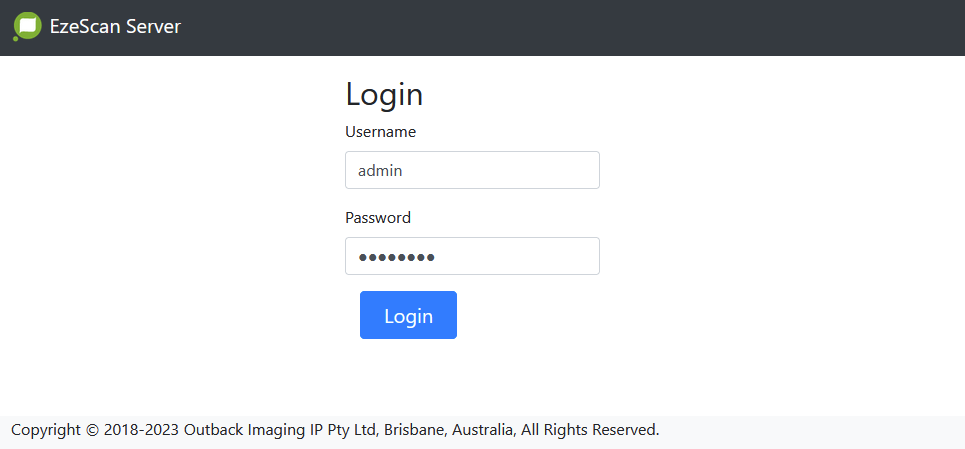
Login as Admin, using the password you set earlier.
The homepage for the web admin portal is displayed.

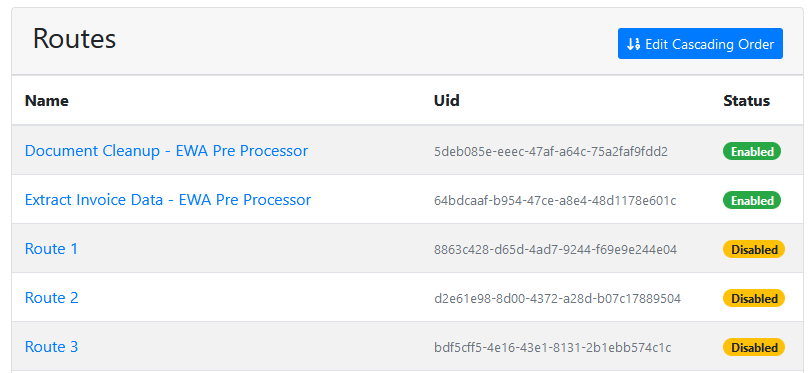
Routes
The Routes tab can be used to Enable/Disable routes , and to edit the Route Cascading order (i.e. the order in which the routes are run)
Connection Profiles
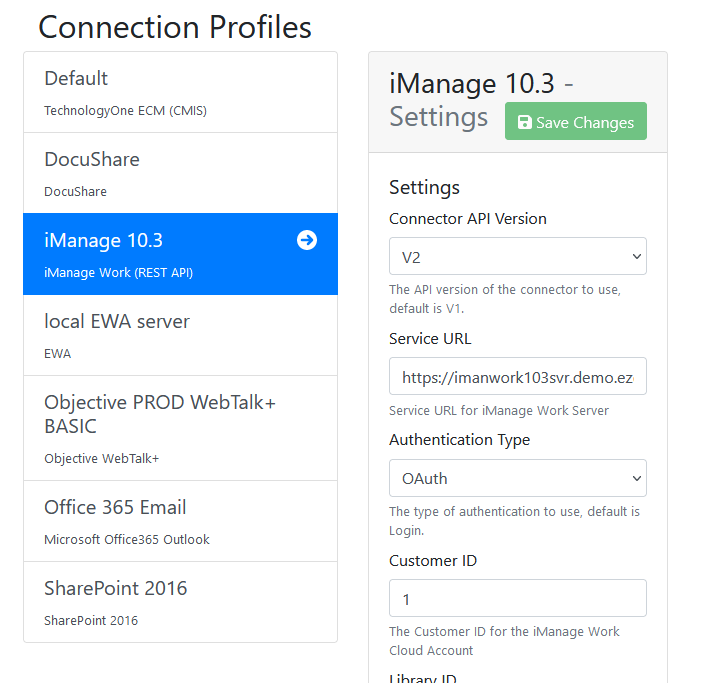
The Connection Profiles tab can be used to manage /existing connection profiles and to update OAuth tokens.
OAuth Tokens
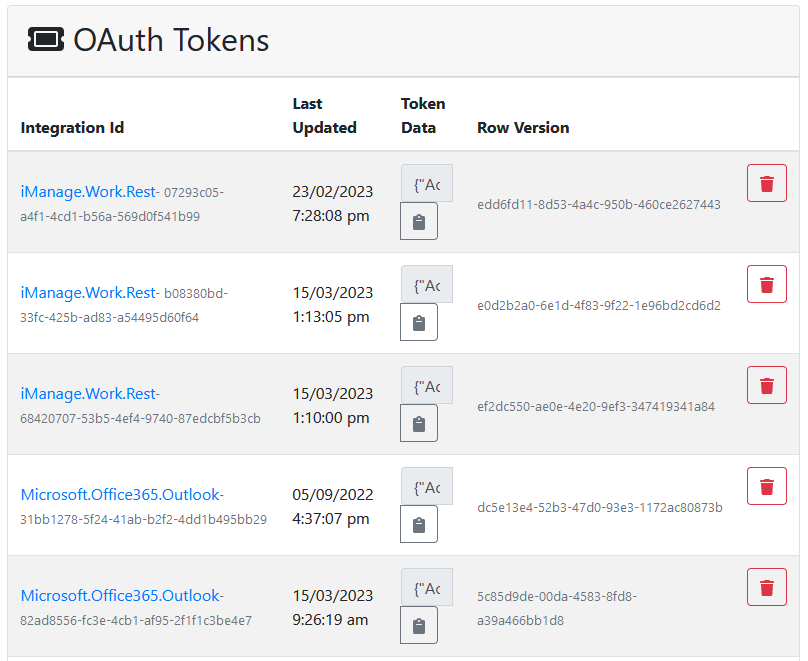
The OAuth Tokens tab can be used to manage existing OAuth tokens
Queues
The Queues tab can be used to manage document queues on EzeScan Server.

Metrics
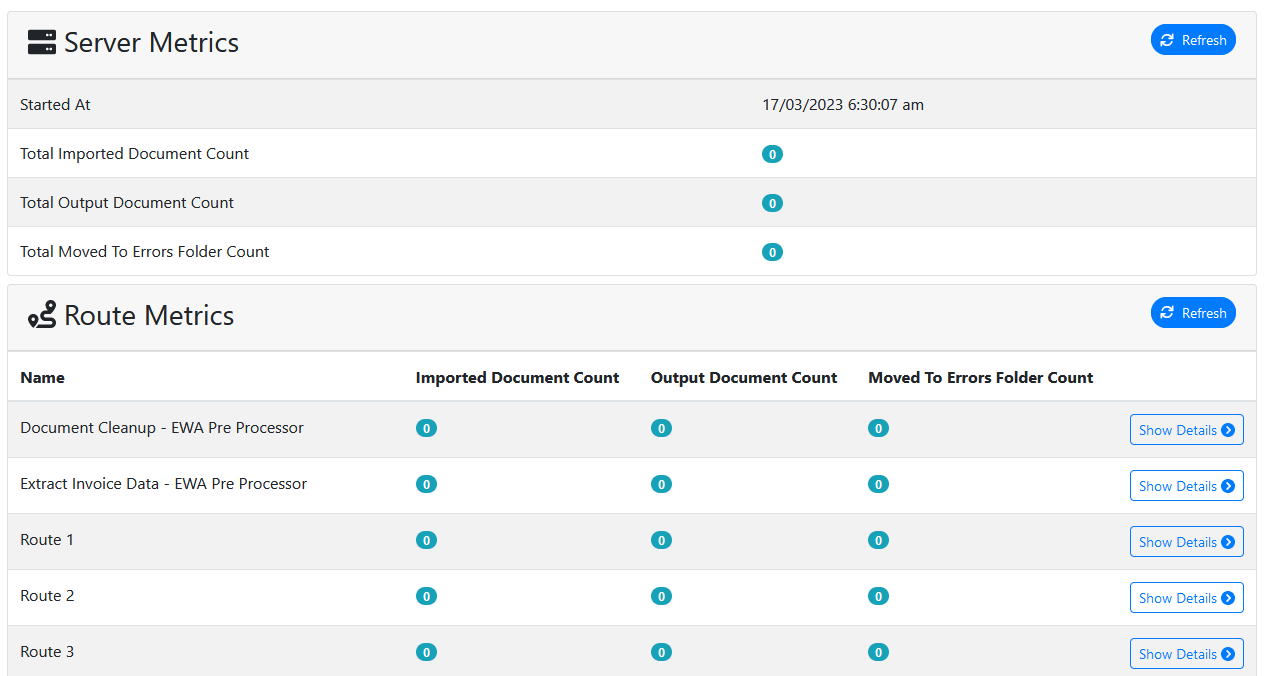
The Metrics tab can be used to view the stats for how many documents EzeScan Server has processed, and the stats for each individual route.
Logs
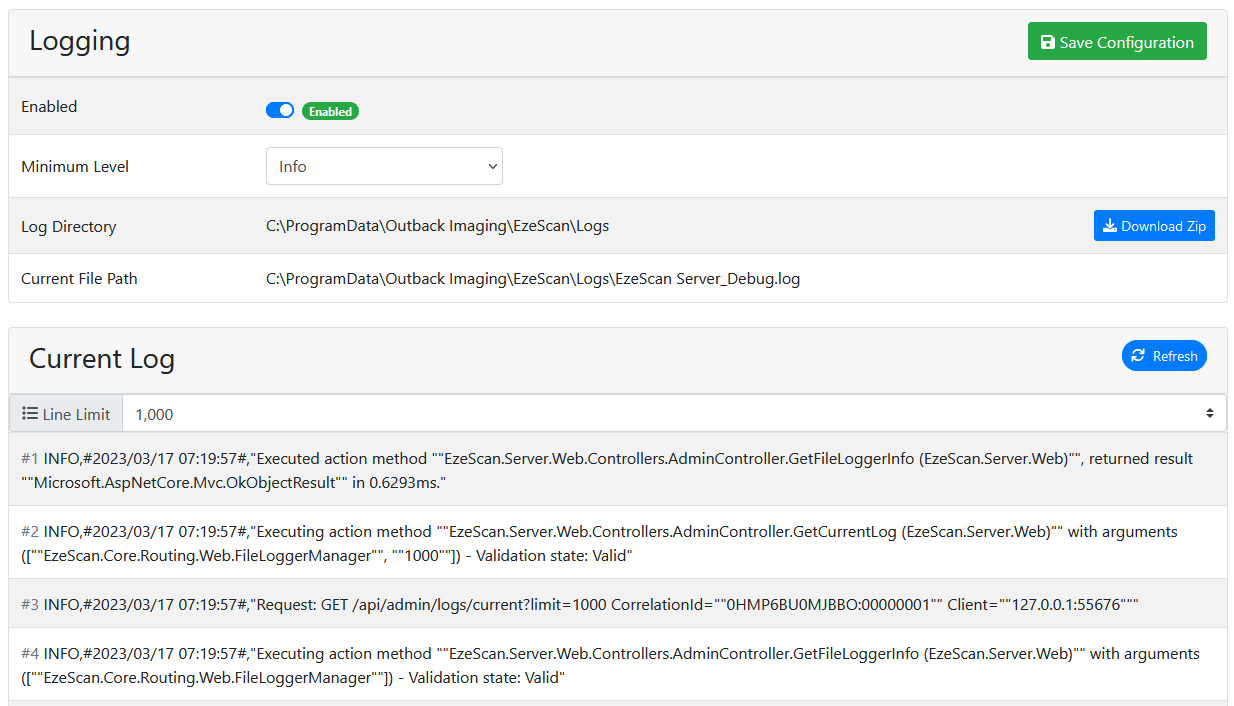
The Logs tab can be used to download EzeScan Server debug logs.
Activity
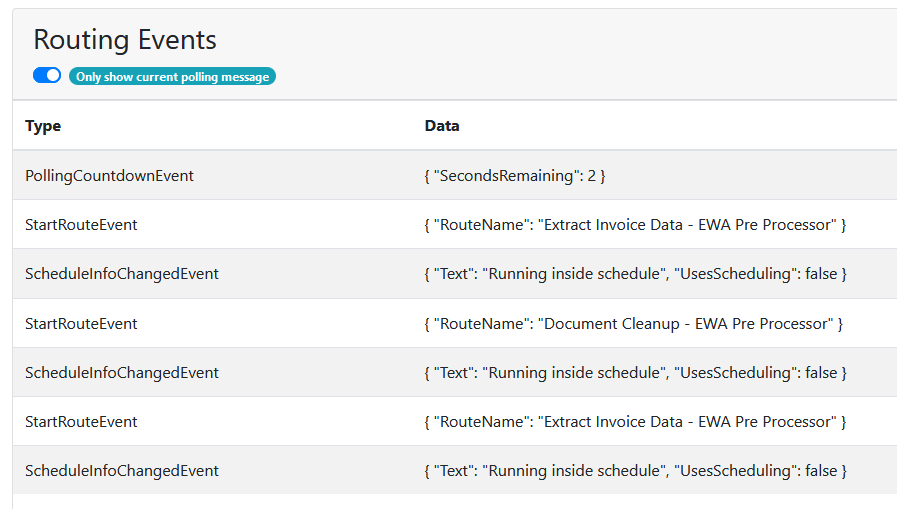
The Activity tab shows information about the currently active route.
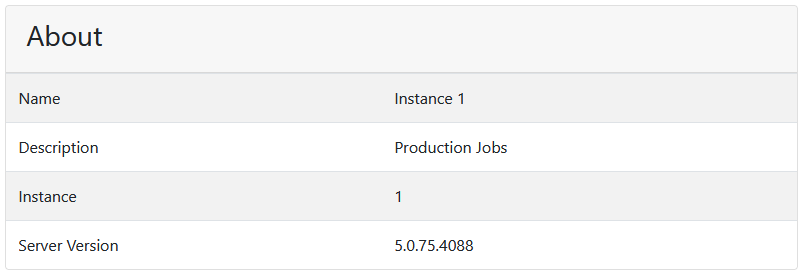
About
The About tab tells you which Instance you are connected to, and what version it is running.